
Deploy Shared Contacts to Every Device in Your Organization
Create address books, organize with labels and custom fields, then push contacts straight to your team's iPhones and Androids — all synced and always up to date.
This walkthrough covers the complete Contactzilla workflow — from initial team setup to having shared contacts appear in your team's native phone contacts app. Whether you're managing a small department or rolling out to hundreds of devices via MDM software, the process is straightforward.
You'll learn how to create your team and address books, import contacts via CSV or vCard, control who can see and edit which address books, organize contacts with labels, group tags, and custom fields, and finally deploy everything to iOS and Android devices. The video demonstrates both manual deployment (using a QR code to install a profile on a single device) and enterprise MDM deployment for large fleets.
By the end, you'll understand exactly how Contactzilla keeps contacts synced and up to date inside each phone's native contacts app — no third-party app required on the device.
Step 1: Create Your Team
The first thing you'll do in Contactzilla is create a Team. A team represents your entire organization or a specific department within it. This is the top-level container that holds all your address books, contacts, and team members.
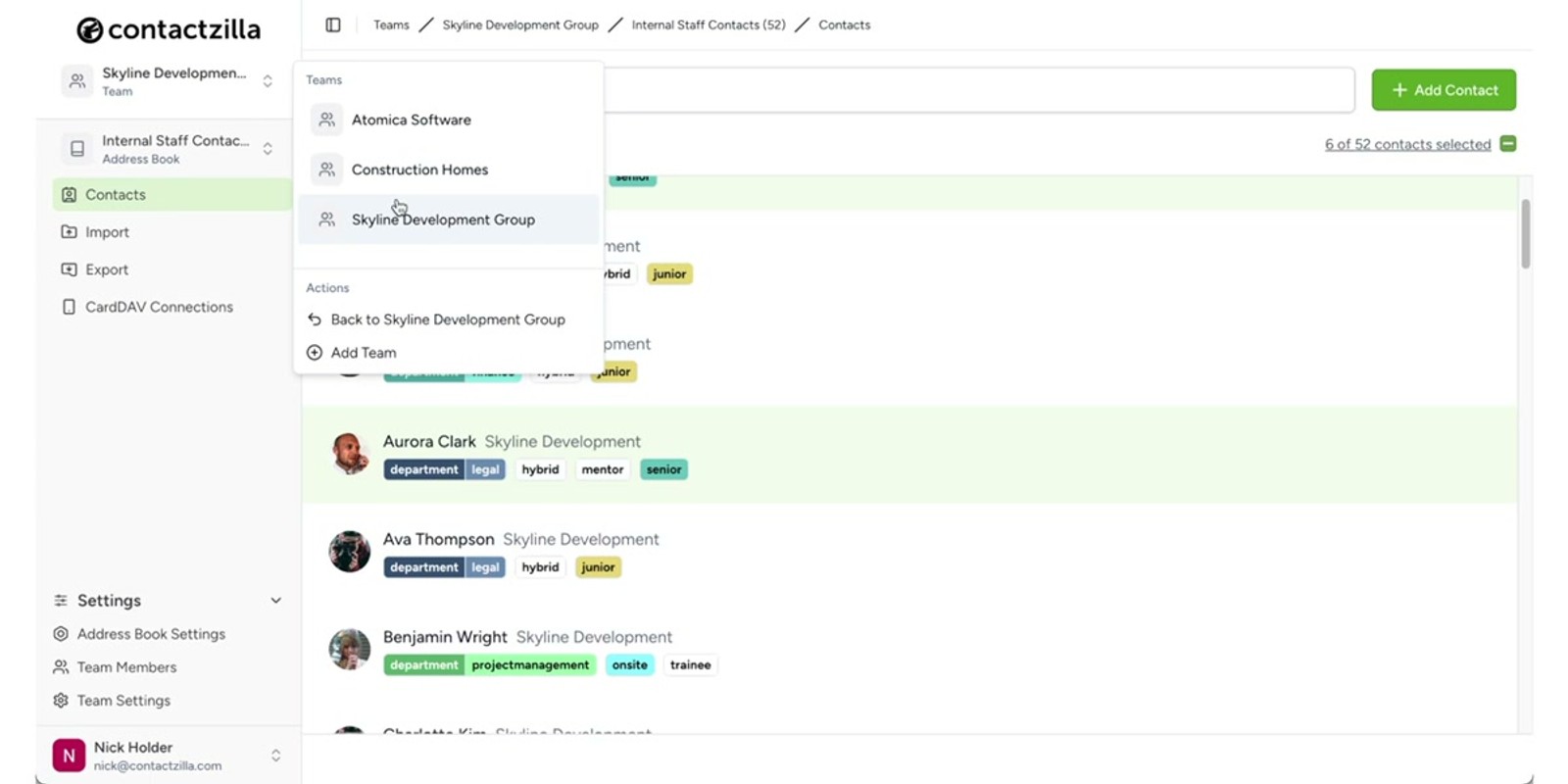
In the video, the presenter has set up a team called Skyline Development Group. You can name your team whatever makes sense — your company name, a division, or a project group. Everything else in Contactzilla lives inside this team structure.
Think of the team as your organizational boundary. All address books, member permissions, and device deployments are scoped to this team.
- Navigate to the dashboard and create a new Team
- Name it after your organization or department (e.g., "Skyline Development Group")
- The team is the top-level container for all address books and members
- You can manage multiple teams if needed for different departments
Step 2: Create Address Books Within Your Team
Inside your team, you'll create Address Books. Each address book is a distinct collection of contacts that can be shared independently with different team members and at different access levels.
The demo shows three address books set up under Skyline Development Group: Internal Staff, Critical Partners, and others. This separation lets you control exactly who sees which contacts — your reception team might need the Internal Staff book, while only leadership needs access to Critical Partners.
Address books are the core organizational unit in Contactzilla. When you later deploy contacts to devices, you deploy entire address books (not individual contacts), so plan your structure around who needs access to what.
- Create separate address books for different contact categories
- Example structure: Internal Staff, Critical Partners, department-specific books
- Each address book can have independent sharing permissions
- Address books are deployed as complete units to team members' devices
Step 3: Import Your Contacts
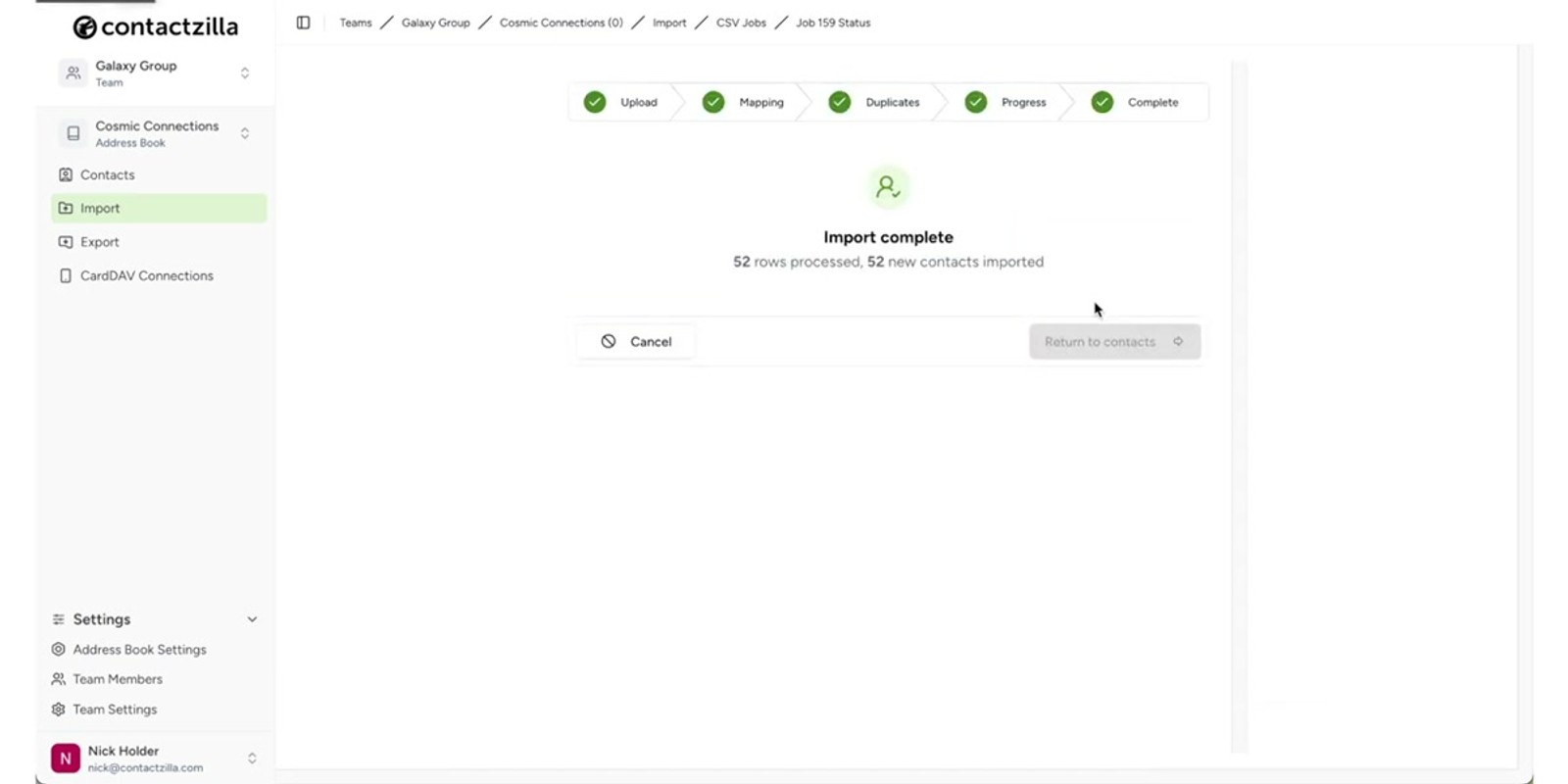
Once your address books are created, you need to populate them with contacts. Contactzilla supports multiple import methods so you can bring in existing contact data quickly.
The two primary import methods mentioned are CSV file upload and vCard import. If you're migrating from a spreadsheet, CRM, or another contact management system, CSV is likely your best bet. If you're pulling contacts from another phone or email client, vCard (.vcf files) will work well.
You import contacts directly into a specific address book, so make sure you've selected the correct one before starting the import. Each contact will inherit the address book's sharing and deployment settings once imported.
- Select the target address book before importing
- Upload a CSV file for spreadsheet or CRM data
- Import vCards (
.vcffiles) from other phone/email systems - Contacts inherit the address book's sharing and deployment settings
Organize your contacts into the right address books before importing — it's easier than moving them between books later.
Step 4: Invite Team Members and Set Access Levels
With contacts imported, you'll invite your team members to Contactzilla. The key feature here is granular access control — you decide exactly which address books each person can see and what they can do with them.
Contactzilla offers two access levels per address book: Full Access and Read Only. Full Access lets team members add, edit, and delete contacts within that address book. Read Only means they can view and use the contacts on their devices but can't make changes — ideal for frontline staff who just need phone numbers and emails.
You're in complete control over who has access to which address books. A team member might have Full Access to the Internal Staff book but Read Only access to Critical Partners, or no access to certain books at all.
- Invite team members by email to join your team
- Assign access on a per-address-book basis
- Full Access — view, add, edit, and delete contacts
- Read Only — view and use contacts but cannot modify them
- Different team members can have different access levels to the same address book
Step 5: Organize Contacts with Labels, Tags, and Custom Fields
Before deploying, take advantage of Contactzilla's organization tools to make your contact lists more useful on devices. There are three key features: Labels, Group Tags, and Custom Fields.
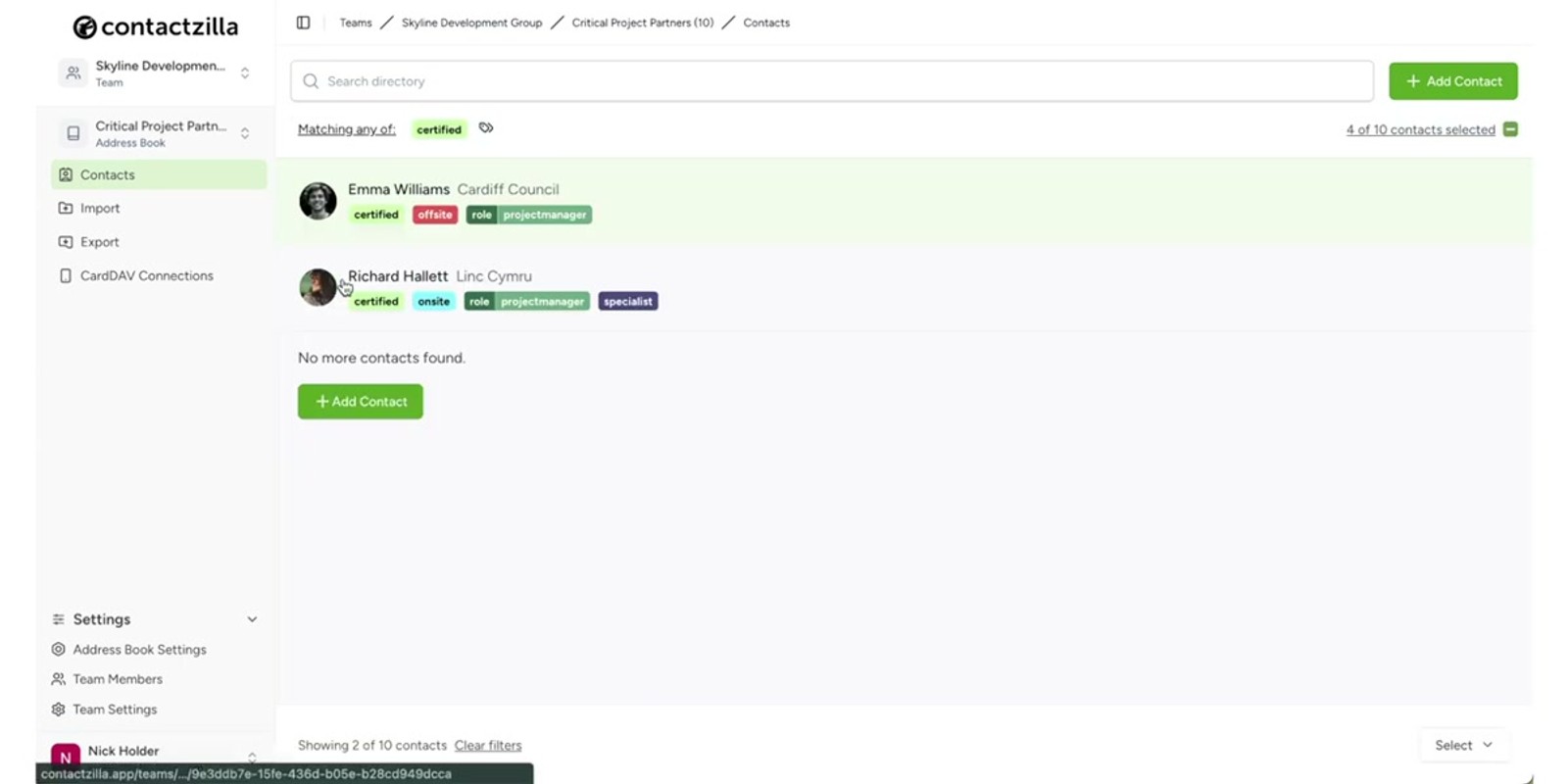
Labels are used for easy filtering within an address book. When contacts are deployed to a phone, labels appear as lists inside the native contacts app, so your team can quickly filter by department, location, role, or any other category you define.
Group Tags provide another layer of categorization for special groupings. And Custom Fields let you add any additional data points your organization needs — the video specifically mentions badge numbers and employee IDs as examples, but you could add anything: cost centers, office locations, certifications, etc.
These organizational tools are especially powerful because they carry through to the device — labels show up as native contact lists on iOS, keeping everything structured.
- Add Labels to contacts for easy filtering (appear as lists on iOS)
- Use Group Tags for special categorizations
- Create Custom Fields for organization-specific data
- Example custom fields: badge numbers, employee IDs
- Labels and organization carry through to the native contacts app on devices
Set up your labels before deploying to devices — they'll appear as filterable lists in the phone's native contacts app, making it easy for team members to find the right person quickly.
Step 6: Deploy Contacts to Devices (Manual QR Code Method)
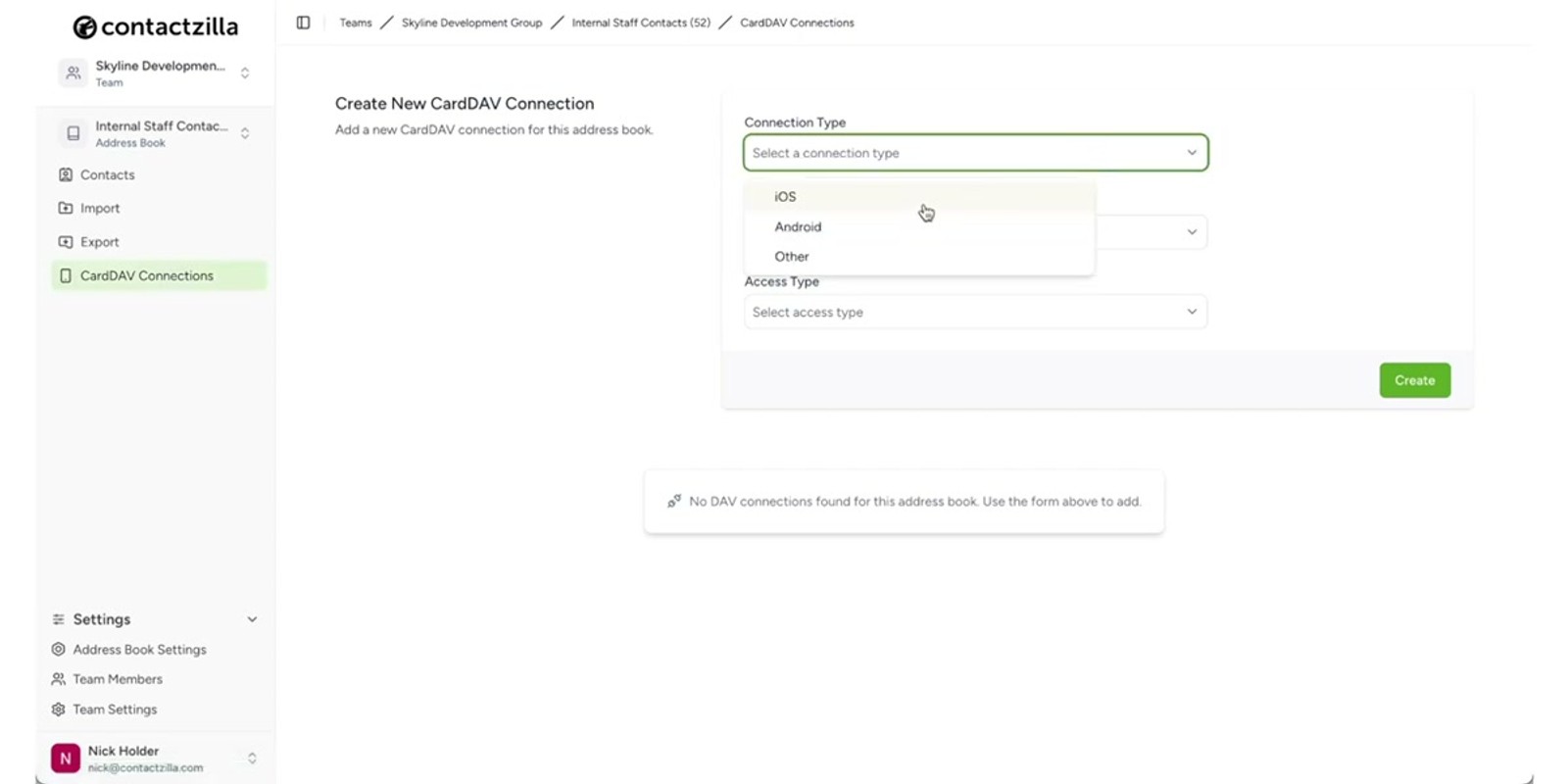
Now for the deployment — getting contacts onto your team's actual phones. Contactzilla supports both iOS and Android devices. For smaller teams or individual deployments, you can manually push contacts to specific team members.
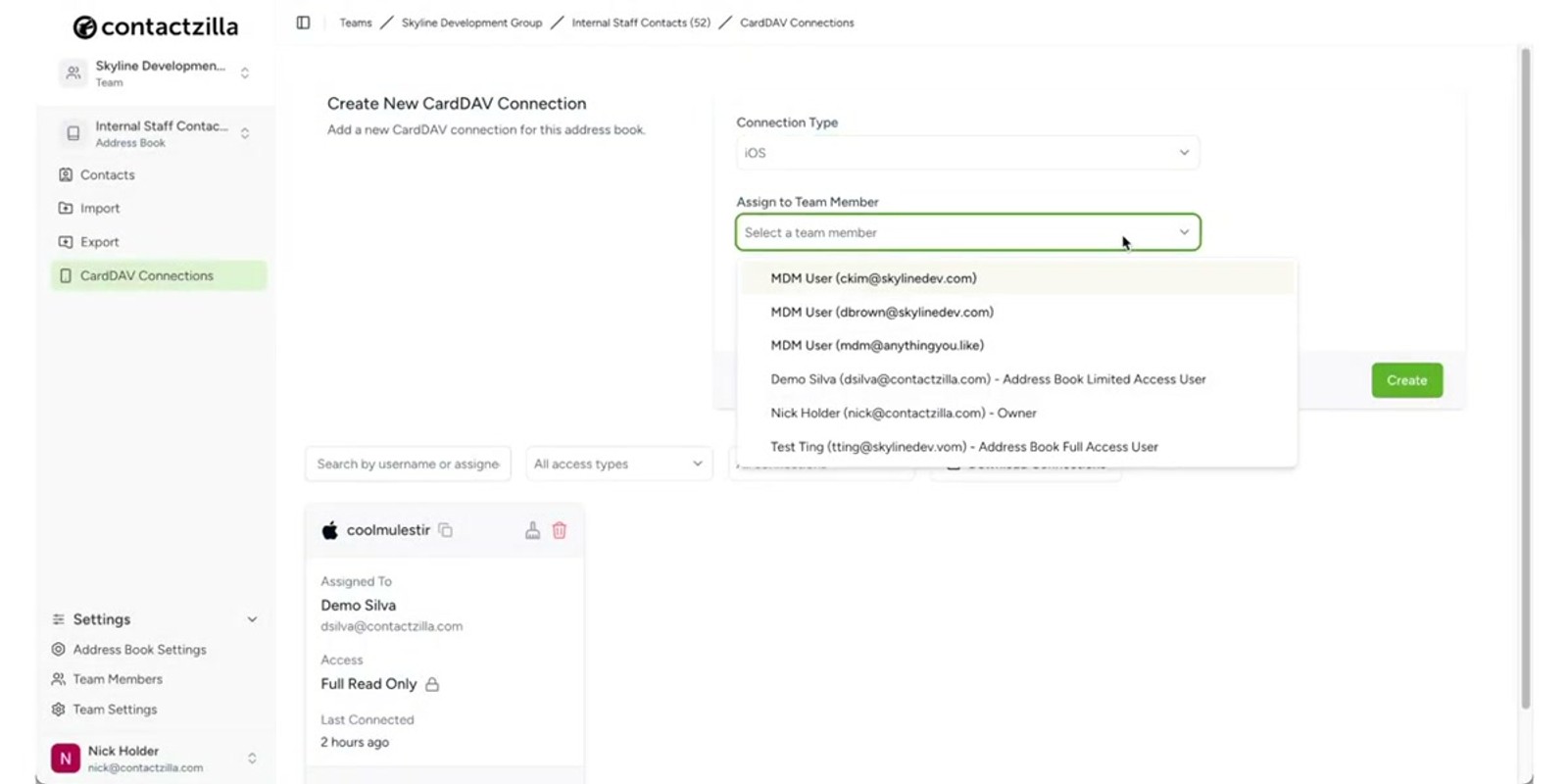
First, choose iOS or Android as the platform. Then select the team members you want to deploy to — you can pick specific people and set their access level for this deployment. Click to create the connection, and Contactzilla generates a QR code.
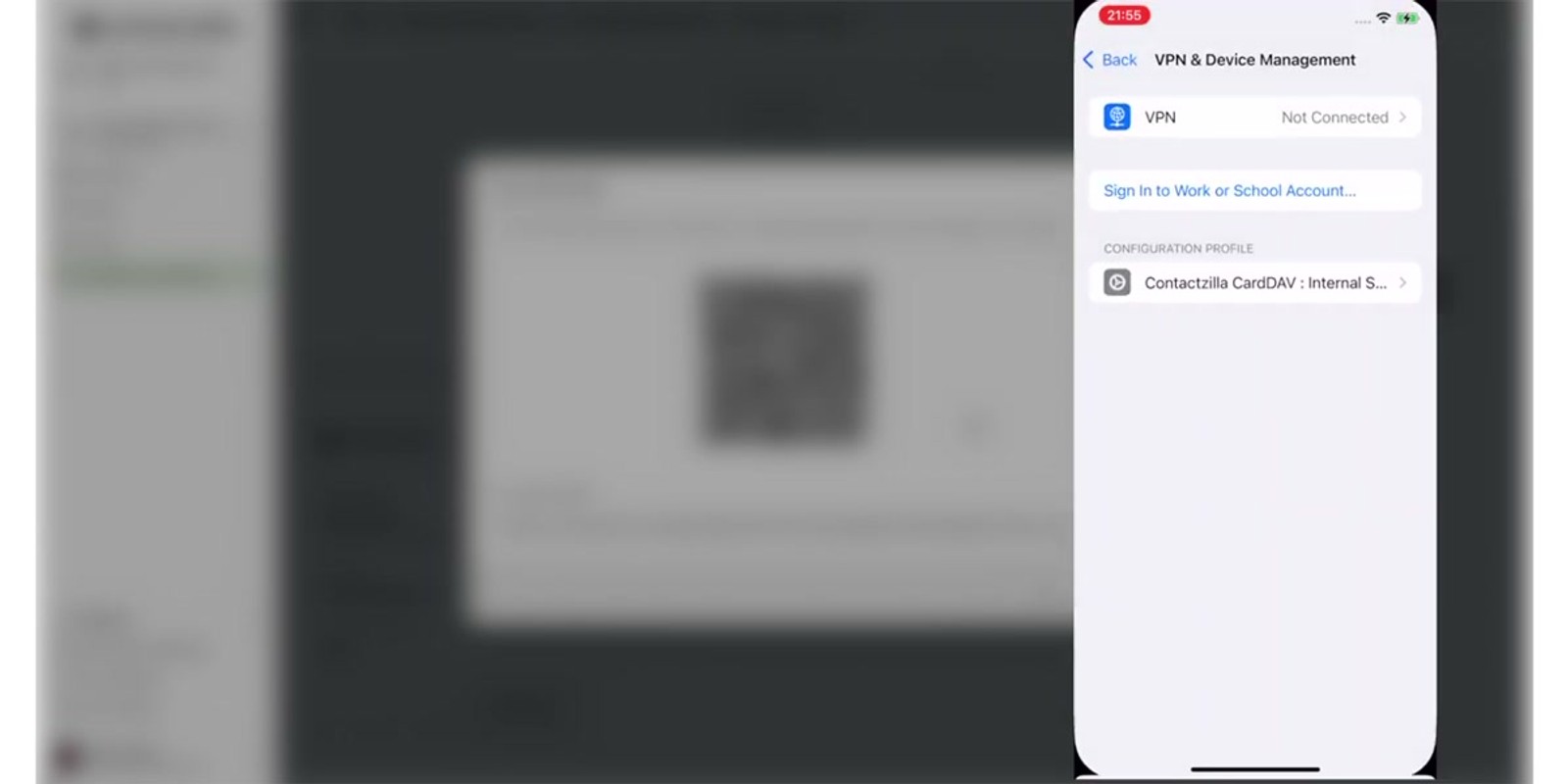
The team member scans the QR code with their phone. On iOS, this downloads a profile. The presenter demonstrates this live: after scanning, a message confirms the profile has downloaded. Navigate to Settings on the iPhone, and you'll see the downloaded profile. Tap on it, then tap Install in the top right corner. A confirmation appears that the profile has been installed.
Now open the native Contacts app, and the address book (e.g., Internal Staff) appears as a new contact group. Any labels you set up in Contactzilla appear as lists within that group for easy filtering.
- Select iOS or Android as the target platform
- Choose specific team members and set their access level
- Click Create to generate the connection and QR code
- Team member scans the QR code with their phone camera
- On iOS: profile downloads → go to Settings → tap the downloaded profile → tap Install (top right)
- Contacts appear in the native Contacts app as a new address book
- Contactzilla labels appear as filterable lists in the native app
Step 7: Deploy at Scale via MDM
For enterprise deployments to hundreds of devices, Contactzilla integrates with MDM (Mobile Device Management) software. Instead of scanning QR codes one by one, you assign the deployment to an MDM user.
In Contactzilla, select the option to assign to an MDM user. Choose the access type — the presenter selects Read Only for the MDM deployment, which is typical for large-scale rollouts where you don't want end users modifying the shared contact list. Set the number of devices that will receive the deployment, then hit Create.
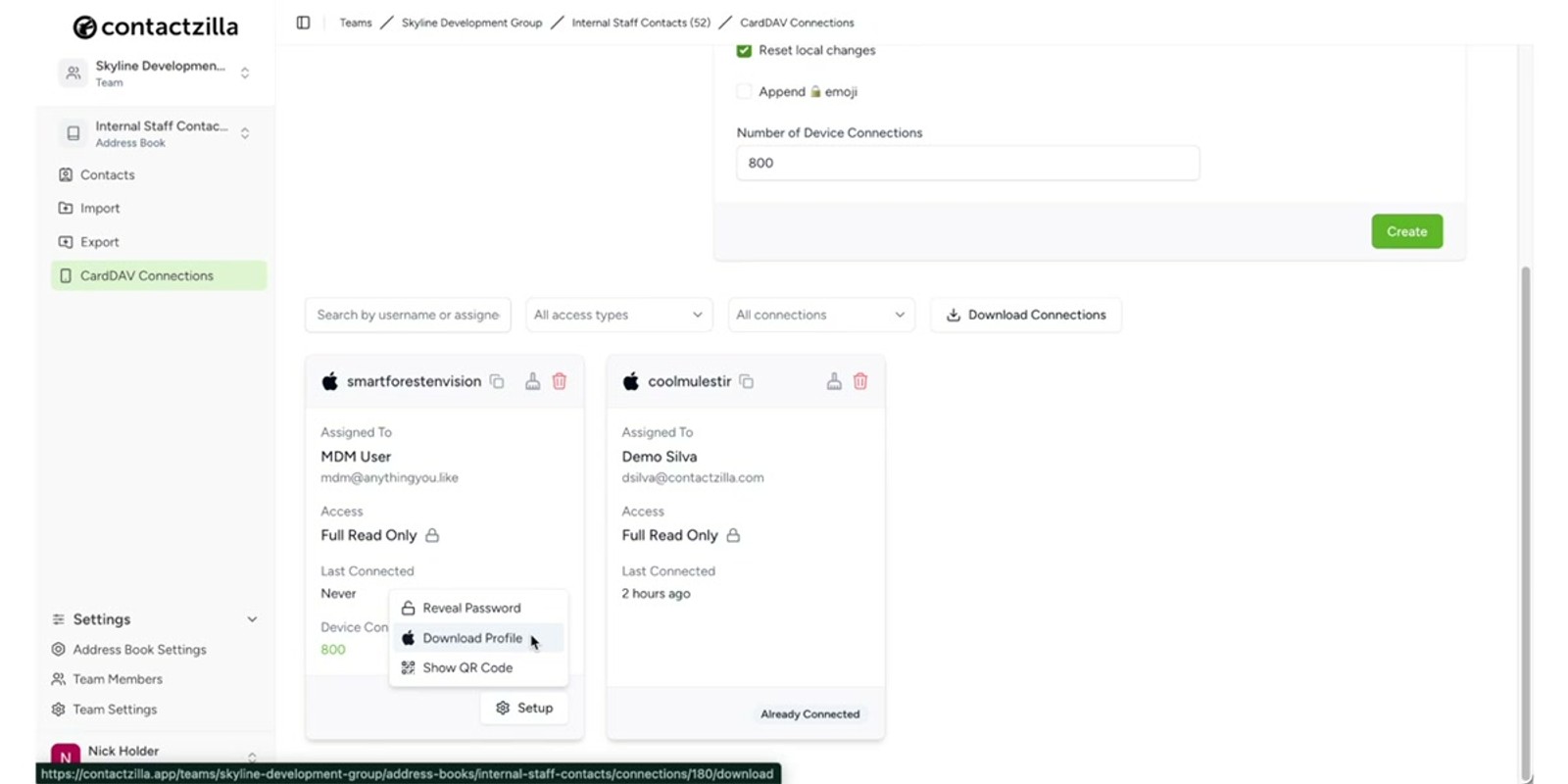
After creating the MDM deployment, you download a profile file. This profile contains everything needed to deploy the contacts via your MDM software. The presenter mentions compatibility with major MDM platforms including Microsoft Intune, MaaS360, and JAMF (referred to as "JF" in the video).
Once deployed via MDM, contacts stay synced and up to date right inside each phone's native contacts app — no additional app install required on the end-user devices.
- Select Assign to MDM User instead of manual deployment
- Choose the access type (e.g., Read Only for large-scale rollouts)
- Set the number of devices for the deployment
- Hit Create and download the generated profile
- Deploy the profile via your MDM: Microsoft Intune, MaaS360, JAMF, etc.
- Contacts sync automatically — no app install needed on end-user devices
For MDM deployments, Read Only access is recommended for most users. This prevents accidental edits to the shared contact list while still giving everyone the contacts they need.
Step 8: Contacts Stay Synced in the Native App
Once deployed, contacts live inside each device's native contacts app — not in a separate Contactzilla app. This is a key advantage: team members use the same contacts app they're already familiar with, and contacts are available system-wide for calls, messages, and email.
Any updates you make in Contactzilla — adding new contacts, updating phone numbers, changing labels — automatically sync to all deployed devices. Your team always has the latest information without needing to do anything on their end.
The organizational structure carries over too. Address books appear as contact groups, and Contactzilla labels appear as filterable lists within the native app. This means a receptionist can quickly filter to just "Sales Team" or "Building Maintenance" right from their phone's contacts app.
- Contacts appear in the device's native contacts app — no separate app required
- Changes in Contactzilla auto-sync to all deployed devices
- Address books appear as contact groups on the phone
- Labels appear as filterable lists within the native contacts app
- Contacts are available system-wide for calls, messages, and email
Key Takeaways
Why Teams Choose Contactzilla
Frequently Asked Questions
Do team members need to install a Contactzilla app on their phone?
No. Contacts are deployed as a profile that integrates directly with the phone's native contacts app. Once the profile is installed (via QR code scan or MDM), contacts appear in the built-in Contacts app with no additional software required.
What's the difference between Full Access and Read Only?
Full Access lets a team member view, add, edit, and delete contacts within an address book. Read Only means they can see and use the contacts on their device but cannot make changes. You set this per team member, per address book.
How do I deploy contacts to a large number of devices?
For large-scale deployments, use the MDM option. Assign the deployment to an MDM user, select the access type (typically Read Only), set the number of devices, and download the generated profile. Then deploy that profile through your MDM software — Contactzilla works with Microsoft Intune, MaaS360, JAMF, and others.
Do Contactzilla labels show up on the phone?
Yes. Labels you create in Contactzilla appear as filterable lists within the phone's native contacts app. This means team members can quickly filter contacts by department, role, location, or any other label you've set up.
How do contacts stay up to date on team members' devices?
Contacts sync automatically. When you add, update, or remove contacts in Contactzilla, those changes push to all deployed devices. Team members don't need to take any action — their native contacts app always has the latest information.
Can I import contacts from my existing systems?
Yes. Contactzilla supports CSV file uploads and vCard imports. If you're migrating from a spreadsheet, CRM, or another contact management tool, export your data as CSV or vCard and import it directly into the appropriate address book.

