
The Hidden Chaos Behind Microsoft 365 Contact Management
Folders, categories, orphaned data, and API dead-ends — a deep dive into why sharing contacts across Outlook Desktop, Web, and Mobile is so frustratingly inconsistent.
Understanding the Microsoft 365 Contact Management Problem
Hundreds of millions of businesses rely on Microsoft 365 to run their operations. One of the most common requests — especially from IT teams managing large workforces — is deceptively simple: push a shared set of contacts out to everyone in the organization so they're available on phones, desktops, and the web. It sounds straightforward, but Microsoft's contact system is riddled with inconsistencies that make this far harder than it should be.
In this walkthrough, Tom from Contactzilla breaks down the real-world quirks of Microsoft 365's contact architecture. He demonstrates — live on screen — the drift between Outlook Desktop and Outlook Web, the confusion around folders versus categories, the limitations of the Microsoft Graph API, and a particularly nasty bug where categories become permanently orphaned with no way to delete them. If you're an IT administrator trying to sync contacts across your organization, this video explains exactly why it's so painful and what your actual options are.
This is essential viewing for anyone evaluating contact management solutions for Microsoft 365 environments, or for IT teams trying to understand why their current sync setup behaves unpredictably across different Outlook clients.
The Directory vs Personal Contacts Confusion
The first source of confusion is in the Outlook Web interface itself. When you navigate to contacts, you'll see a Directory section with an All Contacts listing. You would naturally expect "All Contacts" to mean every contact you have access to. It doesn't.
All Contacts in the directory refers specifically to shared contacts across the organization — essentially the Global Address List (GAL). When you click My Contacts, you get a completely different set: your personal contacts. These two pools are managed through entirely separate systems with different admin interfaces and different APIs.
The directory contacts (the GAL) are administered exclusively through the Microsoft 365 Admin Center. There is no way to manage these through the standard Outlook interface. You need administrative privileges to add or modify contacts here. The contact editor in the Admin Center is also a different interface from the one in Outlook — different fields, different layout, different capabilities.
- All Contacts in the directory = organization-wide shared contacts (Global Address List), NOT all of your contacts
- My Contacts = personal contacts, completely separate from the directory
- Directory contacts are managed exclusively in the Microsoft 365 Admin Center
- You need admin privileges to push contacts to the shared directory
- The Admin Center contact editor is a completely different interface from the Outlook contact editor
Don't confuse 'All Contacts' in the directory sidebar with a unified view of all your contacts. It's organization-level shared contacts only — your personal contacts won't appear here.
Why the Graph API Can't Push to the Shared Address Book
From a product perspective — and this is directly relevant to anyone building integrations or evaluating third-party tools — the ideal approach would be to push contacts into the shared directory (the Global Address List). This would keep shared contacts isolated from everyone's personal contacts, require just one API call, and provide a clean separation of concerns.
Unfortunately, the Microsoft Graph API — which is the umbrella term for all of Microsoft's APIs for 365 relating to Outlook and most of their other products — simply does not have a method to push contacts to the shared address book. There is no endpoint for writing to the GAL programmatically. This is the fundamental blocker that forces any contact sync solution to take an alternative approach.
This means the only remaining option for programmatic contact distribution is to push contacts into each user's personal contacts via the Graph API. This works, but it introduces a whole new set of complications around folders, categories, and cross-client consistency — which the rest of this walkthrough explores in detail.
- Microsoft Graph is the umbrella API for all Microsoft 365 services including Outlook
- There is NO Graph API endpoint to write contacts to the shared directory / Global Address List
- This forces all third-party tools to sync contacts into individual users' personal contact stores
- Personal contact sync introduces folder/category management complexity
- This is the single biggest architectural limitation for contact management in Microsoft 365
If a vendor claims they can push directly to the Microsoft 365 shared address book via API, verify this claim carefully. As of this recording, the Graph API does not support it.
Contact Folders in Web vs Categories on Desktop
Since the Graph API only allows pushing to personal contacts, the next logical question is: how do you organize those contacts? The answer depends entirely on which Outlook client you're looking at, and this is where things get confusing.
In Outlook Web, contacts are organized into folders. You can see them listed in the sidebar — for example, Tom demonstrates folders like CZ subfolder and other test folders. These folders are proper objects in the Graph API, accessible via the contactFolders endpoint. You can create, read, update, and delete them programmatically.
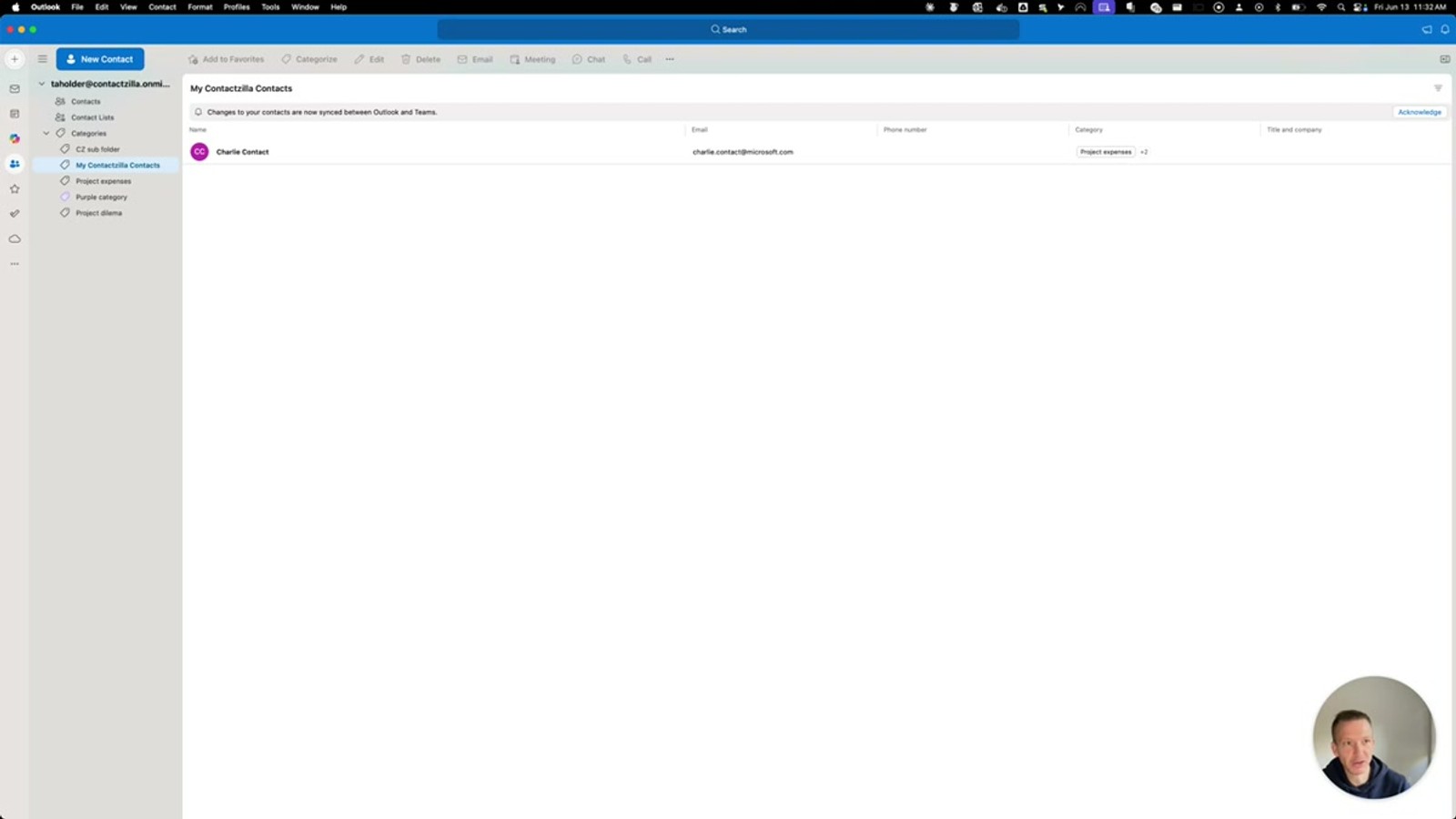
However, when you open Outlook Desktop (demonstrated on Mac), those exact same folders appear under a completely different label: Categories. The data is identical, but the terminology has drifted between the two clients. What the API calls contactFolders and the web UI calls "folders", the desktop client calls "categories." This semantic mismatch creates confusion for both end users and IT administrators trying to manage a consistent contact organization scheme across the organization.
- The Graph API endpoint is
contactFolders— the canonical name is folders - Outlook Web displays them as folders in the sidebar
- Outlook Desktop (Mac) displays the same data as categories
- The underlying data is the same — the naming is inconsistent between clients
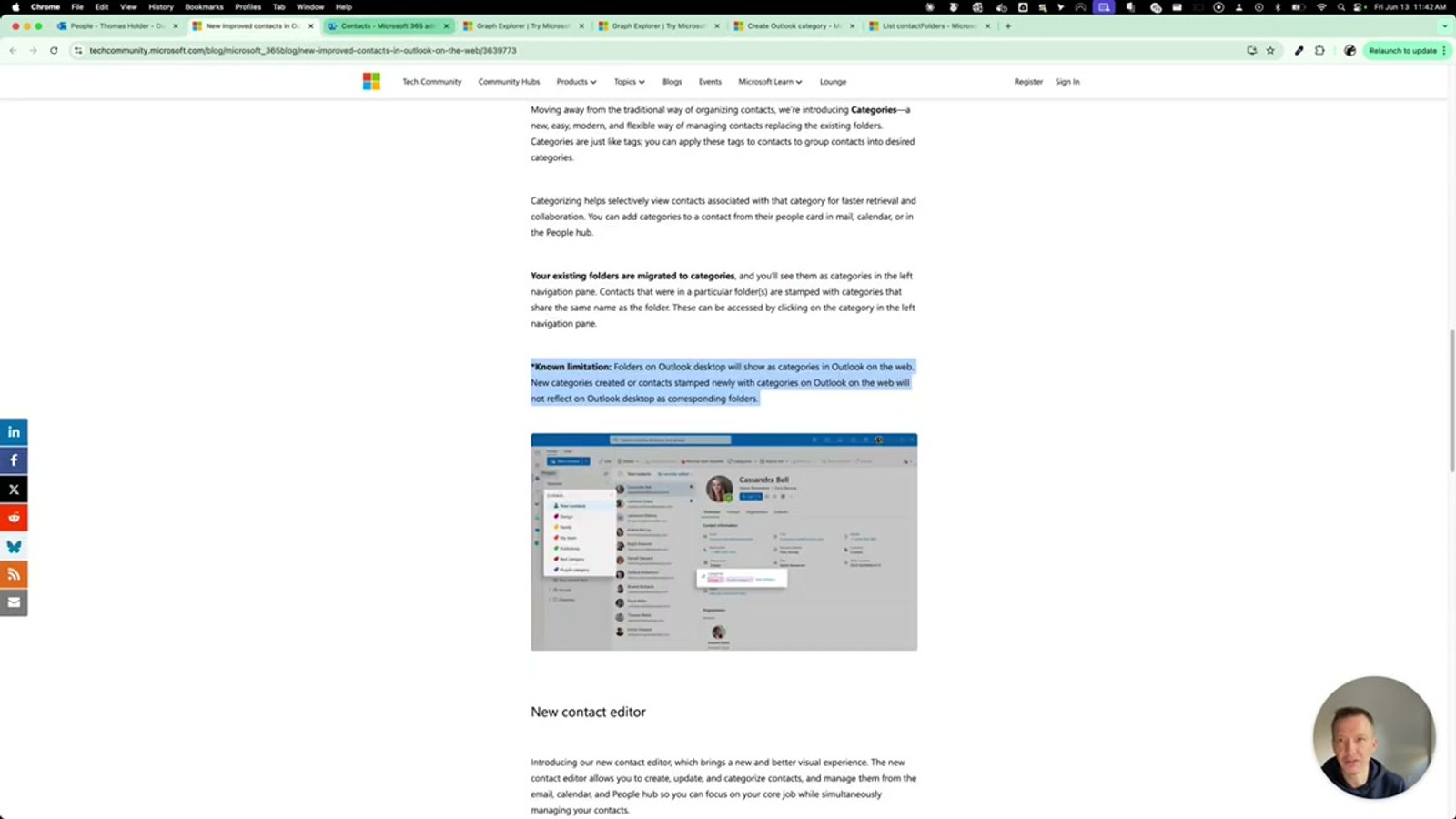
- Microsoft's own documentation acknowledges this: 'folders on Outlook desktop will show as categories in Outlook on the web'
- Mobile (Outlook for iOS/Android) may differ further
When documenting your contact organization scheme for IT, use the API term 'contactFolders' as the canonical reference. Note that users will see these as 'folders' on web and 'categories' on desktop.
Enabling 'New Contacts' Mode in Outlook Web
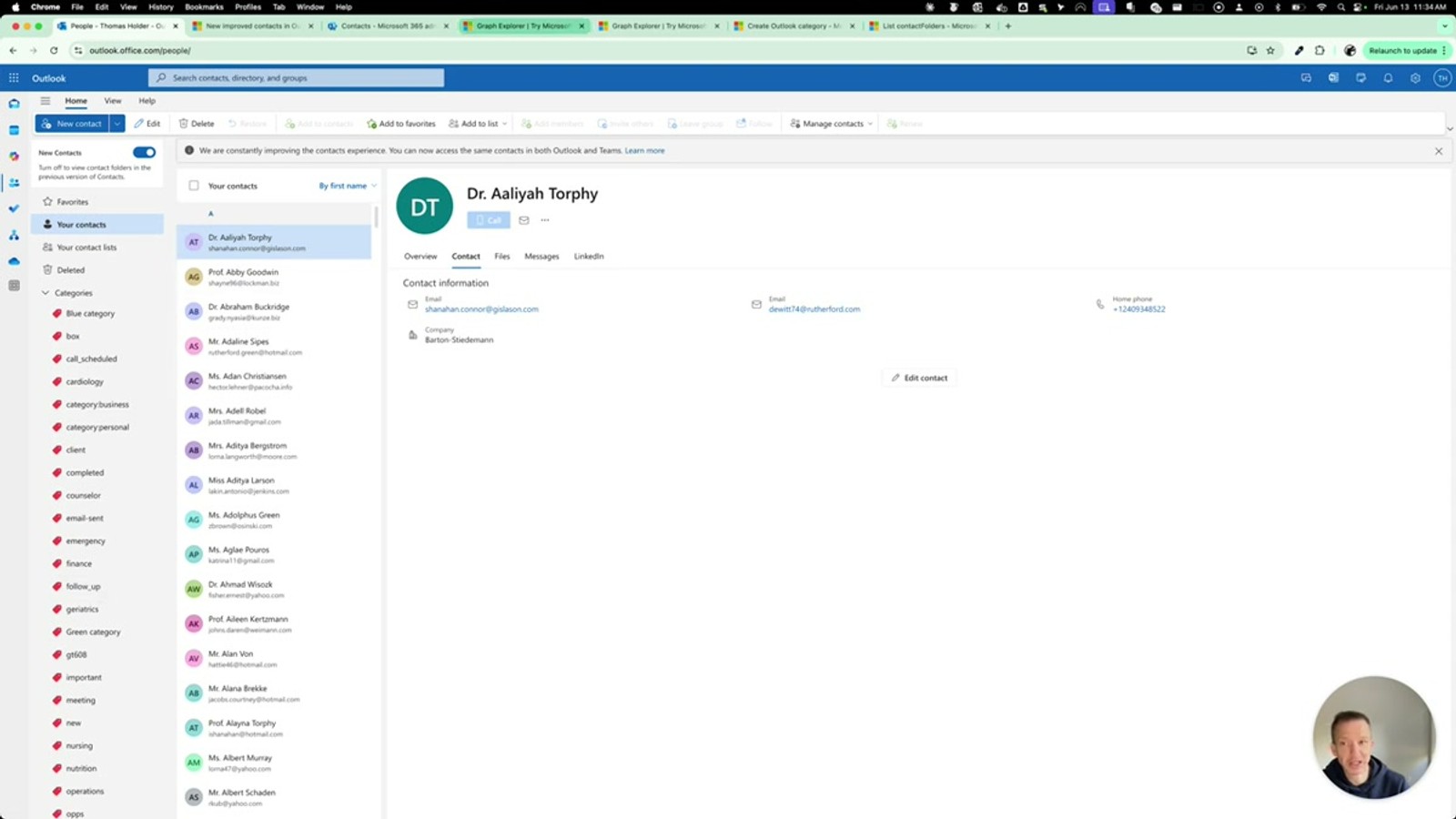
Microsoft has been rolling out a New Contacts experience in Outlook Web. There's a toggle to enable it, and Microsoft touts it as delivering frequently requested features: proper contact categories, a new contact editor, and improved organization tools. You might expect this to resolve the folder-vs-category confusion. It doesn't — it actually makes things worse.
When you enable the new contacts mode, the first thing you'll notice is that the contact folders disappear entirely from the web interface. They're gone from the sidebar. Even though the Graph API still returns them via the contactFolders endpoint, the new web UI simply doesn't show them anymore. Meanwhile, on the desktop client, those same folders still appear in the sidebar under "categories."
This creates a situation where folders you created via the API are visible on desktop but invisible on web. Microsoft's own release notes for the new contacts feature state explicitly: "folders on Outlook desktop will show as categories in Outlook on the web" — essentially acknowledging that the two products are not the same despite being branded identically.
- The New Contacts toggle is available in Outlook Web settings
- Enabling it removes contact folders from the web sidebar entirely
- Folders created via the Graph API become invisible in the new web experience
- Those same folders remain visible on Outlook Desktop under 'categories'
- A whole new set of categories appears in the web interface — separate from the folder-based ones
- Microsoft's documentation confirms the two clients are not feature-equivalent
Before enabling 'New Contacts' mode across your organization, test thoroughly. Contact folders created via API will vanish from the web UI, potentially confusing users who relied on that organization structure.
The Orphaned Categories Problem
This is perhaps the most frustrating issue Tom demonstrates. When contacts are pushed via the API with category metadata, those categories appear in the Outlook Web interface after enabling new contacts mode. However, the corresponding categories on the desktop client do not match what's shown on the web. The categories added via the API appear only in the web interface and are completely absent from the desktop client's category list.
Worse still, these API-created categories become permanently orphaned. There is no mechanism — either through the UI or the API — to delete them. They sit in the web interface as phantom categories that can't be removed, can't be synced to desktop, and can't be cleaned up programmatically. Tom demonstrates this live: the categories are visible but there is simply no delete option available.
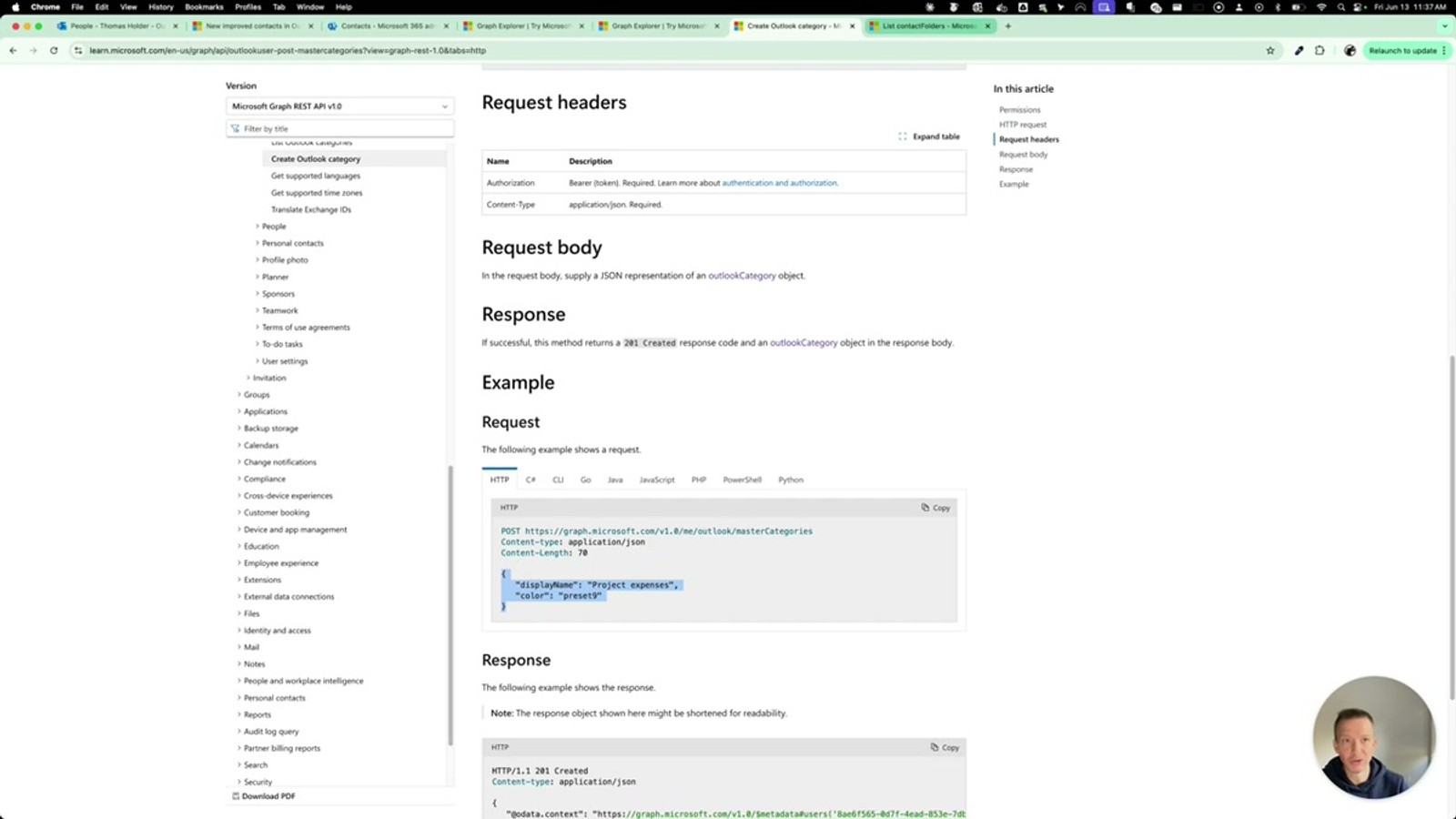
The Graph API does expose a masterCategories endpoint that returns the master category list for Outlook. However, this list doesn't include the orphaned contact categories, and there's no API method to target and remove them. For IT administrators managing contact sync at scale, this means any category created during testing or by a misconfigured integration becomes permanent clutter.
- Categories added via API during contact creation can become permanently orphaned
- Orphaned categories appear in Outlook Web but NOT in Outlook Desktop
- There is no UI option to delete orphaned categories
- There is no Graph API endpoint to remove orphaned contact categories
- The
masterCategoriesAPI endpoint does not include these orphaned categories - Default master categories are color-based: Red Category, Orange Category, etc.
- Category colors are limited to preset values — you cannot set custom color references
Be extremely careful with category assignments during API-based contact sync testing. Any categories created may become permanently orphaned with no way to clean them up.
Master Categories and Their Limitations
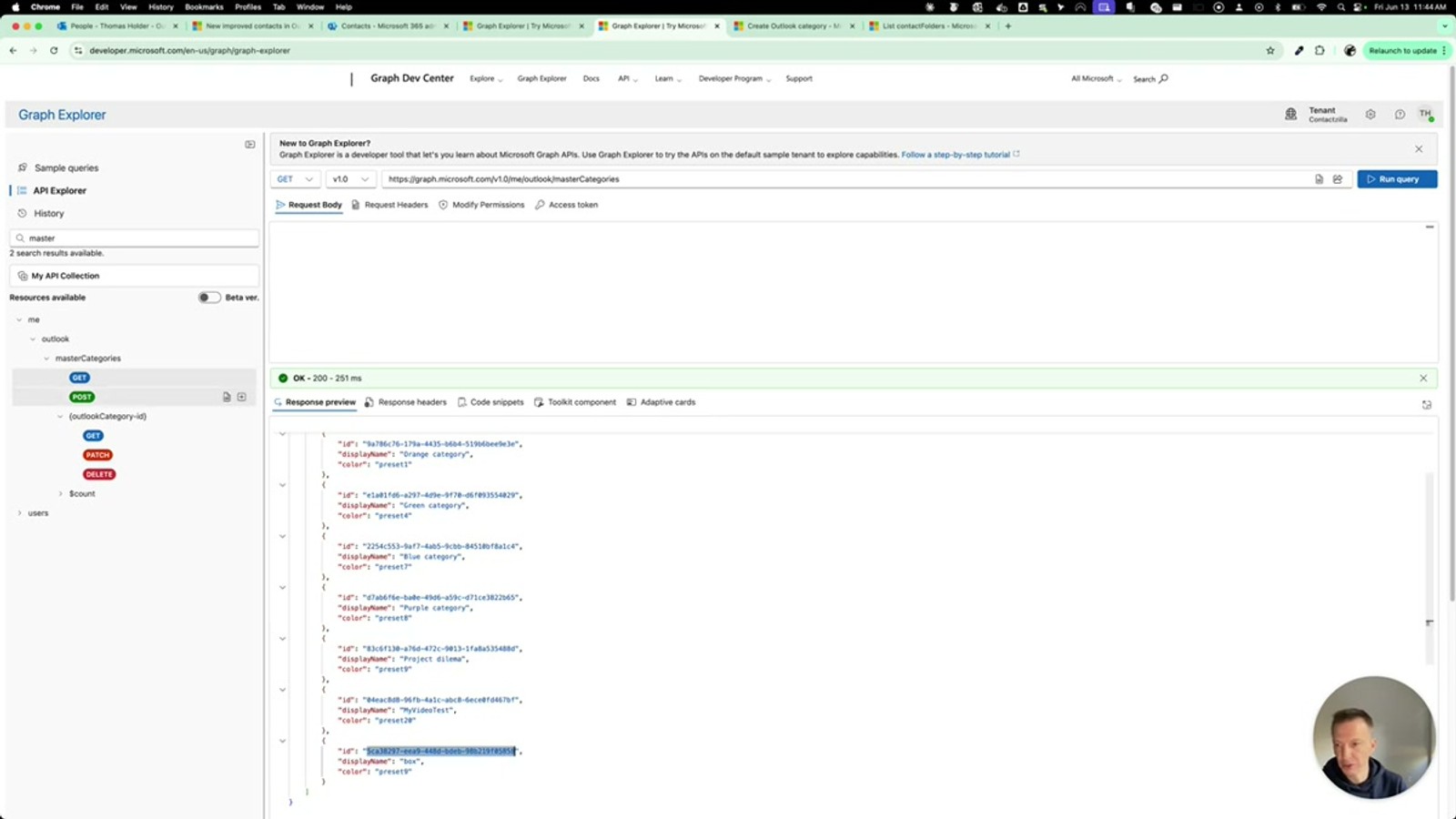
Tom demonstrates the Graph Explorer to pull back the master categories list using the masterCategories endpoint. The results reveal something surprising: Microsoft's default categories are simply colors — Red Category, Orange Category, and so on. These are the built-in categories that ship with every Outlook account.
When you go to manage categories in the desktop client (via Categorize > Manage Categories), you can add new categories, but the color options are extremely limited. There's a small preset palette of bland colors with no option to enter custom hex values or RGB codes. A category created on the desktop client (Tom creates one called my video test with a preset color) does sync back and appear in the master categories list.
However, the critical issue remains: categories created via the desktop client or the master categories API are a completely separate system from the contact folder categories visible in the web interface. These are two parallel categorization systems that don't talk to each other, creating confusion about which "categories" a user is actually working with at any given time.
- Access master categories via Graph Explorer:
GET /me/outlook/masterCategories - Default categories are color-named: Red Category, Orange Category, etc.
- Category colors are limited to a small preset palette — no custom colors
- Categories created on desktop DO sync to the master categories API
- Master categories and contact folder 'categories' are two completely separate systems
- Users on desktop see both systems merged in the UI, creating confusion
The Desktop vs Web vs Mobile Fragmentation
Taking a step back, Tom highlights the broader architectural problem: Microsoft 365 is not a single unified product when it comes to contacts. The Outlook Web interface, Outlook Desktop (which itself differs between Mac and PC), and Outlook Mobile each have their own contact management behavior, their own UI terminology, and their own feature sets.
The web interface is moving toward a categories-first model with the new contacts experience, actively hiding the folder-based organization that the API still supports. The desktop client uses a hybrid where API folders appear as categories alongside the native Outlook master categories. Mobile may differ yet again. For IT teams trying to deploy a consistent contact management experience across hundreds or thousands of users on mixed devices, this fragmentation is a fundamental challenge.
This is precisely the problem that Contactzilla aims to solve — providing a single, consistent contact management layer that works reliably regardless of which Microsoft client your team uses. Rather than fighting Microsoft's inconsistent categorization systems, Contactzilla pushes contacts to each user's personal store and handles the organizational complexity behind the scenes.
- Outlook Web, Desktop (Mac), Desktop (PC), and Mobile each behave differently for contacts
- The 'New Contacts' web experience actively hides features the API still supports
- Desktop Mac and Desktop PC may differ in contact management UI
- No single Microsoft client shows a complete, accurate view of all contact metadata
- IT teams managing mixed-device environments face compounding inconsistencies
- Third-party tools like Contactzilla abstract away these client differences
Frequently Asked Questions
Why can't I push shared contacts to the Microsoft 365 Global Address List via API?
The Microsoft Graph API — which covers all programmatic access to Microsoft 365 services — does not provide an endpoint for writing contacts to the shared directory (Global Address List). The GAL can only be managed through the Microsoft 365 Admin Center web interface with administrative privileges. This means any third-party tool or integration must push contacts to individual users' personal contact stores instead.
Why do my contact folders show as 'categories' on Outlook Desktop?
This is a known inconsistency between Microsoft's Outlook clients. The Graph API uses the term 'contactFolders', and Outlook Web displays them as folders in the sidebar. However, Outlook Desktop (particularly on Mac) renders these same objects as 'categories'. The data is identical — it's a semantic naming drift between clients that Microsoft has acknowledged in their documentation.
What happens to contact folders when I enable 'New Contacts' mode in Outlook Web?
When you toggle on the new contacts experience in Outlook Web, contact folders are completely removed from the sidebar and no longer visible in the UI. They still exist in the Graph API and remain visible on Outlook Desktop (under 'categories'), but the web interface hides them entirely. A new category system appears in their place, which is separate from the folder-based categories.
How do I delete orphaned categories in Outlook that were created via the API?
Unfortunately, as of this recording, you cannot. Categories that were created during API-based contact sync can become permanently orphaned — visible in the Outlook Web interface but with no delete option in the UI and no Graph API endpoint to remove them. The masterCategories API endpoint only covers Outlook's native categories, not these orphaned contact categories. This is why it's critical to test contact sync in a sandbox environment first.
Are Outlook Desktop on Mac and PC the same for contact management?
No. Tom notes in the video that the Outlook Desktop client on Mac differs from the PC version, and the new contacts experience being demonstrated is specifically the current Mac desktop client. Contact management UI and feature availability may vary between Mac and PC versions of Outlook Desktop, adding another layer of inconsistency for IT teams to manage.
Can I set custom colors for Outlook contact categories?
No. Microsoft provides a small set of preset colors for categories, and there is no option to enter custom hex values or RGB references. The default categories that ship with Outlook are named after colors (Red Category, Orange Category, etc.), and when you create new categories, you're limited to the same small palette of bland preset colors.

