
Control Exactly Who Sees Which Contacts — Down to the Address Book
Set up teams, assign granular permissions, and give external partners access to only the contacts they need — without exposing your entire database.
Contactzilla V2 introduces a completely redesigned platform for managing and deploying contact lists across organizations. At its core is a Teams structure that lets you invite members, control access levels, and organize contacts into separate Address Books — all without exposing your entire contact database to every user.
This tutorial walks through a real-world scenario: a construction company (Skyline Development Group) that needs to share specific project contacts with an external architect — while keeping internal staff contacts private. You'll learn how to create address books for different purposes, invite an outside collaborator, assign them Address Book Limited access, and choose between Read-Only and Read-Write permissions.
Whether you're managing a small team or coordinating across departments with external partners, this guide covers everything you need to set up secure, granular access to your shared contacts in Contactzilla V2.
Understand the Teams & Address Books hierarchy
In Contactzilla V2, Teams sit at the top level of the organizational structure. Each team acts as a container for both members and address books. You can invite as many members as you like to a team and assign them varying access levels.
Within each team, you create Address Books — these are separate contact lists for different departments, projects, groups, or however you want to organize your contacts. Users can have access to multiple teams, and you can control exactly which address books within each team they can see.
This hierarchical structure means you can mirror your real-world organization: one team for your company, with separate address books for HR contacts, project contacts, partner contacts, and so on.
- Teams are the top-level container in Contactzilla V2
- Each team can have unlimited members with different access levels
- Address Books live inside teams — create as many as needed
- Users can belong to multiple teams simultaneously
- You control which address books each member can access
Create address books for different purposes
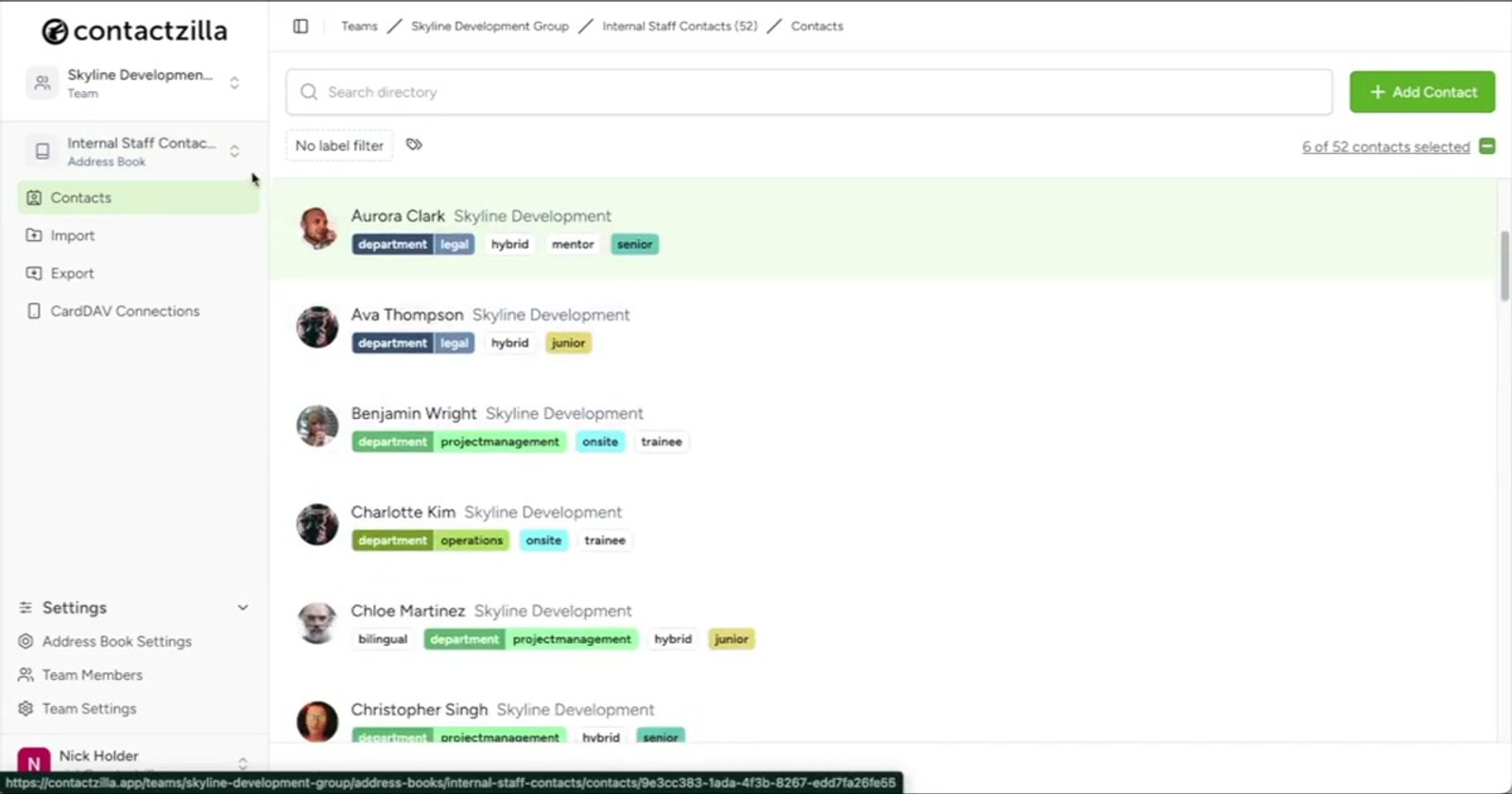
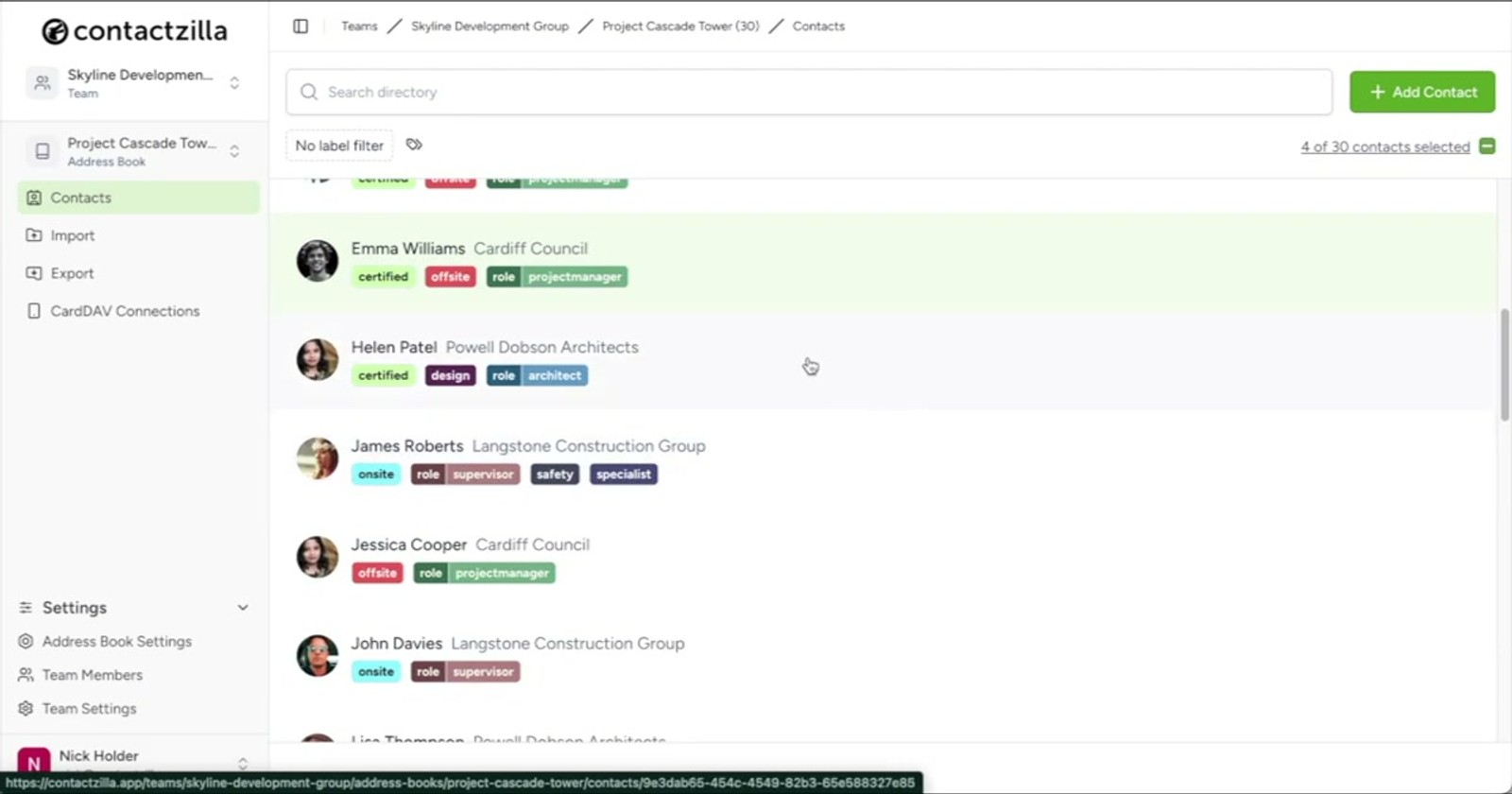
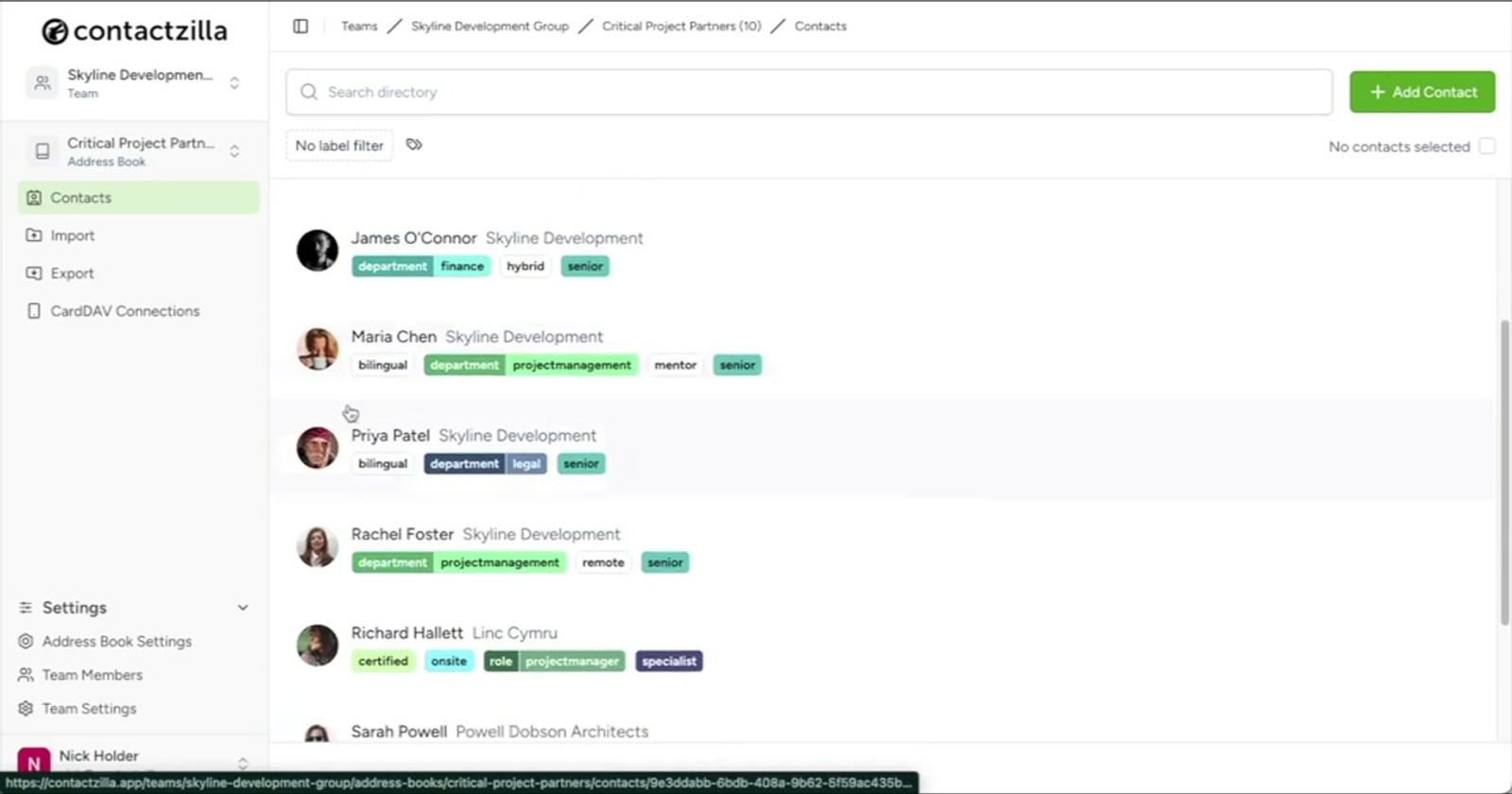
Within your team, set up address books to organize contacts by purpose. In the demo, the Skyline Development Group team has three distinct address books already configured.
The first address book is Internal Staff Contacts, which contains all employees across various departments within the organization. The second is a project-specific address book for a large construction project, containing contacts like project managers, site supervisors, contractors, and architects. The third is Critical Project Partners, a curated list of senior contacts including CEOs, legal contacts, and project managers.
This separation is key to Contactzilla's permission model — by splitting contacts into distinct address books, you can later grant access to specific books without exposing everything else.
- Create an Internal Staff Contacts address book for all employees
- Create project-specific address books (e.g., for a construction project with contractors, architects, etc.)
- Create curated address books like Critical Project Partners for senior or sensitive contacts
- The more granularly you organize address books, the more precisely you can control access
Think about who will need access before creating your address books. Splitting contacts into purpose-specific books from the start saves you from reorganizing later.
Navigate to the Team Members section
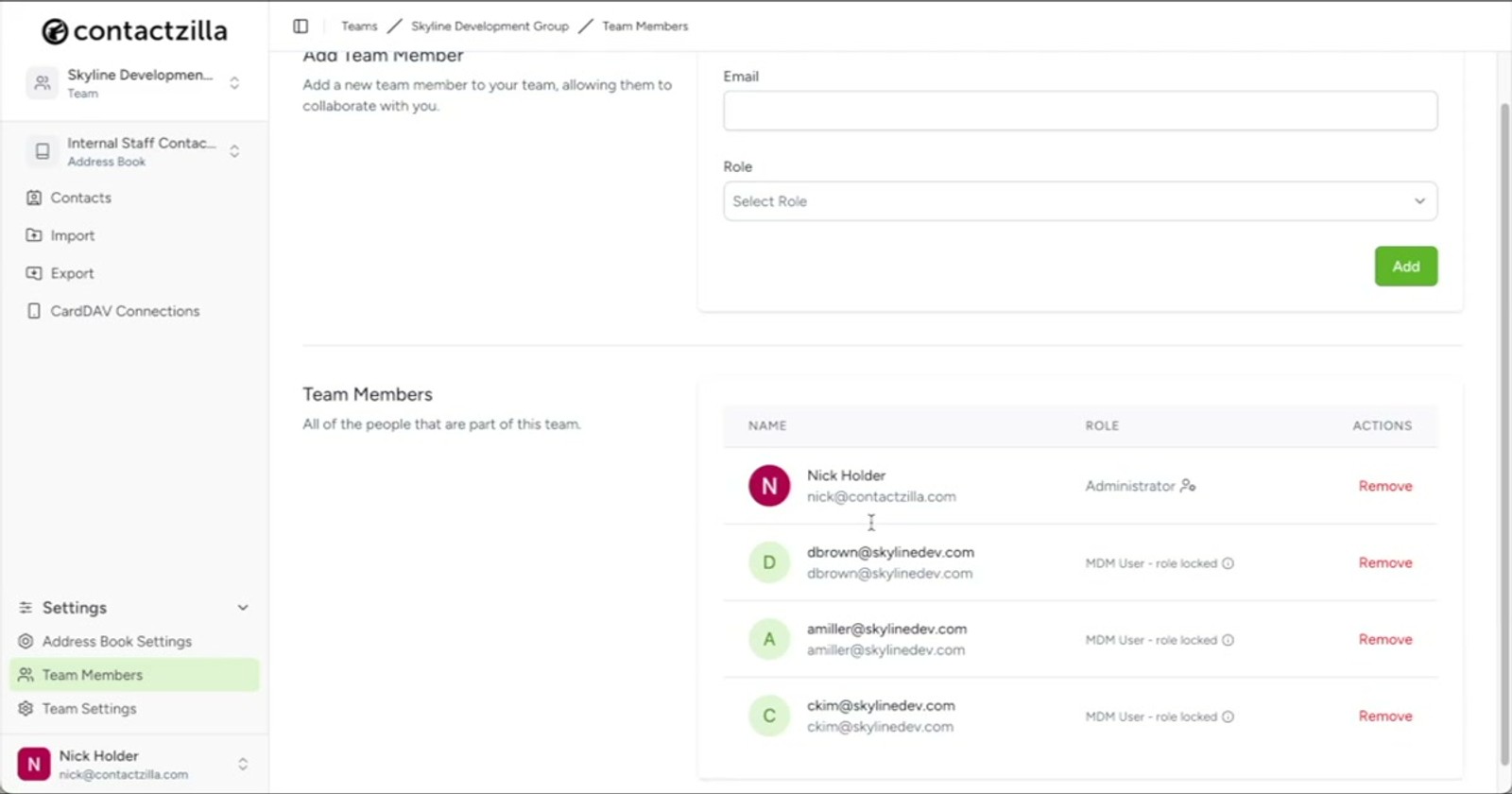
To add a new member to your team, scroll down to the Team Members section at the bottom of the team page. Here you'll see all the team members currently assigned to the team.
In the bottom-right area of this section, you'll find the controls for inviting new members. This is where you'll enter the email address of the person you want to add and configure their access level before sending the invitation.
- Scroll down on the team page to find the Team Members section
- Existing members and their roles are listed here
- The invite controls are located in the bottom-right of this section
Add a new member with Address Book Limited access
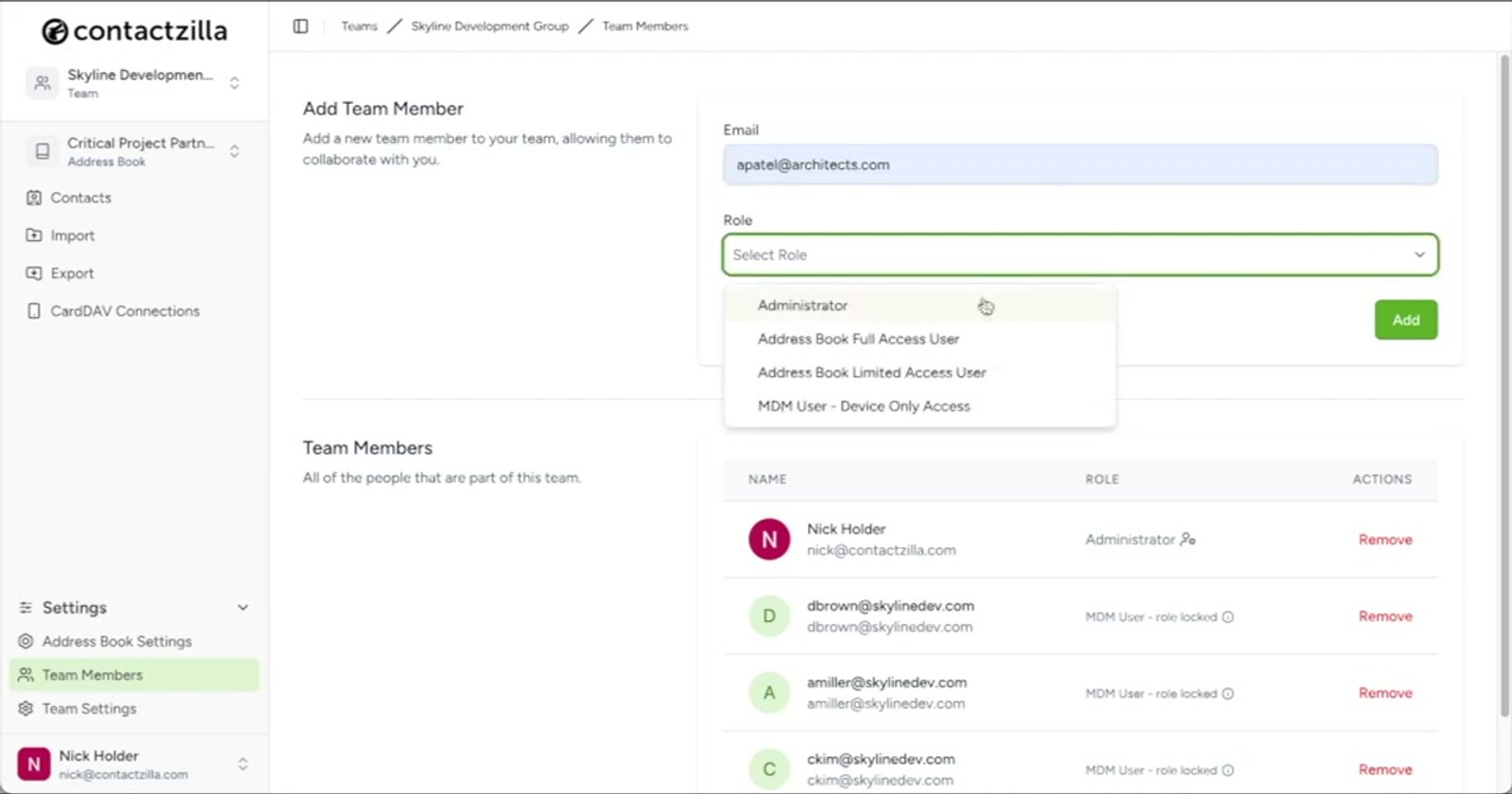
To invite an external partner, enter their email address in the invitation field. In the demo, the fictional architect Aisha Patel from a partner firm is being added.
The critical step here is selecting the correct access level. Choose Address Book Limited access for users who should NOT have access to all address books in the team. This is the right choice for external partners, contractors, or anyone who only needs to see a specific subset of your contacts.
If you assigned a higher access level, the user would automatically see all address books in the team — including sensitive ones like Internal Staff Contacts. By choosing Address Book Limited, you ensure the next screen will let you pick exactly which address books this person can access.
- Enter the new member's email address in the invite field
- Select Address Book Limited as the access level for restricted users
- This prevents the user from seeing all address books in the team
- Ideal for external partners, contractors, or temporary collaborators
Use Address Book Limited access for anyone outside your organization. This ensures they only see the specific contacts you explicitly grant them access to — never your internal staff directory or other sensitive address books.
Select which address books the member can access
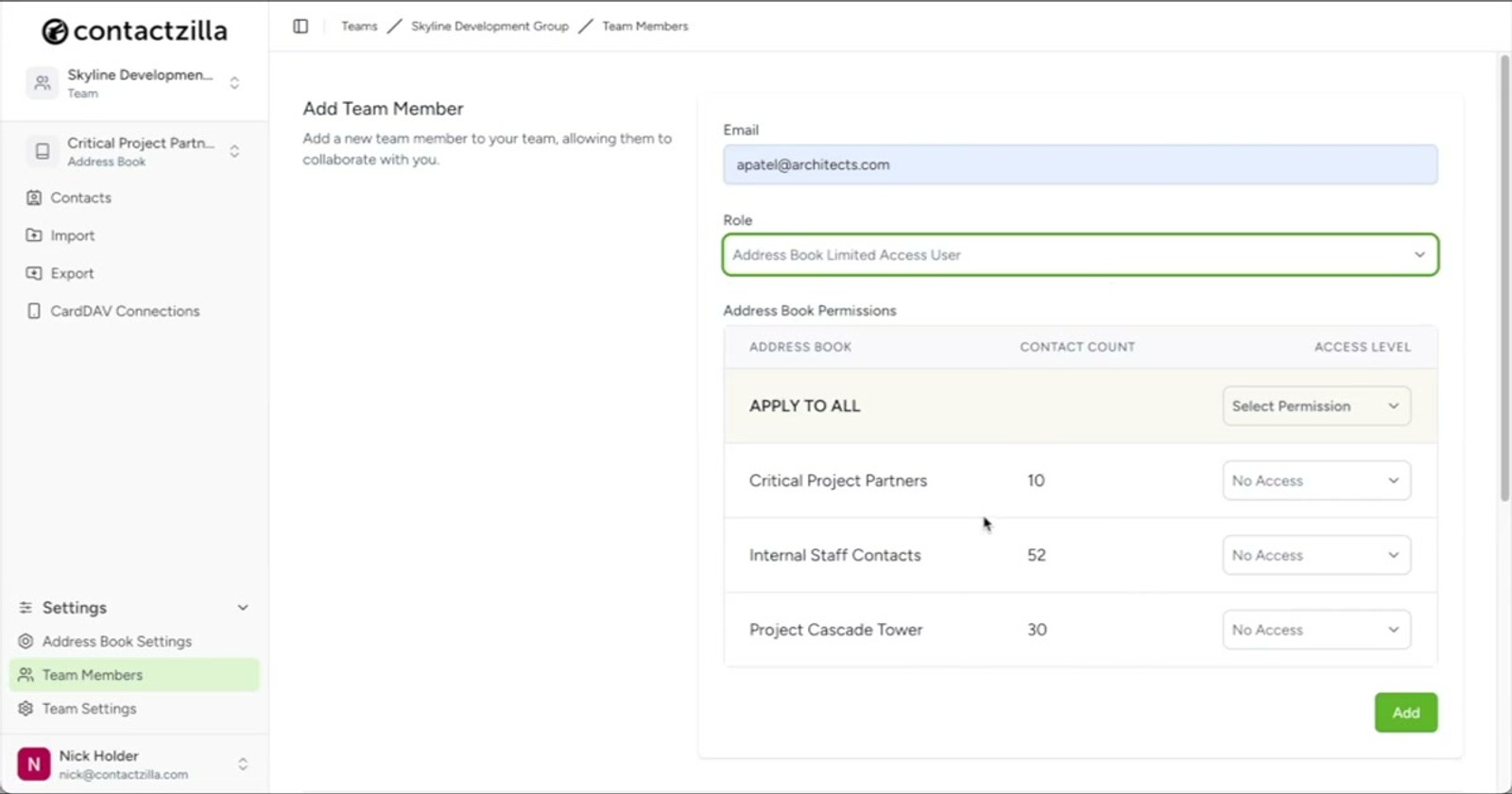
After choosing Address Book Limited access, Contactzilla displays all address books within the team. In this example, three address books are shown: Internal Staff Contacts, the project contacts, and Critical Project Partners.
You only need to select the specific address books this user should have access to. For the external architect, only Critical Project Partners is selected — she doesn't need access to internal staff contacts or the full project contact list.
This granular selection is what makes the system powerful for cross-organizational collaboration. You can share exactly the contacts someone needs without worrying about data leaking into the wrong hands.
- All address books in the team are displayed for selection
- Check only the address books the new member should access
- Leave internal or sensitive address books unchecked
- In the demo, only Critical Project Partners is selected for the external architect
Choose between Read-Only and Read-Write permissions
For each address book you've granted access to, you must select the member's permission level. Contactzilla offers two options:
Read-Only access lets the user view all contacts in the address book but prevents them from making any changes or adding new contacts. This is ideal when you want someone to have a reference list without the ability to modify it.
Read-Write access gives the user full permissions to view, edit, and add contacts within that specific address book. In the demo, the presenter chooses to "trust" the external architect with full Read-Write permissions to the Critical Project Partners address book.
Choose the permission level that matches the level of trust and collaboration needed. You can always change this later if requirements shift.
- Read-Only: user can view contacts but cannot edit or add new ones
- Read-Write: user has full permissions to view, edit, and add contacts
- Permission is set per address book — different books can have different levels
- Choose based on the level of trust and collaboration required
When in doubt, start with Read-Only access. You can always upgrade to Read-Write later, but it's harder to undo changes if someone accidentally modifies contacts.
Send the invitation and confirm access
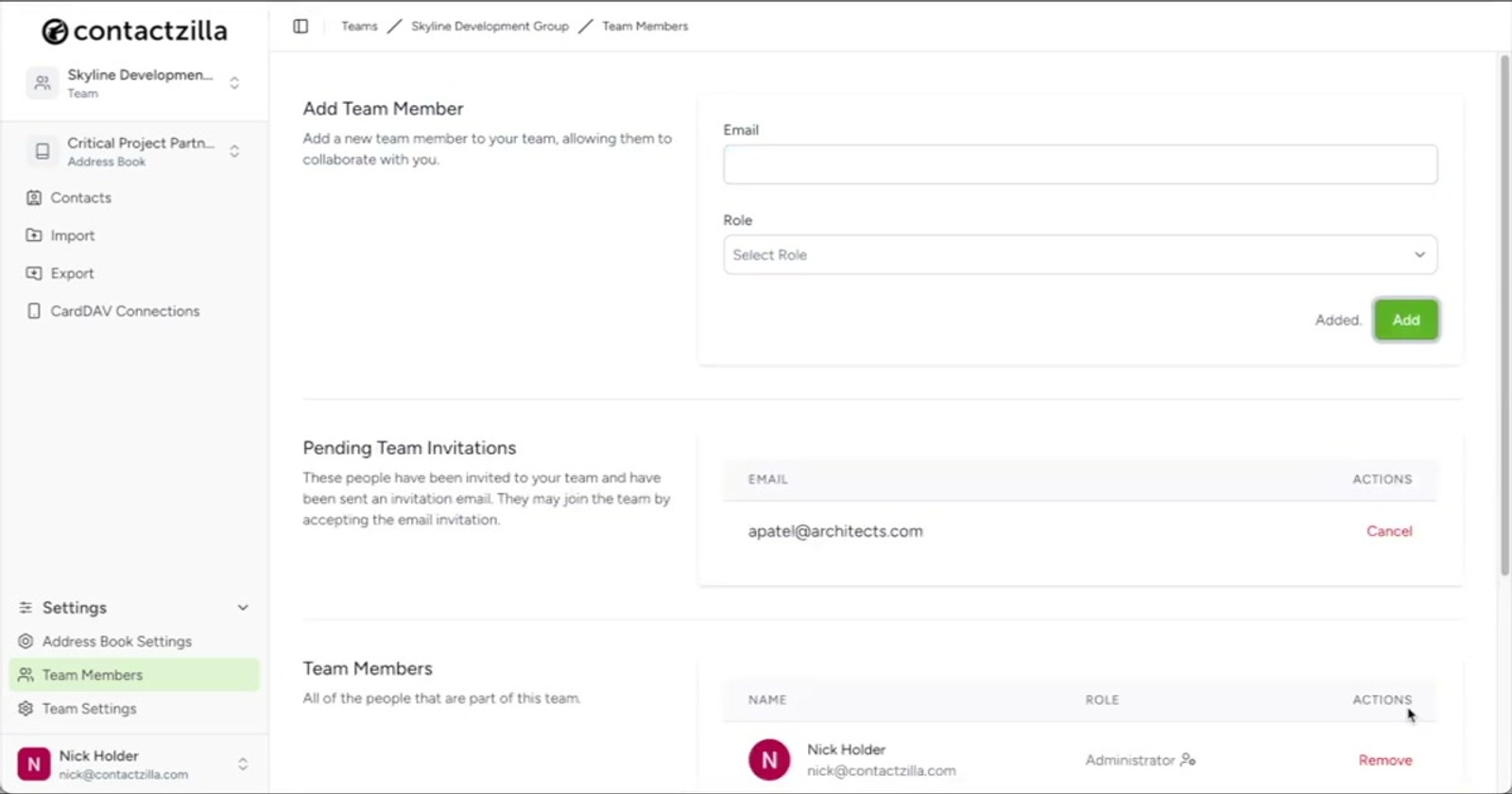
Once you've selected the address books and permission levels, click the Add button to finalize the invitation. Contactzilla automatically sends an email invite to the new team member.
When the invited user (in this case, Aisha Patel) accepts the invitation, she'll have immediate access to just the specific contacts in the address books you selected — nothing more. She won't see other address books, other team members' contacts, or any internal data you haven't explicitly shared.
The presenter also mentions that address book-level access is just one of several ways to grant access to a selection of contacts. Contactzilla also offers a Smart Label system for even more granular control, which is covered in a separate video.
- Click Add to send the invitation automatically via email
- The invited user gets immediate access upon accepting the invite
- Access is restricted to only the selected address books and permission levels
- No additional setup is required by the invited user
- Smart Labels offer an alternative method for granular contact sharing
Granular Access Control
Share only the contacts each person needs — never expose your entire database to external partners.
Unlimited Team Members
Invite as many members as needed with individually configured access levels per person.
Flexible Organization
Create address books by department, project, or purpose — mirror your real organizational structure.
Read-Only or Read-Write
Choose per-address-book permissions so some users can view contacts while others can edit them.
External Collaboration
Give outside partners and contractors access to specific contact lists without any internal exposure.
Instant Access on Invite
New members get immediate access to their assigned address books as soon as they accept the email invite.
Frequently Asked Questions
What's the difference between full team access and Address Book Limited access?
Full team access gives a member visibility into all address books within a team. **Address Book Limited** access restricts them to only the specific address books you select during the invitation process. Use Address Book Limited for external partners or anyone who shouldn't see your entire contact database.
Can I give a team member Read-Only access to one address book and Read-Write to another?
Yes. When you assign **Address Book Limited** access, you select which address books the user can see and set the permission level (Read-Only or Read-Write) individually for each address book.
Can a user belong to more than one team?
Yes. Users can have access to **multiple teams**, and within each team you can control exactly which address books they can see. This makes it easy to organize people across departments or projects.
What happens when I add someone — do they get access immediately?
Contactzilla automatically sends an email invitation when you click **Add**. Once the invited person accepts the invite, they get **immediate access** to the specific address books and permission levels you configured — no additional setup required.
Is there a way to share specific contacts within an address book rather than the whole book?
Yes. Besides address book-level permissions, Contactzilla offers a **Smart Label** system that provides even more granular control over which contacts are shared. This is covered in a separate tutorial.
How should I structure my address books for best results?
Organize address books around who needs access. For example, keep internal staff contacts in one book, project-specific contacts in another, and curated partner lists in a third. The more granularly you split your contacts, the more precisely you can control permissions when inviting members.

