
Get All Your Contacts Into Contactzilla in Minutes
Whether you have a spreadsheet of thousands or a single vCard, this walkthrough covers every import method — with the exact formatting and mapping steps to avoid errors.
Getting your existing contacts into Contactzilla is the first step to sharing them with your team. Whether you're migrating from another system, exporting from your email client, or starting from a spreadsheet, Contactzilla offers three import methods: CSV upload, vCard import, and manual entry.
This guide walks through each method in detail, covering how to prepare your CSV file so the import goes smoothly, how to map your spreadsheet columns to Contactzilla fields, how to handle duplicates, and how to bulk-assign labels during import. You'll also see how vCard imports work and how to add individual contacts by hand.
By the end, you'll know exactly which method to use for your situation and how to avoid common formatting pitfalls — like parentheses in phone numbers or missing column headers — that can trip up an import.
Prepare Your CSV File Before Importing
Before uploading anything, your CSV file needs to be properly formatted. Each contact field must be in its own separate column — for example, First Name, Last Name, and Email should each have their own column, not combined into a single field.
There are two critical formatting rules to follow. First, avoid any line spaces in your data — blank lines between rows can cause the importer to misread your file. Second, for phone numbers, strip out any parentheses and hyphens. Use plain digits only. If you need to include international dialling codes, the plus symbol (+) is fine — so +44 7700 900000 works, but (077) 00-900000 does not.
A header row is recommended but not required. If your CSV has headers like first_name, last_name, email, the importer will show them during mapping, making it much easier to assign columns correctly. Without headers, you'll need to know which column is which by position.
- One contact field per column — don't combine first and last name
- Remove all line spaces / blank rows from the file
- Phone numbers: digits only, no parentheses or hyphens
- International codes can use the
+symbol (e.g.+1,+44) - Header rows are optional but make column mapping much easier
If you're exporting from another system, open the CSV in a spreadsheet app first and clean up phone number formatting before importing. A quick find-and-replace to remove (, ), and - characters saves time.
Navigate to the Target Address Book
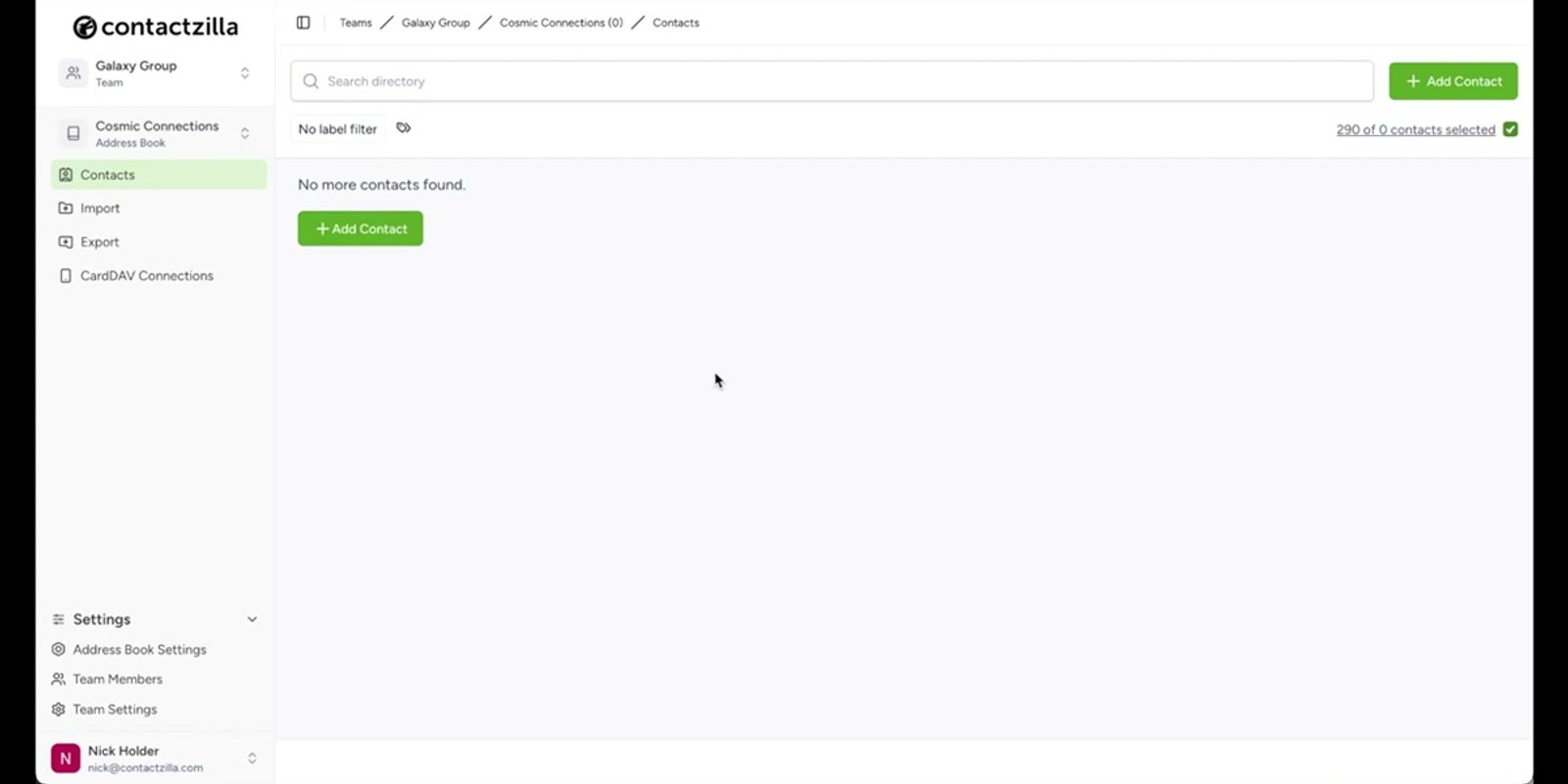
Contacts in Contactzilla are organised into address books within teams. Before importing, you need to navigate to the specific address book where you want the contacts to land.
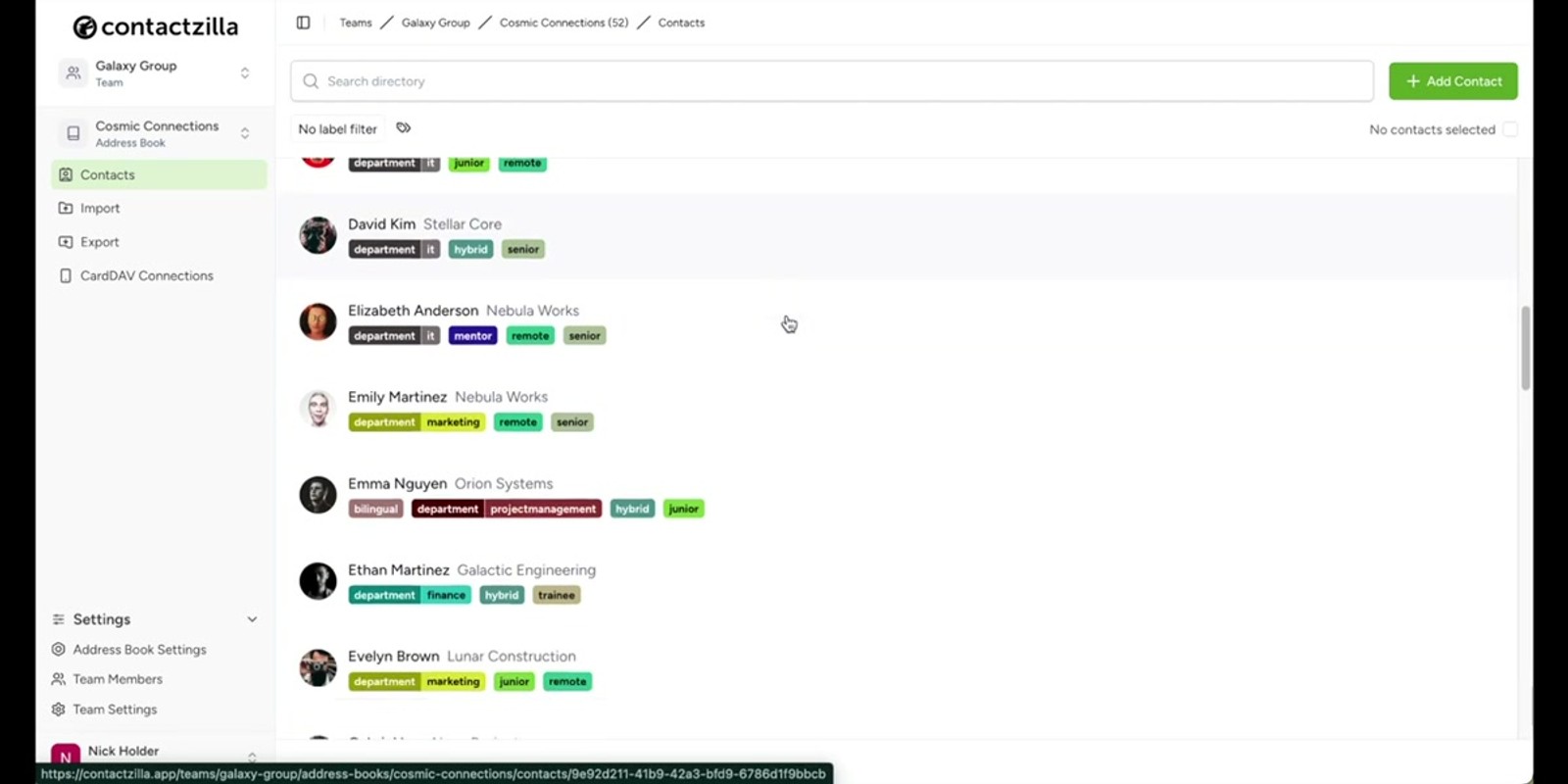
In the video, the presenter navigates to the Galaxy group team and selects the Cosmic Connections address book, which starts out empty. This is important — you choose the destination address book *before* starting the import, not during it.
If you need a new address book for your import, you can create one on the fly. Later in the video, a new address book called Luna List is created specifically for a vCard import. Simply enter the name and hit Create to set one up.
- Select your team first, then the address book within it
- The address book you're viewing is where imported contacts will go
- You can create a new address book if needed before importing
Upload Your CSV File
With your address book selected, click Import in the left-hand menu. You'll see options for the import type — select CSV, then click the Import CSV button.
The upload area supports two methods: you can click to browse and select your file, or simply drag and drop your CSV file directly onto the upload zone. The drag-and-drop method is the quickest if you already have your file open in a Finder or Explorer window.
Once the file is uploaded, Contactzilla immediately moves to the column mapping screen. There's no intermediate preview step — it goes straight to mapping, so make sure you're uploading the right file.
- Click Import in the left menu
- Select CSV as the import type
- Click the Import CSV button
- Upload by clicking the upload area or drag-and-drop
- The system moves directly to column mapping after upload
Map CSV Columns to Contactzilla Fields
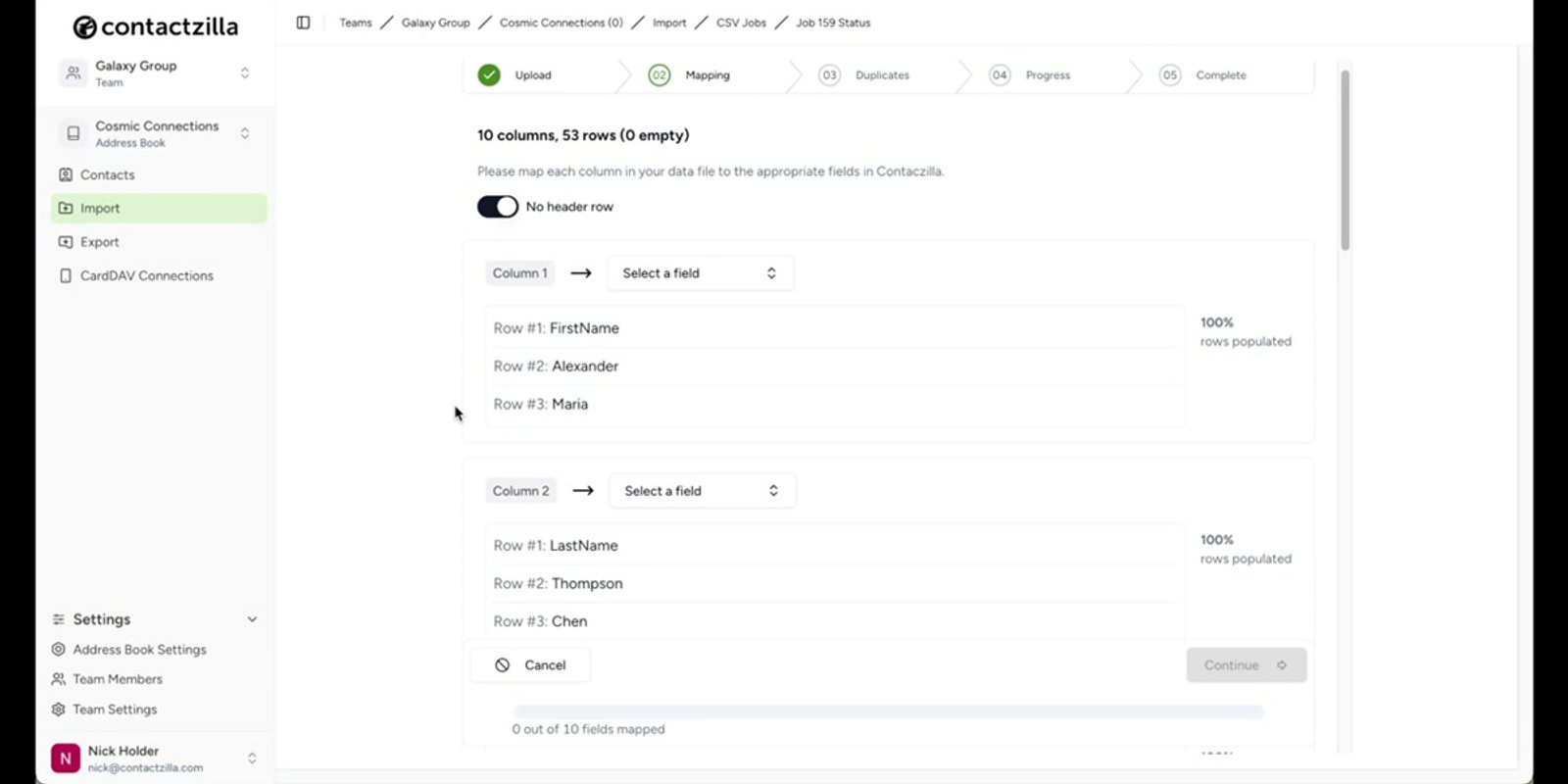
This is the most important step of the CSV import. Contactzilla displays each column from your CSV and asks you to map it to the corresponding Contactzilla field. If you have a header row, toggle the header row switch on (it's on by default) — this tells the system to use your first row as labels rather than importing it as a contact.
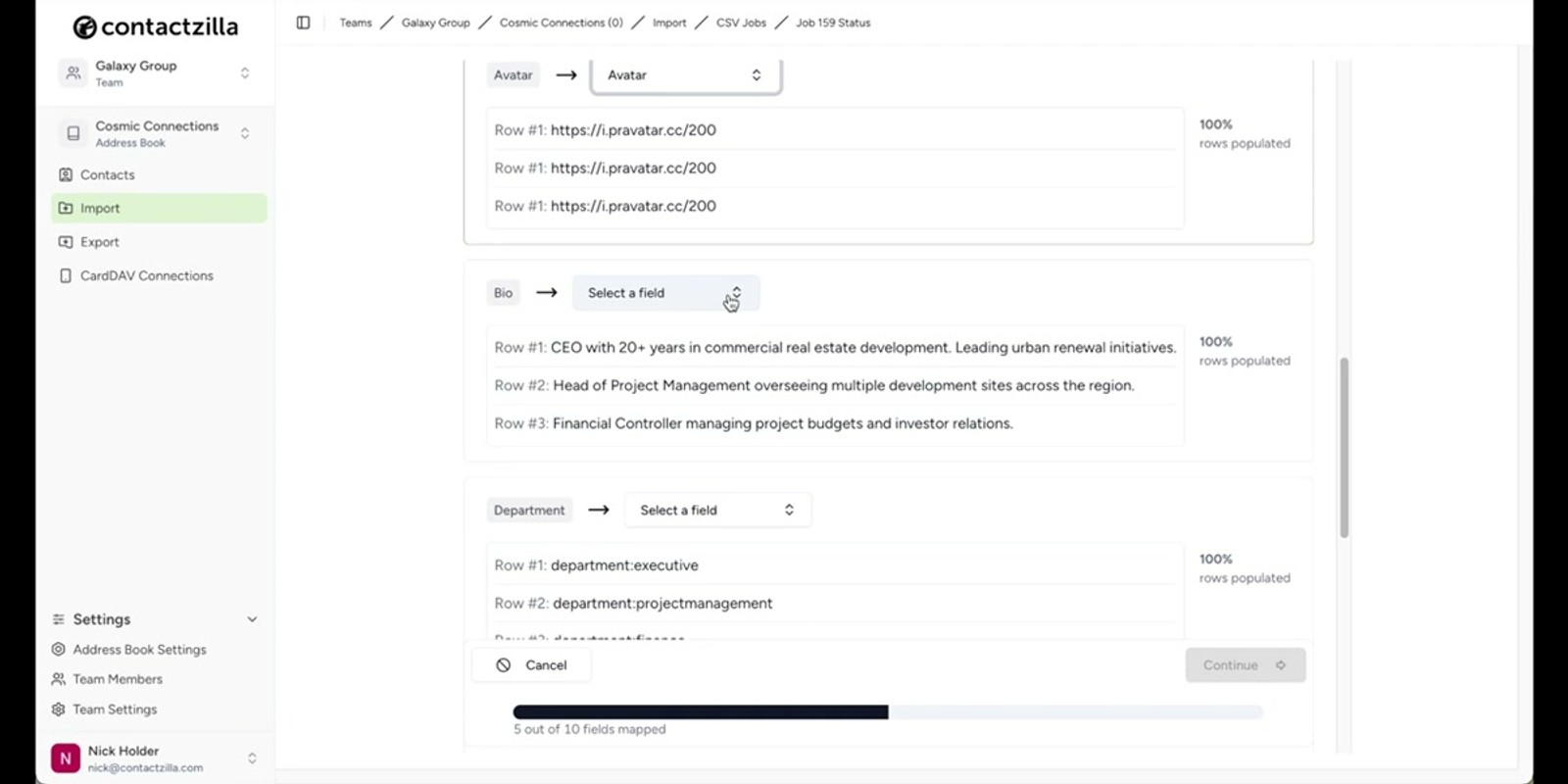
For each column, the system shows a small example of the data and provides a dropdown to select the matching Contactzilla field. Standard fields include First Name, Last Name, Email, Phone, and Avatar (which accepts a URL — the presenter uses randomly generated headshot URLs in their example).
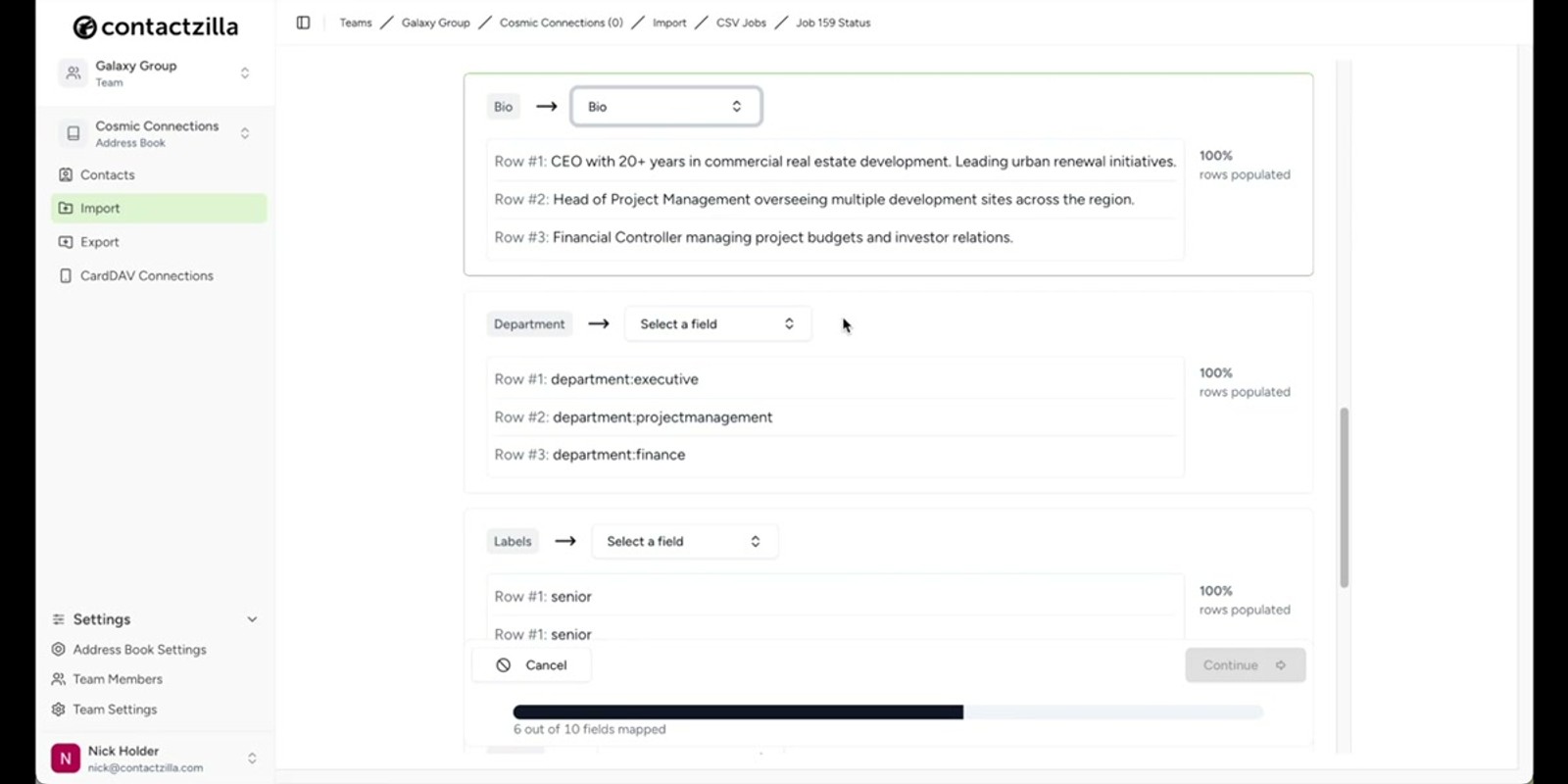
One powerful feature is mapping columns to the Contact Label field. Labels are Contactzilla's way of filtering and categorising contacts — think tags like Remote Worker, Senior, or a department name. You can have multiple columns in your CSV all mapped to the same Contact Label field. The presenter maps several label columns (e.g., seniority level, department, work style) all to Contact Label, and each value becomes a separate label on that contact.
The presenter notes that your CSV column names don't need to be perfectly named — as long as you map them correctly in this step, it doesn't matter if your headers say col1 or label_misc.
- Toggle the header row switch if your first row contains column names
- Map each column to a Contactzilla field using the dropdown
- Available fields include First Name, Last Name, Email, Phone, Avatar (URL)
- Map categorisation columns to the Contact Label field
- Multiple CSV columns can all map to Contact Label — each becomes a separate label
- Column header names don't matter — only the mapping you set here counts
You can also add labels to contacts after import, so don't worry if your CSV doesn't have label columns. But if you're importing hundreds of contacts, pre-adding label columns in your spreadsheet is much faster than tagging them one by one later.
Handle Duplicates and Run the Import
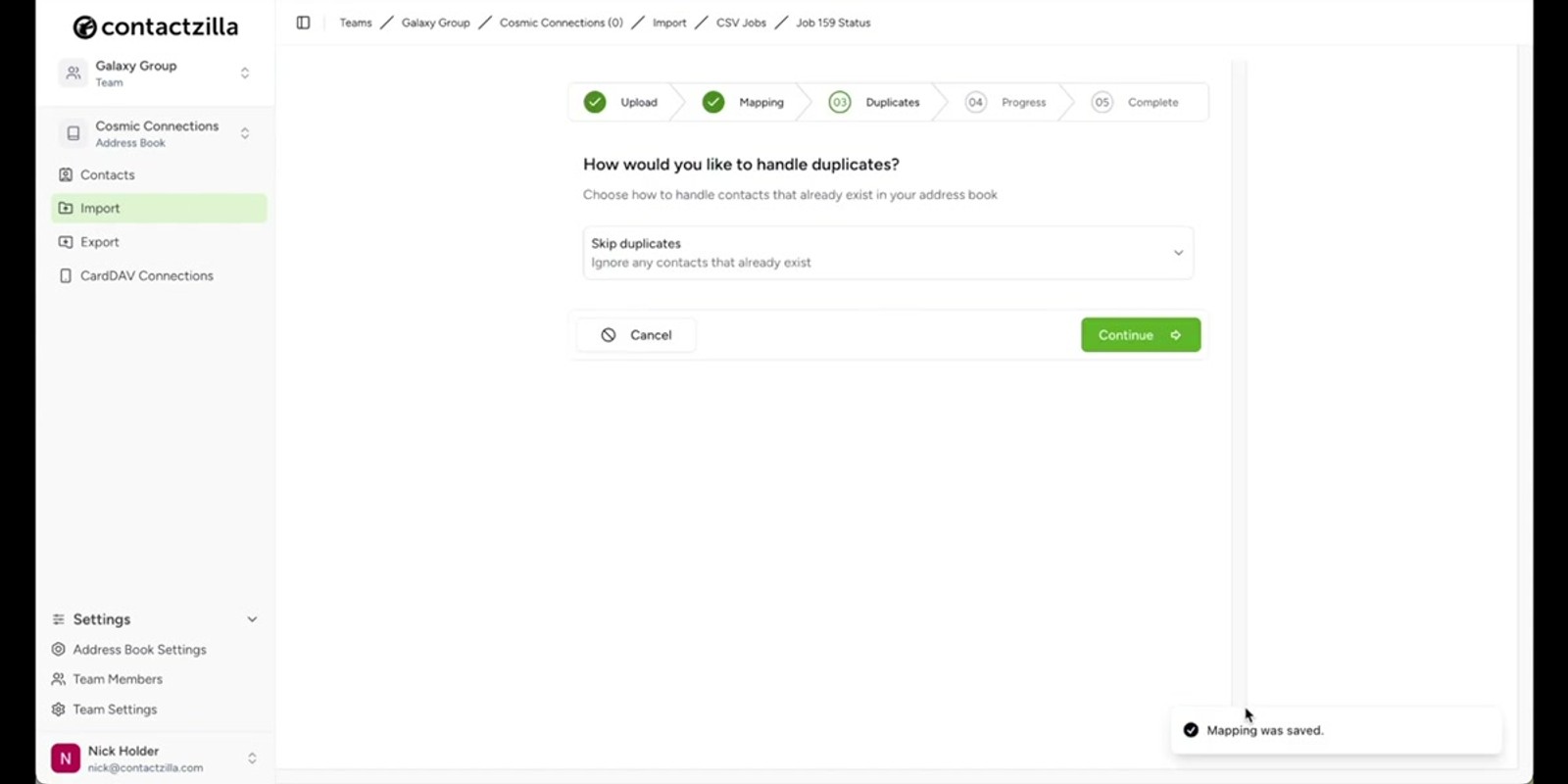
After mapping all your columns, click Continue. Contactzilla now asks how to handle duplicate contacts — records that match an existing contact already in the address book.
You have three options:
- Skip — duplicate records are ignored entirely; existing contacts remain unchanged - Replace — the new data overwrites the existing contact completely - Merge — the new data is combined with the existing contact, filling in blanks without removing existing information
Select your preferred duplicate handling strategy and click Continue again. The import process runs and you'll receive a notification when it's complete. The presenter's import completes successfully with all contacts imported.
After the import, click Contacts in the navigation to see your imported contacts listed in the address book, complete with any labels you assigned during mapping.
- Click Continue after column mapping is complete
- Choose a duplicate handling strategy: Skip, Replace, or Merge
- Click Continue to start the import
- You'll be notified when the import is complete
- Navigate to Contacts to verify the import and see labels
Import Contacts from a vCard File
If your contacts are in vCard format (.vcf files), the process is simpler since vCards already contain structured field data — no column mapping needed.
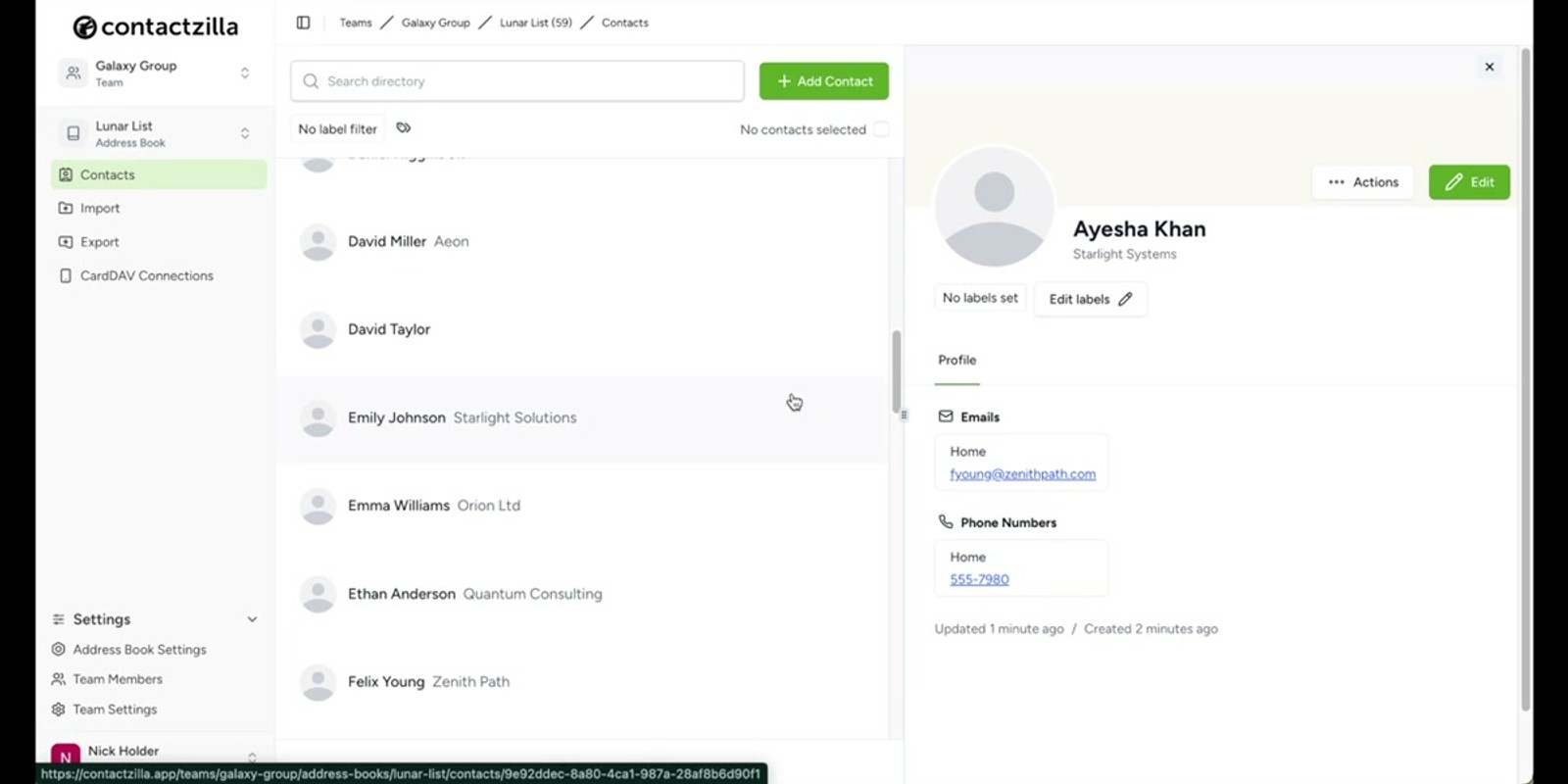
Navigate to the address book where you want the contacts (or create a new one — the presenter creates a new address book called Luna List by typing the name and clicking Create). Then click Import in the left menu and this time select vCard. Click the Import vCard button.
Just like the CSV upload, you can either click to browse or drag and drop your .vcf file. The import processes automatically without any mapping step, and your contacts appear in the address book once it's complete.
vCards are commonly exported from Apple Contacts, Google Contacts, Outlook, and most CRM systems, making this a quick migration path if your source system supports vCard export.
- Create a new address book or navigate to an existing one
- Click Import → select vCard → click Import vCard
- Upload via click-to-browse or drag-and-drop
- No column mapping needed — vCards are already structured
- Import completes automatically with a confirmation
Add a Single Contact Manually
For adding individual contacts — or when you don't have a file to import — use the Add Contact button. This opens a form where you can enter all standard contact details field by field.
Beyond the standard fields (name, email, phone, etc.), the manual entry form also supports custom fields. The presenter demonstrates adding a Customer ID as a custom field. Custom fields let you store any additional data that isn't covered by the default fields.
Once you've filled in the details and added any custom fields, click Save to create the contact in the current address book. This method is ideal for adding a handful of contacts or for creating a contact with fields you want to carefully review as you enter them.
- Click the Add Contact button
- Fill in standard fields: name, email, phone, etc.
- Add custom fields for additional data (e.g. Customer ID)
- Click Save to create the contact in the current address book
.vcf export Three Import Methods
CSV upload, vCard import, or manual entry — use whichever fits your data source
Bulk Label Assignment
Map CSV columns to Contact Label to tag hundreds of contacts during import
Smart Duplicate Handling
Skip, replace, or merge duplicates automatically during CSV import
Flexible Column Mapping
Map any CSV structure to Contactzilla fields — column names don't need to match
Custom Fields
Add fields like Customer ID that go beyond the standard contact fields
Drag-and-Drop Upload
Drop CSV or vCard files directly into the import zone — no file browser needed
Frequently Asked Questions
Does my CSV file need a header row?
No, a header row is optional. If your CSV doesn't have headers, you can still map each column to the correct Contactzilla field during import — you'll just need to know which column contains which data. If you do have headers, leave the header row switch toggled on so the first row isn't imported as a contact.
How should I format phone numbers in my CSV?
Use digits only — remove all parentheses, hyphens, and spaces. For international dialling codes, the plus symbol is fine (e.g. `+44 7700 900000`). Formatting like `(077) 00-900000` can cause import issues.
Can I assign labels to contacts during a CSV import?
Yes. Add columns in your CSV for each label category (e.g. department, seniority, work style) and map them all to the **Contact Label** field during the column mapping step. Each value becomes a separate label on the contact. You can also add labels after import if you prefer.
What happens if my CSV contains duplicate contacts?
After column mapping, Contactzilla asks you to choose a duplicate handling strategy. **Skip** ignores duplicates and keeps existing records untouched. **Replace** overwrites existing contacts with the new data. **Merge** combines the new data with existing records, filling in gaps without removing existing information.
What's the difference between CSV and vCard import?
CSV import requires you to map each column to a Contactzilla field, which gives you more control — including the ability to bulk-assign labels. vCard (`.vcf`) import is simpler and faster since vCards already contain structured field data, so no mapping step is needed. Use vCard if you're exporting from apps like Apple Contacts, Google Contacts, or Outlook.
Can I add custom fields to contacts?
Yes. When adding a contact manually via the **Add Contact** button, you can add custom fields beyond the standard name/email/phone fields. The video demonstrates adding a **Customer ID** custom field. This lets you store any additional data specific to your organisation.

