
Organize Thousands of Contacts With Smart Labels & One-Click Filters
Master individual labels, group labels, bulk actions, and filtered CSV exports — everything you need to keep your shared address book organized and actionable.
Labels are the backbone of contact organization in Contactzilla. Whether you're tagging contacts as CEO, Developer, Contractor, or Friend, labels let you slice your address book into meaningful groups — then filter, export, and bulk-manage those groups with just a few clicks.
This tutorial walks through everything labels can do: applying them to individual contacts, creating brand-new labels on the fly with custom colors, filtering your contact list using match any versus match all logic, exporting filtered results to CSV, and using the powerful group labels feature to enforce mutually exclusive categories (like a sales pipeline stage or a contact rank).
You'll also learn how to select multiple contacts at once using Command (Mac) or Control (PC) and Shift keys, then apply or remove labels in bulk across your entire selection. By the end, you'll have a complete understanding of how to keep even the largest shared address books tidy and searchable.
Filter Your Contact List by Label
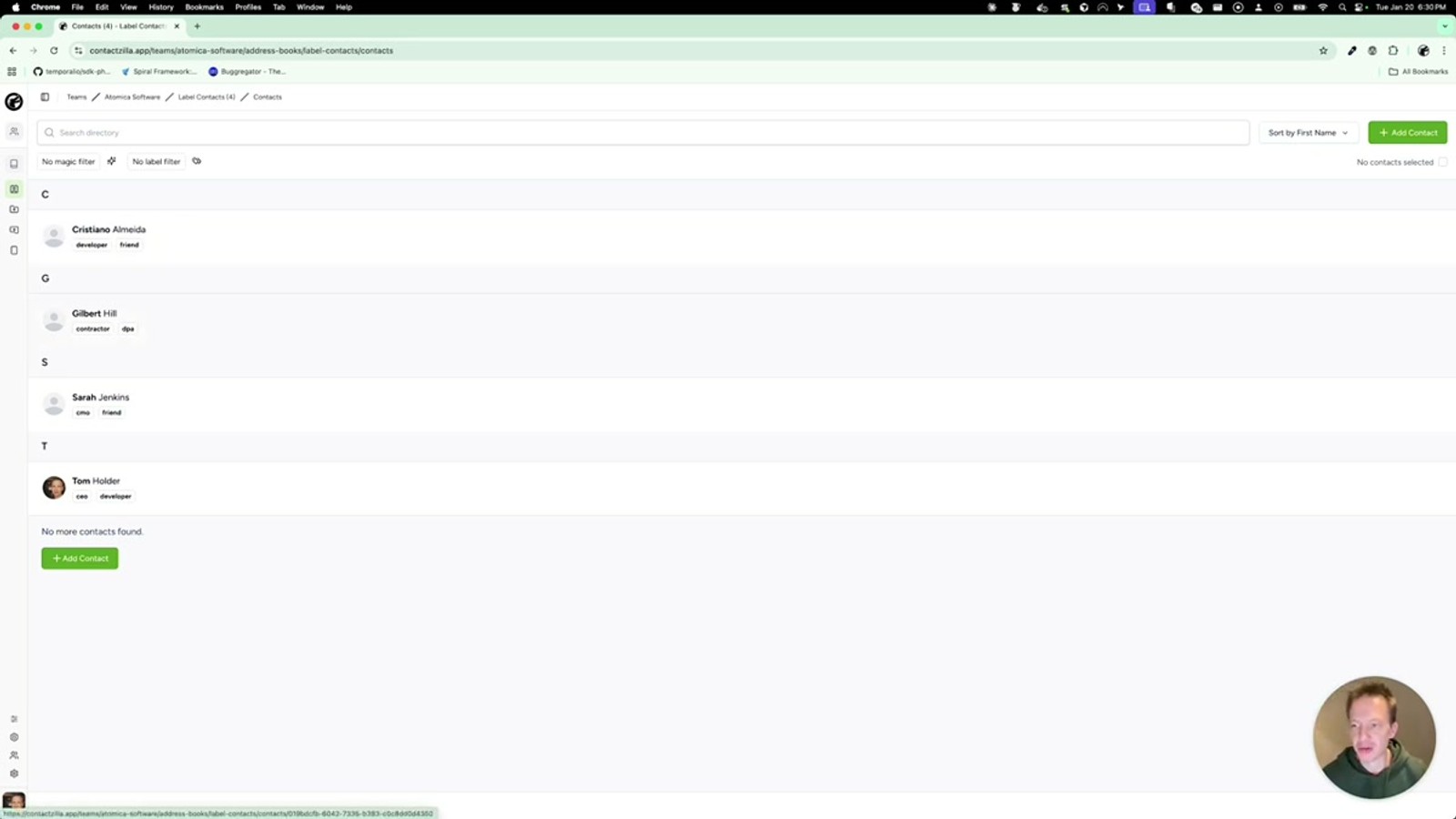
Filtering contacts by label is the fastest way to find exactly who you're looking for. From your main contact list view, look above the contacts for the label bar — this displays all labels currently in use across your address book.
Click any label to instantly filter the list down to contacts carrying that label. You can click multiple labels to build a combined filter. When you do, Contactzilla defaults to matching any of the selected labels, meaning it returns contacts that have at least one of the labels you picked.
For example, clicking CEO and Contractor in "match any" mode returns all contacts who are tagged as either CEO or Contractor (or both). This is useful for broad searches where you want to cast a wide net.
- Click a label above the contact list to activate filtering
- Select multiple labels to build a combined filter
- Default mode is matching any — returns contacts with at least one selected label
- Results update immediately as you add or remove label filters
Switch Between Match Any and Match All
The difference between matching any and matching all is critical for precise filtering. When you have multiple labels selected, look for the toggle text that reads matching any of followed by your selected labels.
Click the matching all of option to switch modes. In "match all" mode, only contacts that carry every single selected label will appear. For instance, if you select CEO and Developer, only contacts tagged with both labels simultaneously will show up — not contacts with just one of the two.
In the video example, switching from "match any" to "match all" with CEO and Contractor selected returned zero results because no contact had both labels. But switching Contractor to Developer while keeping CEO returned one result — a contact tagged with both CEO and Developer.
- Click matching all of to require every selected label on a contact
- Click matching any of to return contacts with at least one selected label
- "Match all" is useful for finding contacts at the intersection of multiple categories
- "Match any" is better for broad searches across related groups
If your "match all" filter returns zero results, it likely means no single contact carries all the selected labels. Try removing one label at a time to find the right combination.
Export Filtered Contacts to CSV
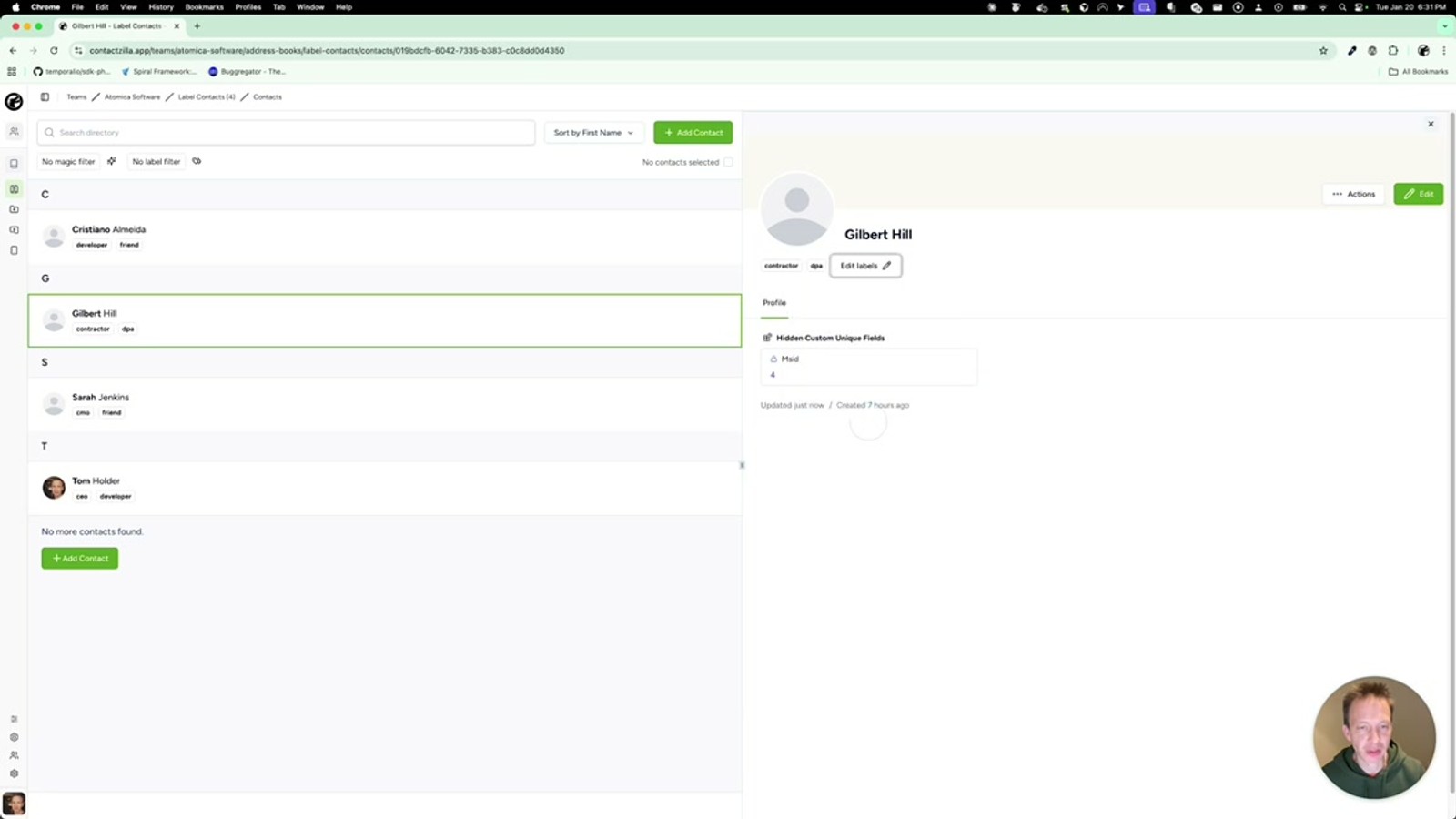
The label filtering you set up on the contact list carries over directly into the export feature. Click the CSV button to open the export dialog. Inside the export dialog, you'll see the same label filtering options — you can select labels and toggle between matching any and matching all, just like on the main contact list.
For example, you can select CEO and Developer, switch to matching any of, and then click export. Contactzilla will generate a CSV file containing only the contacts that match your label filter criteria. This is particularly useful for creating targeted mailing lists, generating reports for specific teams, or extracting subsets of your address book for use in other tools.
The export respects whatever filter combination you've configured, so you get exactly the contacts you need — no manual cleanup required after download.
- Click the CSV button to open the export dialog
- Select labels within the export dialog to filter which contacts are included
- Toggle matching any of / matching all of works identically to the main list filter
- The generated CSV includes only contacts matching your label criteria
Apply and Remove Labels on Individual Contacts
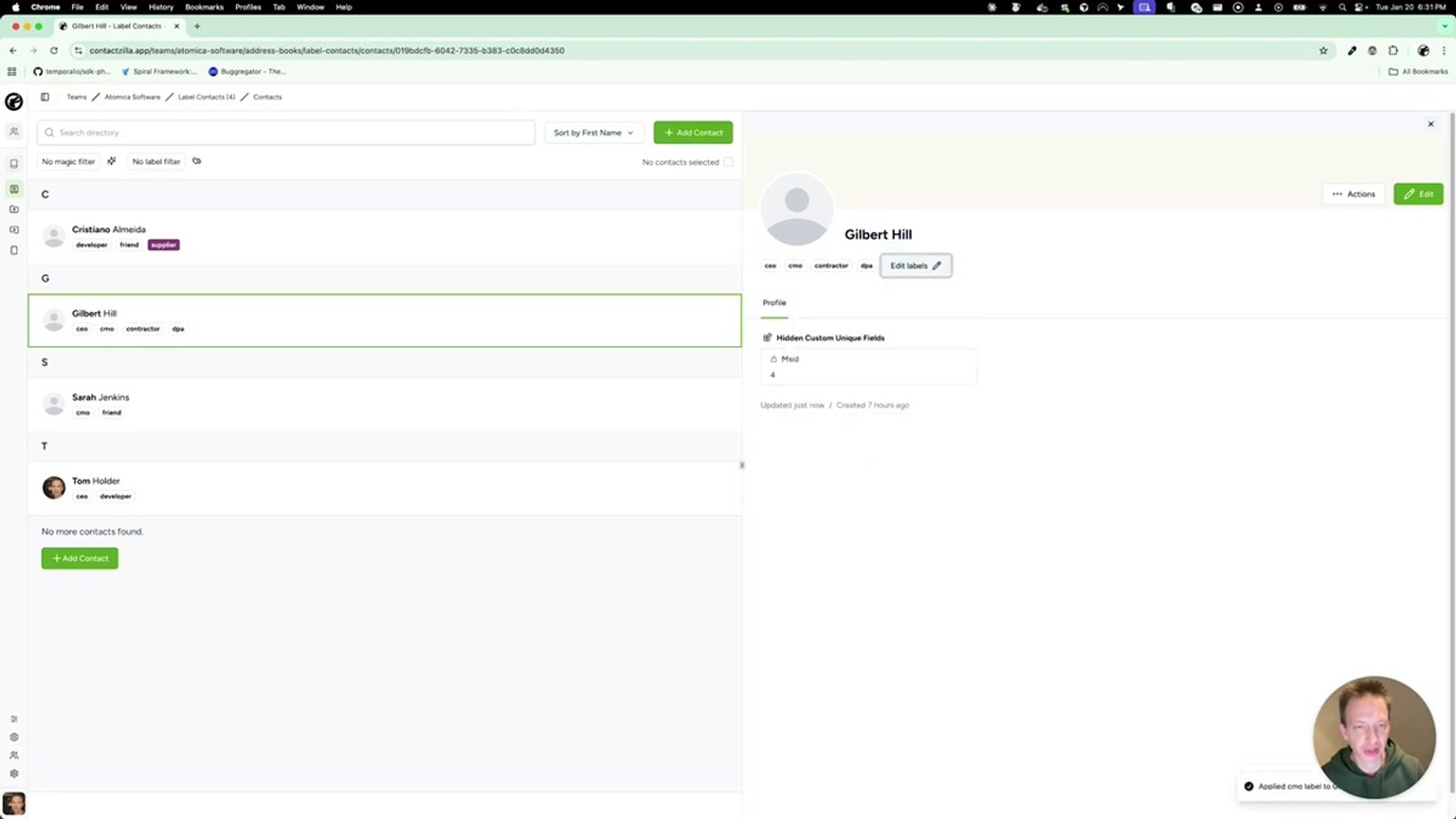
To add a label to a single contact, click into the contact and look for the Edit Label option. Clicking it opens a dropdown showing all available labels in your address book. Simply click an available label to apply it — the label is added to the contact immediately.
To remove a label, find the applied labels displayed on the contact and click the cross (×) icon next to the label you want to remove. The label is removed from that contact instantly.
If you need a label that doesn't exist yet — for example, Supplier — just type it into the label field. Contactzilla will show a "not found" message and let you create it on the spot. When creating a new label, you can also select a color for it. Label colors can be changed later in Address Book Settings, accessible from the settings area at the bottom of the page.
- Click Edit Label on a contact to open the label picker
- Select from existing labels or type a new label name to create one
- Choose a color when creating a new label
- Click the × next to an applied label to remove it
- Change label colors anytime in Address Book Settings
Labels are auto-managed: once the last instance of a label is removed from all contacts, that label disappears from the available list. You can always recreate it by typing the name again.
Create and Use Group Labels With the Colon Prefix
Group labels are Contactzilla's power feature for enforcing mutually exclusive categories. Unlike standard labels (where you can stack as many as you want on a single contact), a group label only permits one value per group on any given contact.
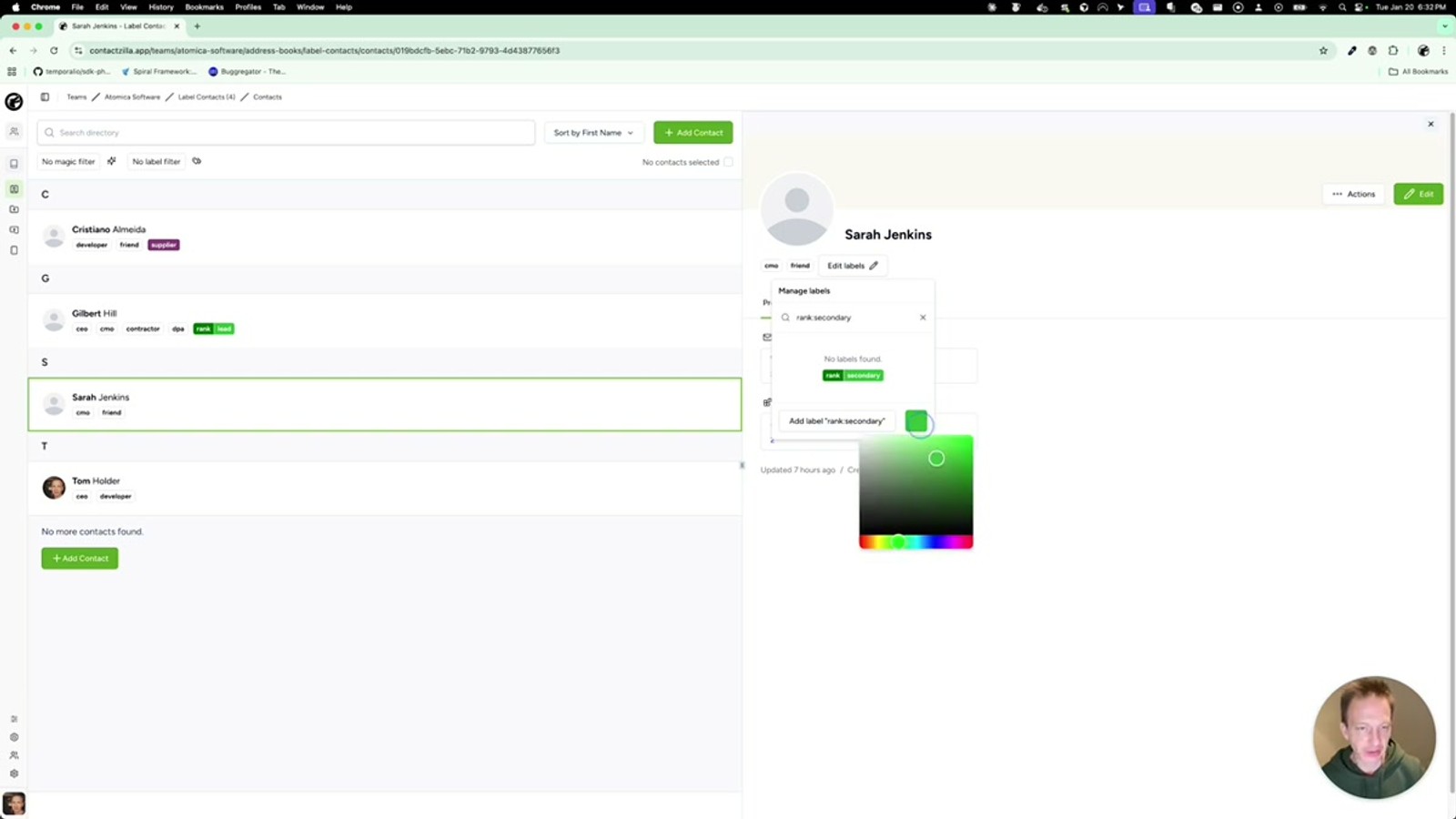
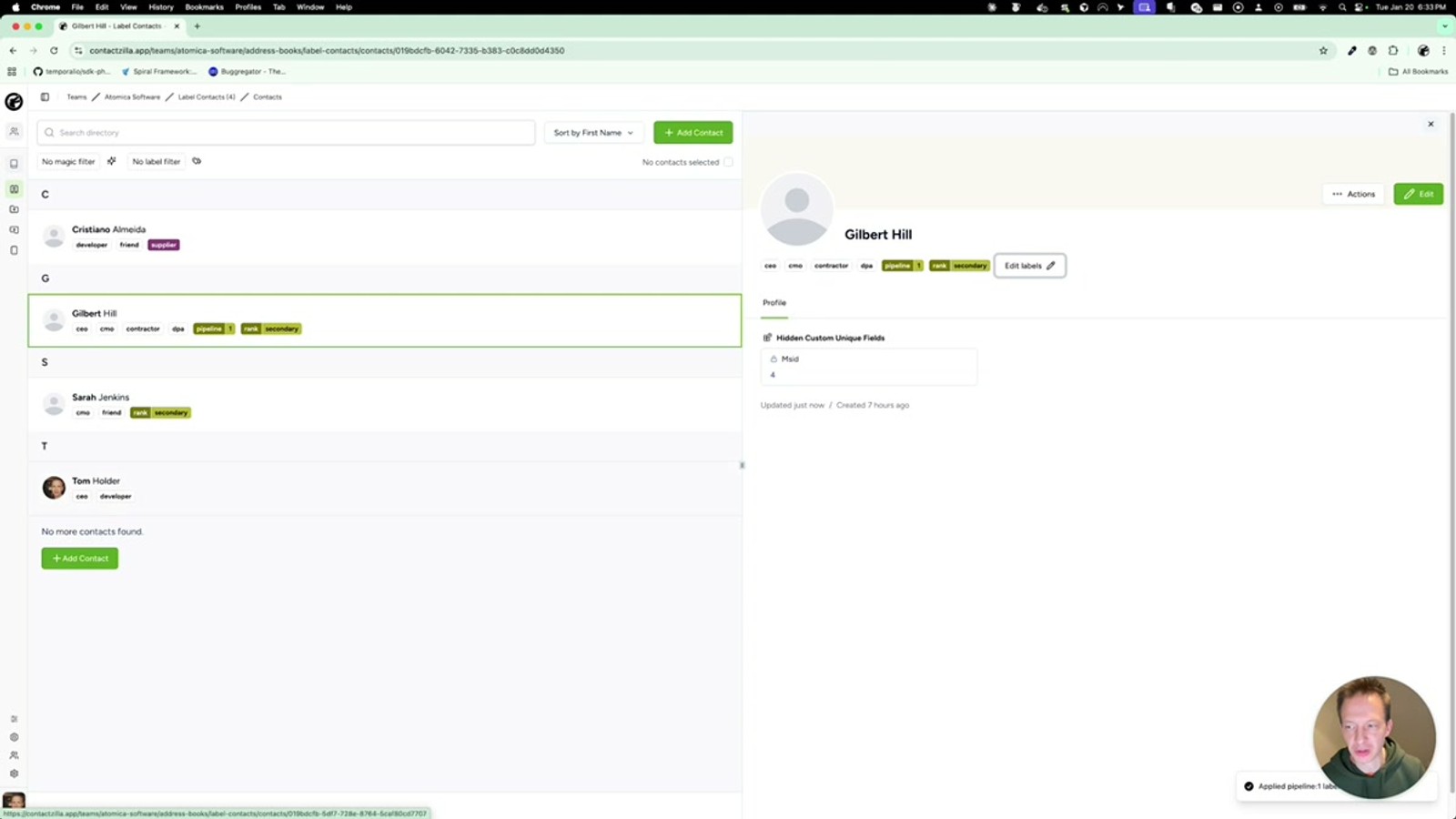
To create a group label, type the group name followed by a colon character, then the value. For example, typing Rank:Lead creates a group label where Rank is the group prefix and Lead is the value. You can then assign a color — say, green — and save it.
On another contact, you might create Rank:Secondary. Both Rank:Lead and Rank:Secondary belong to the same Rank group. The key behavior: when you go back to a contact that has Rank:Lead and try to apply Rank:Secondary, Contactzilla will automatically switch the label. It won't let a contact have both — only one value per group prefix is allowed.
However, a contact can have labels from multiple different groups simultaneously. For example, a contact can be Pipeline:One and Rank:Secondary at the same time, because Pipeline and Rank are different group prefixes.
- Type
GroupName:Valueto create a group label (e.g.,Rank:Lead) - The part before the colon becomes the group prefix
- The part after the colon becomes the label value
- Only one value per group prefix is allowed on a single contact
- Selecting a different value in the same group automatically replaces the existing one
- Contacts can have labels from multiple different groups (e.g.,
Pipeline:One+Rank:Secondary)
Group labels are ideal for pipeline stages, priority ranks, or any category where a contact should only belong to one option at a time — like lead status or account tier.
Select Multiple Contacts for Bulk Label Actions
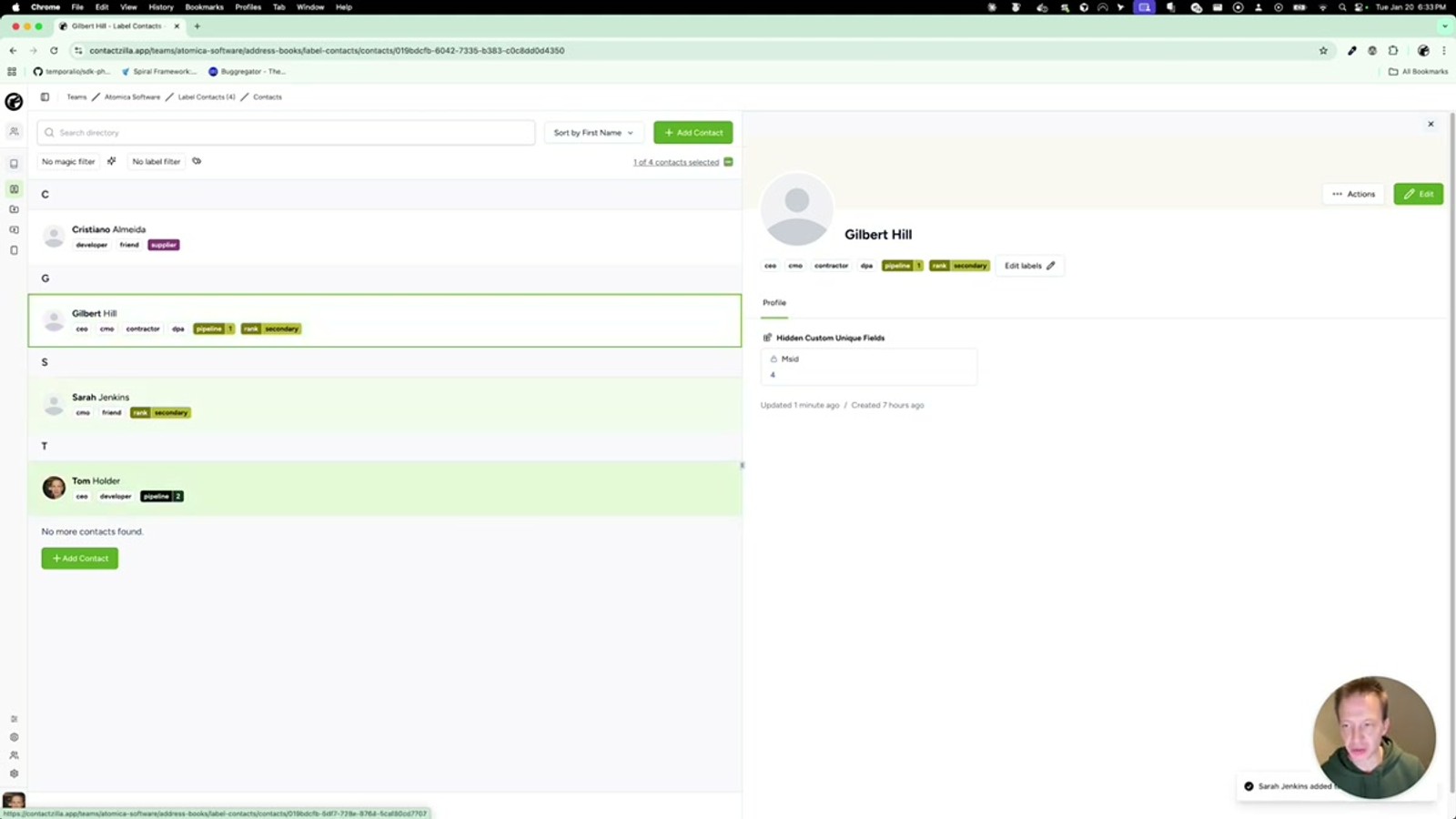
When you need to apply or remove labels across many contacts at once, Contactzilla supports multi-select. Hold the Command key (Mac) or Control key (PC) and click individual contacts to add them to your selection. You can also use the Shift key to select a contiguous range of contacts.
Once you've selected multiple contacts (the video demonstrates selecting three or four), a bulk action bar appears. Click it to see your selected contacts listed out. From here, you have two bulk options:
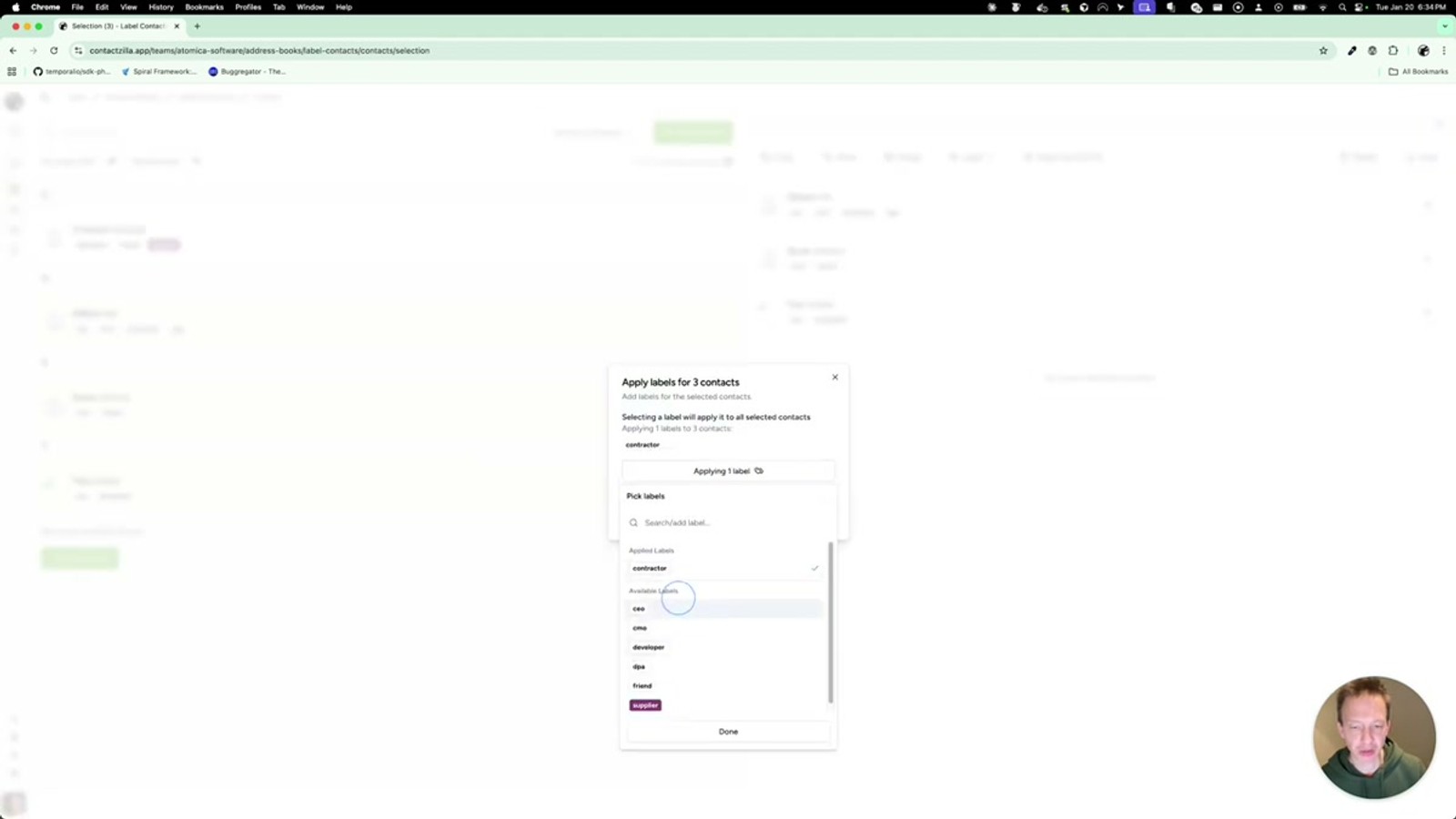
Apply Labels — Select one or more labels from the picker (e.g., Contractor and Friend) and click Apply Labels. The selected labels are added to every contact in your selection.
Remove Labels — Click remove to see all labels currently applied across the selected contacts. Pick the ones you want to strip away (e.g., Rank: and Pipeline: group labels) and click Save. You may need to refresh the screen to see the updated results.
- Hold Command (Mac) / Control (PC) + click to select individual contacts
- Hold Shift + click to select a range of contacts
- Click the bulk action bar to see selected contacts
- Use Apply Labels to add labels to all selected contacts at once
- Use Remove Labels to strip labels — shows all currently applied labels across the selection
- Click Clear to deselect all contacts and dismiss the selection
After bulk removing labels, you may need to refresh the page to see the updated contact list. The labels are removed server-side immediately, but the UI may not reflect changes until a refresh.
Manage Label Colors in Address Book Settings
Every label in Contactzilla has an assigned color, which helps with visual identification when scanning a long contact list. When you first create a label, you're prompted to pick a color. But you're not locked in — colors can be changed at any time.
To change label colors after creation, navigate to Address Book Settings (found at the bottom of the address book view). From there, you can modify the color assignments for any existing label. This is especially useful as your label system grows — you might want all group labels in one color family (e.g., greens for pipeline stages, blues for ranks) to create a visual hierarchy.
Keep in mind that color changes apply globally — every contact carrying that label will reflect the new color immediately across the entire address book.
- Colors are assigned when creating a new label
- Change colors later in Address Book Settings
- Color changes are global — they affect every instance of that label
- Use color coding strategically to create visual categories
Key Takeaways
Prefix:Value syntax (e.g., Rank:Lead) and enforce one value per group per contact Pipeline:One + Rank:Secondary) Why Labels Transform Your Contact Management
Frequently Asked Questions
What is the difference between 'matching any' and 'matching all' when filtering by labels?
**Matching any** returns contacts that have at least one of the selected labels — it's a broad, inclusive search. **Matching all** only returns contacts that carry every single selected label simultaneously. For example, filtering by CEO and Developer with 'match any' returns anyone tagged as CEO or Developer (or both), while 'match all' only returns contacts tagged with both CEO and Developer.
What happens when I remove a label from every contact?
When the last instance of a label is removed from all contacts in the address book, that label disappears from the available labels list. It's automatically cleaned up. If you need it again later, simply type the label name when editing a contact's labels and it will be recreated as a new label — you'll be prompted to choose a color again.
How do group labels differ from regular labels?
Regular labels can be stacked freely — a contact can have as many standard labels as you want. Group labels use a `Prefix:Value` syntax (e.g., `Rank:Lead`) and enforce a constraint: a contact can only have one value per group prefix. If a contact has `Rank:Lead` and you apply `Rank:Secondary`, the label automatically switches — you can't have both. However, a contact can have labels from multiple different groups (e.g., `Rank:Lead` and `Pipeline:One`).
Can I apply labels to multiple contacts at once?
Yes. Hold **Command** (Mac) or **Control** (PC) and click to select individual contacts, or use **Shift + click** for a contiguous range. Once selected, a bulk action bar appears where you can apply or remove labels across all selected contacts. After making bulk changes, you may need to refresh the page to see the updated labels.
Does the label filter carry over to CSV exports?
Yes. When you click the **CSV** export button, the export dialog includes the same label filter controls — you can select labels and toggle between matching any or matching all. The exported file will contain only the contacts matching your filter criteria, making it easy to generate targeted lists without manual editing.
Can a contact belong to more than one group label?
Yes, as long as the group prefixes are different. For example, a contact can simultaneously have `Pipeline:One` and `Rank:Secondary` because **Pipeline** and **Rank** are separate groups. The one-value-per-group rule only applies within the same prefix — you can't have `Rank:Lead` and `Rank:Secondary` on the same contact.

