
Keep Sensitive Contact Data Visible Only to Admins
Store internal IDs, notes, and system identifiers on contacts without exposing them to regular team members or synced phone apps.
Contactzilla has always supported Custom Fields and Custom Unique Fields for adding your own data to contacts. But those fields are visible to every user in the address book — and they sync down to connected devices like iPhones, Android phones, and Mac Contacts via CardDAV. That's a problem when you're storing internal identifiers, Salesforce IDs, or sensitive notes that regular staff shouldn't see.
Hidden Custom Fields solve this by letting administrators and address book owners add fields that are completely invisible to standard users. They don't appear in the contact view for non-admins, and critically, they don't sync down to connected devices. This means you can store a long Salesforce ID on a contact for import/export targeting without it cluttering up someone's iPhone contact card.
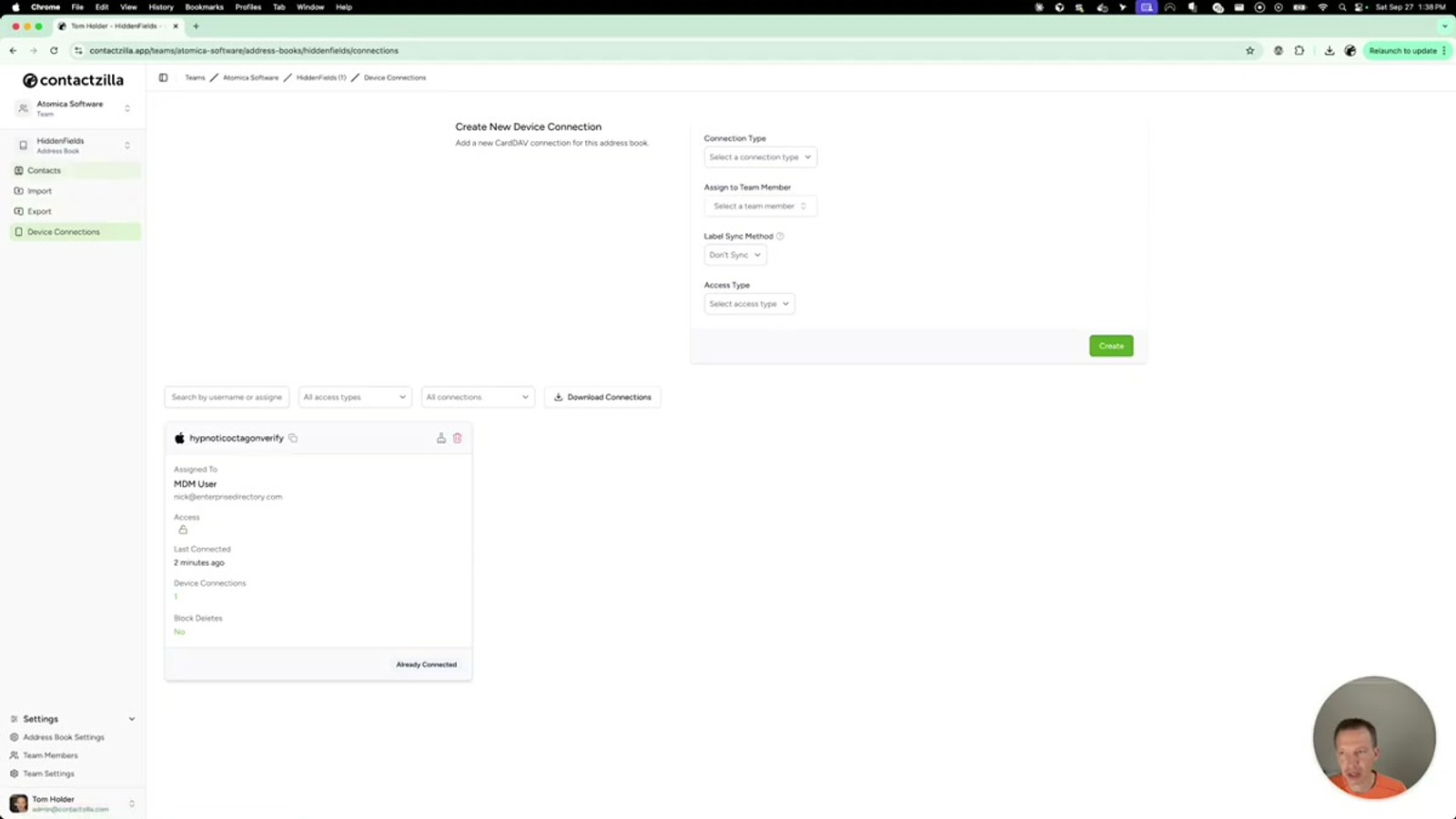
In this walkthrough, Tom demonstrates the full workflow: creating hidden fields, verifying they're invisible on synced devices, and using hidden unique fields as merge keys during CSV imports. If you manage shared address books and need to keep certain data internal, this feature is essential.
Understand the Three Field Types
Before diving into hidden fields, it helps to understand Contactzilla's field hierarchy. There are now three categories of custom fields, each with a distinct purpose.
Custom Fields let you specify your own field label and field data. These can exist multiple times on a single contact — for example, you could have two custom fields both labeled "Specialty." They're visible to all users and sync to connected devices.
Custom Unique Fields work similarly but are constrained to exist only once within an address book. If you set a custom unique field called "Employee ID," each contact can only have one value for it. These are also visible to everyone.
Hidden Custom Fields and Hidden Custom Unique Fields are the new additions. They behave exactly like their non-hidden counterparts, but are only visible to administrators and address book owners. Standard address book users won't see them at all — not in the web interface, and not on synced devices.
- Custom Field — user-defined label and data, can appear multiple times, visible to all
- Custom Unique Field — user-defined label and data, appears once per address book, visible to all
- Hidden Custom Field — same as custom field but only visible to admins and address book owners
- Hidden Custom Unique Field — same as custom unique but only visible to admins and address book owners
Recognize Hidden Fields in the Contact View
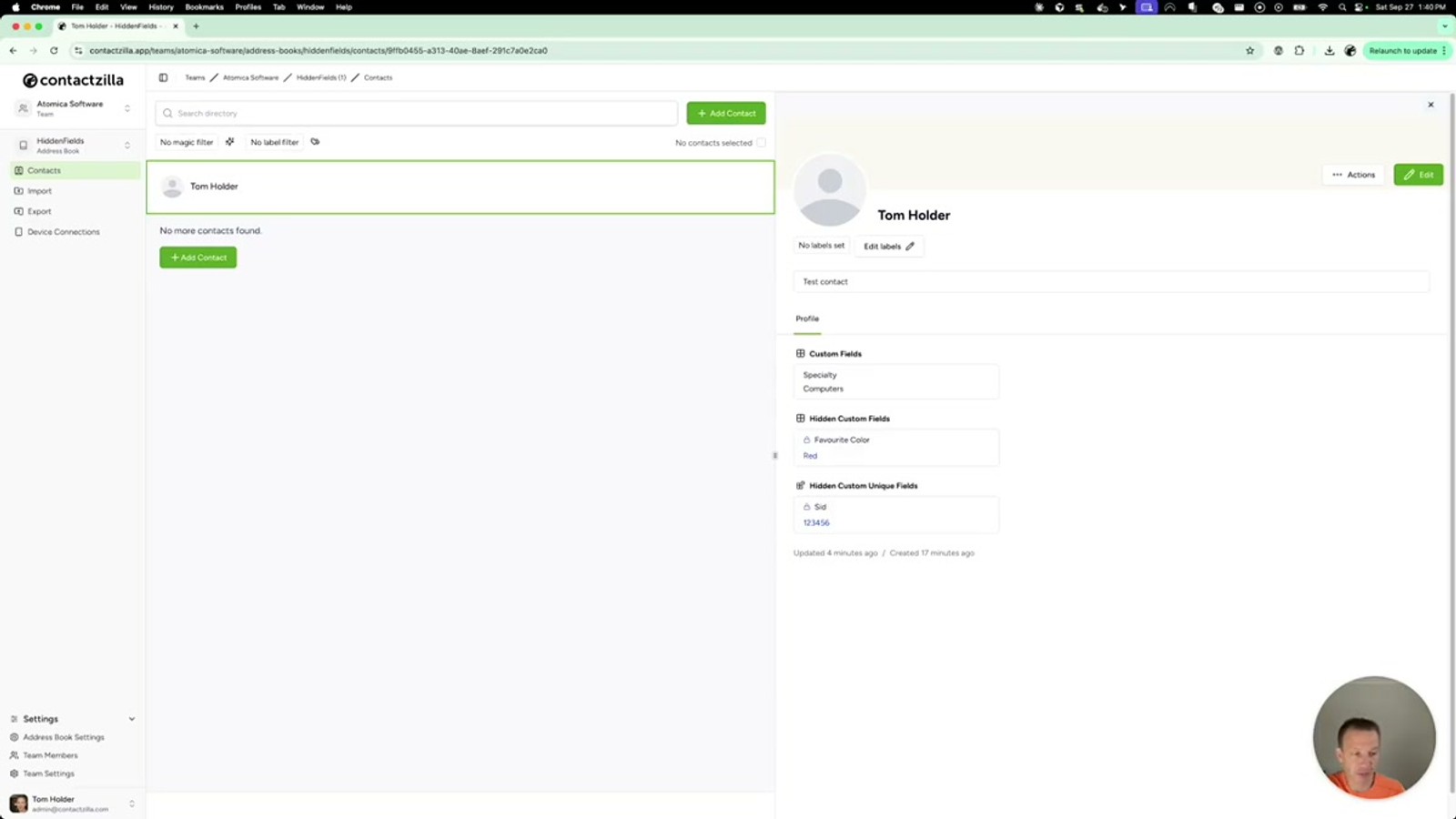
When viewing a contact as an admin, hidden fields are displayed alongside regular fields but with a visually distinct style. In Tom's example, the contact shows a standard Custom Field with the label Specialty and value Computers. Below that, a Hidden Custom Field appears with the label Favorite Color and value Red, followed by a Hidden Custom Unique Field with the label SID and a system identifier value.
The hidden fields appear slightly differently in the interface compared to standard custom fields, making it easy for admins to distinguish at a glance which data is hidden from regular users. If you were to log in as a standard address book user, these hidden fields would not appear at all — the contact would only show the standard custom field and regular contact details.
- Hidden fields are visually distinct from standard custom fields in the admin view
- Standard users see no trace of hidden fields — they simply don't appear
- Both hidden custom and hidden custom unique field types are supported
Verify Hidden Fields Don't Sync to Devices
One of the key benefits of hidden fields is that they do not sync down to connected devices via CardDAV. Tom demonstrates this by connecting an address book to a Mac via a DAV connection and opening the Mac Contacts app.
The synced contact shows the standard Specialty field with the value Computers and the contact's notes — all the regular fields come through as expected. However, the hidden custom field (Favorite Color) and the hidden custom unique field (SID) are completely absent from the Mac Contacts card.
This is particularly important for fields like Salesforce IDs, which can be long alphanumeric strings. You don't want a 15-18 character Salesforce ID cluttering up a contact card on someone's iPhone. Hidden fields keep that data in Contactzilla's web interface for admins only, while synced devices stay clean.
- CardDAV sync to Mac, iPhone, and Android excludes all hidden fields
- Regular custom fields, notes, and standard contact data still sync normally
- Ideal for keeping long system IDs (like Salesforce IDs) off mobile contact cards
After importing or updating hidden fields, synced devices will pull down any changes to visible fields (like a newly added email address) but will never show hidden field data.
Add Hidden Fields When Editing a Contact
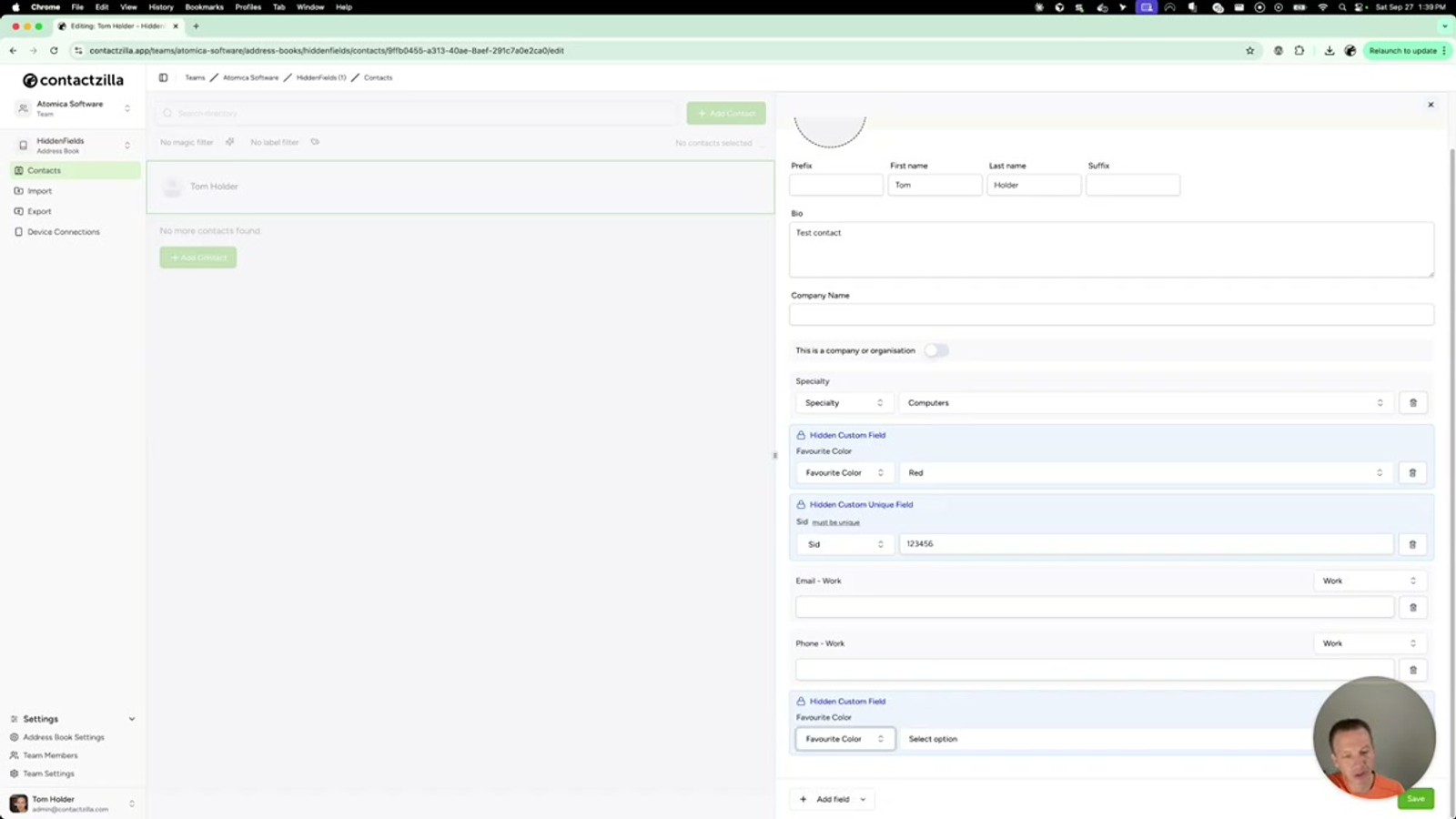
Adding a hidden field to a contact is straightforward and follows the same workflow as adding any custom field. When you edit or add a contact, you'll see the option to add a new field.
In the field type dropdown, alongside the existing Custom and Custom Unique options, you'll now see Hidden Custom and Hidden Custom Unique. Select the appropriate hidden type, enter your field label (e.g., Favorite Color or SID), and enter the field value.
The process is identical to creating standard custom fields — the only difference is the type selection. Choose Hidden Custom for fields that can appear multiple times, or Hidden Custom Unique for fields that should only exist once per address book (like an external system ID).
- Open a contact and click Edit (or create a new contact)
- Add a new field and select Hidden Custom or Hidden Custom Unique from the type dropdown
- Enter the field label and value just as you would for a standard custom field
- Save the contact — the hidden field is now stored but invisible to non-admins
Use Hidden Unique Fields as Import Merge Keys
The most powerful use case for hidden custom unique fields is using them as targeting keys for CSV imports. When you import contacts from an external system like Salesforce, each record typically has a unique system ID. By storing that ID as a Hidden Custom Unique Field, you can use it to match incoming CSV records to existing contacts — even if the contact has no email address or other standard identifying information.
In Tom's example, the contact "Tom" has no email address — only an SID stored as a hidden custom unique field. The CSV file being imported contains two rows: one for Tom (with the same SID and a new email address) and one for Cristiano (with a different SID and email address).
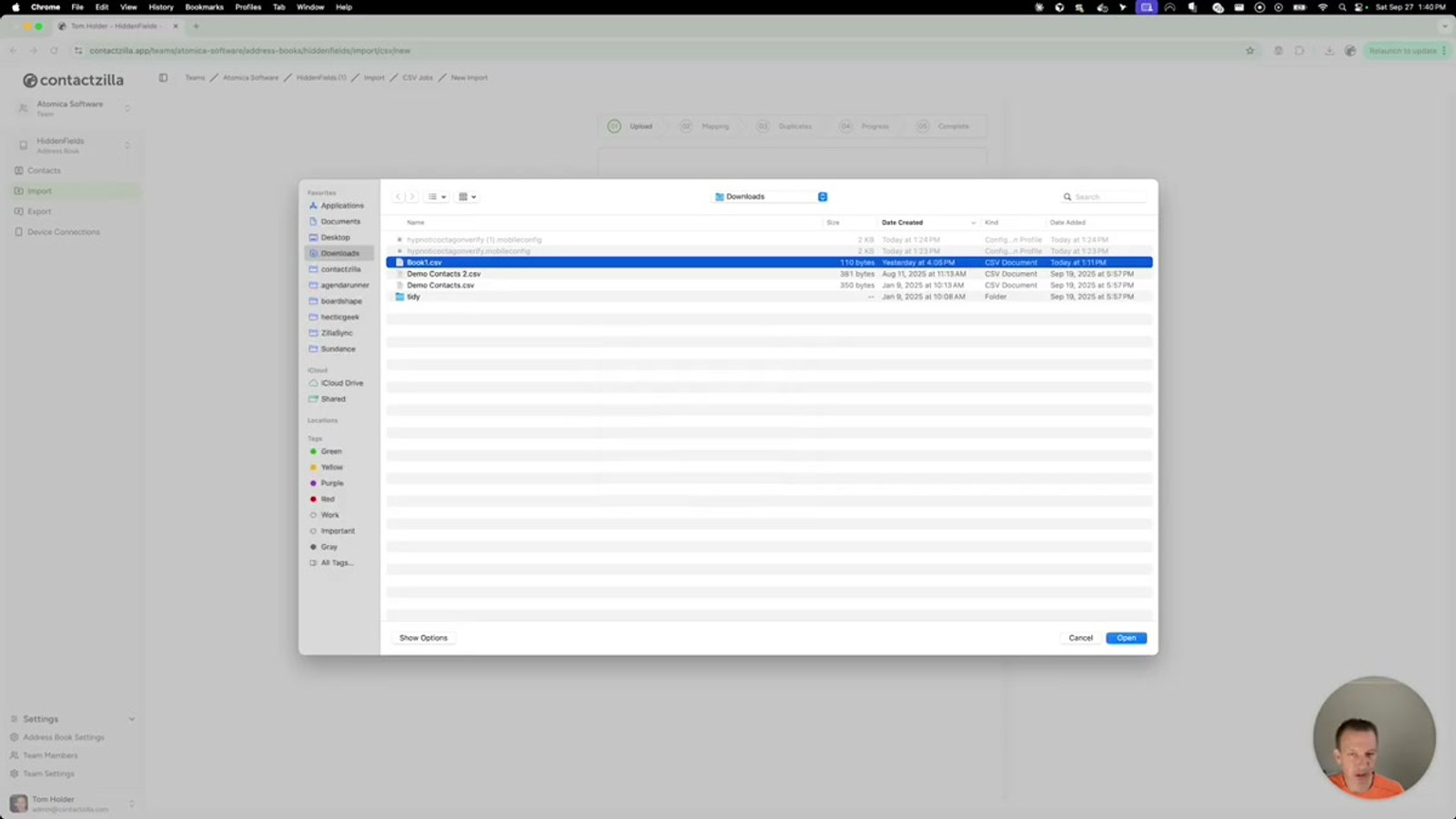
To set this up during import, navigate to the Import section and upload your CSV file. In the field mapping step, you'll see a preview of your CSV data. Map the SID column to Hidden Custom Unique and specify the field label (e.g., SID). Map the email column to Email Address.
- Go to your address book and click Import
- Upload a CSV file containing a column with your unique system ID
- In the field mapping screen, map the ID column to Hidden Custom Unique
- Specify the field label to match the existing hidden custom unique field name (e.g.,
SID) - Map other columns (email, name, etc.) to their respective Contactzilla fields
The hidden unique field label in your import mapping must exactly match the label already used on existing contacts for the system to match records correctly.
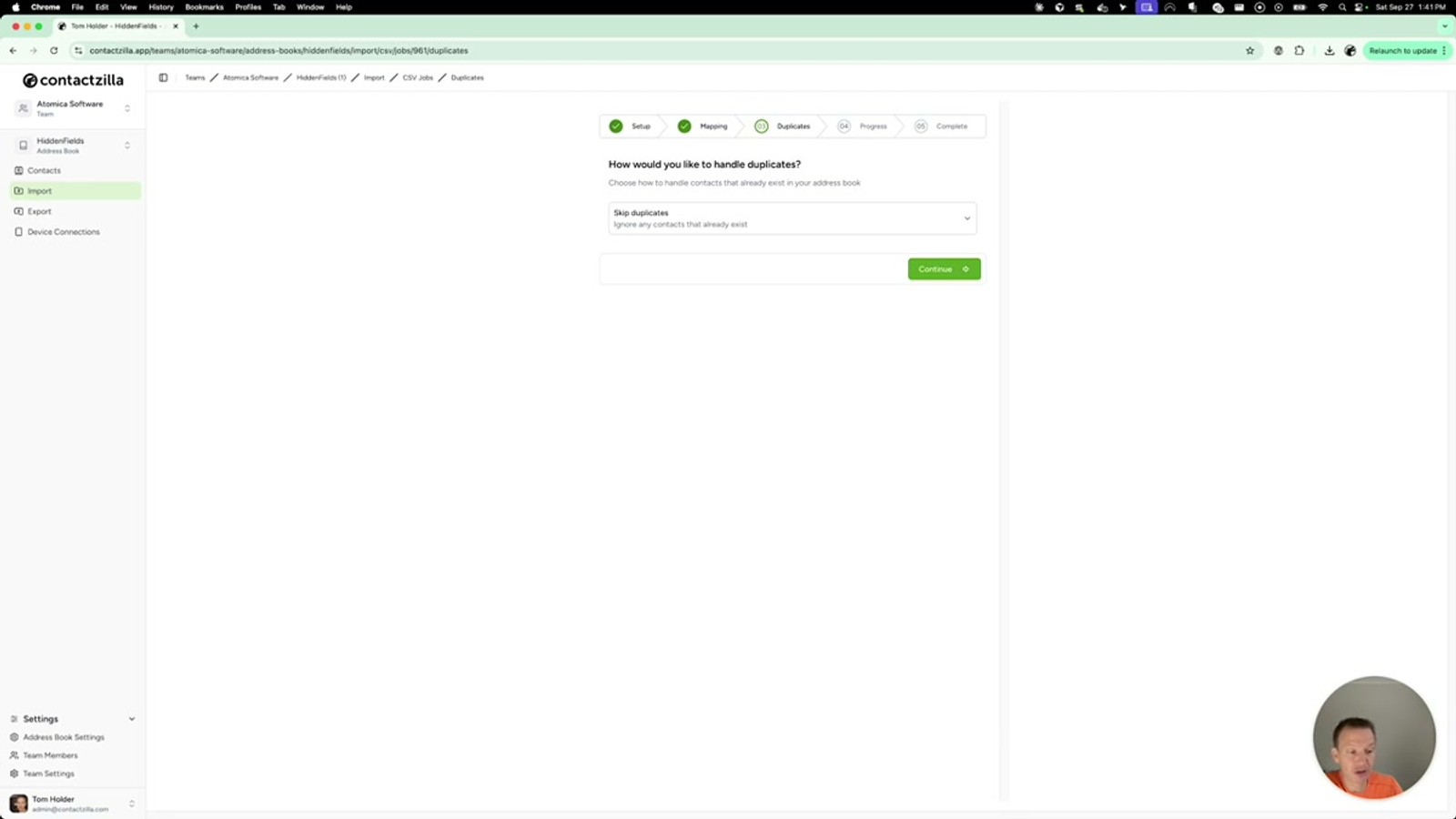
Choose the Right Duplicate Handling Option
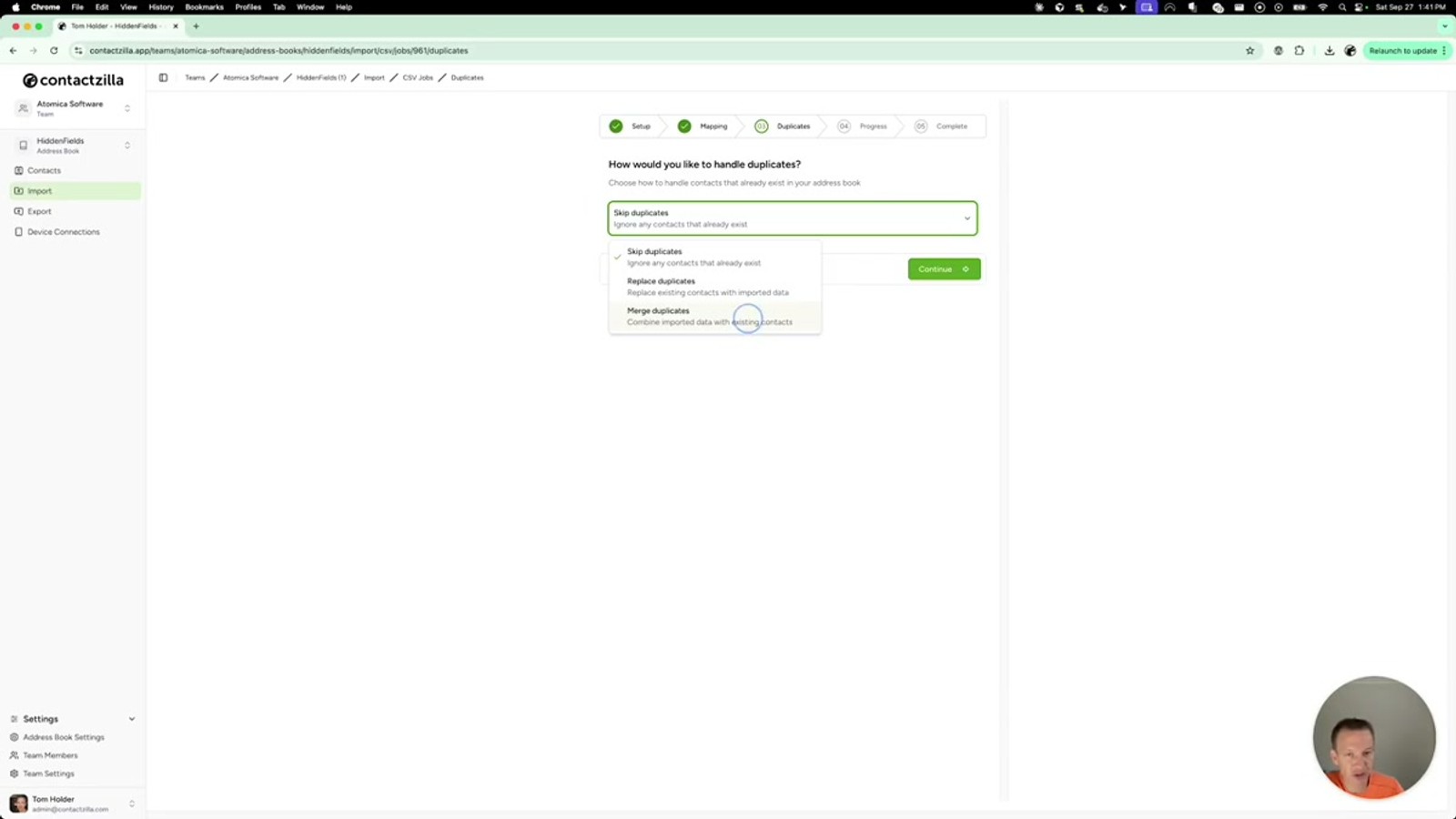
After mapping your fields, Contactzilla presents three options for handling duplicates — contacts where the hidden unique field matches an existing record. Choosing the right option is critical to avoiding data loss.
Skip Duplicates completely ignores any incoming CSV record that matches an existing contact. The existing contact remains untouched. Use this if you only want to add new contacts and leave existing ones alone.
Replace takes the CSV data and completely overwrites the matching contact in Contactzilla. This is dangerous if your CSV has fewer fields than your existing contact — Tom warns that fields like Specialty and Notes that exist on the contact but aren't in the CSV would be deleted.
Merge is usually the best choice. It takes any additional data from the CSV and adds it to the existing contact without removing existing fields. In Tom's example, merge adds the email address from the CSV to Tom's contact while preserving the existing Specialty and Notes fields.
- Skip — incoming record is ignored, existing contact unchanged
- Replace — CSV data completely overwrites the existing contact (fields not in CSV are deleted)
- Merge — new data from CSV is added to the existing contact, existing fields are preserved
- For most import/update scenarios, Merge is the safest choice
Be very careful with Replace — if your CSV doesn't contain all the fields that exist on the contact, those fields will be permanently deleted. Always prefer Merge unless you specifically want a full overwrite.
Verify the Import Results
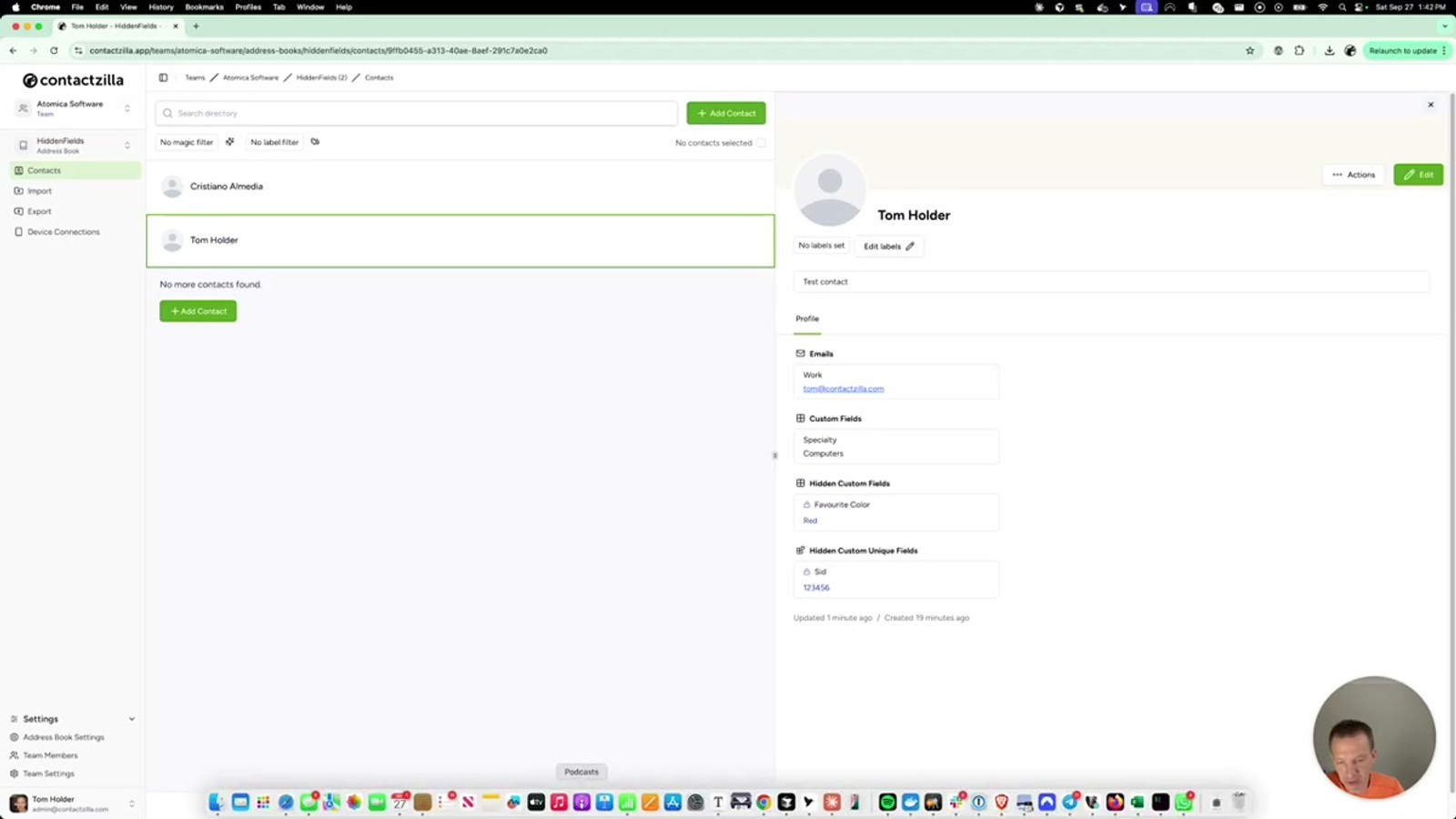
After clicking Continue with Merge selected, Contactzilla processes the import and displays a summary. In Tom's example, the system reports two successfully imported records with one merged.
Navigating back to the address book confirms the results: Cristiano appears as a new contact with his SID stored as a hidden custom unique field. Tom's contact now has the email address from the CSV merged in, while the existing Specialty (Computers) and Notes fields remain intact.
If you have a Mac, iPhone, or Android device connected via CardDAV, the synced contacts will update to reflect the new visible data (like the email address) after a brief sync delay. However, the hidden fields — including the SID used for targeting — will remain invisible on the device. Tom demonstrates this by showing the Mac Contacts app updating to show Tom's new email address while the SID remains hidden.
- Check the import summary for the count of imported, merged, and skipped records
- Navigate back to the address book to verify new contacts and merged data
- Confirm that existing fields on merged contacts are still intact
- On synced devices, verify that new visible data appears but hidden fields remain invisible
Key Takeaways
Why Use Hidden Custom Fields
Frequently Asked Questions
Who can see hidden custom fields?
Only **administrators** and **address book owners** can see hidden custom fields. Standard address book users won't see them in the web interface, and the fields are excluded from CardDAV sync to devices like iPhones, Android phones, and Mac Contacts.
What's the difference between Hidden Custom and Hidden Custom Unique?
A **Hidden Custom** field can appear multiple times on contacts within an address book (e.g., multiple internal notes). A **Hidden Custom Unique** field can only exist once per address book, making it ideal for unique system identifiers like Salesforce IDs that you need to use as merge keys during imports.
Will hidden fields appear on synced iPhones or Android devices?
No. Hidden custom fields are completely excluded from CardDAV sync. When your contacts sync to connected devices, only standard fields and regular custom fields appear. This keeps long system IDs and sensitive data off mobile contact cards.
How do I use hidden fields to target contacts during a CSV import?
Store a unique system ID (like a Salesforce ID) as a **Hidden Custom Unique** field on your contacts. When importing a CSV, map the ID column to **Hidden Custom Unique** with the same field label. Contactzilla will match incoming records to existing contacts using that ID, even if the contact has no email address.
What happens if I choose Replace instead of Merge during import?
**Replace** completely overwrites the existing contact with the CSV data. Any fields on the existing contact that aren't in the CSV — such as notes, custom fields, or other data — will be permanently deleted. **Merge** is safer for most scenarios as it adds new data without removing existing fields.
Can I add hidden fields to contacts manually?
Yes. When editing or creating a contact, add a new field and select **Hidden Custom** or **Hidden Custom Unique** from the field type dropdown. Enter your label and value, then save. The process is identical to adding standard custom fields.

