
Keep Contactzilla in Sync — Auto-Delete Disabled Entra Contacts
When users are disabled or deleted in Microsoft Entra ID, Contactzilla can automatically remove them from your shared contacts. No manual cleanup required.
Why Delete Handling Matters for Entra Imports
When you import contacts from Microsoft Entra ID (formerly Azure AD) into Contactzilla, new and updated users flow in automatically. But what happens when a user is disabled or deleted in Entra? Without delete handling, those stale records remain in Contactzilla indefinitely, and you have to manually clean them up.
Contactzilla solves this with a built-in delete handler that detects fields in the incoming Entra data — such as Account Enabled — that indicate a record is no longer active. When enabled, the system automatically removes the matching contact from Contactzilla on subsequent syncs, keeping your shared address book accurate and current.
This guide walks you through enabling delete handling during field mapping, understanding how the unique identifier targets the correct record for deletion, and how to reset or change your delete configuration later if your requirements evolve. The same principle applies to other import sources, but we'll use Microsoft Entra ID as the working example.
Map your import fields as normal
Start by navigating to your Microsoft Entra ID import in Contactzilla. When setting up the import (or re-running it for the first time), you'll be presented with the field mapping screen. This is the standard mapping interface where you connect incoming Entra fields — such as Display Name, Email, Job Title, Department, etc. — to the corresponding Contactzilla contact fields.
Map all your fields as you normally would. The delete handling option only appears after you've completed your standard field mappings. Don't skip any critical fields at this stage, because once you save the mapping, it will be reused for all subsequent sync runs.
- Open the Microsoft Entra ID import from your Contactzilla dashboard
- Map all incoming Entra fields to their corresponding Contactzilla fields
- Ensure you have a unique identifier field mapped (e.g., Microsoft ID) — this is critical for delete targeting
- Complete all standard field mappings before proceeding to the delete handling prompt
Enable delete handling when prompted
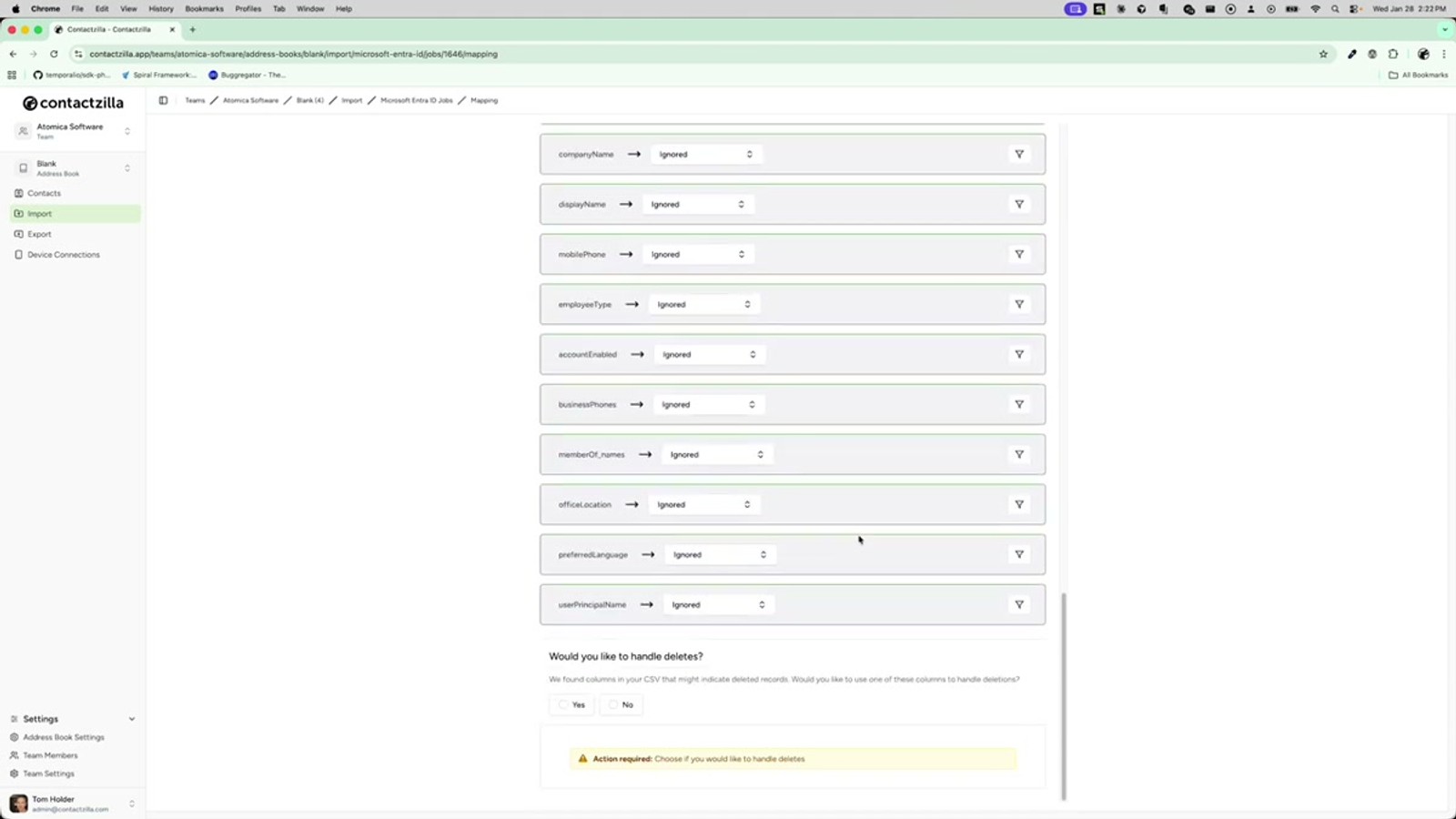
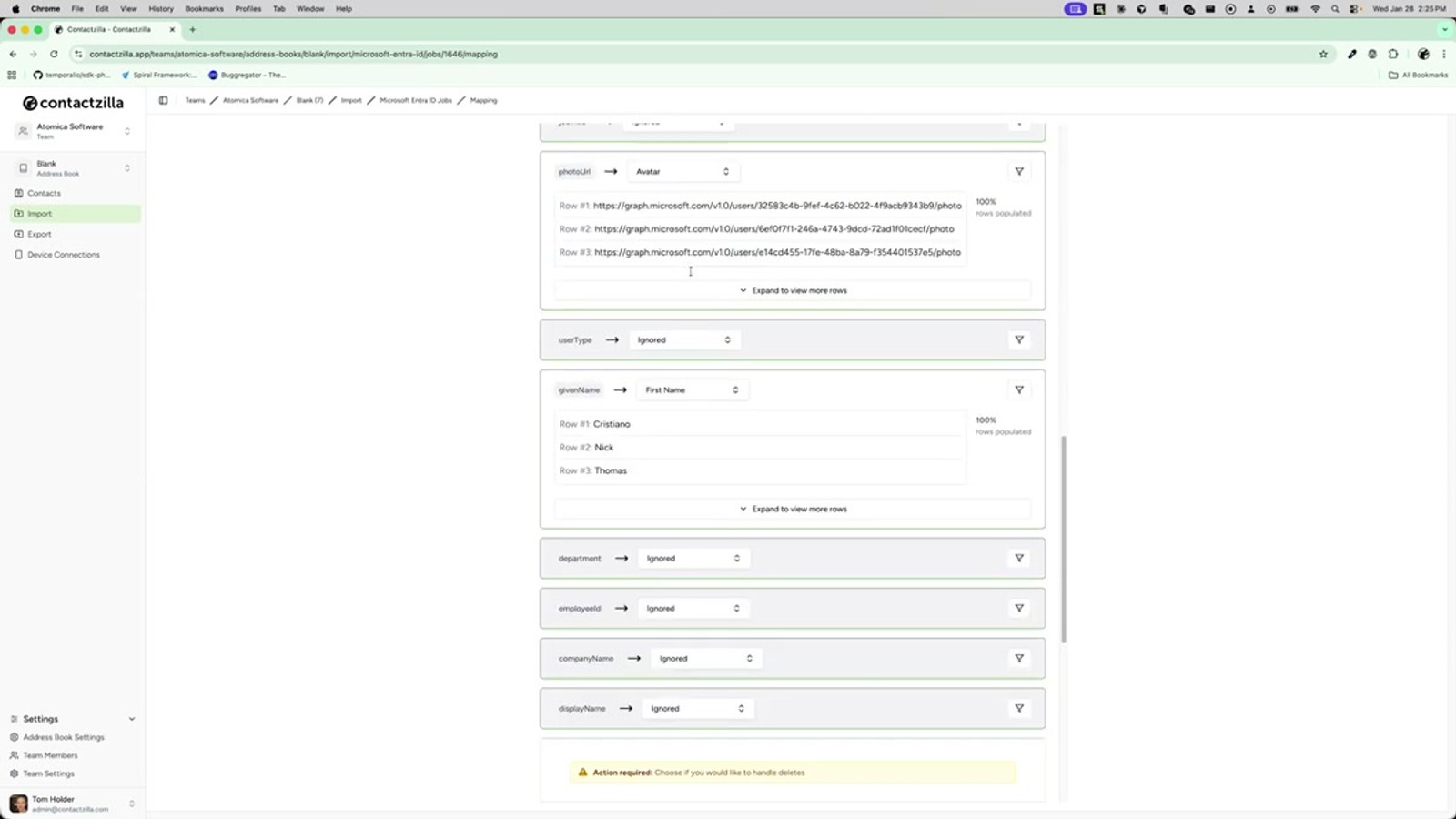
Once you've finished mapping your fields, Contactzilla will display a question at the bottom of the mapping screen: Would you like to handle deletes? This prompt only appears when the system detects a field in the incoming data that indicates whether a record is disabled or deleted.
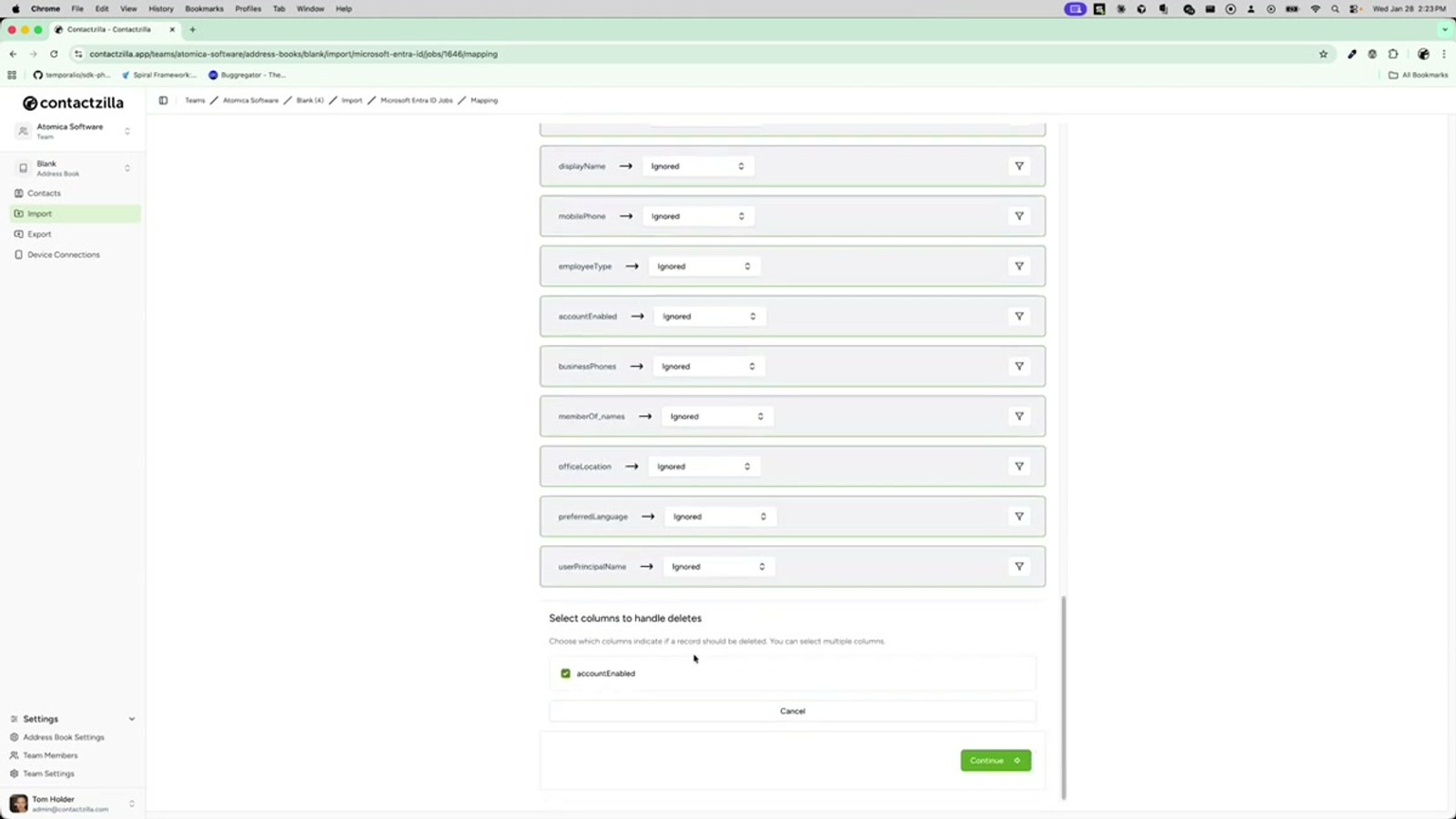
For Microsoft Entra imports, Contactzilla automatically identifies the Account Enabled field (a boolean that Entra sets to false when a user is disabled). Click Yes to enable delete handling. The system will then list all detected fields that indicate a record's active status.
By ticking the Account Enabled field (or similar delete/disable indicator), you're telling Contactzilla two things: first, skip importing any row where this field indicates the record is disabled; and second, on future syncs, find and delete the matching contact that already exists in Contactzilla.
- Look for the "Would you like to handle deletes?" prompt at the bottom of the mapping screen
- Click Yes to see the list of detected delete/disable indicator fields
- Tick the Account Enabled field to activate delete handling
- Disabled/deleted records will be skipped during import AND removed from Contactzilla on future syncs
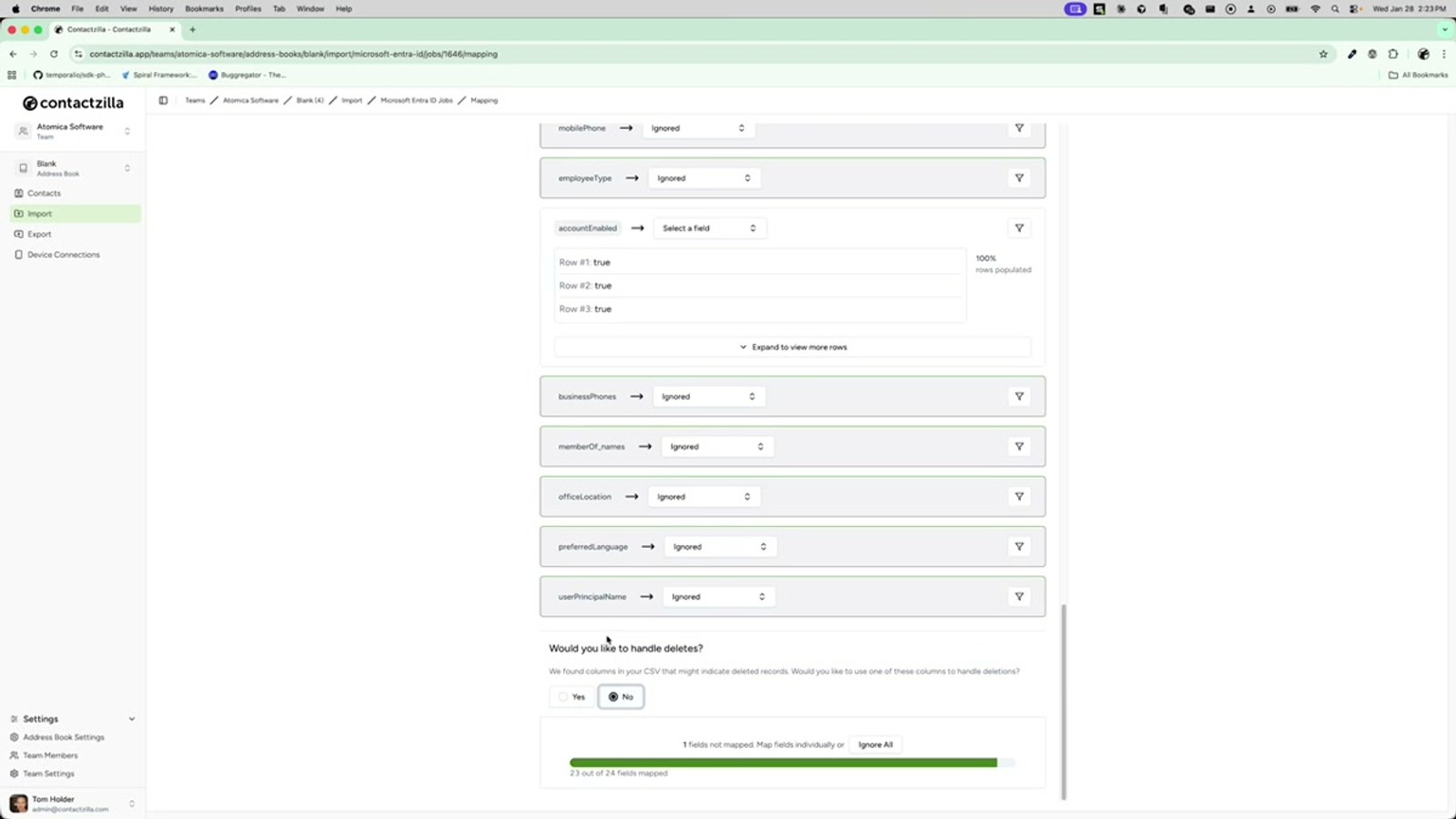
You can select No if you'd prefer to manage deletions manually. This means disabled users will remain in Contactzilla until you remove them yourself.
Understand how the unique identifier targets deletions
When Contactzilla deletes a contact during a sync, it needs to know exactly which record to remove. It does this using a hidden custom unique field that you've allocated during field mapping — typically the Microsoft ID from Entra.
This unique identifier is stored as a hidden field on each contact in Contactzilla. When the import runs and encounters a row where Account Enabled is false, it looks up the Microsoft ID value from that row, finds the matching contact in Contactzilla by that same hidden unique field, and deletes it. This ensures the correct record is targeted every time — even if the contact's name or email has changed since it was originally imported.
This is why it's essential to map a truly unique field like the Microsoft ID during your initial import setup. Without it, the system cannot reliably identify which Contactzilla contact corresponds to the disabled Entra record.
- Contactzilla uses a hidden custom unique field (e.g., Microsoft ID) to match records
- The unique identifier is stored on each imported contact as a hidden field
- Deletion matching works even if name or email has changed — it relies on the unique ID
- Always map a unique identifier field during initial import setup
The Microsoft ID is the recommended unique field for Entra imports. Make sure it's mapped even though it's hidden from normal contact views — it's what powers the delete targeting.
Choose your import mode and complete the sync
After enabling delete handling and clicking Continue, you'll be asked to choose an import mode. For Microsoft Entra imports where Entra is your source of truth, select Replace. This ensures that the Entra data overwrites any local edits in Contactzilla, maintaining a one-way sync from Entra to Contactzilla.
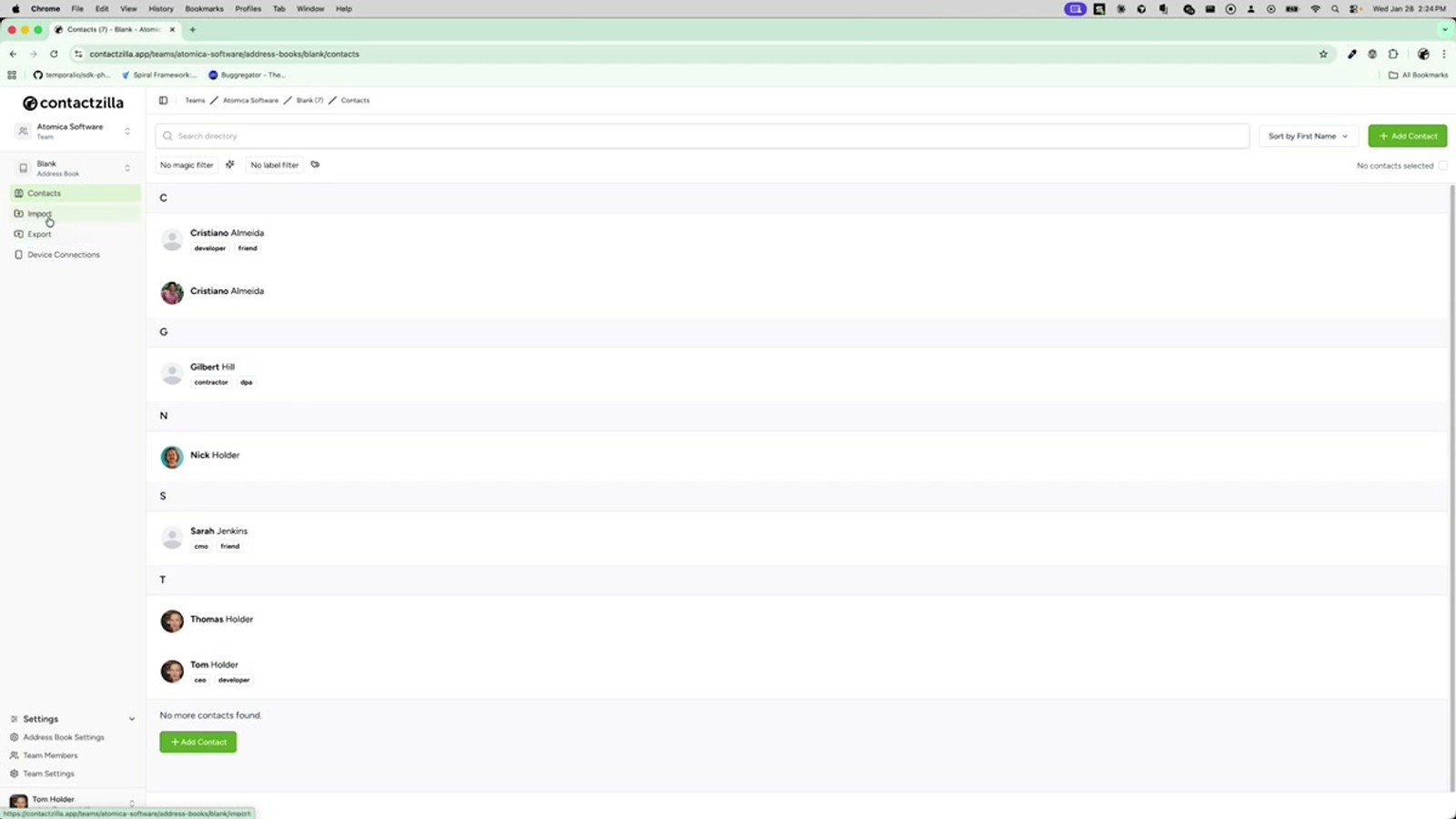
Once you select Replace and proceed, the import will run. Contacts that are active in Entra will be imported or updated, while contacts flagged as disabled will be skipped and (if they exist in Contactzilla) deleted. The mapping — including your delete handling configuration — is saved automatically for all subsequent sync runs.
- Click Continue after enabling delete handling
- Select Replace as the import mode when Entra is the source of truth
- Active contacts are imported/updated; disabled contacts are skipped and deleted
- The mapping and delete handler settings are saved for all future syncs automatically
Clear saved mapping to change delete handling later
If you need to change your delete handling configuration after the initial setup — perhaps you want to stop auto-deleting, or you want to select a different indicator field — you can do this by clearing the saved mapping.
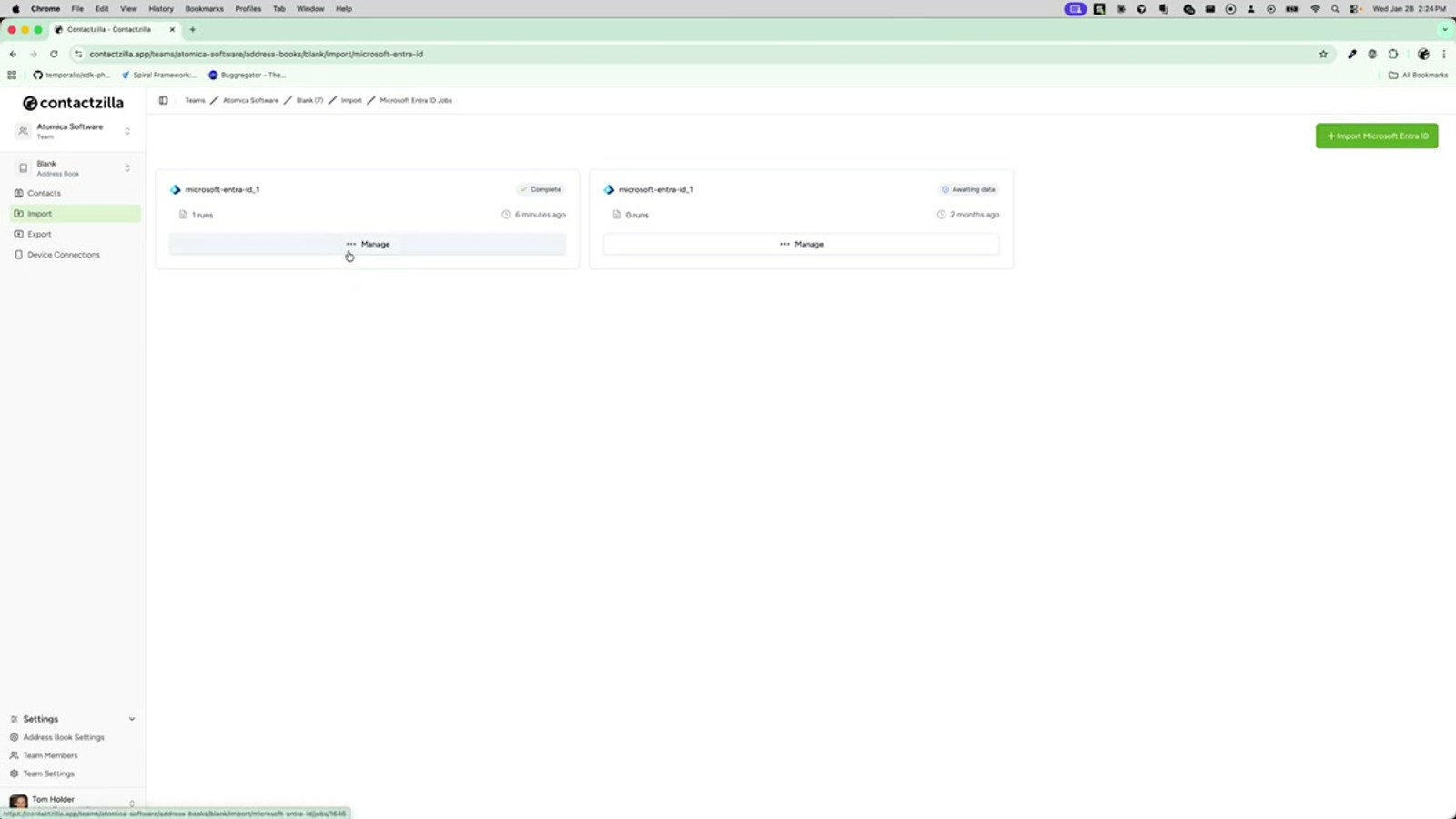
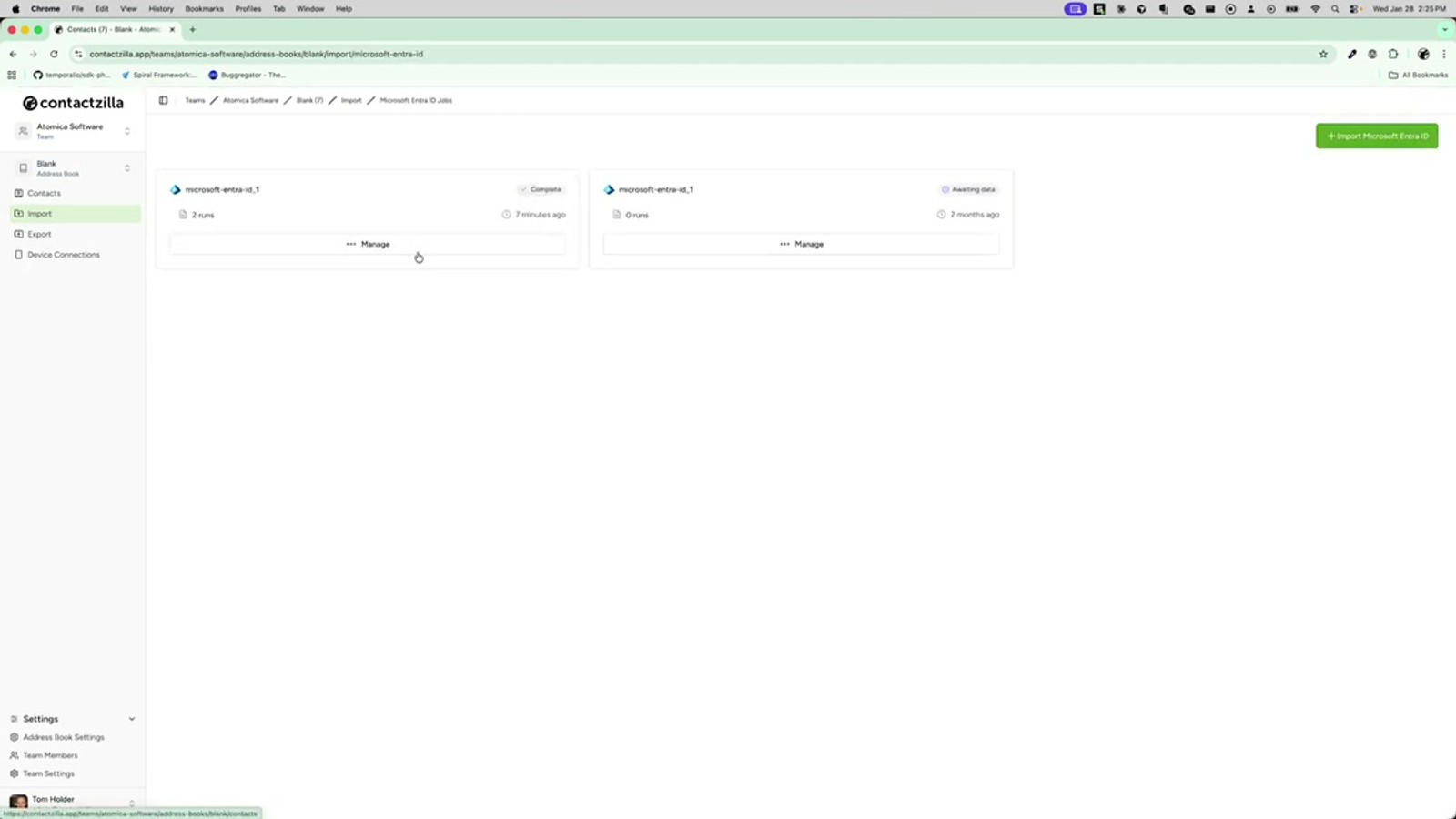
Navigate to the Microsoft Entra ID import from your Contactzilla dashboard. You'll see the import entry showing the number of runs completed. Click into it and look for the Clear Saved Mapping button. Clicking this deletes the stored field mapping entirely, which means the next time the sync runs, it won't import data automatically. Instead, it will prompt you to go through the full mapping process again.
When you remap, Contactzilla remembers your standard field mappings (the regular contact fields), but it will not remember the delete handler configuration. This gives you a clean opportunity to change whether and how deletes are handled.
- Navigate to the Microsoft Entra ID import in your dashboard
- Click into the import to view its details and run history
- Click Clear Saved Mapping to delete the stored mapping configuration
- The next sync will show status as Requires Mapping instead of auto-importing
- Standard field mappings are remembered, but the delete handler is reset
Clearing the saved mapping is non-destructive — it doesn't delete any contacts already in Contactzilla. It simply forces the system to ask you to remap on the next sync run.
Re-run the sync and remap your fields
After clearing the saved mapping, click Run Sync Now to trigger a new data pull from Microsoft Entra. The import will move to Pending Import status while it fetches the latest data from Entra, then switch to Requires Mapping once the data arrives.
At this point, the import is paused — it won't process any records until you click into it and complete the mapping. When you open the mapping screen, you'll see your previously mapped standard fields are still in place, saving you time. However, the delete handler prompt will appear fresh at the bottom, giving you the opportunity to enable, disable, or reconfigure it.
Select your preferences, click Continue, and the import will resume with your updated settings. All subsequent automatic syncs will use this new mapping going forward.
- Click Run Sync Now after clearing the mapping
- Status changes: Pending Import → Requires Mapping
- Data is fetched but NOT imported until you complete the mapping
- Standard field mappings are pre-filled; delete handler is reset
- Complete the mapping to resume automatic syncs with updated settings
Alternative: Delete and recreate the import entirely
If you want a completely fresh start — new field mappings, new delete handling, everything from scratch — you can delete the entire import and set up a new one. Navigate to your Microsoft Entra ID import and use the Delete option to remove it entirely.
Once an import is deleted, it stops running immediately — no further data will be imported for it. You can then create a brand new Microsoft Entra ID import, go through the connection and mapping process from the beginning, and configure delete handling however you like.
This approach is useful if you've made significant changes to your Entra directory structure, renamed fields, or want to import into a different Contactzilla address book. For simple changes to delete handling, clearing the saved mapping (as described in the previous step) is usually faster and easier.
- Delete the import entirely for a clean start with fresh mappings
- Deleted imports stop running immediately — no further data is imported
- Create a new Microsoft Entra ID import from scratch
- Useful when Entra directory structure has significantly changed
- For simple delete handling changes, use Clear Saved Mapping instead
Frequently Asked Questions
What happens if I choose not to handle deletes?
If you select No when asked about delete handling, contacts will still be imported from Microsoft Entra ID as normal. However, when users are disabled or removed in Entra, their corresponding contacts will remain in Contactzilla indefinitely. You'll need to manually identify and remove those stale records yourself.
How does Contactzilla know which contact to delete?
Contactzilla uses a hidden custom unique field — typically the Microsoft ID — that you map during the import setup. This unique identifier is stored on each imported contact. When a disabled record comes through, the system matches the Microsoft ID from the incoming data to the stored field on the Contactzilla contact and deletes the matching record.
Can I change the delete handling after the import has been set up?
Yes. Navigate to your Microsoft Entra ID import and click Clear Saved Mapping. This resets the delete handler configuration (while preserving your standard field mappings). The next time the sync runs, it will pause at Requires Mapping status and let you go through the mapping process again, where you can enable, disable, or reconfigure delete handling.
Does clearing the saved mapping delete any contacts from Contactzilla?
No. Clearing the saved mapping only removes the stored field mapping configuration. It doesn't delete or modify any contacts that have already been imported into Contactzilla. It simply forces the import to prompt you for remapping on the next sync run.
Does this delete handling work with imports other than Microsoft Entra?
Yes. The delete handling principle applies to other import sources as well. Any import that includes a field indicating whether a record is disabled or deleted can use this same mechanism. Microsoft Entra ID is used as the example in this tutorial, but the workflow is the same across supported import types.
What import mode should I use with delete handling enabled?
If Microsoft Entra is your source of truth (the authoritative system for contact data), select Replace as the import mode. This ensures Entra data overwrites any local edits in Contactzilla, maintaining a clean one-way sync. Combined with delete handling, this keeps your Contactzilla address book perfectly mirrored with Entra.

