
Push Your Contact Lists to Every Device — One Phone or Thousands
Deploy shared address books directly to your team's native contacts app using secure CardDAV connections, provisioning profiles, and MDM integration.
Once you've built your team and added your contacts in Contactzilla, the final step is deploying those address books to actual devices. This tutorial walks through the complete process — from creating a secure CardDAV connection to installing contacts on a single iPhone, all the way up to mass-deploying to hundreds or thousands of devices using MDM software like Jamf, Intune, or MaaS360.
You'll learn how to configure access levels (full read-write, full read-only, or selective read-only filtered by labels), generate provisioning profiles that eliminate manual server configuration, and set up MDM users for large-scale rollouts. Every step is covered with exact menu paths and options so you can follow along without watching the video.
Whether you're an IT admin managing a fleet of corporate phones or a team lead setting up a single device, this guide covers both scenarios end-to-end.
Navigate to CardDAV Connections
Start by opening the address book you want to sync to devices. This is the address book you've already populated with contacts and organized with labels.
From inside the address book, locate and click on CardDAV Connections. This is where you'll manage all device connections for this particular address book. Each connection represents a link between your Contactzilla address book and one or more physical devices.
- Open the address book you want to deploy
- Click CardDAV Connections within that address book
- Each address book has its own set of device connections
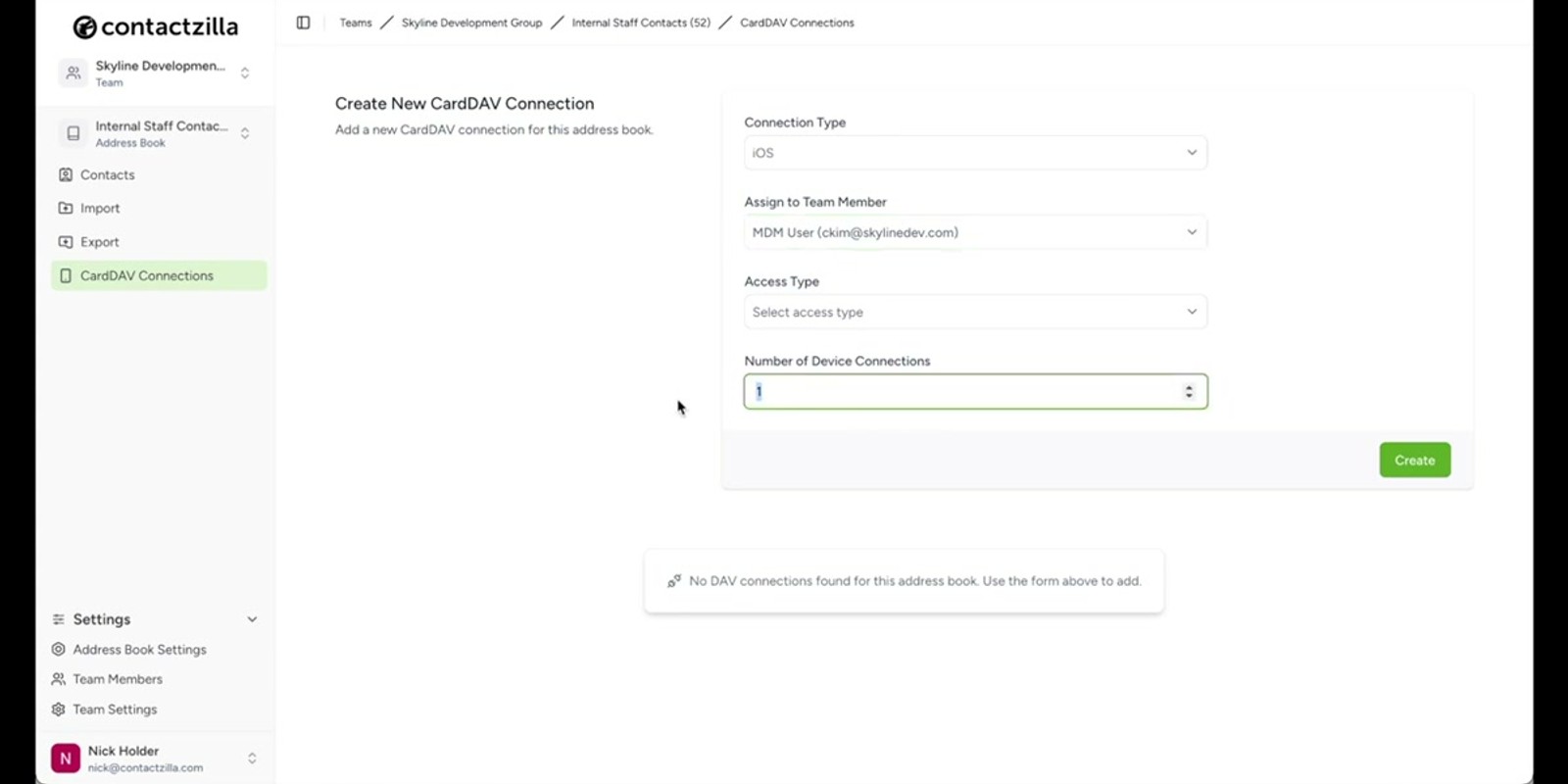
Choose Connection Type and Assign a User
Click to create a new connection. First, choose your connection type — select iOS for iPhones. Then choose who this connection is for. You have two options here: assign it to a team member for an individual phone, or choose an MDM user to roll out across hundreds of devices.
If you select MDM, an additional field appears asking for the number of devices (e.g., 500). For a single-device setup, simply pick the team member's name from the dropdown. This determines whose phone will receive the contacts.
- Select iOS as the connection type
- Choose a team member for single-device deployment
- Choose an MDM user for mass deployment (reveals a device count field)
- The MDM device count can be adjusted later at any time
Start with a single-device (non-MDM) rollout to test your setup before scaling to hundreds of devices.
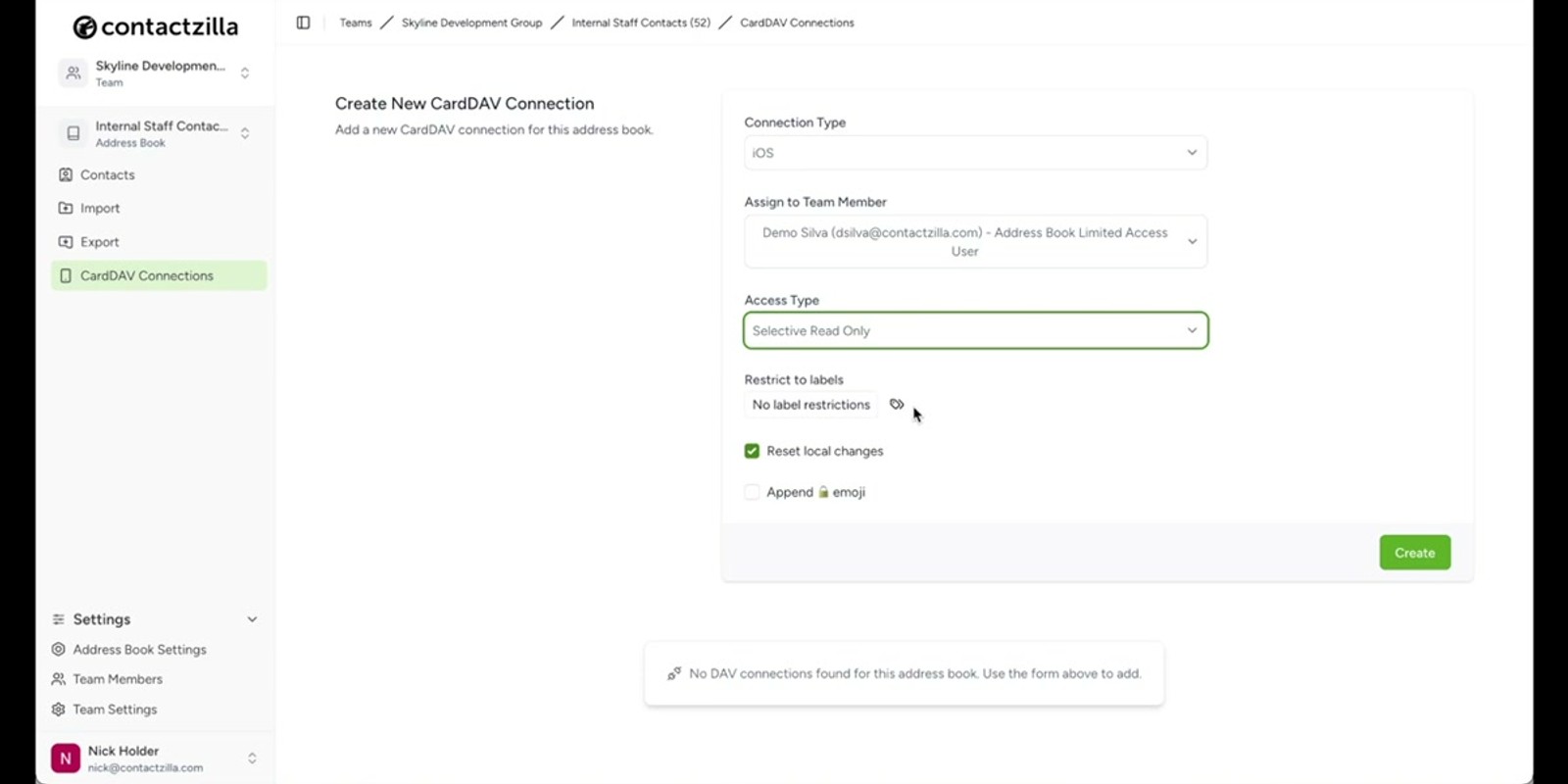
Configure Access Levels
Next, choose the access type for this connection. There are three options:
Full Read Write — the user can view and edit all contacts in the address book. This is the simplest option but gives the most access. Note that some extra options disappear when this mode is selected.
Full Read Only — the user can view all contacts but cannot edit anything. When you select a read-only option, two additional checkboxes appear.
Selective Read Only — only contacts with specific labels are synchronized to the phone. When you select this option, a label picker appears allowing you to choose which labels to include. Only contacts tagged with those labels will appear on the device.
- Full Read Write: view and edit all contacts
- Full Read Only: view all contacts, no editing
- Selective Read Only: only contacts with chosen labels sync to the device
- Read-only modes reveal two extra options (see next step)
Selective read-only is ideal for role-based access — e.g., site supervisors only seeing project managers, or medics only seeing the medical team.
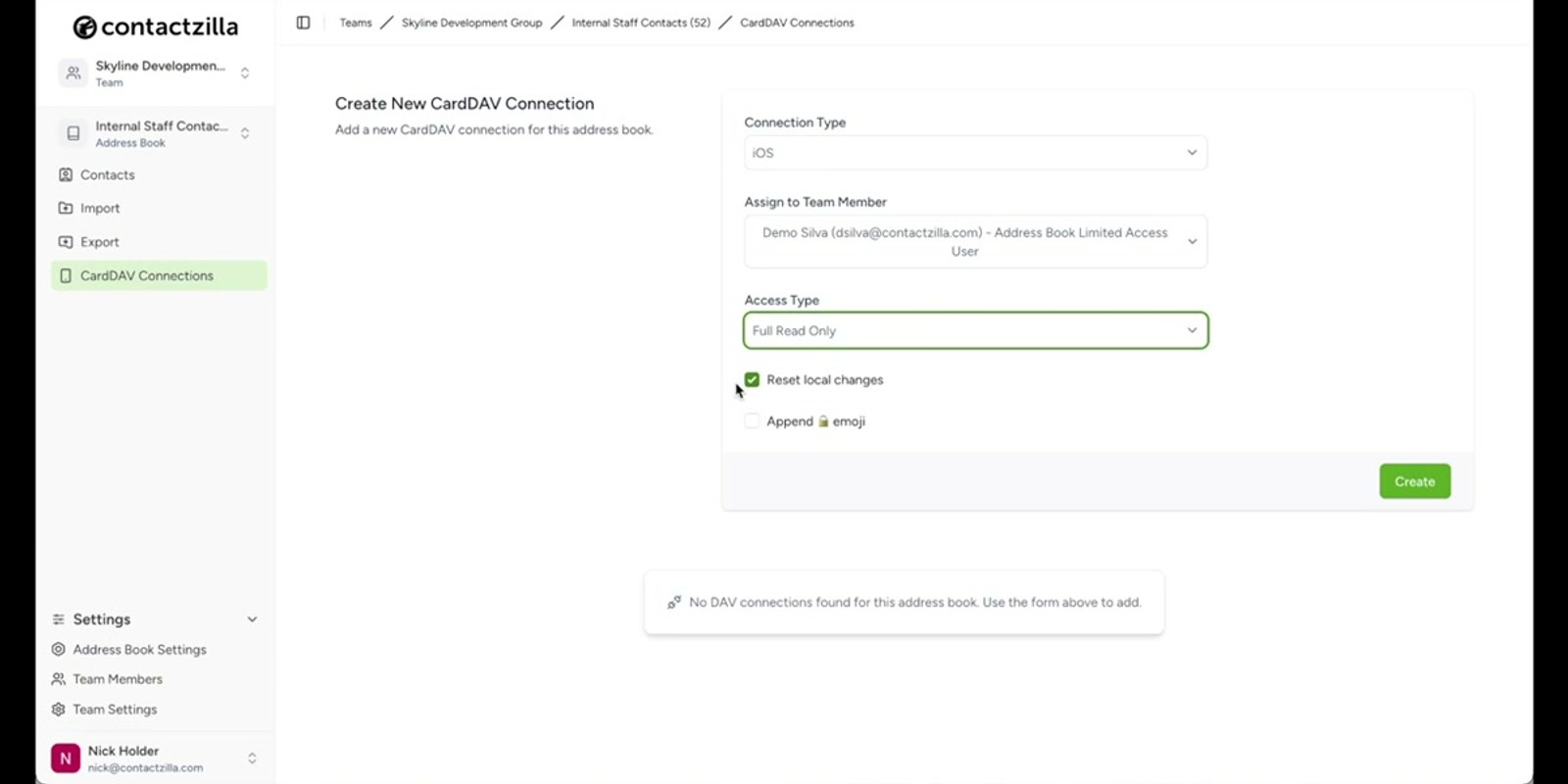
Set Read-Only Options: Reset Local Changes & Lock Emoji
When you choose either read-only option (Full Read Only or Selective Read Only), two extra checkboxes appear that are hidden in read-write mode.
Reset local changes — when enabled, this overwrites any changes the user makes on the phone when it next syncs back with Contactzilla. This ensures the canonical data in Contactzilla always wins, preventing end users from locally modifying contact details that would just get overwritten anyway.
Add a lock emoji to each contact name — this prepends a 🔒 lock emoji to every contact's display name on the device. It's a visual signal to the end user that the contacts are read-only and can't be edited. Both options are entirely optional and can be toggled on or off independently.
- Reset local changes: overwrites phone edits on next sync
- Lock emoji: adds 🔒 to contact names as a visual read-only indicator
- Both options are optional and only appear for read-only access types
- These options disappear when switching back to Full Read Write
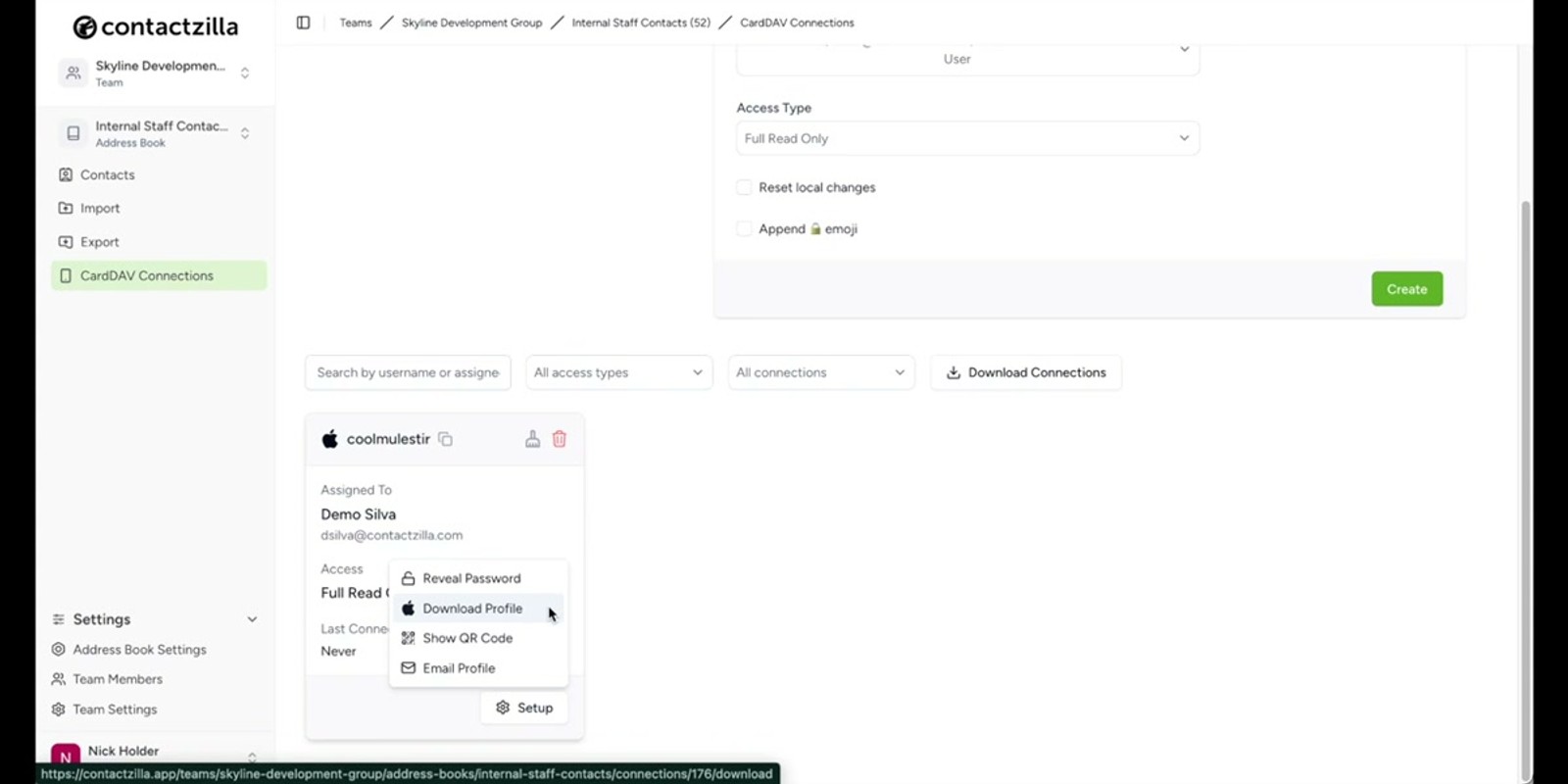
Create the Connection and Save Credentials
Hit Create and Contactzilla sets up your secure CardDAV connection. The system generates login credentials — a username and a password.
Important: The password is only visible until the first connection is made. After that, it's hidden for security reasons. Make a note of the password immediately if you need it for manual configuration.
However, for most users you won't need to manually enter these credentials at all — Contactzilla also generates a provisioning profile that contains everything the iPhone needs to set up the connection automatically. No typing in server settings, usernames, or passwords required.
- Click Create to generate the connection
- A username and password are displayed
- The password is only visible until the first connection — save it immediately
- A provisioning profile is also generated (recommended over manual entry)
The provisioning profile is the recommended approach — it eliminates manual configuration errors entirely. Only note the raw credentials if you have a specific need for them.
Install the Provisioning Profile on an iPhone
There are three ways to get the provisioning profile onto the phone:
1. Download and AirDrop — download the profile file to your Mac and AirDrop it directly to the iPhone. 2. Scan a QR code — use the iPhone's camera to scan the QR code displayed on screen. 3. Send via email — the profile is automatically emailed to the team member assigned to this connection.
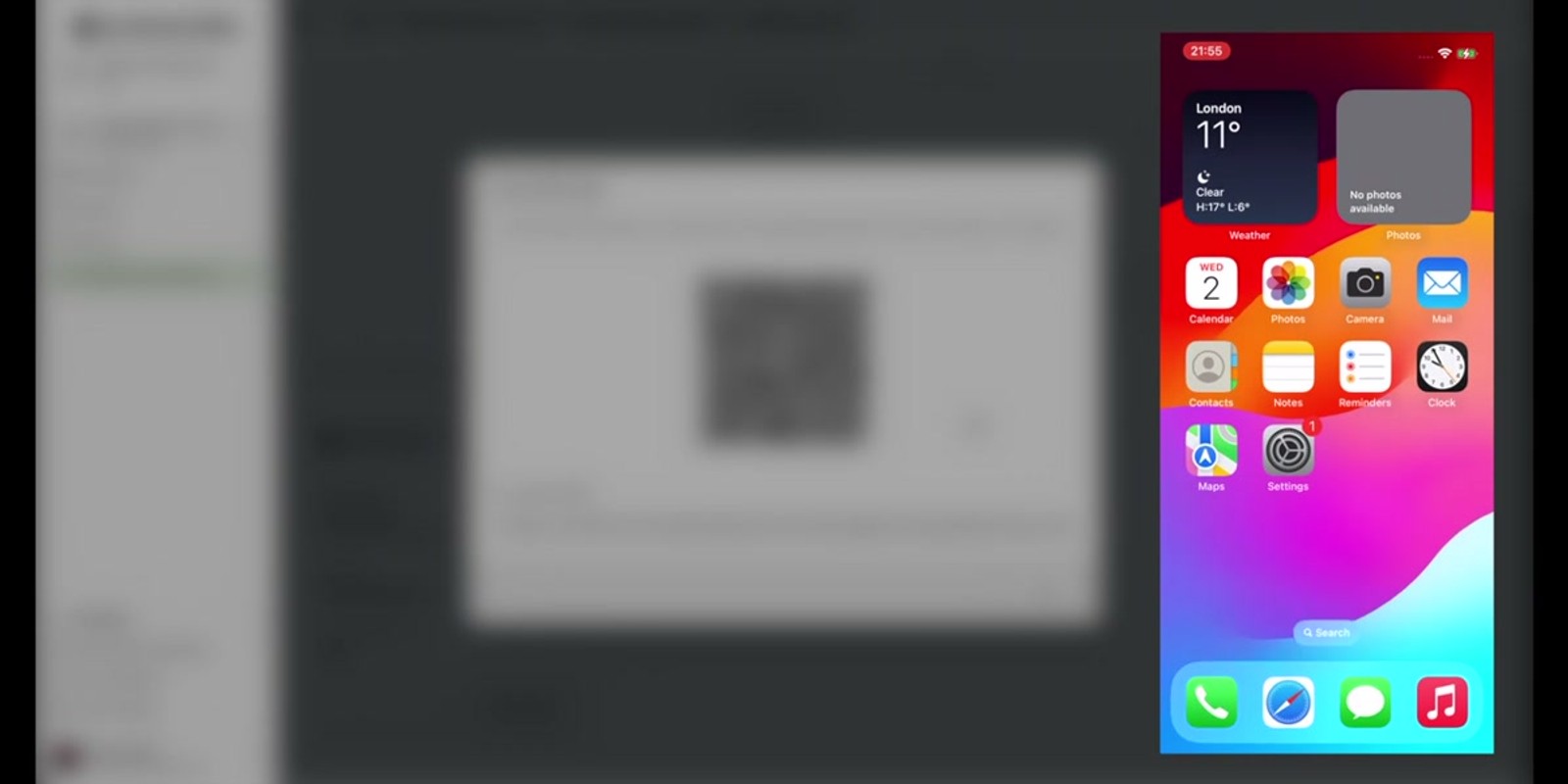
After scanning the QR code (or opening the emailed/AirDropped profile), the iPhone asks if you want to download the configuration profile. Tap Allow. You'll see a confirmation that the profile has been downloaded.
Next, go to the top level of Settings on the iPhone. You'll see a new entry showing a profile has been downloaded. Tap through to it, then tap Install in the top right. You'll see a message that the profile is not signed — you can safely ignore this warning and tap Install again, then confirm with Install one more time. Tap Done when complete.
- Three delivery methods: AirDrop, QR code, or email
- Tap Allow when prompted to download the configuration profile
- Go to Settings (top level) → tap the downloaded profile notification
- Tap Install (top right) → ignore the "not signed" warning → Install again → Install to confirm
- Tap Done when the profile is installed
The "profile is not signed" warning is normal and expected. It simply means the profile isn't signed by a certificate authority — it's still secure and safe to install.
Verify Contacts in the Native Contacts App
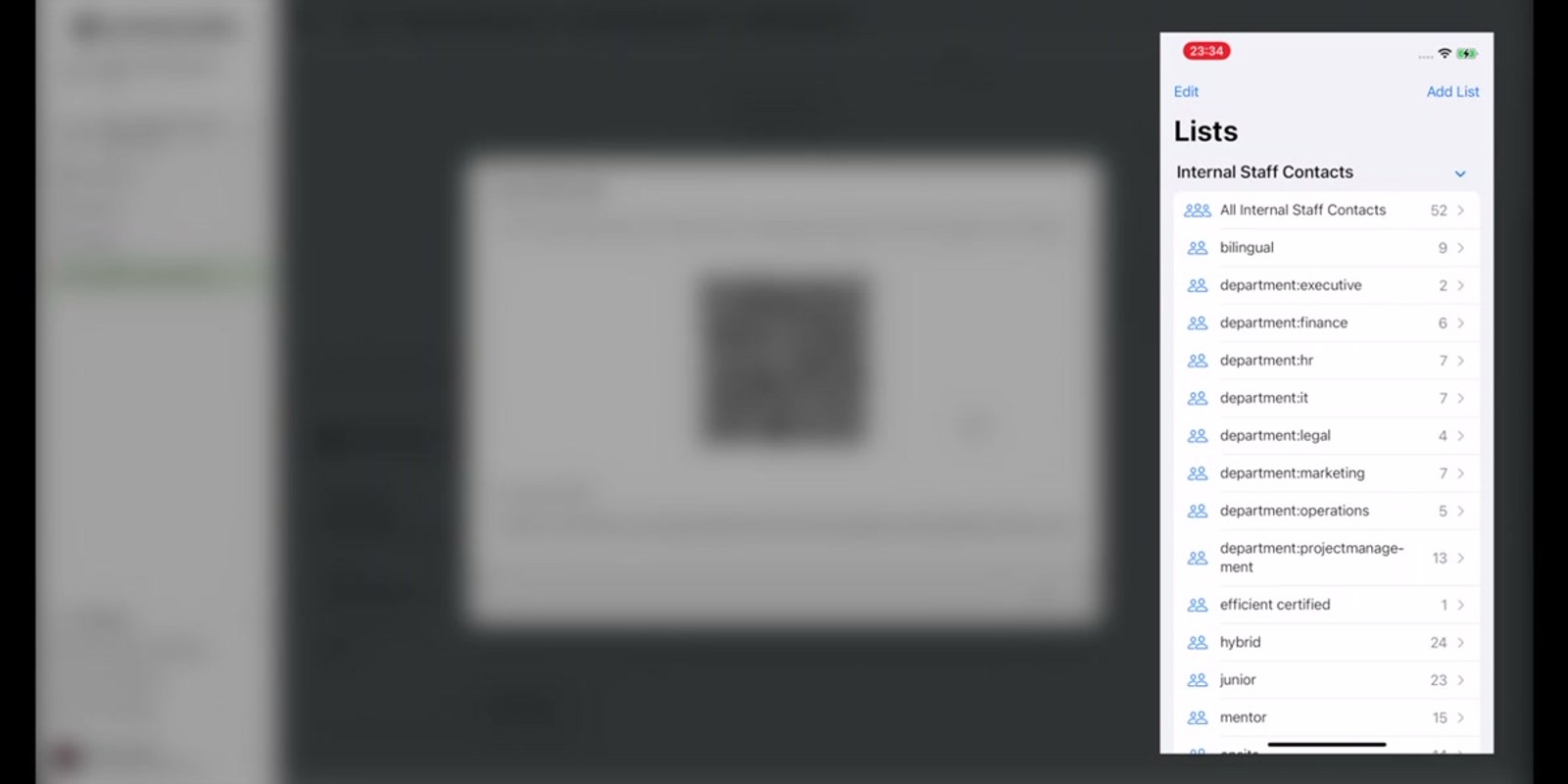
Once the profile is installed, all server details are configured on the phone automatically. Open the native Contacts app on the iPhone and you'll see your Contactzilla address book appear as a new contact group.
All the labels you created in Contactzilla are recognized as lists by iOS, so your contacts are organized perfectly. For example, you might see your project managers grouped together, remote workers in another list, and so on. The contacts appear directly in the iPhone's built-in contacts app — no separate app is needed.
- Open the native Contacts app — no third-party app required
- Your Contactzilla address book appears as a contact group
- Contactzilla labels map to iOS lists automatically
- Contacts stay synced and up-to-date with Contactzilla
Set Up MDM Deployment for Mass Rollout
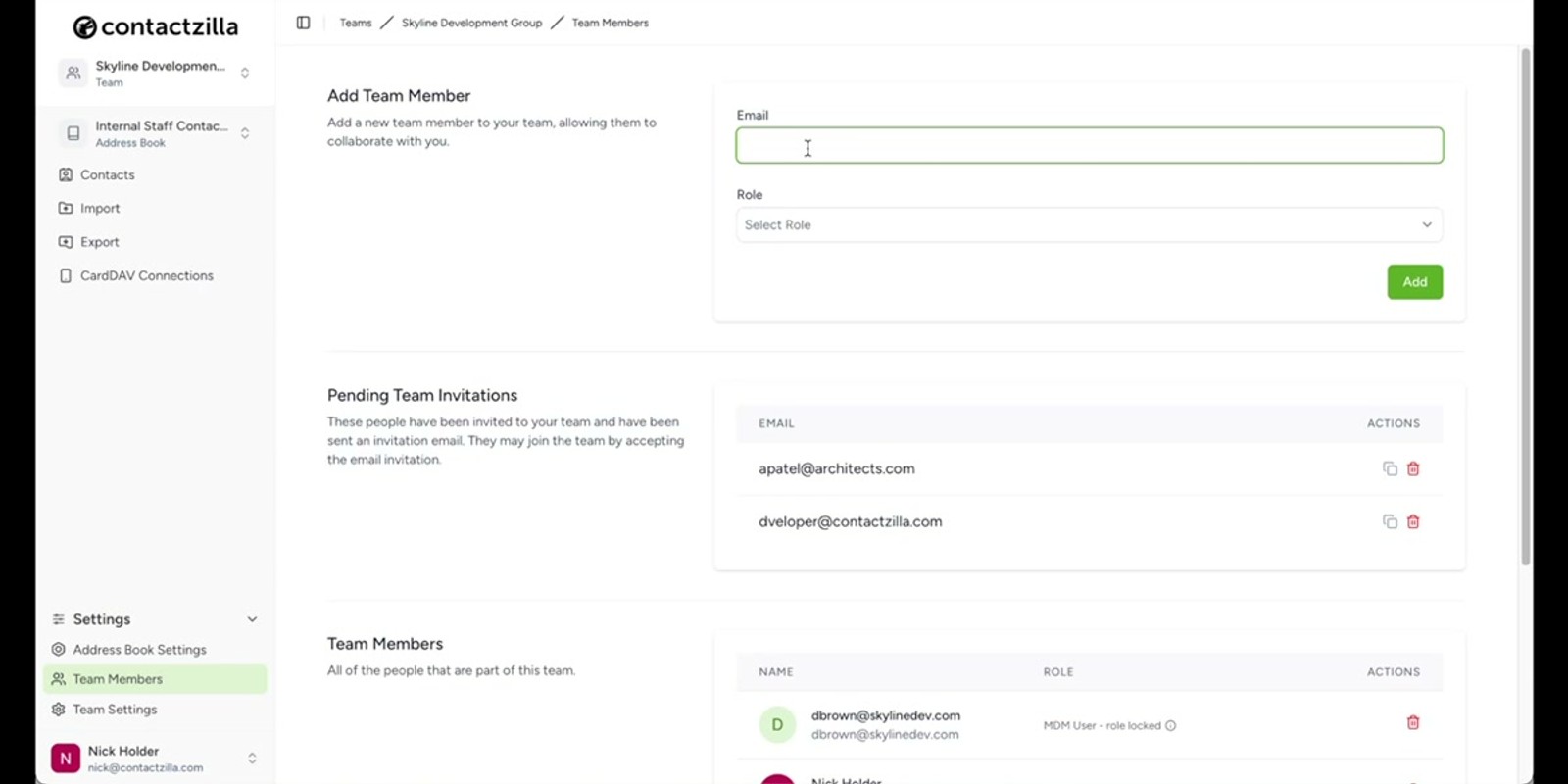
For large-scale deployment, you first need to create an MDM user. Go to Team Members and add a new member. An MDM user isn't a real person and doesn't log into the dashboard — it's a deployment profile. Enter any email address (it's for reference only), then select MDM User from the user type dropdown. This becomes the identity for the mass rollout.
Once the MDM user is created, go back to CardDAV Connections, create a new connection, choose your connection type, and assign it to the newly created MDM user. Select your access type (e.g., read-only), enter the number of devices, and hit Create.
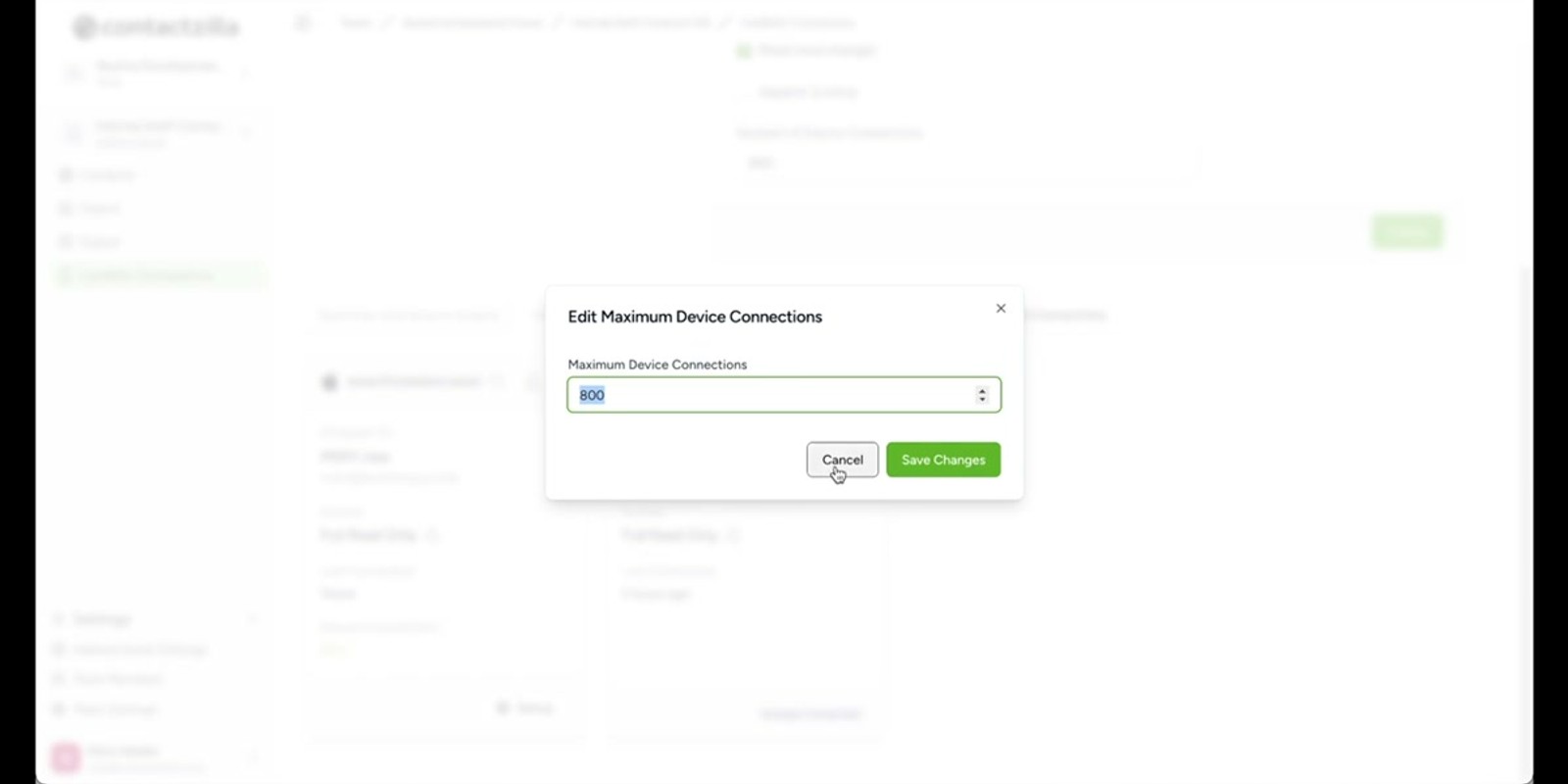
The new connection appears in your connections list. You can come back and adjust the number of devices at any time if your device count changes. Download the provisioning profile, which contains everything needed to deploy via your MDM solution — whether that's Jamf, Intune, MaaS360, or another provider.
- Go to Team Members → add a new member
- Set any email (reference only) and select MDM User as the type
- MDM users don't log into the dashboard — they're deployment profiles
- Create a CardDAV connection assigned to the MDM user
- Enter the number of devices for the rollout
- Download the provisioning profile and deploy via your MDM solution
- Device count can be adjusted at any time from the connection settings
If you need help configuring a specific MDM solution (Jamf, Intune, MaaS360, etc.), contact Contactzilla's support team — they can assist with your particular setup.
Key Takeaways
Why Deploy Contacts with Contactzilla?
Frequently Asked Questions
What happens to the password after the first connection?
For security reasons, the CardDAV connection password is only visible until the first connection is made. After that, it's permanently hidden. Make sure to note it down immediately after creation if you need it — though the recommended approach is to use the provisioning profile, which bundles all credentials automatically.
What is the 'not signed' warning when installing the provisioning profile?
When installing the provisioning profile on an iPhone, iOS displays a warning that the profile is 'not signed.' This simply means it isn't signed by a certificate authority — it's completely safe to install. Just tap Install, dismiss the warning, and confirm the installation.
Can I control which contacts appear on a specific device?
Yes. When creating a connection, choose **Selective Read Only** as the access type. This lets you pick specific labels, and only contacts tagged with those labels will sync to the device. This is useful for role-based access — for example, only showing project managers to site supervisors.
What is an MDM user and how is it different from a team member?
An MDM user isn't a real person — it's a deployment profile used for mass device rollouts. MDM users don't log into the Contactzilla dashboard. You create one under Team Members with any reference email address and the MDM User type. This identity is then assigned to a CardDAV connection that can deploy contacts to hundreds or thousands of devices via your MDM software.
Can I change the number of devices after creating an MDM connection?
Yes. You can return to the CardDAV connection at any time and adjust the device count. There's no need to delete and recreate the connection if your fleet size changes.
Which MDM solutions does Contactzilla work with?
Contactzilla generates standard provisioning profiles that work with any MDM solution, including Jamf, Microsoft Intune, MaaS360, and others. The provisioning profile contains all the CardDAV server details needed for deployment. If you need help with your specific MDM setup, Contactzilla's support team can assist.

