
Push Shared Contacts to Every iPhone — Managed by SOTI MobiControl
Generate an iOS mobile configuration profile in Contactzilla, paste it into SOTI MobiControl, and have contacts appear instantly on every managed iPhone in your device group.
SOTI MobiControl is best known for managing frontline devices — especially the rugged hardware used in logistics, field services, and other environments where devices need to be tightly locked down. It's also an excellent platform for deploying shared contact lists to iPhones so your teams always have the right numbers at their fingertips.
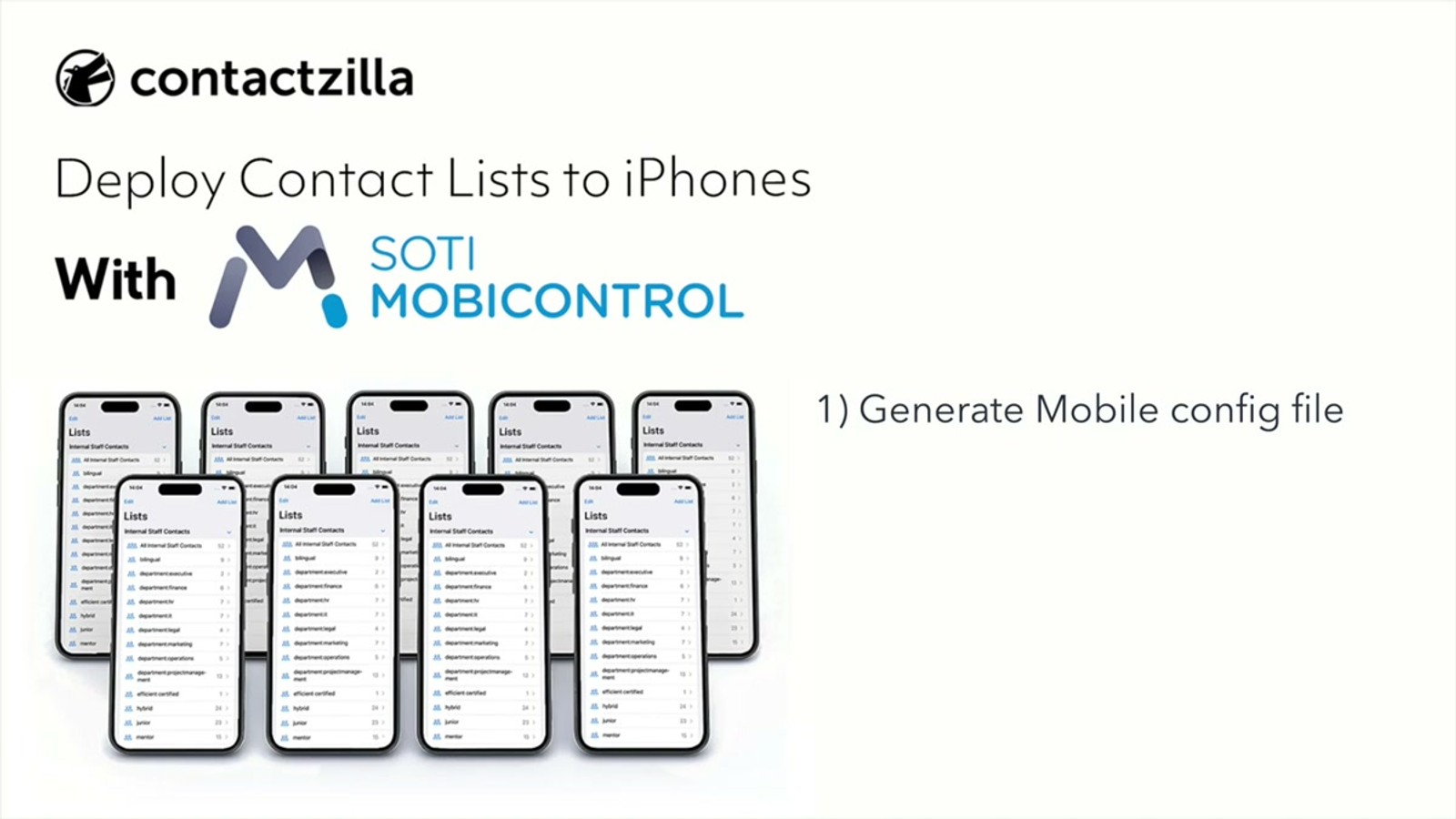
In this tutorial, you'll learn how to generate an iOS mobile configuration profile in Contactzilla, upload it as a custom profile in SOTI MobiControl, and assign it to a device group. Once assigned, the contacts appear automatically in the native iPhone Contacts app — no manual setup required on the device. Any changes you make in Contactzilla are synced to the phones in your SOTI device group.
This guide covers the full process end-to-end: creating an MDM user in Contactzilla, choosing access levels (read-only, read-write, or selective read-only), downloading the iOS config file, and pasting it into SOTI's custom profile configuration. You'll also learn about selective label-based deployments so you can send only specific contacts to specific device groups.
Prerequisites: Set Up Your SOTI Device Group
Before you begin, you need a working SOTI MobiControl environment with at least one device group that has iPhones enrolled in it. This tutorial assumes you've already completed the SOTI enrollment process.
In the video, the example device group is called Skyline Field Devices. You'll assign the Contactzilla configuration profile to a group like this in a later step, so make sure your target group is ready before starting.
- Log into your SOTI MobiControl dashboard
- Confirm you have a device group with enrolled iPhones
- Note the device group name — you'll need it when assigning the profile
Open Device Connections in Contactzilla
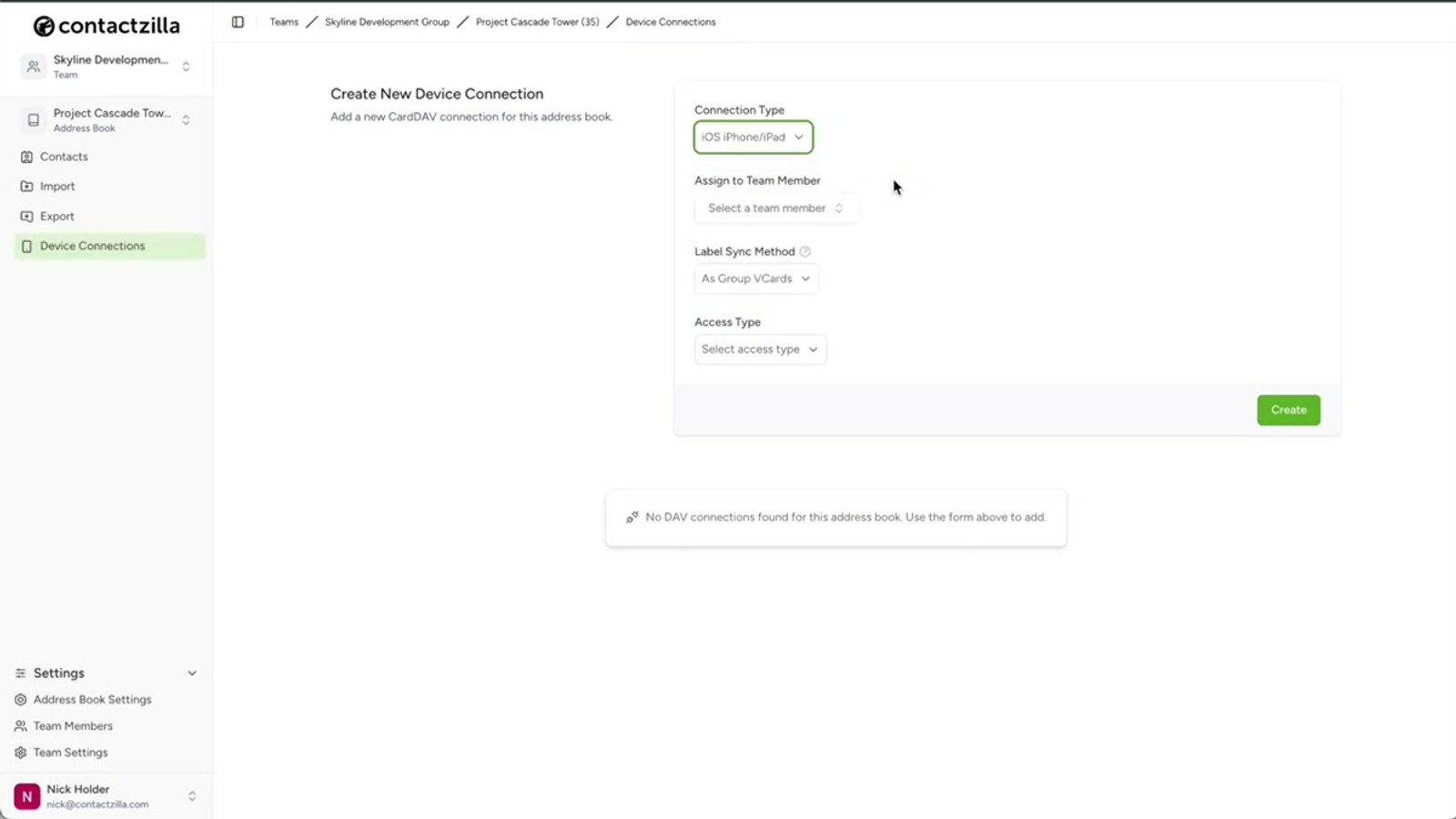
Switch over to your Contactzilla dashboard and open the address book you want to deploy to your iPhones. In the example, the address book is called Project Cascade Tower.
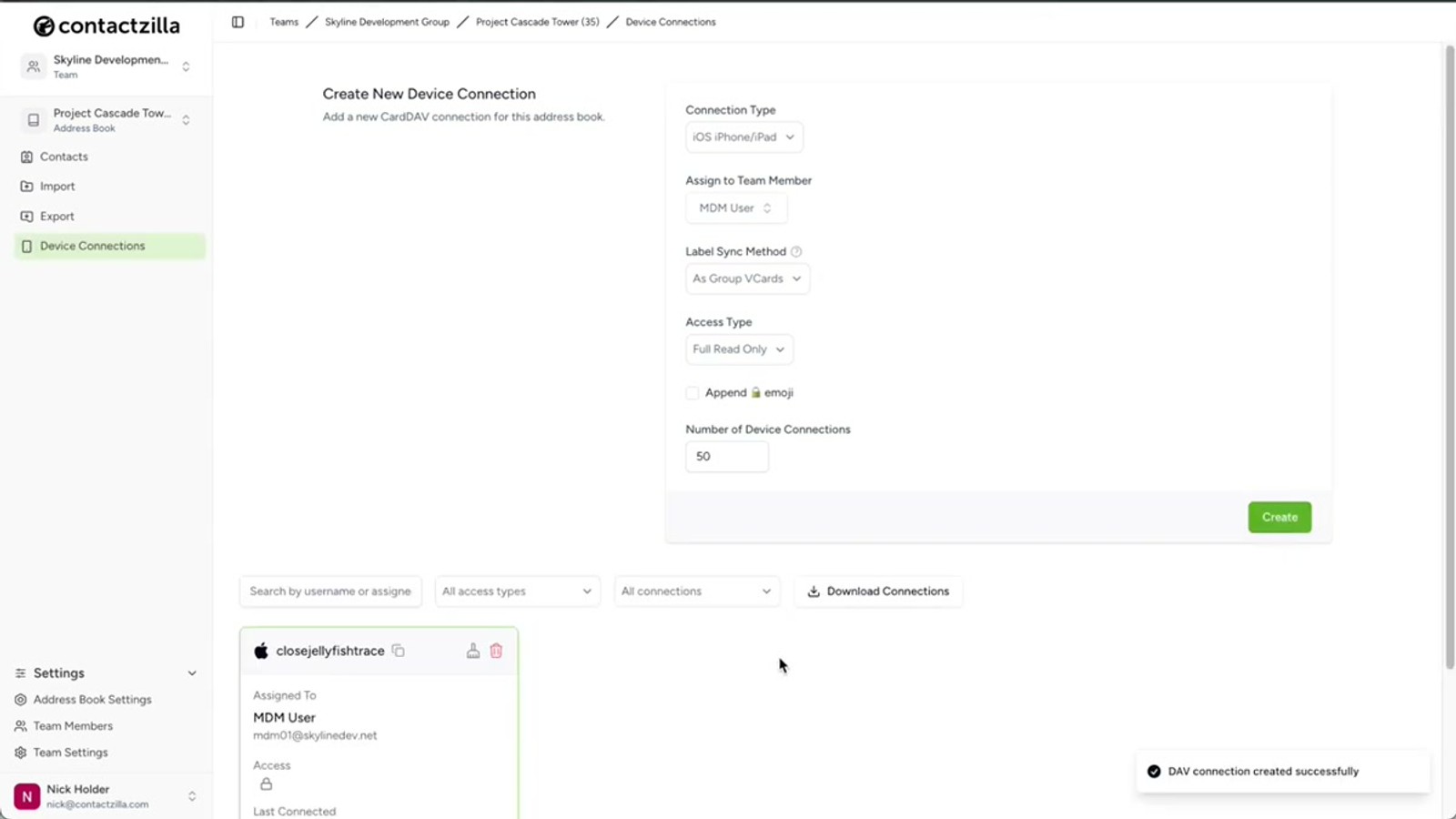
Once you have the address book open, click on Device Connections in the navigation. This is where you'll generate the iOS mobile configuration file. From the Connection Type dropdown, select iOS.
The next step is to assign the connection to a team member. For individual users, you can assign a connection directly to any team member — they'd scan a QR code and set it up themselves. But for MDM rollouts, you need a special type of account called an MDM user.
- Open the address book you want to deploy
- Click Device Connections
- Select iOS from the Connection Type dropdown
- For MDM rollouts, you'll need an MDM user (created in the next step)
Create an MDM User in Contactzilla
An MDM user is a device-only account in Contactzilla — it's not tied to a real person but rather represents the MDM-managed devices that will receive the contacts. You need to create one before generating the configuration profile.
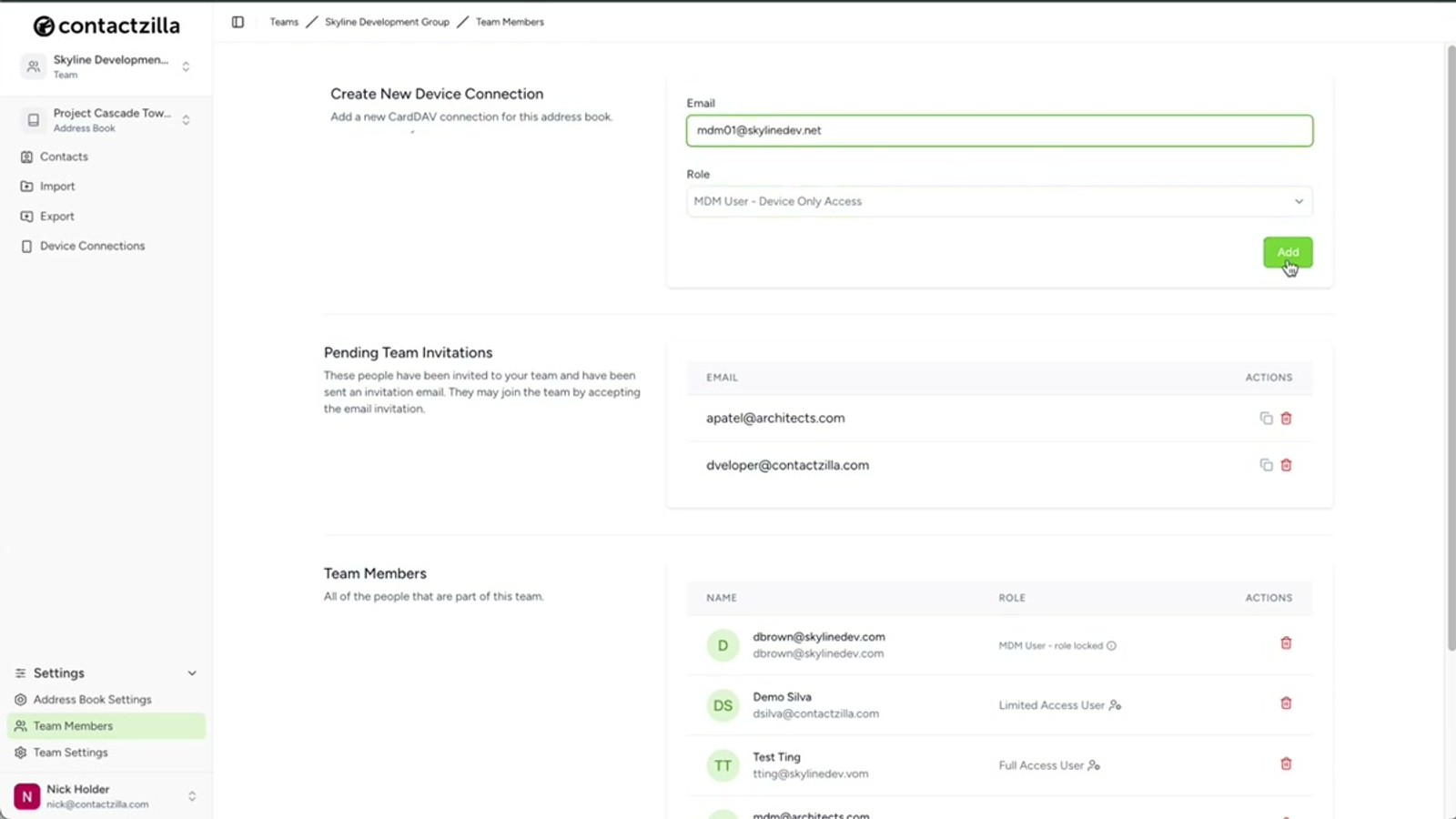
Navigate to Team Members and click to add a new member. Select the option for MDM user, device-only access. The email address field is arbitrary — you can put anything in there since this isn't a real user account. Enter any placeholder email, hit Add, and the MDM user is created.
You'll see the new MDM user listed under your team members. Now head back to Device Connections to continue setting up the connection, and select the MDM user you just created from the user assignment dropdown.
- Go to Team Members and add a new member
- Choose MDM user, device-only access
- Enter any email address — the field is arbitrary for MDM users
- Click Add to create the user
- Return to Device Connections and select the new MDM user
The MDM user email doesn't need to be real — it's just a placeholder for the device-only account. Use something descriptive like soti-field-devices@yourcompany.com so you can identify it later.
Configure Access Level and Label Sync
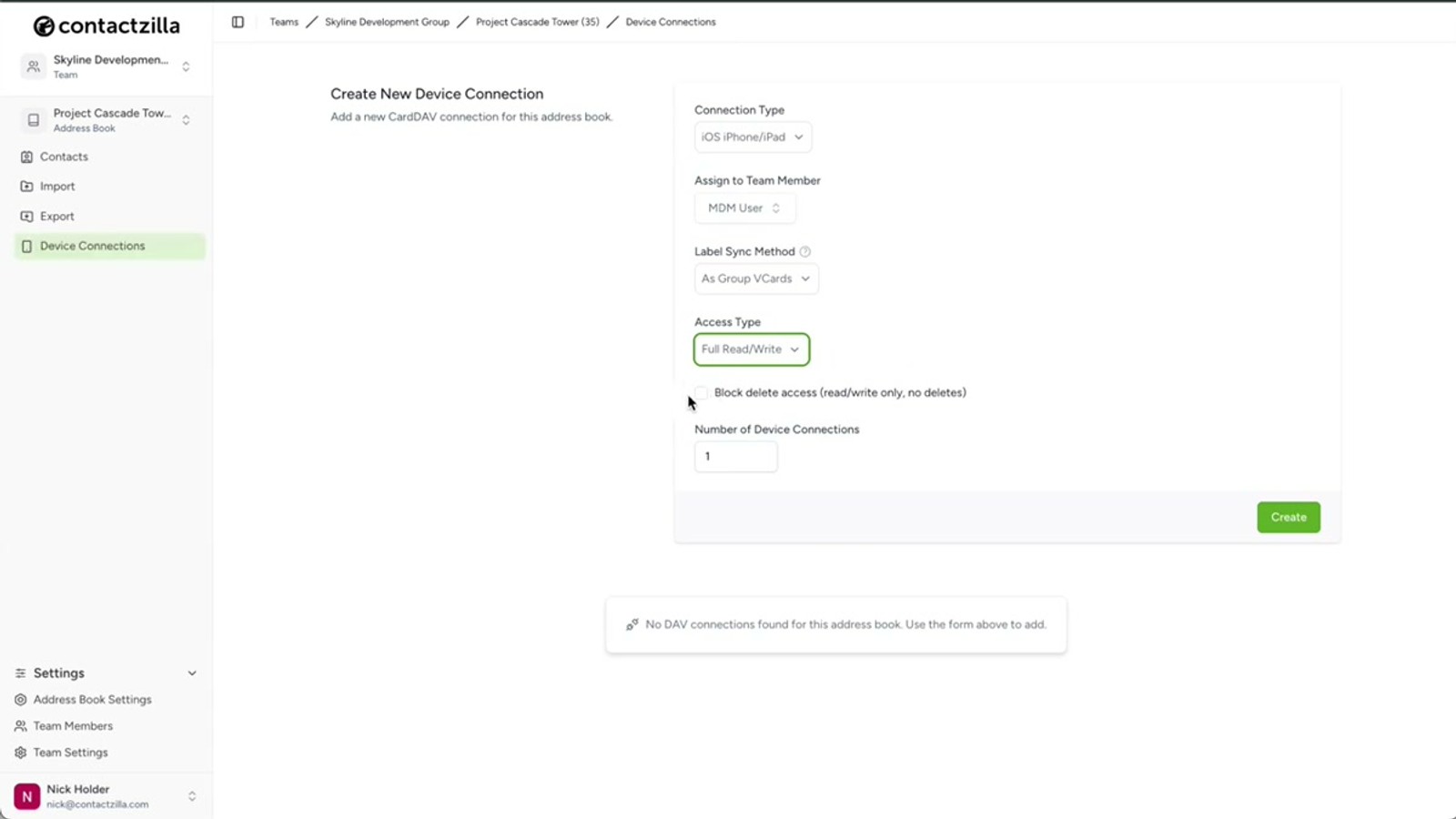
With the MDM user selected, you'll see the Label Sync setting — leave this at the default. Next, choose the access level for end users on the devices. Contactzilla offers three options:
Full Read-Only is the most popular choice for managed rollouts. It prevents any accidental changes to your master contact list — users can view contacts but can't edit or delete them.
Full Read-Write gives end users the ability to edit contacts on their devices, with changes syncing back. If you select read-write, there's a handy sub-option to allow editing but still prevent users from deleting contacts — a useful safeguard.
Selective Read-Only is particularly powerful. Instead of sending the entire address book to every device, you can choose one or more labels and only contacts tagged with those labels are deployed. This lets you send different subsets of contacts to different device groups — for example, only "Warehouse" contacts to warehouse devices.
- Full Read-Only — most popular for managed rollouts, prevents all changes
- Full Read-Write — allows editing; optional toggle to prevent deletions
- Selective Read-Only — deploy only contacts matching specific labels
- Leave Label Sync at the default setting
Selective Read-Only is ideal when different teams need different contacts. Create separate device connections with different label filters for each SOTI device group.
Set Device Count and Download the iOS Config File
Before creating the connection, set the number of device connections to match your rollout — this should equal the number of iPhones in the SOTI device group that will receive the contacts. Then click Create.
Once the device connection is created, click Setup under the new connection entry. This will let you download the iOS mobile configuration file — a .mobileconfig file that contains everything SOTI needs to deploy the contact list to your iPhones.
Download this file and keep it accessible. In the next step, you'll open it in a text editor and copy its entire contents into the SOTI MobiControl dashboard.
- Set number of device connections to match your device group size
- Click Create to generate the connection
- Click Setup under the new device connection
- Download the iOS mobile configuration file (
.mobileconfig)
Create a Reactive Profile in SOTI MobiControl
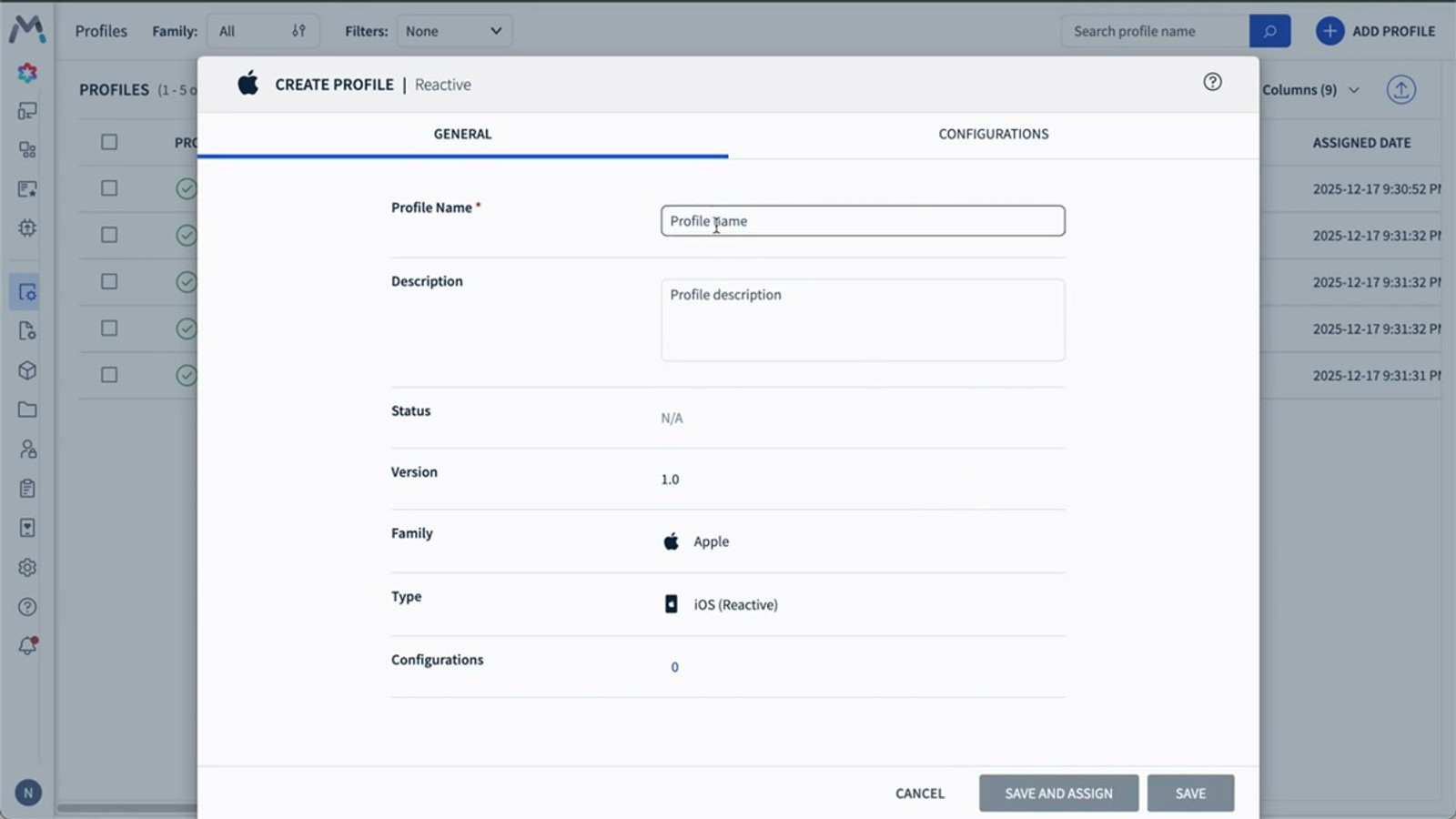
Switch back to the SOTI MobiControl dashboard and navigate to the Profiles section. Click Add Profile from the top right.
Hover over Apple and select iOS. You'll be prompted to choose a profile type — select Reactive Profile. A reactive profile is the correct choice here because you're deploying a standard iOS configuration profile generated by Contactzilla. This type of configuration is delivered through the MDM during device check-ins, rather than being handled independently by the device.
Give the profile a clear, descriptive name that references the address book you're deploying. In the example, the profile is named Project Cascade Tower to match the Contactzilla address book.
- Go to Profiles section in SOTI
- Click Add Profile (top right)
- Hover over Apple → select iOS
- Choose Reactive Profile as the profile type
- Name the profile to match your Contactzilla address book (e.g.,
Project Cascade Tower)
Use a reactive profile (not proactive) because the Contactzilla config file is a standard iOS configuration profile that gets delivered during MDM check-ins.
Paste the Config File into a Custom Profile
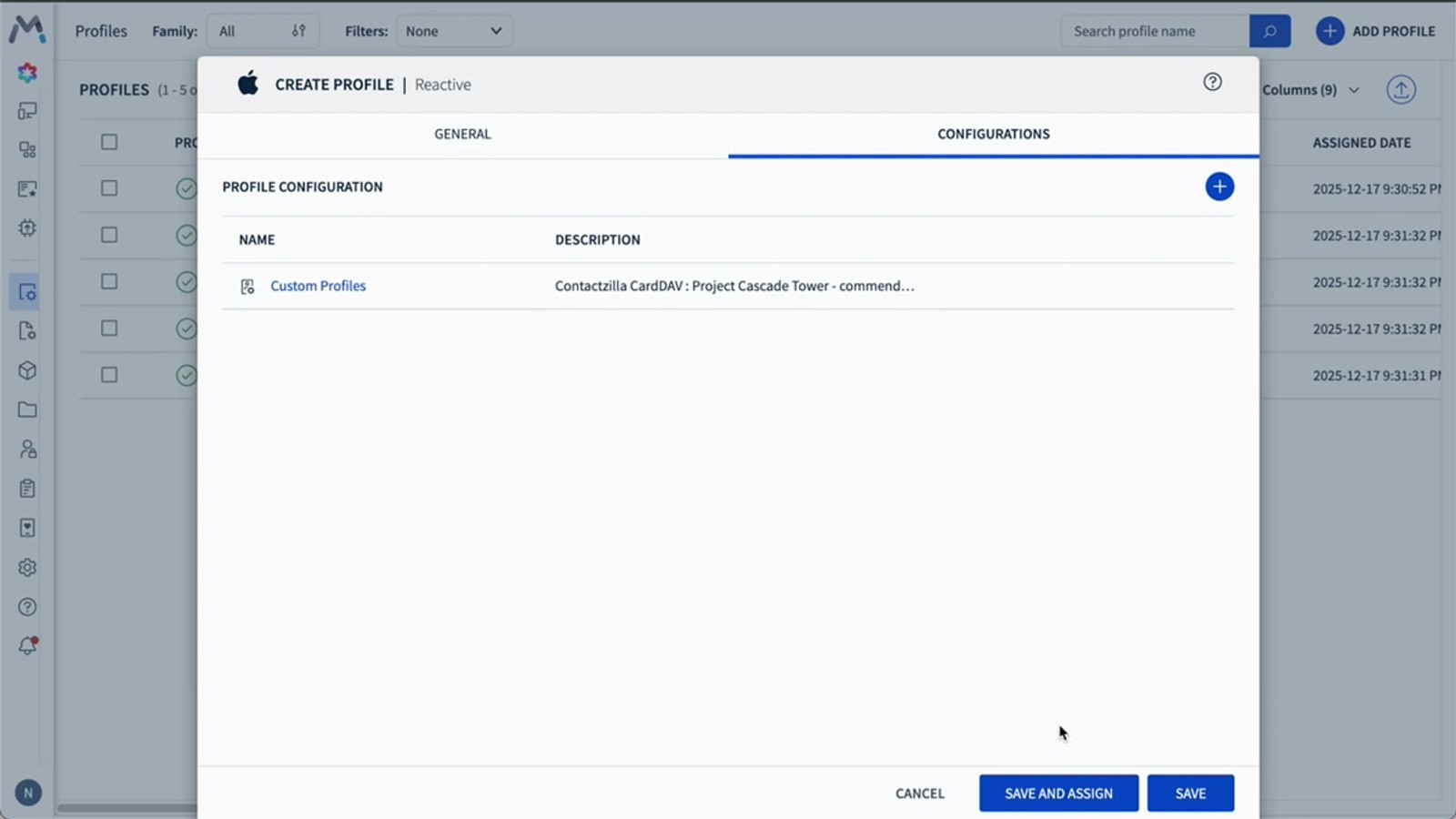
With your new profile created, navigate to the Configurations tab and click the plus (+) symbol to add a new configuration. You'll see a long list of configuration types organized into columns.
Look under the Other column and select Custom Profiles. This is where you'll paste the full contents of the Contactzilla mobile config file.
Open the .mobileconfig file you downloaded earlier in a text editor. Select all the contents (Select All), copy them, and paste the entire XML content into the custom profile text field in SOTI. Then click Save.
The key detail here is that you paste the entire file contents — the complete XML payload — not just a portion of it.
- Click the Configurations tab in your profile
- Click the + (plus) symbol to add a configuration
- Under the Other column, select Custom Profiles
- Open the
.mobileconfigfile in a text editor - Select All → Copy the entire file contents
- Paste into the SOTI custom profile field
- Click Save
Assign the Profile to Your Device Group
One of the convenient things about SOTI's interface is that you can assign the profile to a device group from within the same window — no need to navigate to separate menus.
After saving the configuration, click Save and Assign. You'll be presented with a list of your device groups. Select the target group (e.g., Skyline Field Devices) and hit Assign.
The profile is immediately pushed to all iPhones in that device group. The contacts will appear in the native iPhone Contacts app within moments. In the video demonstration, the contacts appear on the iPhone almost instantly after clicking assign — the address book and all its organized lists are immediately available.
- Click Save and Assign after saving the configuration
- Select your target device group from the list
- Click Assign to push the profile
- Contacts appear in the native iPhone Contacts app within seconds
- Contactzilla labels appear as organized contact lists on the device
Verify Sync: Changes Update Automatically on Devices
Once the profile is deployed, any changes you make in the Contactzilla dashboard are automatically synced to the devices in your SOTI device group. You don't need to re-deploy the profile or take any additional action.
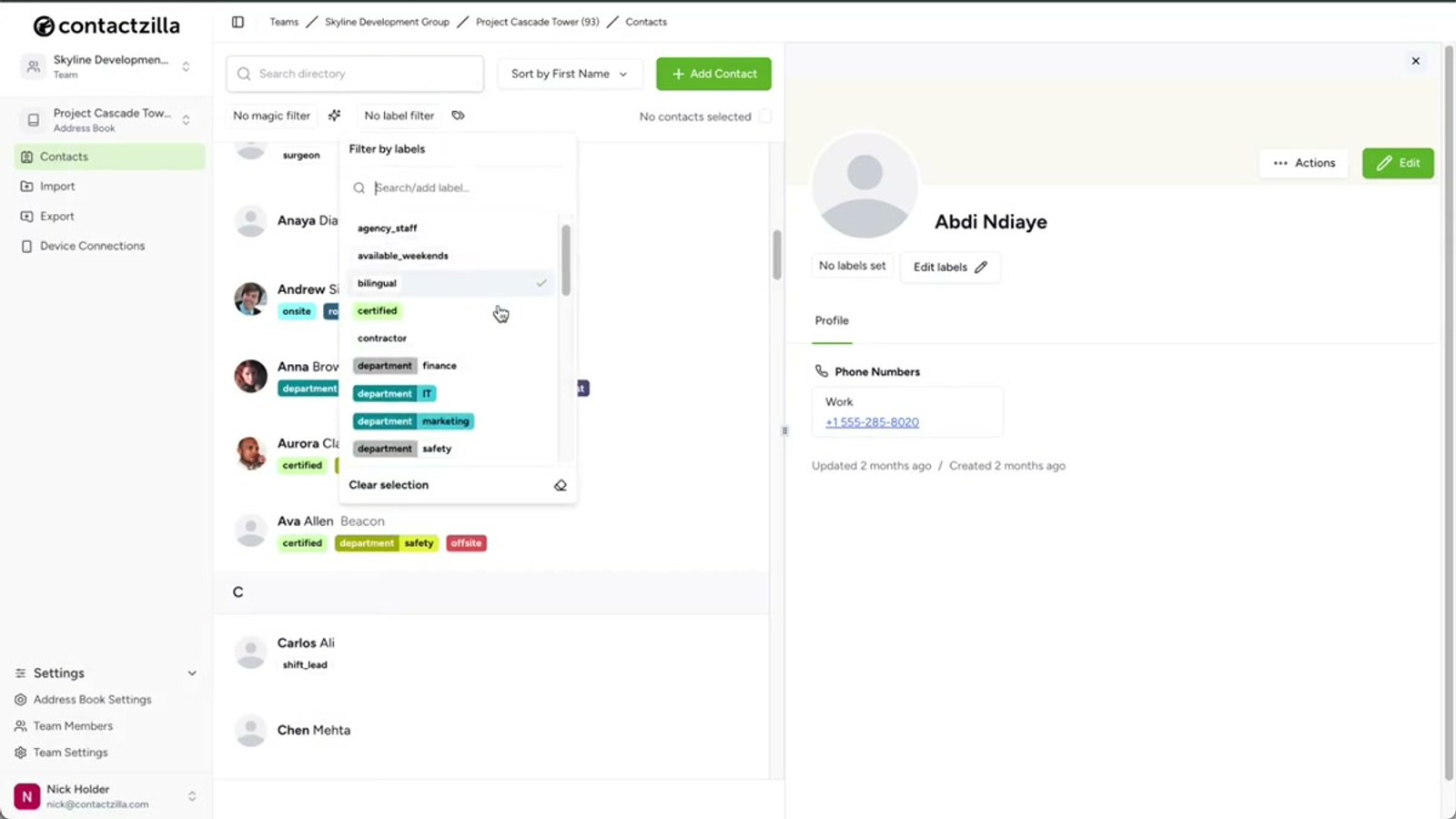
In the video demonstration, the presenter opens the Contactzilla dashboard, applies a filter for the Project Managers label, selects a contact called Anna Brown, and edits her name. The change appears on the iPhone almost immediately without any manual intervention.
This means your central contact directory in Contactzilla is the single source of truth. Update a phone number, change a name, or add a new contact — it all flows down to the managed devices automatically.
- Edit any contact in the Contactzilla dashboard
- Changes sync to all devices in the SOTI device group automatically
- No need to re-deploy or update the profile
- Contactzilla remains the single source of truth for all contact data
Key Takeaways
.mobileconfig file contents into the Custom Profiles configuration under the Other column Frequently Asked Questions
Do I need to assign the connection to a real person in Contactzilla?
No. For MDM rollouts, you create an **MDM user** which is a device-only account. The email address is arbitrary — you can enter any placeholder. MDM users are specifically designed for deploying contacts through mobile device management systems like SOTI MobiControl.
Can I send only certain contacts to specific device groups?
Yes. Use the **Selective Read-Only** access level when creating the device connection. This lets you choose one or more **labels** from your Contactzilla address book, and only contacts tagged with those labels will be deployed to the devices. This is ideal for sending different contact subsets to different teams.
Should I choose a Reactive or Proactive profile type in SOTI?
Choose a **Reactive Profile**. The Contactzilla iOS mobile configuration file is a standard iOS configuration profile that gets delivered through the MDM during device check-ins, which is how reactive profiles work. This ensures reliable delivery to all devices in the group.
What happens when I update a contact in Contactzilla after deployment?
Changes sync automatically to all devices in your SOTI device group. You don't need to re-deploy the profile or take any action. Contactzilla keeps the contacts in sync across those phones — your Contactzilla dashboard serves as the single source of truth.
Where exactly do I paste the config file in SOTI MobiControl?
Inside your profile, go to the **Configurations** tab, click the **plus (+)** symbol, and select **Custom Profiles** under the **Other** column. Open the `.mobileconfig` file in a text editor, select all the contents, and paste the entire XML into the text field. Then click **Save**.
Can end users edit the contacts on their iPhones?
It depends on the access level you choose. **Full Read-Only** prevents any changes. **Full Read-Write** allows editing and syncs changes back. There's also a middle-ground option: read-write with deletion prevention, which lets users edit contacts but prevents them from deleting any.

