
Push Shared Contacts to Every Managed iPhone — via NinjaOne MDM
Generate a CardDAV mobileconfig in Contactzilla, add it as a custom payload in a NinjaOne iOS policy, assign it to a location, and every enrolled iPhone gets your contacts automatically.
If your organization manages iPhones through NinjaOne MDM, you can push a shared Contactzilla address book to every enrolled device without any end-user interaction. The entire process — from generating the configuration profile to seeing contacts appear on the phone — takes only a few minutes.
The flow works like this: Contactzilla generates a mobileconfig file containing a CardDAV profile. You paste that file's contents into a NinjaOne iOS policy as a custom payload, then assign that policy to a location. Every iPhone enrolled under that location automatically receives the contact list. Changes you make in Contactzilla sync to devices without redeploying the profile.
This tutorial walks through every screen and setting so you can follow along without watching the video. It covers creating an MDM user in Contactzilla, choosing access levels (read-only, read-write, or selective read-only), building the NinjaOne policy, and assigning it to a location. By the end, you'll have a repeatable process for rolling out shared contacts to any number of managed iOS devices.
Prerequisites: NinjaOne Organization, Location, and Enrolled iPhones
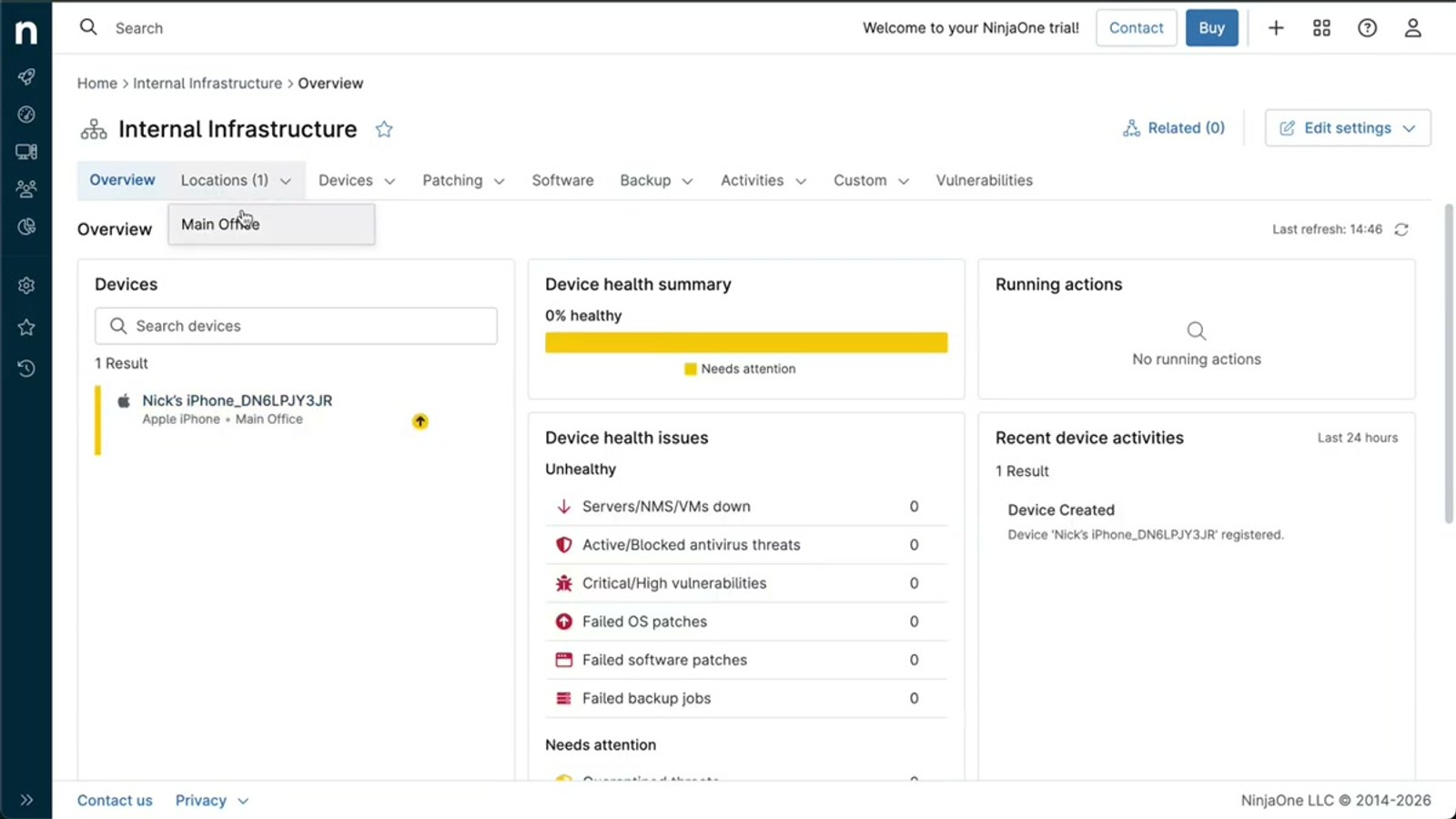
Before you begin, make sure your NinjaOne environment is ready. You need an organization already set up in NinjaOne, at least one location created under that organization (e.g. "Main Office" or "Sales"), and one or more iPhones enrolled and assigned to that location.
Locations in NinjaOne are how you group devices together. When you assign a policy to a location, every device in that location receives the policy. This is what makes the rollout scalable — you configure once, and all current and future devices in the location get the contacts automatically.
You'll also need a Contactzilla account with an address book containing the contacts you want to deploy. The address book should be organized with labels if you plan to use selective deployment (sending only certain contacts to certain devices).
- NinjaOne organization already configured
- At least one location created (e.g. "Main Office", "Sales")
- One or more iPhones enrolled and assigned to that location
- A Contactzilla address book with the contacts you want to deploy
Create a Device Connection in Contactzilla
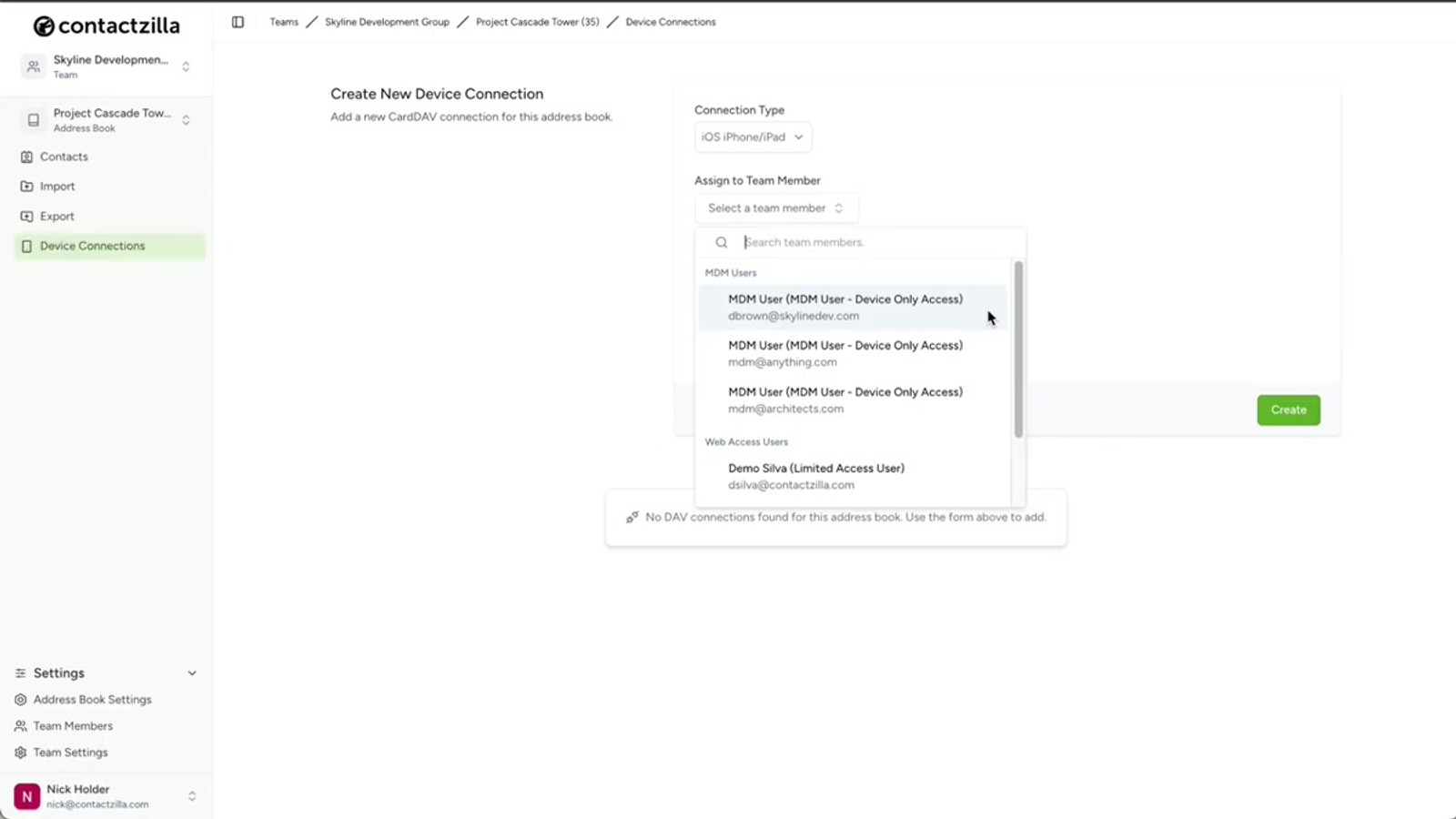
In your Contactzilla dashboard, open the address book you want to deploy and click Device Connections. From the connection type dropdown, select iOS.
The next step is assigning the connection to a team member. Contactzilla lets you assign a connection directly to any team member — useful for individual setups where the person scans a QR code on their own phone. However, for MDM rollouts you need a special type of user called an MDM user, which is a device-only account.
To create one, navigate to Team Members and click Add an MDM user, device-only access. The email address field is arbitrary — you can enter anything (e.g. mdm-ninjaone@yourcompany.com). Click Add and the MDM user appears in your team members list.
- Open your address book → click Device Connections
- Select iOS from the connection type dropdown
- Go to Team Members → add an MDM user (device-only access)
- The email address is arbitrary — use any placeholder
- The MDM user appears under Team Members once created
MDM users are device-only accounts specifically designed for MDM rollouts. Don't assign device connections to regular team members when deploying via MDM — use an MDM user instead.
Configure Access Level and Create the Connection
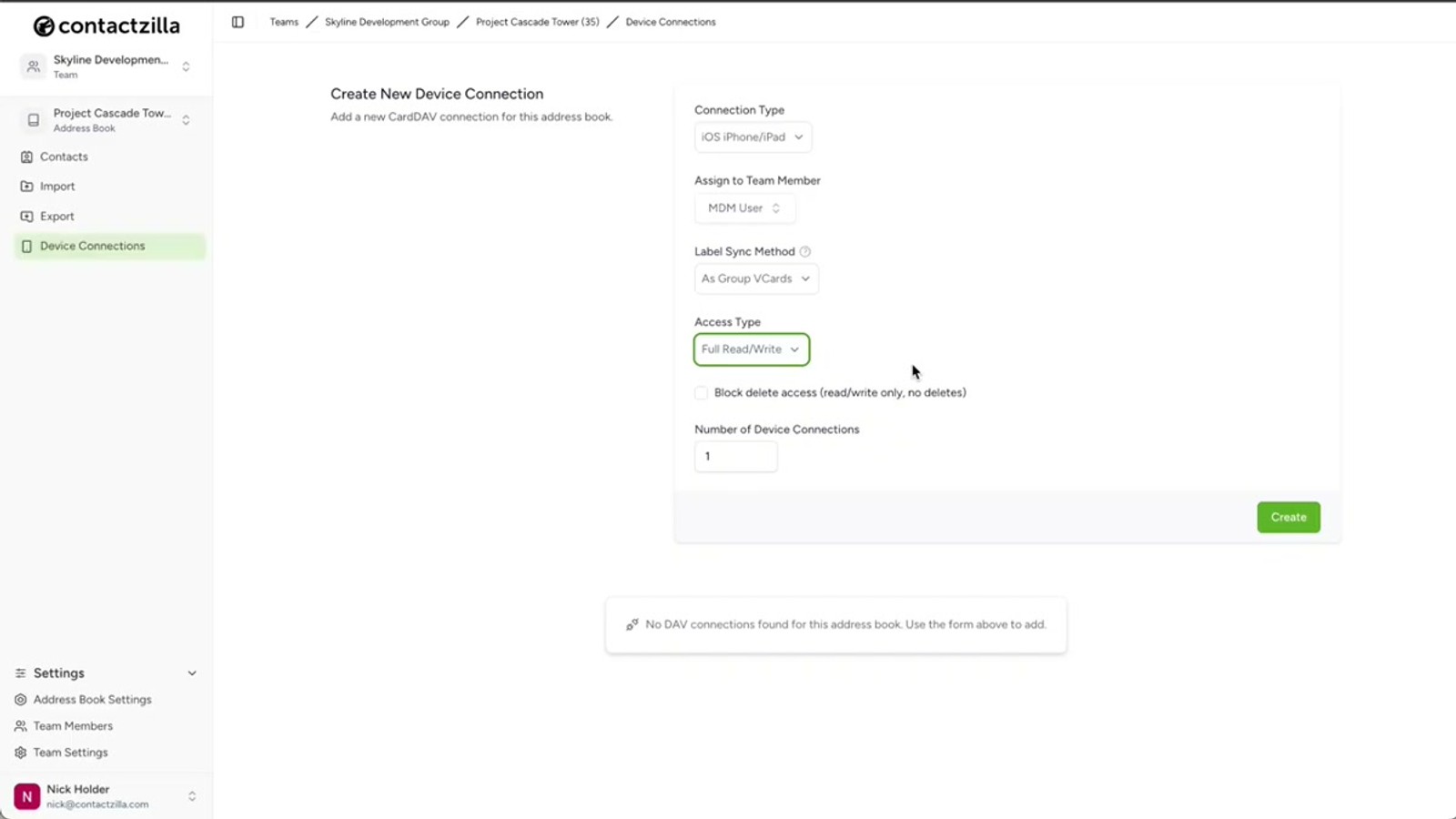
Back in Device Connections, select the MDM user you just created from the user dropdown. Leave Label sync on the default setting.
Now choose the access level for end users. There are three options:
Full read-only is the most popular choice for managed rollouts. It prevents any accidental changes to your master contact list. End users can view all contacts but cannot edit or delete anything.
Full read-write gives end users the ability to edit contacts on their devices, with changes syncing back. If you select read-write, Contactzilla offers a handy sub-option to allow editing but still prevent deletion — so users can update contact details without accidentally removing entries.
Selective read-only is especially powerful. Instead of sending the entire address book to every device, you choose one or more labels and only contacts tagged with those labels are deployed. This lets you send different subsets of contacts to different device groups.
- Select the MDM user from the dropdown
- Leave Label sync on default
- Choose access level: Full read-only, Full read-write, or Selective read-only
- Read-write has an option to allow edits but prevent deletion
- Selective read-only lets you pick specific labels to deploy
- Set the number of device connections to match your rollout size
- Click Create
Selective read-only is ideal when different teams need different contacts. For example, deploy only "Sales" and "Support" labeled contacts to your sales team's phones, while the operations team gets a different set.
Download the Mobileconfig File
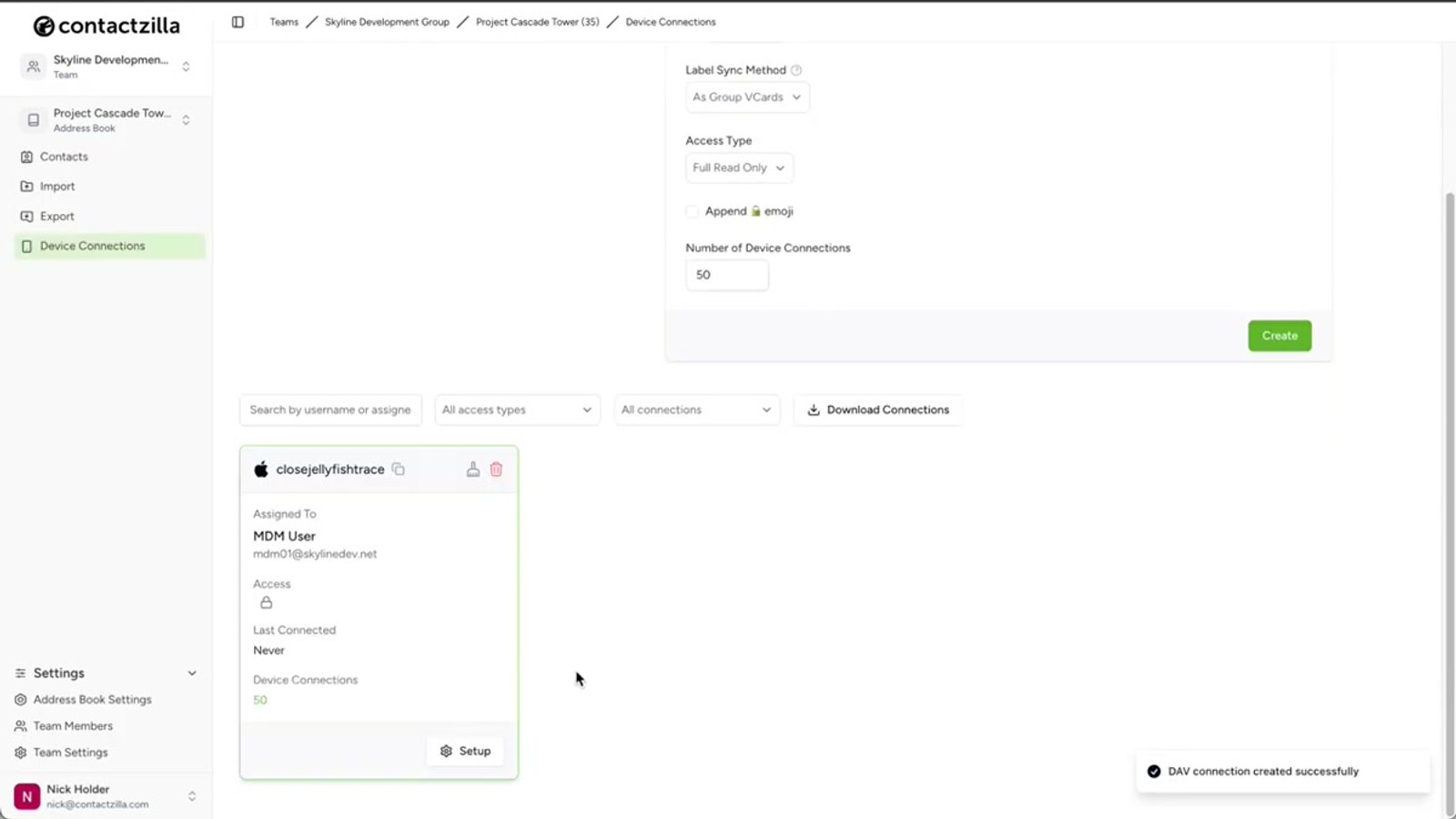
Once the device connection is created, you'll see it listed under your device connections. Click Setup on the newly created connection to reveal the download option.
Download the mobileconfig file. This is a standard Apple configuration profile containing CardDAV connection details that tell the iPhone where to sync contacts from. You'll paste the entire contents of this file into NinjaOne in the next steps.
Keep this file handy — you'll need to open it in a text editor to copy its full contents, from the first XML header line to the closing plist tag.
- Click Setup on the newly created device connection
- Download the mobileconfig file
- This is a CardDAV configuration profile for iOS
- You'll need to copy the full contents (open in a text editor)
Create an iOS Policy in NinjaOne
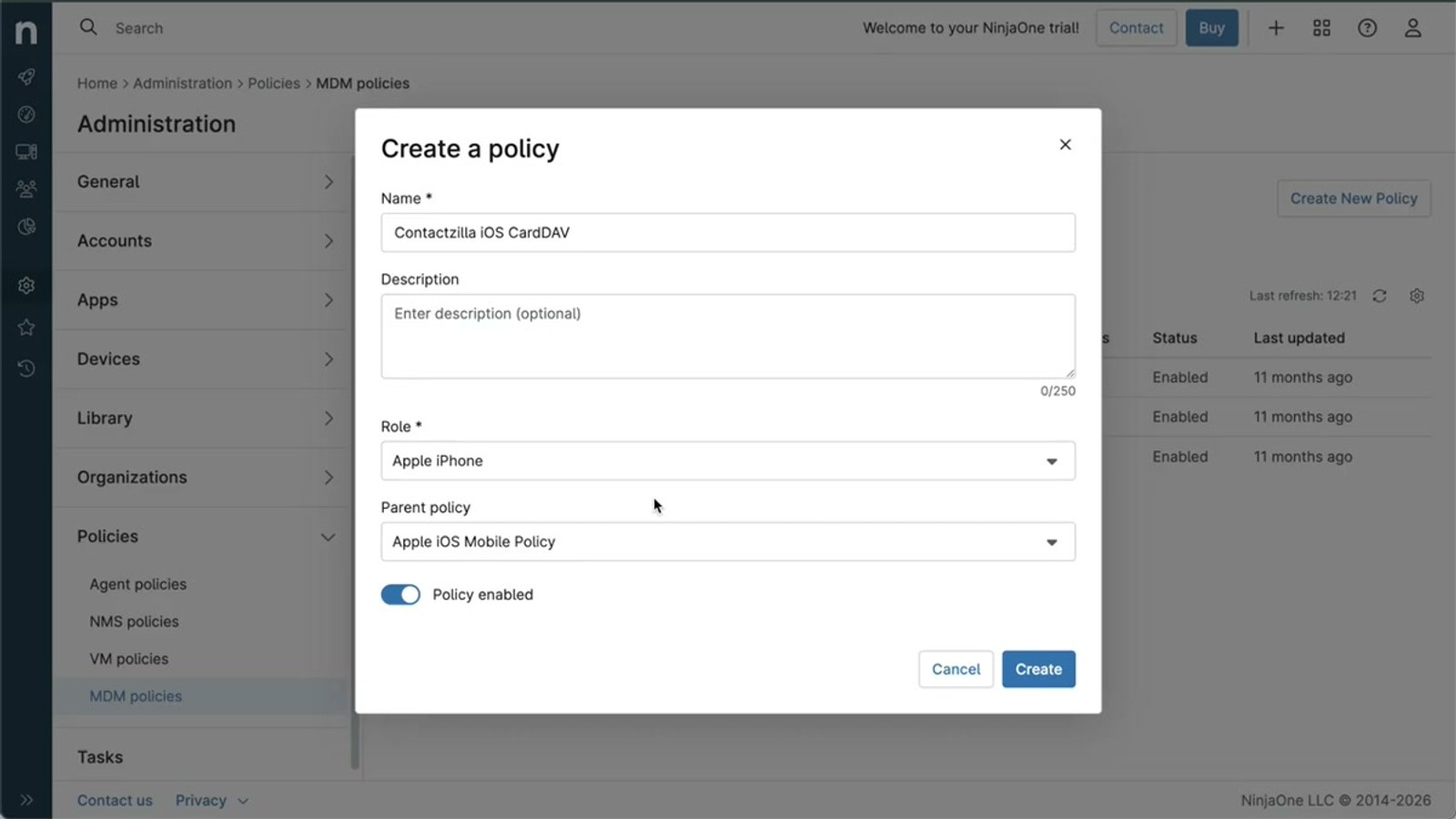
In the NinjaOne dashboard, navigate to Administration → Policies → MDM Policies from the left-hand menu, then click Create New Policy.
Give the policy a clear, descriptive name. In this example, the name used is Contactzilla iOS CardDAV. For the Role, choose Apple iPhone.
For the Parent Policy, select Apple iOS Mobile Policy. This is important — it gives your new policy NinjaOne's standard iOS baseline, which includes Apple's recommended defaults. Your Contactzilla policy will inherit those settings, so you're only adding what's specific to contacts rather than rebuilding an entire iOS policy from scratch.
Click Create to open the policy editor. On the left-hand side, you'll see sections like Passcode, Restrictions, and so on. You don't need to change any of those — scroll down and click Custom Payload.
- Navigate to Administration → Policies → MDM Policies
- Click Create New Policy
- Name it clearly (e.g.
Contactzilla iOS CardDAV) - Set Role to Apple iPhone
- Set Parent Policy to Apple iOS Mobile Policy
- Click Create, then click Custom Payload in the policy editor
Always set the parent policy to Apple iOS Mobile Policy. This inherits Apple's recommended defaults so your contact policy doesn't need to duplicate baseline iOS settings.
Add the Mobileconfig as a Custom Payload
In the Custom Payload section, you'll notice a Payload Type dropdown. This is just a filter for existing payloads — it doesn't affect what gets deployed, so you can ignore it.
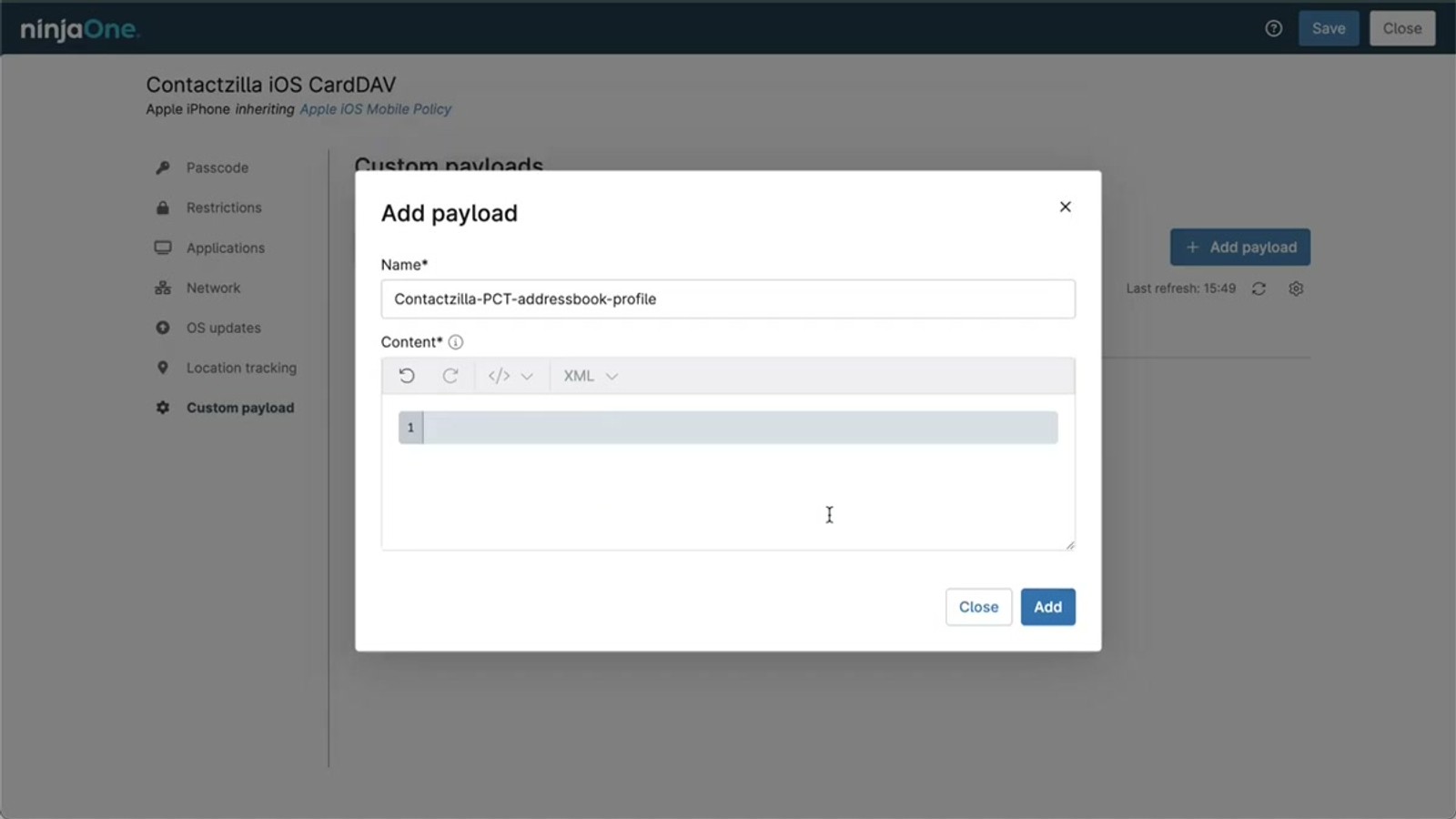
Click Add Payload. Give the payload a descriptive name that references the address book you're deploying. For example: Contactzilla PCT (for "Project Cascade Tower address book profile").
NinjaOne shows a default placeholder template in the editor. You must delete everything in that editor first. Then open your downloaded mobileconfig file in a text editor, copy the entire contents — from the very first line (the XML header <?xml ...?>) through to the very last line (the closing </plist> wrapper) — and paste it into the now-empty editor.
Click Add. You'll see a confirmation message. Then click Save. NinjaOne will prompt you to verify with your authenticator app (MFA). Complete the verification, and your payload should now be listed and showing as Active.
- Ignore the Payload Type dropdown — it's just a filter
- Click Add Payload and give it a descriptive name
- Delete the default placeholder template from the editor
- Paste the full contents of the mobileconfig file (XML header to closing plist tag)
- Click Add, then Save
- Complete MFA verification via authenticator app
- Confirm the payload shows as Active
Make sure you paste the complete mobileconfig file — including the XML header on the first line and the plist wrapper on the last line. Missing either will cause the profile to fail.
Assign the Policy to a Location
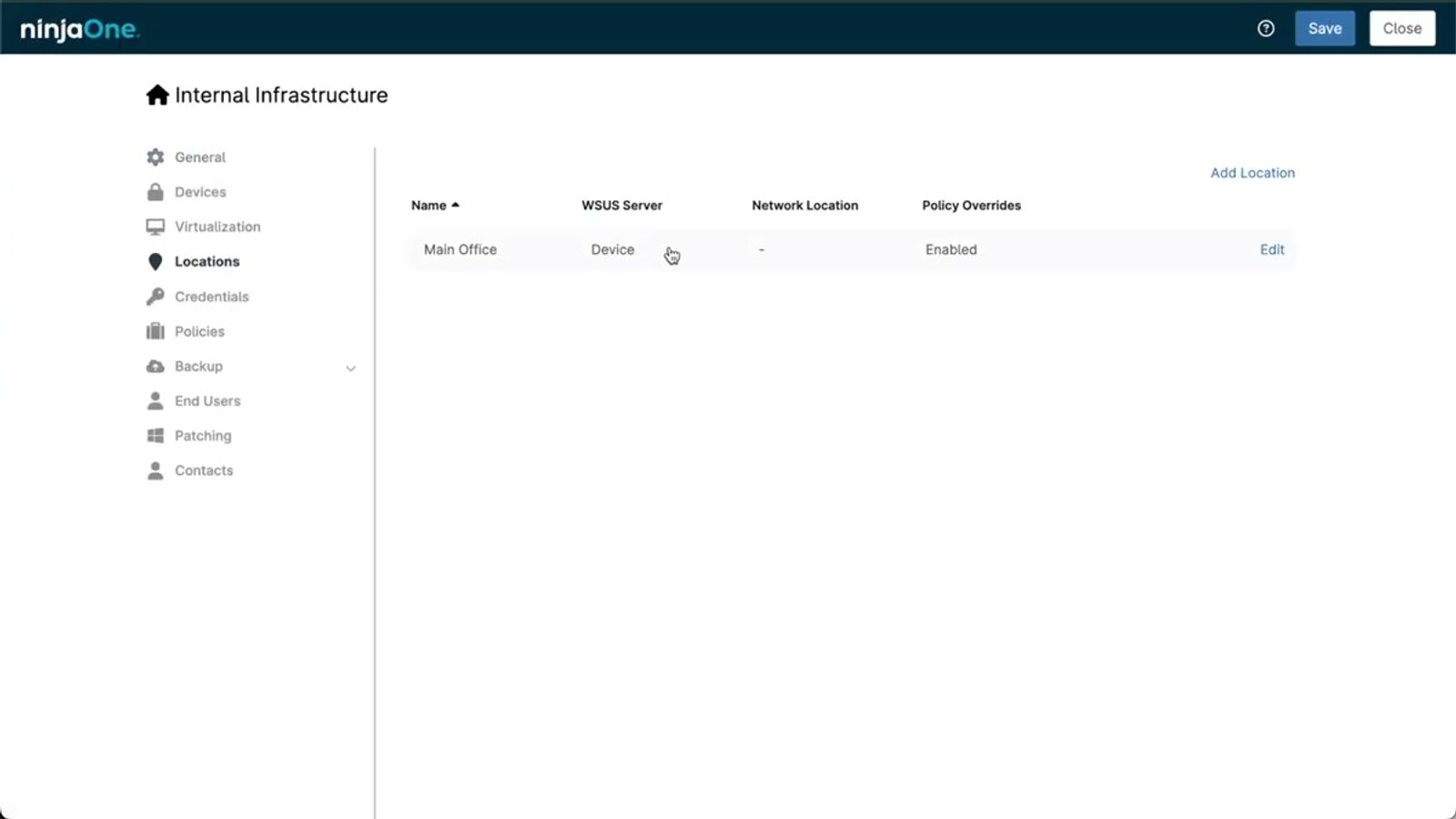
With the policy saved and the payload active, the final step is assigning it to a location so devices actually receive it. Close the policy editor and navigate to Administration → Organization.
Select your organization, then choose Locations. Hover over the location you want to deploy to (e.g. "Main Office") and click Edit. Go to the Policies tab, then click the MDM Policies sub-tab.
If you haven't edited any policies for this location before, you'll need to switch the Policy location overrides toggle to Enabled. Under the Apple iPhone section, choose the policy you just created — in this case, Contactzilla iOS CardDAV.
Click Apply. The policy is now pushed to all iPhones enrolled in that location. The address book will appear in the native iOS Contacts app, with Contactzilla labels presented as separate contact lists for clean organization.
- Go to Administration → Organization → select your org → Locations
- Hover over the target location → click Edit
- Go to Policies tab → MDM Policies sub-tab
- Enable the Policy location overrides toggle if not already enabled
- Under Apple iPhone, select your Contactzilla policy
- Click Apply to push to all enrolled devices
Any new iPhones enrolled in this location in the future will automatically receive the contact list policy — no need to reconfigure.
Verify Contacts Appear and Test Sync
Once you click Apply, the contacts will begin appearing in the native Contacts app on the enrolled iPhones. In the video demonstration, the address book appeared almost immediately after the policy was applied.
Contactzilla labels are presented as separate lists within the iOS Contacts app, keeping your contacts neatly organized. For example, a "Project Managers" label in Contactzilla becomes a "Project Managers" list on the phone.
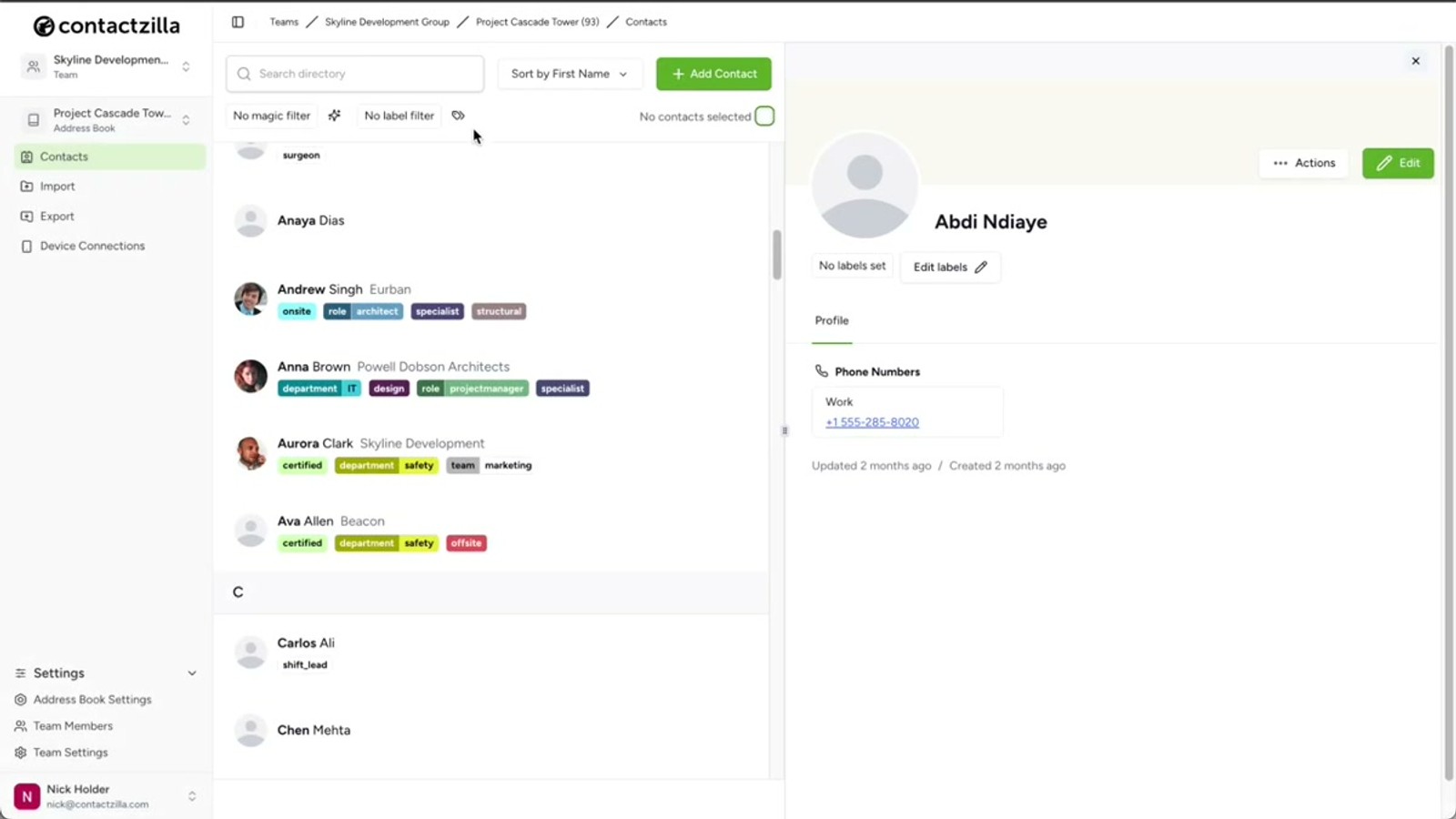
To test ongoing sync, make a change in your Contactzilla dashboard — for example, edit a contact's name. The change syncs to the enrolled devices automatically. In the video, changes appeared on the phone within seconds of being made in Contactzilla.
If you need to force an immediate sync, go to Devices in NinjaOne and click the Refresh button for the target device. However, in normal operation, NinjaOne syncs with devices very quickly without manual intervention.
- Contacts appear in the native iOS Contacts app
- Contactzilla labels become separate lists on the iPhone
- Edits in Contactzilla sync to devices automatically
- Use the Refresh button in NinjaOne Devices to force an immediate sync
- NinjaOne syncs devices very quickly in normal operation
Key Takeaways
Why Use NinjaOne with Contactzilla
Frequently Asked Questions
Do I need to assign the device connection to each team member individually?
No. For MDM rollouts, create a special **MDM user** (device-only account) in Contactzilla and assign the connection to that user. Individual team member assignment is designed for self-service setups where users scan a QR code on their own phone.
Can I send different contacts to different groups of devices?
Yes. Use the **Selective read-only** access level when creating the device connection. This lets you choose specific **labels**, and only contacts tagged with those labels are deployed. Create separate device connections with different label selections and assign them to different NinjaOne locations.
What does the Payload Type dropdown do in NinjaOne's custom payload section?
The **Payload Type** option is just a filter for browsing existing payloads. It does not affect what gets deployed to devices, so you can safely ignore it when adding a new custom payload.
Do I need to redeploy the policy when contacts change in Contactzilla?
No. The mobileconfig profile sets up a CardDAV sync connection. Once deployed, the iPhone continuously syncs with Contactzilla. Any changes you make to contacts in your Contactzilla dashboard automatically appear on enrolled devices. You can also use the **Refresh** button in NinjaOne's Devices section to force an immediate sync.
Why should I set a parent policy instead of creating a standalone policy?
Setting the **Parent Policy** to **Apple iOS Mobile Policy** gives your new policy NinjaOne's standard iOS baseline with Apple's recommended defaults. This means you only add what's specific to contacts rather than rebuilding all iOS settings from scratch. Your contact policy inherits security, passcode, and restriction settings from the parent.
Can end users edit contacts on their phones with this setup?
It depends on the access level you choose. **Full read-only** prevents any changes. **Full read-write** allows editing and syncs changes back. There's also a middle option: read-write with deletion prevention, which lets users edit contact details but prevents them from deleting any contacts from the shared list.

