
Push Company Contacts to Every iPhone — No Scripts Required
Deploy a syncing contact list to managed iPhones in minutes using Microsoft Intune and a simple .mobileconfig file from Contactzilla.
Managing company contacts across a fleet of employee iPhones is one of those tasks that sounds simple but quickly becomes a headache — especially if you're trying to keep hundreds of devices in sync without resorting to complex PowerShell scripts or custom-built solutions. This tutorial walks you through deploying a Contactzilla address book to iPhones using Microsoft Intune, your MDM (Mobile Device Management) platform.
The approach uses CardDAV, an open protocol for syncing contacts, combined with a .mobileconfig file that Contactzilla generates for you. Once deployed through Intune, the contacts appear automatically in the native iOS Contacts app on every managed device. Any changes you make to the address book in Contactzilla are pushed to the devices — no manual updates, no re-deployment needed.
This guide covers every step: preparing your Intune environment, creating an MDM user in Contactzilla, configuring the CardDAV connection with the right access level, downloading the .mobileconfig file, creating an Intune configuration policy, and triggering sync on devices. Whether you're rolling out contacts to a dozen phones or hundreds, the process is identical.
Prerequisites: Prepare Microsoft Intune
Before you begin the deployment, your Microsoft Intune environment needs two things in place. First, your Apple MDM Push Certificate must be active. This is the certificate that allows Intune to manage iOS devices — without it, you cannot push configuration profiles to iPhones.
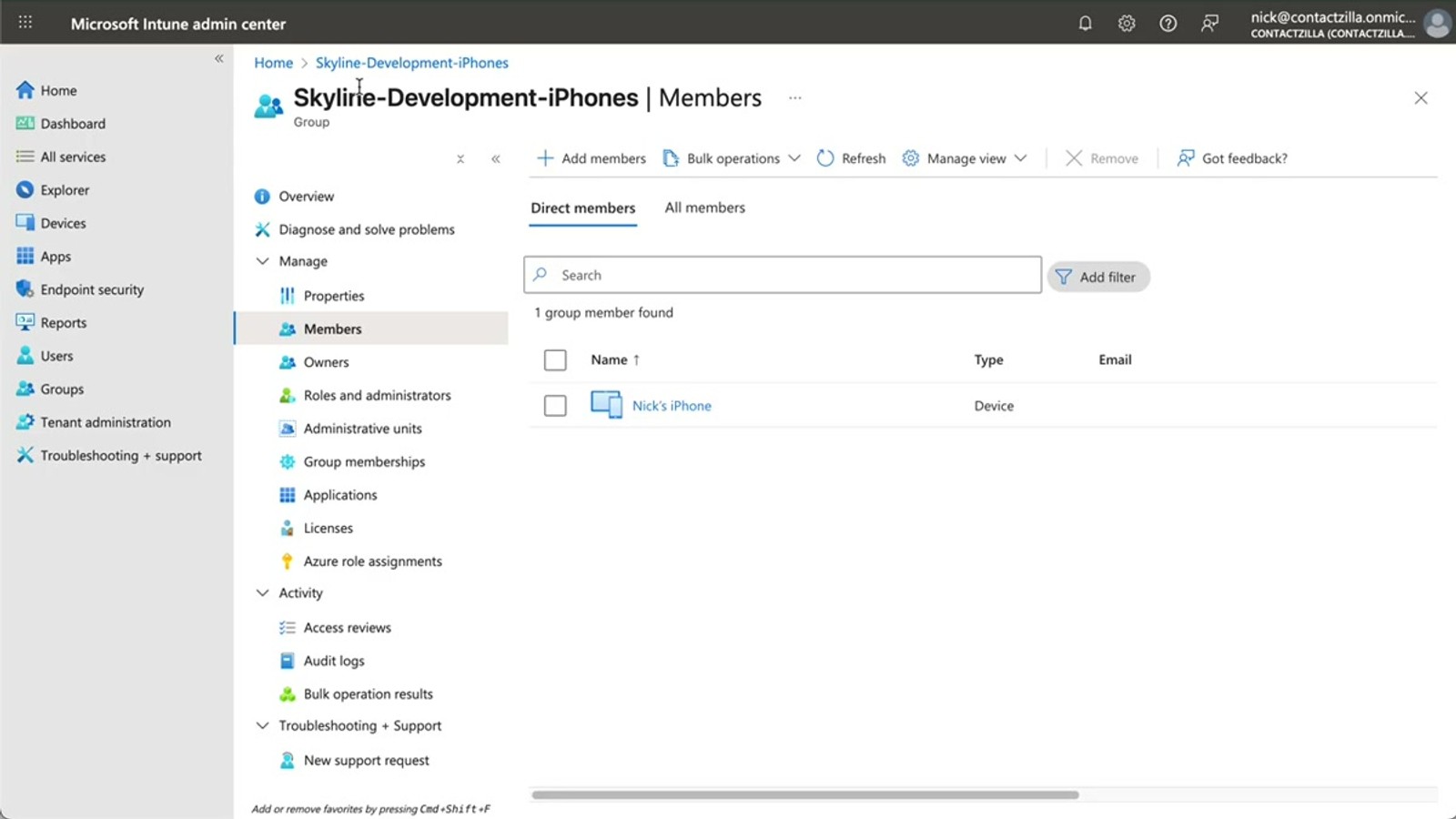
Second, you need an iOS device group set up in Intune containing the devices you want to receive the contacts. In the video, the presenter has created a group named after their Contactzilla team ("Skyline Development iPhones") with an iPhone already enrolled. Your group might contain dozens or hundreds of phones — the deployment process is exactly the same regardless of scale.
- Verify your Apple MDM Push Certificate is active in Intune
- Create or identify an iOS device group containing target iPhones
- Ensure devices are enrolled and checking in with Intune
- The group name can be anything — use something descriptive for your team
If you haven't set up your Apple MDM Push Certificate yet, you'll need to do that in the Intune admin center under Devices > Enrollment before proceeding.
Open CardDAV Connections in Contactzilla
Log into your Contactzilla dashboard and open the address book you want to deploy to your managed iPhones. Navigate to the CardDAV Connections section for that address book.
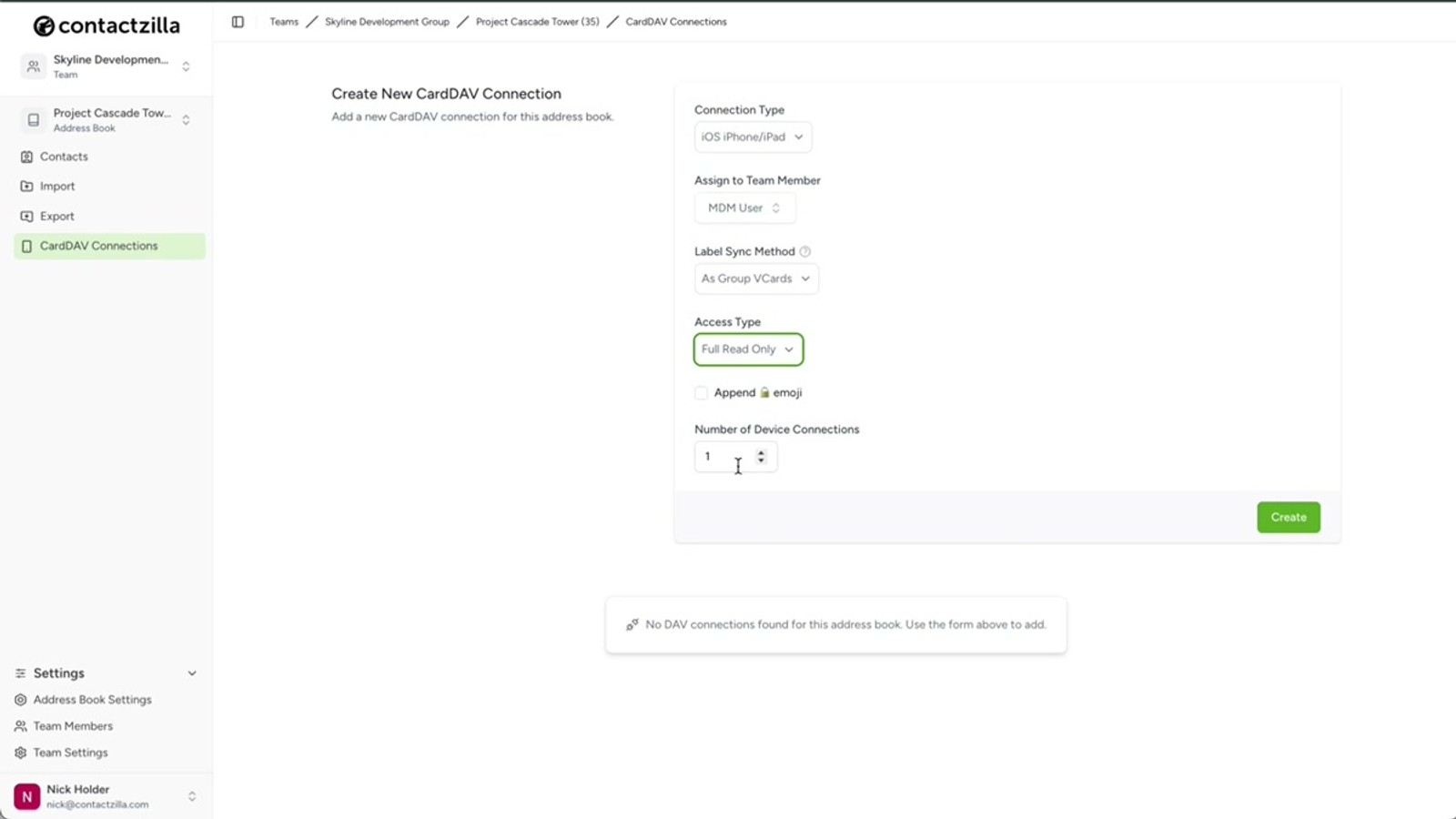
The first thing you need to do is select iOS from the Connection Type dropdown. This ensures the .mobileconfig file Contactzilla generates is correctly formatted for Apple devices and the iOS CardDAV implementation.
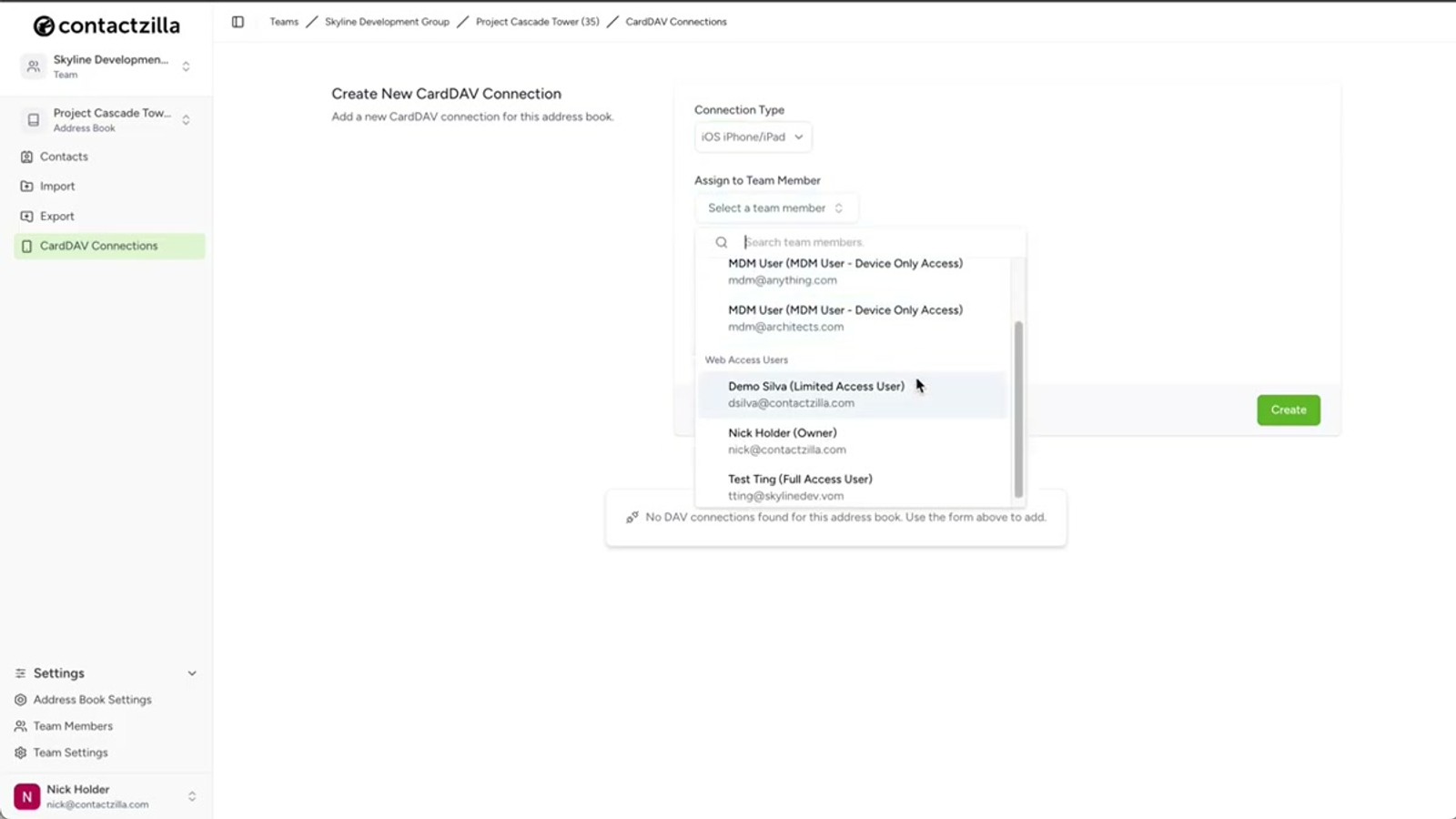
The next step is assigning the connection to a team member. In Contactzilla, you can assign a CardDAV connection directly to any individual team member — useful for one-off setups where a person scans a QR code and configures their own phone. However, for MDM rollouts you need a different kind of account.
- Open the target address book in Contactzilla
- Go to CardDAV Connections
- Select iOS from the Connection Type dropdown
- Individual connections use QR codes — MDM rollouts use a special MDM user (next step)
Create an MDM User in Contactzilla
For MDM deployments, you need to create a special type of user called an MDM User — this is a device-only account, meaning it's not tied to an individual person but rather to the devices in your rollout.
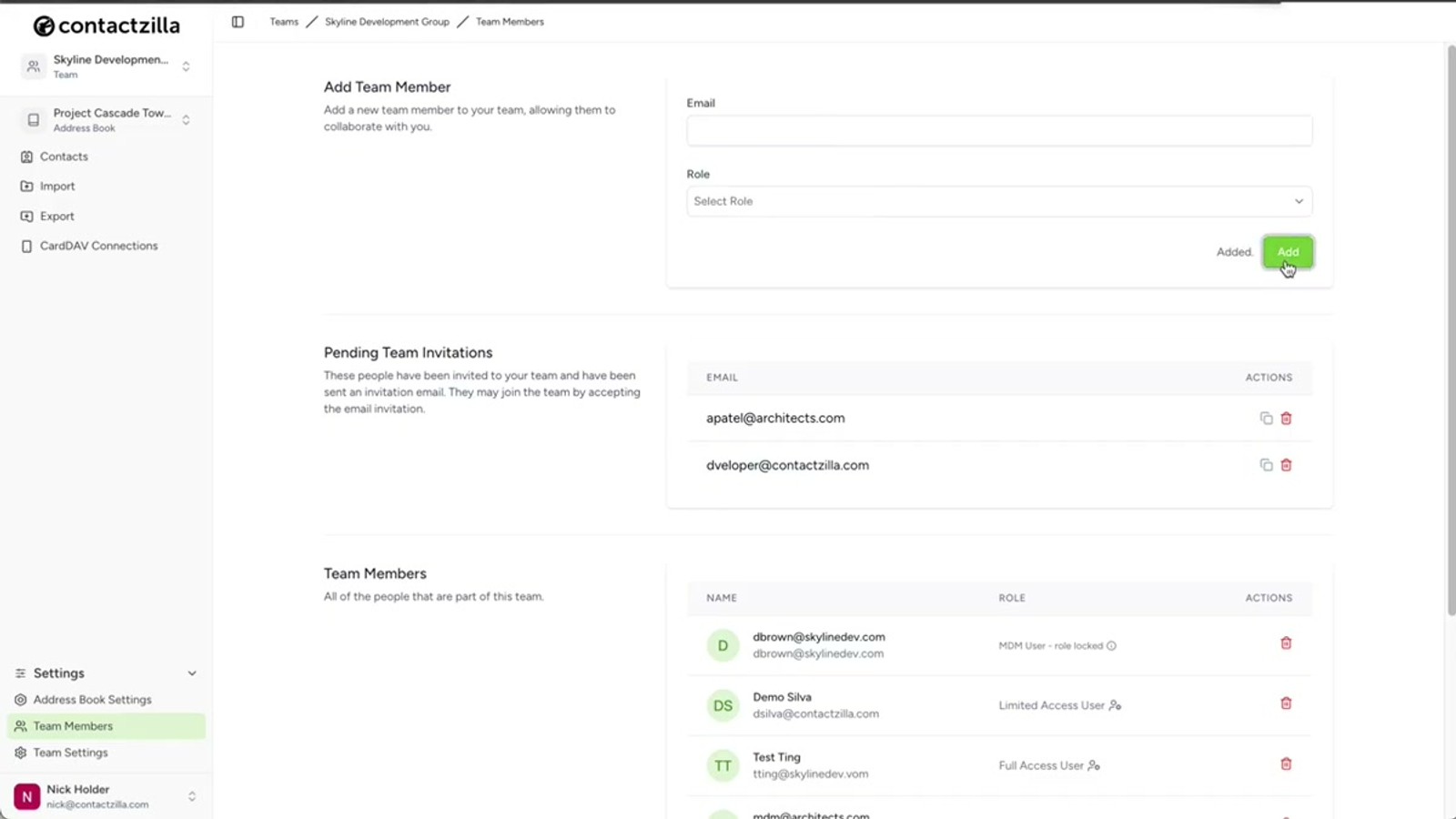
Navigate to Team Members in Contactzilla and click to add a new member. Select the MDM User (Device-Only Access) option. You'll be prompted for an email address — this is arbitrary and doesn't need to be a real email address. You can enter anything you like (e.g., intune-rollout@yourcompany.com). Click Add and the MDM user will appear in your team members list.
This MDM user acts as the authentication identity for all devices in the rollout. Rather than creating individual connections for each employee, the single MDM user account handles all device connections through Intune.
- Go to Team Members in the Contactzilla dashboard
- Click Add and select MDM User (Device-Only Access)
- Enter any email address — it's arbitrary and doesn't need to be real
- The MDM user appears under your team members list once created
- One MDM user handles all device connections for the entire rollout
The MDM user email is just a label for your reference. Use something descriptive like intune-ios@yourcompany.com so other admins know what it's for.
Configure the CardDAV Connection Settings
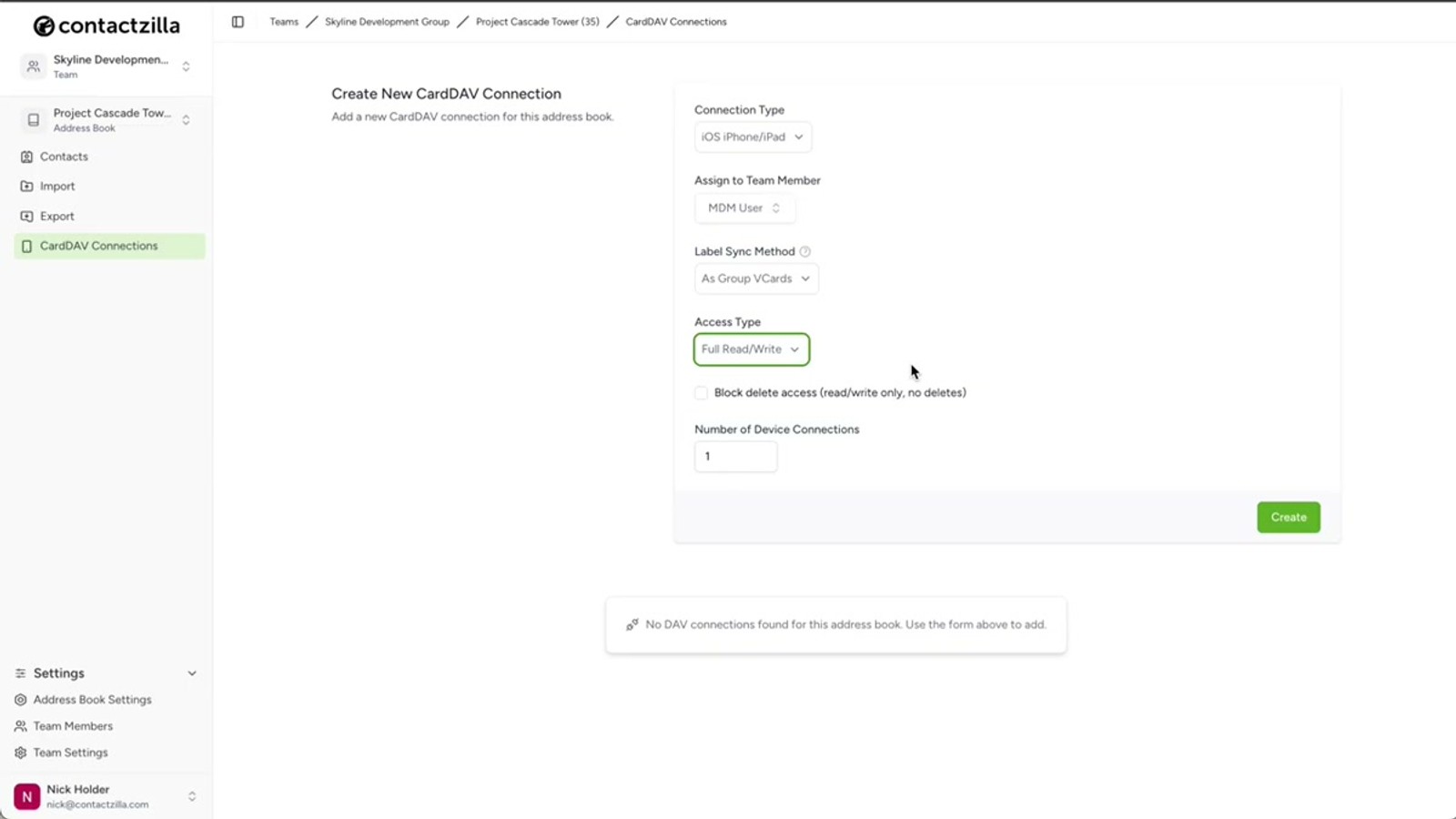
Head back to CardDAV Connections and select the new MDM user you just created from the user dropdown. Leave Label Sync at the default setting unless you have specific label-syncing requirements.
Now choose the access level for end users. There are three options, each suited to different rollout scenarios:
Full Read-Only is the most popular choice for managed rollouts. Users can see all contacts but cannot make any changes — this prevents accidental edits or deletions to your master contact list.
Full Read-Write gives end users the ability to edit contacts on their devices, with changes syncing back to Contactzilla. If you select this option, there's a handy sub-option to allow editing but prevent deletion — users can update contact details but cannot remove contacts from the address book.
Selective Read-Only is particularly powerful. Instead of sending the entire address book to every device, you choose one or more labels and only contacts tagged with those labels are deployed. This lets you send different subsets of contacts to different device groups.
- Select the MDM user from the user dropdown
- Leave Label Sync at default for standard rollouts
- Full Read-Only — most common for MDM; prevents accidental changes
- Full Read-Write — allows editing; optionally prevent deletions
- Selective Read-Only — deploy only contacts matching specific labels
- Set number of device connections to match your rollout size
Selective Read-Only is ideal when different departments need different contact subsets. Create separate CardDAV connections with different label filters and deploy each to the appropriate device group in Intune.
Download the .mobileconfig File
After setting your access level and device connection count, click Create to generate the CardDAV connection. The new connection will appear in your connections list.
Under the newly created device connection, click Setup. From here, you can download the .mobileconfig file. This file contains all the CardDAV configuration needed for iOS devices to connect to your Contactzilla address book — server addresses, authentication credentials, and sync settings are all pre-configured.
Save this file somewhere accessible — you'll upload it to Microsoft Intune in the next step. The .mobileconfig file is a standard Apple configuration profile format, which is exactly what Intune expects for custom iOS policies.
- Click Create to generate the connection
- Click Setup under the new connection
- Download the .mobileconfig file to your computer
- The file contains pre-configured CardDAV server, credentials, and sync settings
- Keep this file ready for upload to Intune
Create a Custom Configuration Policy in Intune
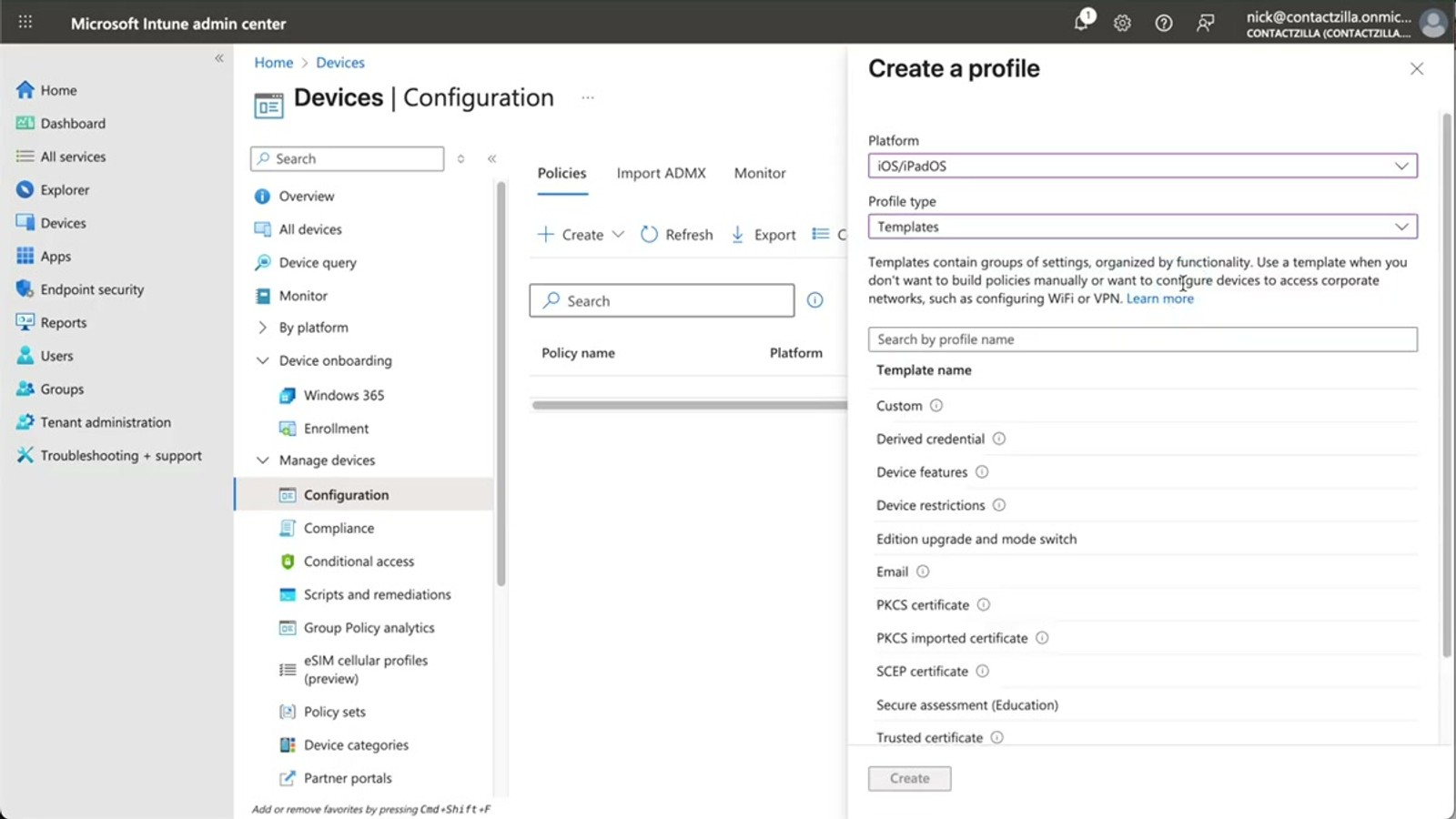
Switch to the Microsoft Intune admin center. Navigate to Devices > Configuration and click to create a new policy.
Set the Platform to iOS/iPadOS. For Profile Type, select Templates, then choose Custom from the template list. Click Create to begin configuring the policy.
You'll need to provide two names. The first is the policy name — this is for admins to identify the policy within Intune. Use something descriptive that references Contactzilla, the platform, and the address book. In the video, the presenter uses a format like Contactzilla - iOS - Project Cascade Tower (referencing their address book name). The second name is potentially visible to end users, so use the address book name itself (e.g., Project Cascade Tower).
Now upload the .mobileconfig file you downloaded from Contactzilla, and click Next.
- Navigate to Devices > Configuration in Intune
- Click Create new policy
- Set Platform to iOS/iPadOS
- Set Profile Type to Templates > Custom
- Enter an admin-facing policy name (e.g.,
Contactzilla - iOS - [Address Book Name]) - Enter a user-facing name (the address book name works well)
- Upload the .mobileconfig file from Contactzilla
Assign the Policy to Your Device Group
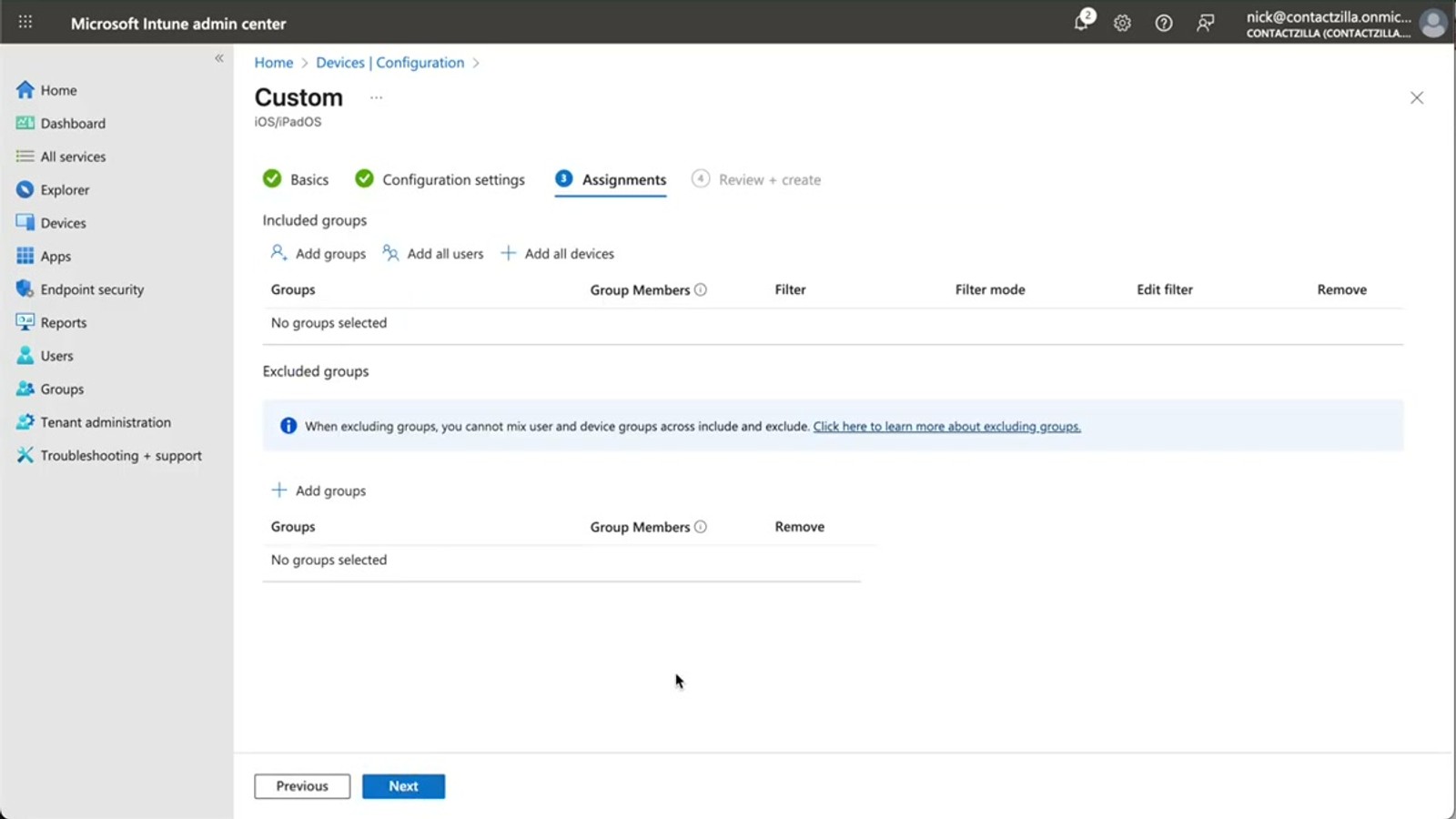
After uploading the .mobileconfig file and clicking Next, you'll reach the Assignments step. Here you select which device group(s) should receive this configuration profile.
Click Add groups under the Included groups section and select your iOS device group. In the video, the presenter selects their group named "Skyline Development iPhones". Click Next to proceed.
Review the summary of your policy — the name, platform, profile type, and assigned groups. Once you're satisfied, click Create to deploy the policy. If you click Refresh on the configuration profiles list, you'll see your new policy appear.
- Select your iOS device group under Included groups
- Review the policy summary: name, platform, assignments
- Click Create to deploy
- The policy appears in the configuration profiles list after refresh
Trigger Sync on Devices
Intune configuration profiles don't deploy instantly. For newly enrolled devices, the profile typically deploys within 15 minutes. For existing devices, it can take up to 8 hours during their automatic check-in cycle.
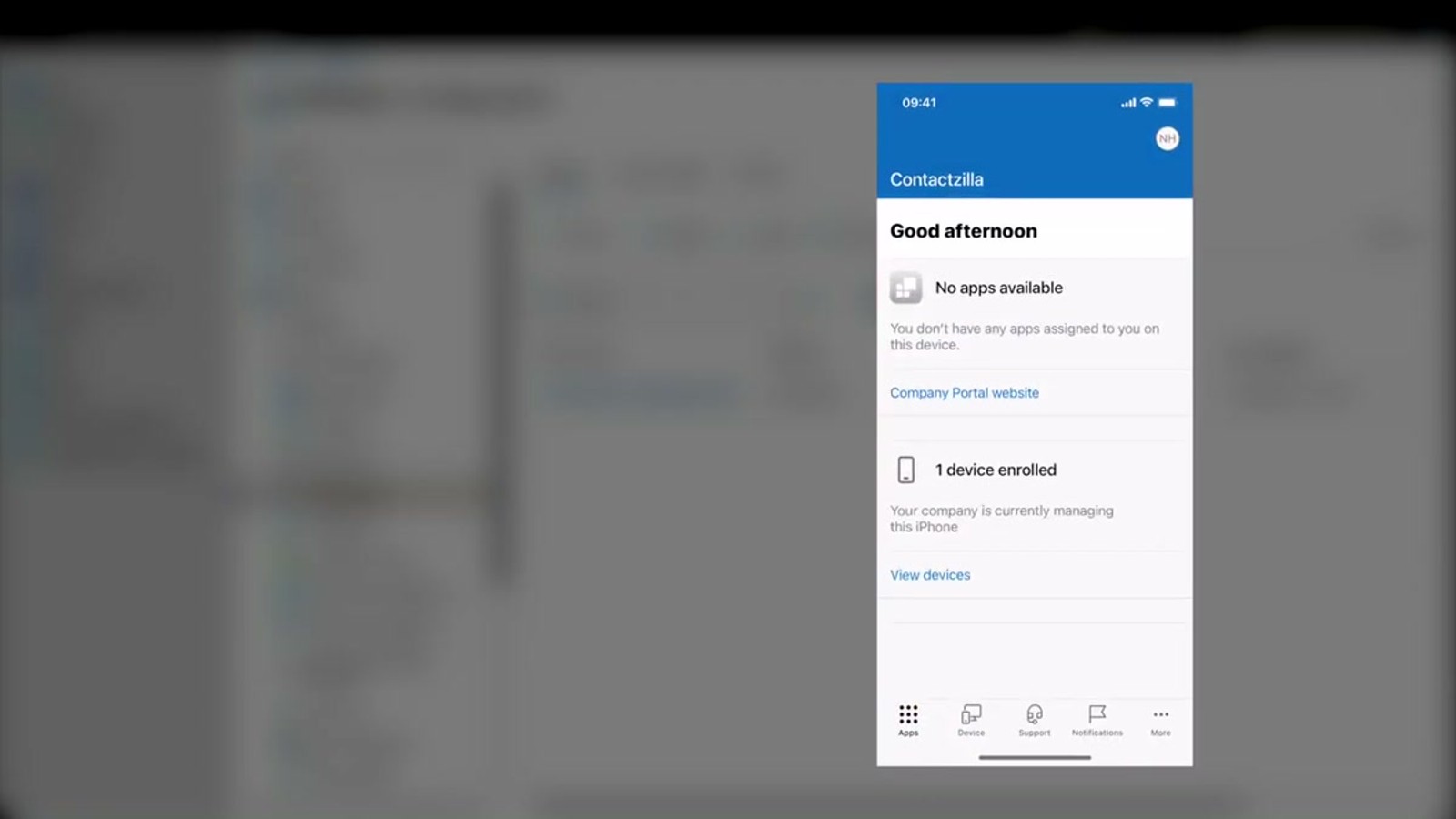
There are two ways to speed this up. End users can force an immediate sync by opening the Company Portal app on their iPhone, going to the Devices section, and tapping Check Status. This triggers the device to check in with Intune and pull any pending configuration profiles.
IT admins can force a sync remotely from the Intune admin center by navigating to Devices > All Devices, selecting the target device, and clicking Sync. This pushes the configuration to the device without requiring any action from the end user.
Once the profile is applied, the Contactzilla contacts appear automatically in the native iOS Contacts app. Any changes made to the address book in Contactzilla will sync to devices automatically via CardDAV — no re-deployment needed.
- New devices: profile deploys within ~15 minutes
- Existing devices: up to 8 hours during automatic check-in
- User-initiated sync: Company Portal app > Devices > Check Status
- Admin-initiated sync: Intune > Devices > All Devices > select device > Sync
- Contacts appear in the native iOS Contacts app
- Ongoing changes in Contactzilla sync automatically to devices
For large rollouts, consider scheduling the policy deployment before end-of-day so devices pick up the profile during their next automatic check-in overnight.
intune-mdm@yourcompany.com No Scripting Required
Deploy contacts with a .mobileconfig file — no PowerShell, no custom code
Automatic Sync
Changes to your Contactzilla address book push to devices automatically via CardDAV
Read-Only Protection
Prevent accidental edits or deletions with granular access level controls
Selective Deployment
Use labels to deploy only specific contacts to specific device groups
Native Contacts App
Contacts appear in the built-in iOS Contacts app — no extra app to install
Scales to Hundreds
Same process whether you're managing 10 phones or 1,000
Frequently Asked Questions
What is an MDM User in Contactzilla and why do I need one?
An MDM User is a special device-only account in Contactzilla designed for MDM rollouts. Unlike regular team member connections (which are tied to individual people and set up via QR code), an MDM user provides a single authentication identity that all managed devices share. The email address you enter when creating it is arbitrary — it's just a label for your reference.
Can I deploy only a subset of contacts instead of the entire address book?
Yes. When configuring the CardDAV connection, choose **Selective Read-Only** as the access level. You can then select one or more labels, and only contacts tagged with those labels will be deployed to devices. This is ideal when different teams or departments need different contact lists.
How long does it take for contacts to appear on devices after creating the Intune policy?
For newly enrolled devices, configuration profiles typically deploy within 15 minutes. For existing devices, it can take up to 8 hours during the automatic check-in cycle. You can speed this up by having users open the Company Portal app and tap Check Status, or by forcing a sync remotely from the Intune admin center.
Can end users edit or delete the deployed contacts?
That depends on the access level you choose. **Full Read-Only** prevents all changes. **Full Read-Write** allows editing, and you can optionally enable a setting that permits editing but prevents deletion. For most managed rollouts, Full Read-Only is recommended to protect your master contact list.
Do I need to redeploy the Intune policy when contacts change in Contactzilla?
No. The .mobileconfig file sets up a CardDAV sync connection on the device. Once deployed, any changes you make to the address book in Contactzilla are automatically synced to devices — no re-deployment or policy updates needed.
What if I use Jamf instead of Microsoft Intune?
Contactzilla has a separate deployment guide for Jamf. The Contactzilla side of the setup (creating the MDM user, configuring CardDAV, downloading the .mobileconfig) is the same — only the MDM deployment steps differ.

