
Push Your Shared Address Book to Every Managed iPhone via MaaS360
Deploy a centrally managed, read-only contact list to your entire iPhone fleet using IBM MaaS360 — with live sync so edits in Contactzilla appear on devices automatically.
What This Guide Covers
This tutorial walks through the complete process of deploying a Contactzilla shared address book to iPhones managed by IBM MaaS360. Rather than importing a mobile configuration profile directly — which can trigger password prompts after iOS updates — we manually configure the CardDAV payload inside a MaaS360 iOS policy. This approach gives you a cleaner, more reliable deployment.
The workflow has three main stages: generating a device connection in Contactzilla (including creating a dedicated MDM user), creating an iOS MDM policy in MaaS360 with the CardDAV details copied from the downloaded config file, and assigning that policy to a device group. Once assigned, contacts deploy automatically on the next device check-in.
This guide assumes you already have an IBM MaaS360 portal set up with iPhones enrolled in at least one device group. You'll also need a Contactzilla account with the address book you want to deploy. Every field name, menu path, and value is documented below so you can follow along without watching the video.
Create an MDM User in Contactzilla
Before generating the device connection, you need a special type of user called an MDM user. This is a device-only account — it isn't tied to a real person's inbox and exists solely to authenticate the CardDAV connection from your managed devices.
In the Contactzilla dashboard, navigate to Team Members and click Add an MDM user (device-only access). The email address field is arbitrary — you can enter any placeholder email since no actual emails are sent to this account. Click Add and the MDM user will appear in your team members list.
This is different from assigning a connection to a regular team member, which is useful for individual phone setups where someone scans a QR code. For MDM rollouts across a fleet, the MDM user approach is the correct pattern.
- Navigate to Team Members in the Contactzilla dashboard
- Click Add an MDM user (device-only access)
- Enter any placeholder email — the address is arbitrary
- Click Add to create the user
- Verify the MDM user appears in the team members list
Regular team members can scan a QR code to set up contacts on their own phone individually. MDM users are specifically designed for fleet-wide MDM deployments where you don't want per-person setup.
Generate the Device Connection in Contactzilla
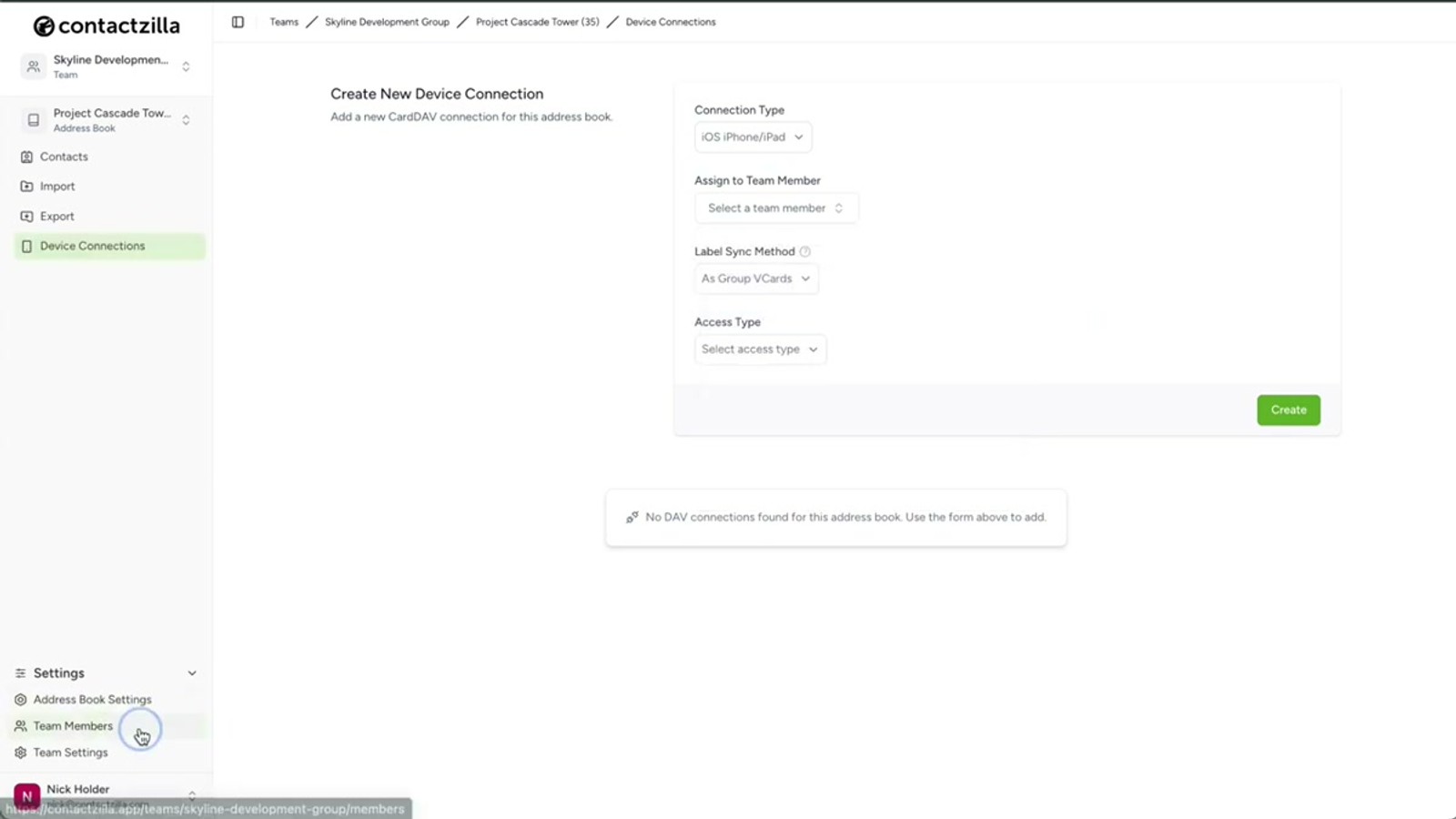
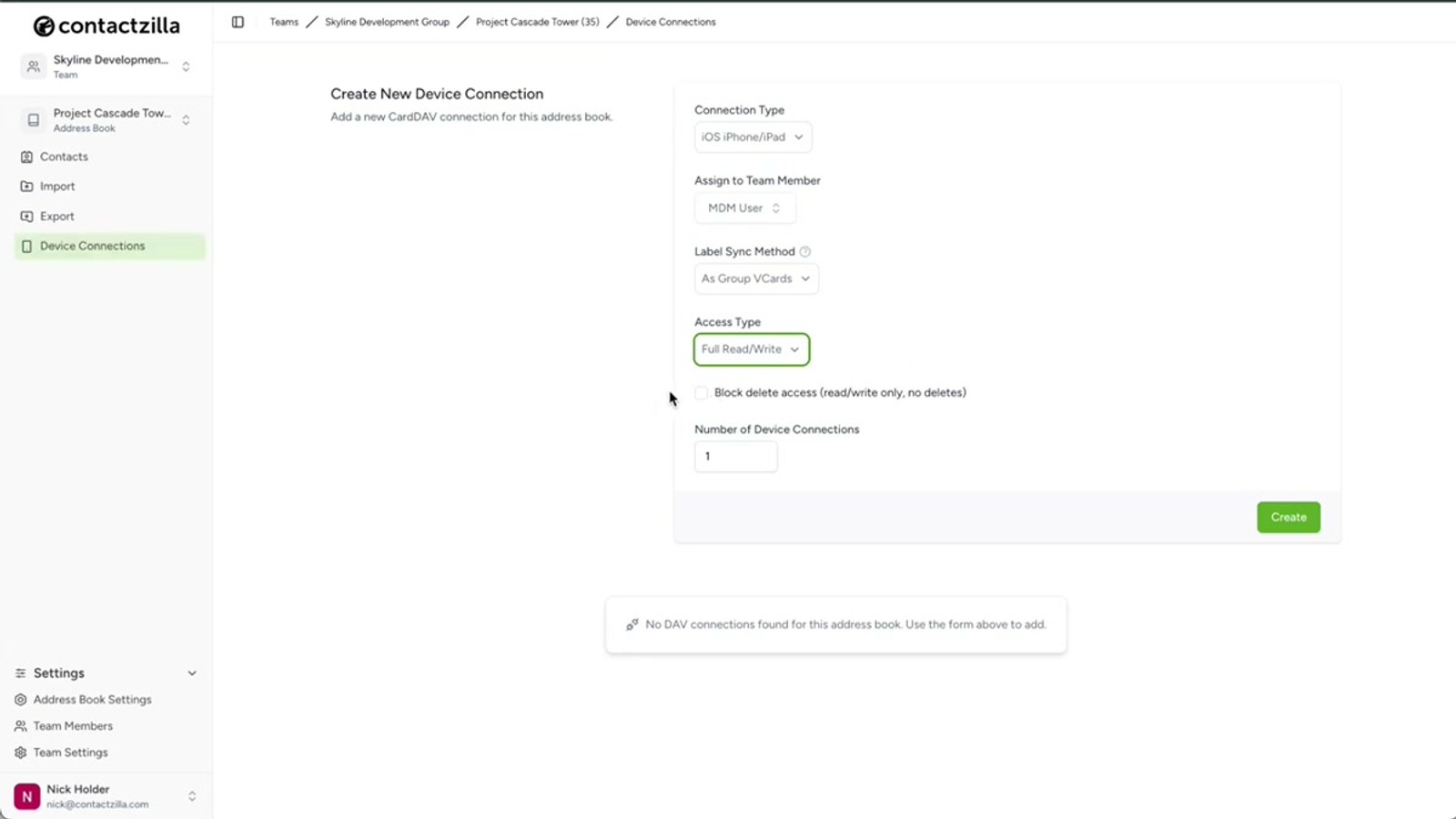
Head back to Device Connections within the address book you want to deploy. Select iOS from the Connection Type dropdown, then choose the MDM user you just created from the user assignment dropdown.
Leave Label Sync on the default setting. Next, choose your access level for end users. For most managed rollouts, Full Read-Only is the most popular choice because it prevents accidental changes to your master contact list. If you choose Full Read-Write, there's an additional option to allow editing but still prevent users from deleting contacts.
There's also Selective Read-Only, which lets you pick one or more labels so only contacts tagged with those labels are deployed to devices — you don't have to push the entire address book. Finally, set the number of device connections to match the size of your rollout, then click Create.
- Select iOS from the Connection Type dropdown
- Assign the connection to your MDM user
- Leave Label Sync on the default setting
- Choose access level: Full Read-Only, Full Read-Write, or Selective Read-Only
- For read-write, toggle the option to prevent deleting contacts if needed
- For selective read-only, pick specific labels to limit which contacts are deployed
- Set the number of device connections to match your fleet size
- Click Create
Selective Read-Only is extremely useful if you have a large address book but only need certain teams or departments on specific devices. Just tag contacts with labels and select those labels here.
Download the Mobile Config File
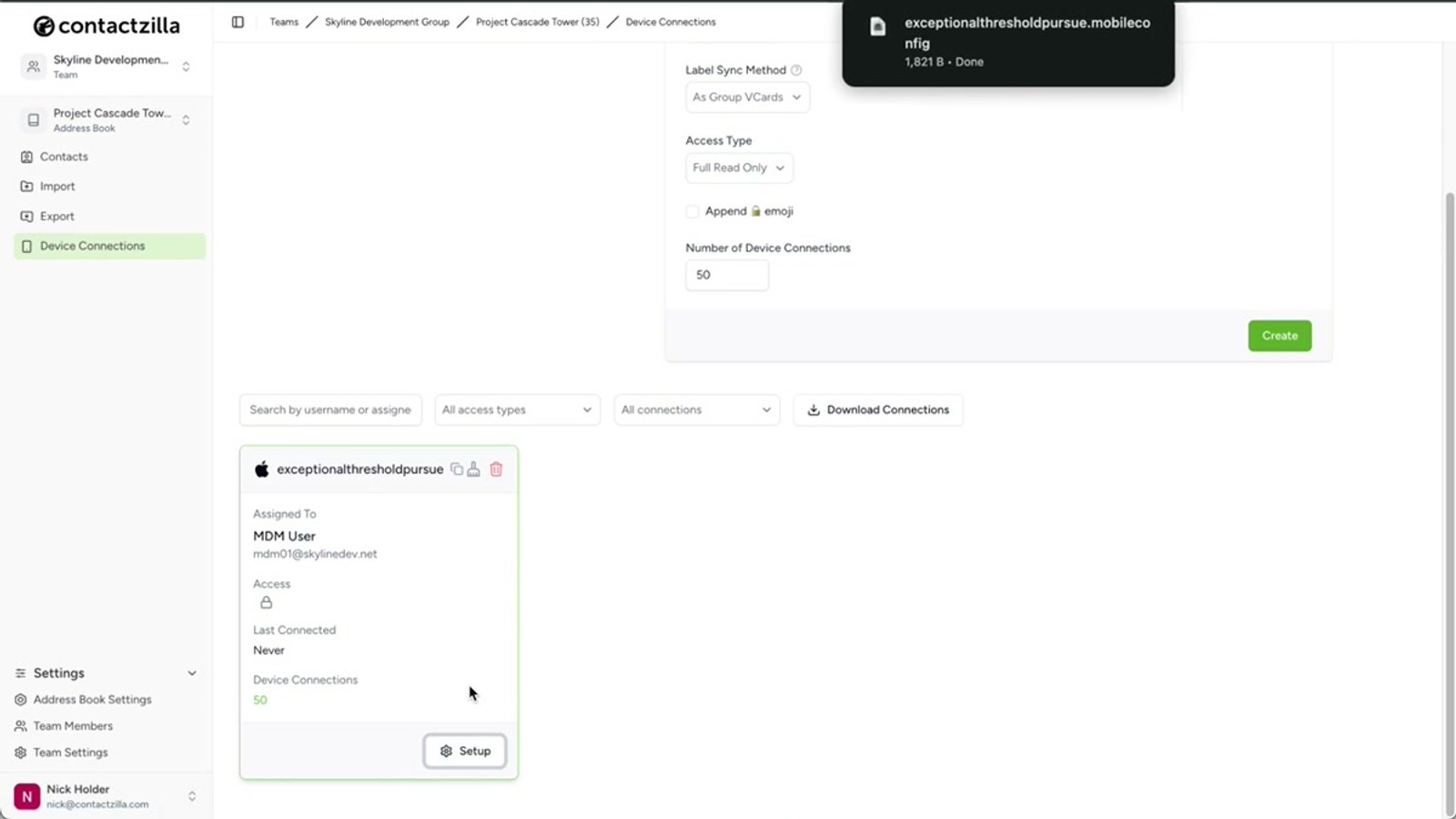
Once the device connection is created, click Setup under the newly created connection entry. This gives you the option to download the mobile config file. This file contains all the CardDAV connection details you'll need — hostname, principal URL, username, and password.
Download this file and keep it open or accessible. You won't be importing this file into MaaS360 directly. Instead, you'll manually copy specific values from it into the MaaS360 policy editor. This manual approach avoids the password prompt issues that can occur after iOS updates when using imported profiles.
- Click Setup under the newly created device connection
- Download the mobile config file
- Keep the file open — you'll copy values from it into MaaS360
- Do NOT import this file directly into MaaS360
The reason we copy values manually instead of importing the .mobileconfig file is to avoid password prompts that appear on devices after iOS updates. Manual CardDAV configuration in the MDM policy is more reliable long-term.
Create the iOS MDM Policy in MaaS360
Switch to your IBM MaaS360 portal. From the top navigation, go to Security → Policies → Add Policy. Give the policy a descriptive name — in the video, it's named iOS Contactzilla Project Cascade Tower to reference the specific address book being deployed.
For Type, select iOS MDM. Under Start From, choose My Existing Policies and base it on the Default iOS MDM Policy. This ensures you inherit all standard iOS configuration settings and simply layer the CardDAV account on top. Click Continue to enter the policy editor.
- Navigate to Security → Policies → Add Policy
- Enter a descriptive policy name referencing your address book
- Set Type to iOS MDM
- Under Start From, choose My Existing Policies
- Select the Default iOS MDM Policy as your base
- Click Continue to open the policy editor
Configure the CardDAV Payload
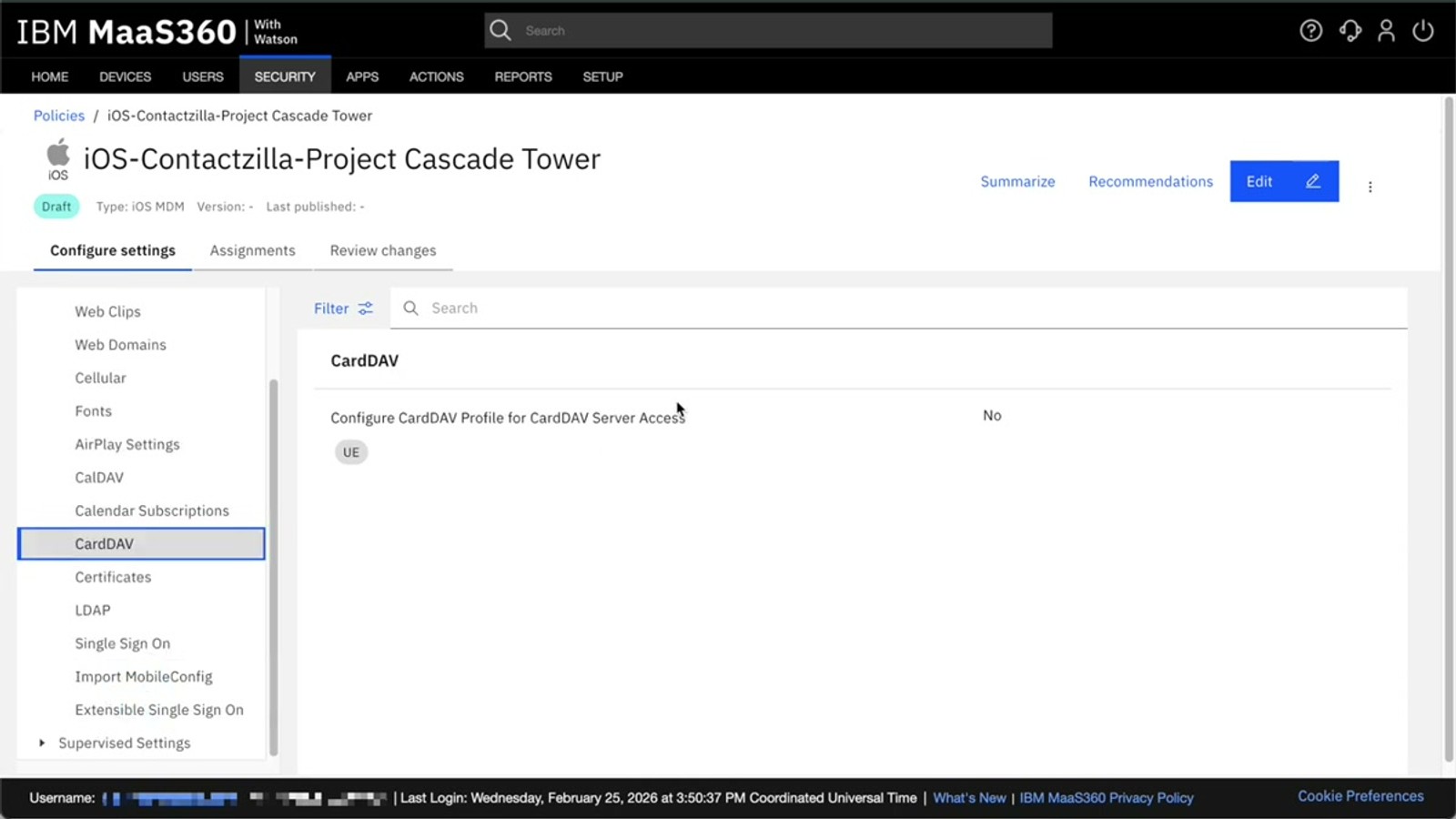
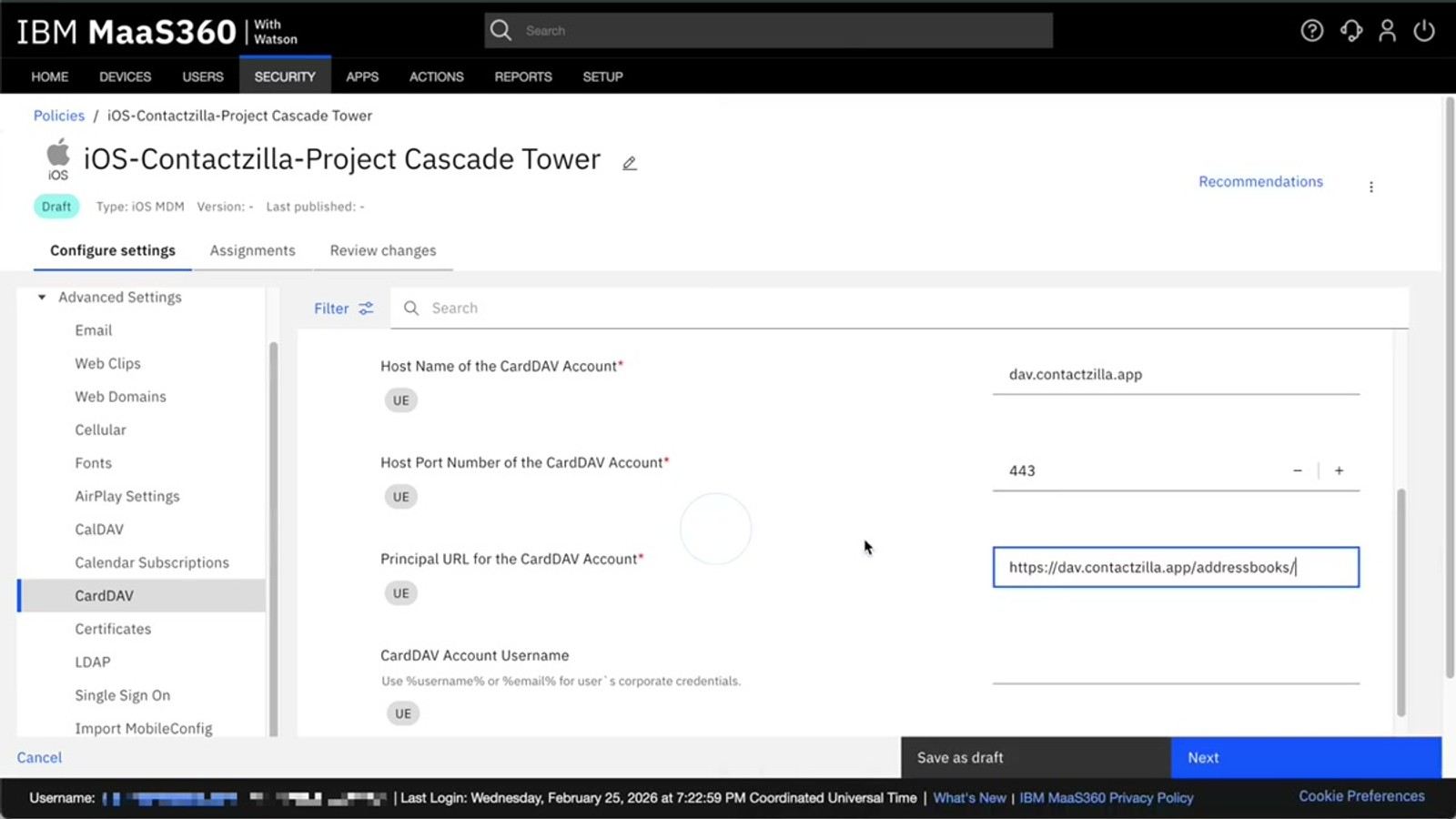
Inside the policy editor, scroll down on the left-hand sidebar and expand Advanced Settings. Select CardDAV and click Edit. Tick the checkbox to configure the CardDAV profile.
Now copy the following values from your downloaded mobile config file into the corresponding fields:
Display Name — Enter the name of the address book you're deploying (e.g., Project Cascade Tower).
Host Name — Always dav.contactzilla.app for all Contactzilla connections.
Port Number — 443.
Principal URL — This follows a specific structure: https://dav.contactzilla.app/addressbooks/<generated-username>/<hyphenated-address-book-name>. The generated username comes from the mobile config file, and the address book name is hyphenated (e.g., project-cascade-tower).
Username — The same Contactzilla-generated username from the config file (same value used in the Principal URL path).
Password — The CardDAV account password shown in the mobile config file.
Finally, make sure Use SSL is enabled.
- Expand Advanced Settings in the left sidebar
- Select CardDAV and click Edit
- Tick the box to configure the CardDAV profile
- Display Name: your address book name (e.g.,
Project Cascade Tower) - Host Name:
dav.contactzilla.app - Port Number:
443 - Principal URL:
https://dav.contactzilla.app/addressbooks/<username>/<address-book-name> - Username: the generated username from the config file
- Password: the password from the config file
- Ensure Use SSL is checked
The principal URL structure is critical — it must include /addressbooks/ followed by your generated username and a hyphenated version of your address book name. Get this wrong and contacts won't sync.
Publish the Policy
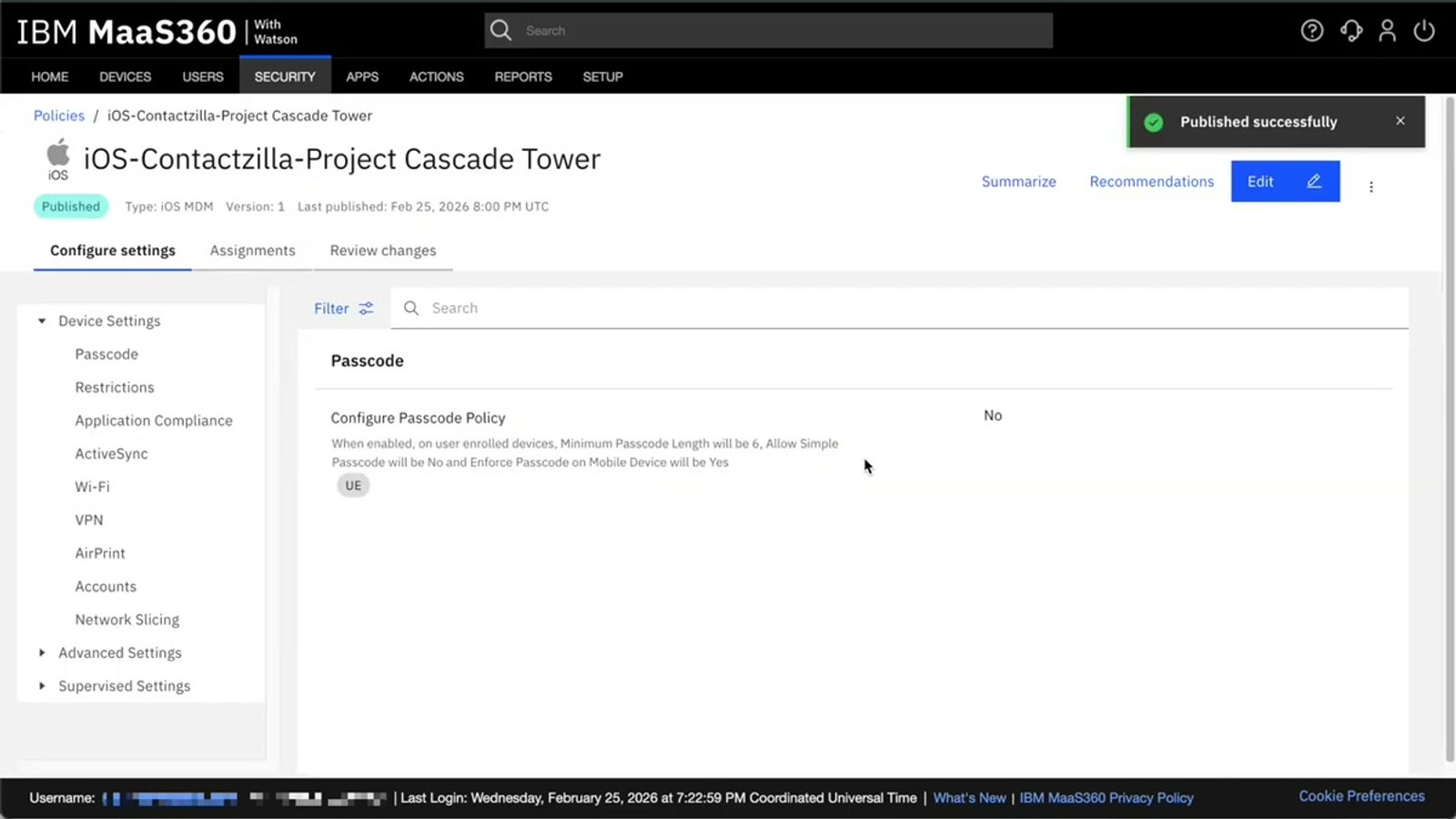
After entering all CardDAV details, click Next. The Assignments tab is informational only at this stage — you'll assign the policy to a device group separately. Click Next again.
On the Publish screen, MaaS360 may show a message suggesting there are no configuration changes. This is a UI quirk — since this is the first published version of the policy, there's nothing for MaaS360 to compare against. Your settings have been saved. Click Publish to finalize the policy.
- Click Next to pass the CardDAV settings
- Skip the Assignments tab — it's informational only
- On the Publish screen, ignore the 'no changes' message — it's a first-version UI quirk
- Click Publish to save and activate the policy
Don't be alarmed by the 'no configuration changes' message on the publish screen. This is normal for a brand-new policy — MaaS360 simply has no previous version to diff against.
Assign the Policy to a Device Group and Verify
Navigate to Devices → Groups in MaaS360. Find your target device group (e.g., iOS Skyline Field Devices). Hover over the More menu on the group and select Change Policy. In the iOS policy dropdown, your new policy will appear in the list. Select it and click Submit.
The address book will deploy automatically on the next device check-in. To speed this up, go into the group's device list, select a device, and click the Request Data Refresh button.
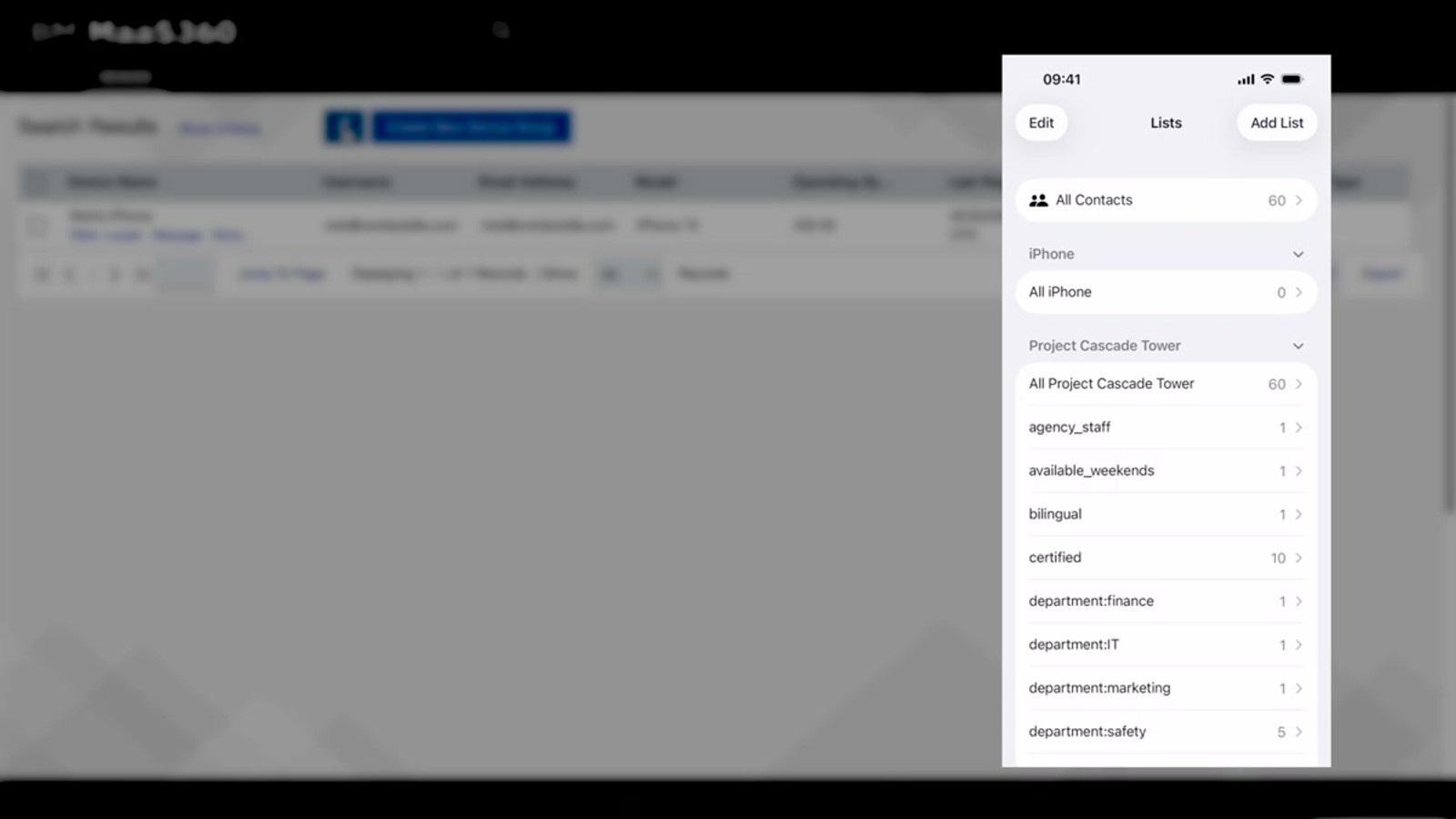
After a short wait, the Contactzilla address book will appear on the iPhone. All Contactzilla labels are presented as contact lists, so contacts are organized exactly as they are in your dashboard. Any changes you make in Contactzilla — such as editing a contact's name or details — will sync to all devices in the group automatically.
- Go to Devices → Groups
- Hover over the group and select More → Change Policy
- Select your new CardDAV policy from the dropdown
- Click Submit to assign
- Optionally click Request Data Refresh on individual devices to force immediate sync
- Verify contacts appear on the iPhone organized by labels as lists
- Edits made in Contactzilla sync to devices automatically
Key Takeaways
dav.contactzilla.app with port 443 and SSL enabled https://dav.contactzilla.app/addressbooks/<username>/<address-book-name> Why Use MaaS360 with Contactzilla
Frequently Asked Questions
Why not just import the .mobileconfig file into MaaS360 directly?
Importing the mobile config file directly can cause password prompts to appear on devices after iOS updates. By manually configuring the CardDAV payload in the MaaS360 policy, the credentials are managed by the MDM and persist through updates without user interaction.
What is an MDM user in Contactzilla and why do I need one?
An MDM user is a device-only account in Contactzilla designed specifically for fleet deployments. Unlike regular team members (who scan a QR code for individual setup), the MDM user provides a single set of CardDAV credentials that all managed devices share. The email address you enter when creating it is arbitrary — no emails are sent to it.
Can I deploy only some contacts instead of the entire address book?
Yes. When creating the device connection in Contactzilla, choose **Selective Read-Only** as the access level. You can then select one or more labels, and only contacts tagged with those labels will be deployed to devices. This is ideal when different teams or departments need different contact subsets.
Can end users edit the contacts on their phones?
It depends on the access level you choose. **Full Read-Only** prevents any changes. **Full Read-Write** allows editing, and there's an additional toggle to let users edit contacts but still prevent them from deleting any. For most managed rollouts, Full Read-Only is the most popular choice.
How quickly do contact changes sync to devices?
Changes sync on the next device check-in. You can speed this up by going into the device list within MaaS360 and clicking the **Request Data Refresh** button on individual devices. In the video demo, an edited contact name appeared on the iPhone within seconds of the refresh.
What is the correct Principal URL format for the CardDAV configuration?
The Principal URL follows this exact structure: `https://dav.contactzilla.app/addressbooks/<generated-username>/<hyphenated-address-book-name>`. The generated username comes from your Contactzilla mobile config file, and the address book name uses hyphens instead of spaces (e.g., `project-cascade-tower`).

