
Push Shared Contacts to Every Managed iPhone — In Minutes
Create a Contactzilla device connection, upload the .mobileconfig to Jamf Pro, scope it to your device groups, and watch contacts appear in the native iOS Contacts app — no end-user action required.
Managing shared contact lists across a fleet of iPhones is a common challenge for IT teams. Whether you're rolling out contacts to a handful of test devices or thousands of phones across your organization, manually configuring each one is impractical. This tutorial walks through the complete process of deploying a Contactzilla address book to iPhones using Jamf Pro — Apple's most popular MDM solution.
The approach uses Apple's native CardDAV protocol, which means contacts land directly in the built-in iOS Contacts app. There's no third-party app to install, no user training required, and contacts stay automatically synchronized with your master Contactzilla address book. The entire setup takes just a few minutes regardless of whether you're targeting one device or a thousand.
You'll learn how to create a dedicated MDM user in Contactzilla, generate a .mobileconfig file, upload it to Jamf Pro as a configuration profile, scope it to the right devices or groups, and force an immediate push for testing. The guide also covers access-level options like read-only vs. read-write, selective label-based deployments, and how to use Jamf's exclusions feature for fine-grained control.
Create an MDM User in Contactzilla
Before creating a device connection, you need a special type of Contactzilla user called an MDM user. Unlike regular team members — who can scan a QR code to set up contacts on their own phone — an MDM user is a device-only account designed specifically for MDM rollouts where you're pushing contacts to devices centrally.
In your Contactzilla dashboard, navigate to Team Members and click Add. Select the MDM user, device only access option. The email address field here is arbitrary — you can enter anything you like, such as jamf-mdm@yourcompany.com. It's just an identifier. Click Add and the MDM user will appear in your team members list.
This MDM user will be assigned to the device connection in the next step, acting as the authentication account for all devices that receive the configuration profile.
- Navigate to Team Members → Add
- Select MDM user, device only access
- Enter any email address — it's purely an identifier
- Click Add to create the MDM user
For individual users who just need contacts on their own phone, you can assign a connection directly to that team member — they scan a QR code and set it up themselves. The MDM user route is specifically for centralized MDM deployments.
Create an iOS Device Connection
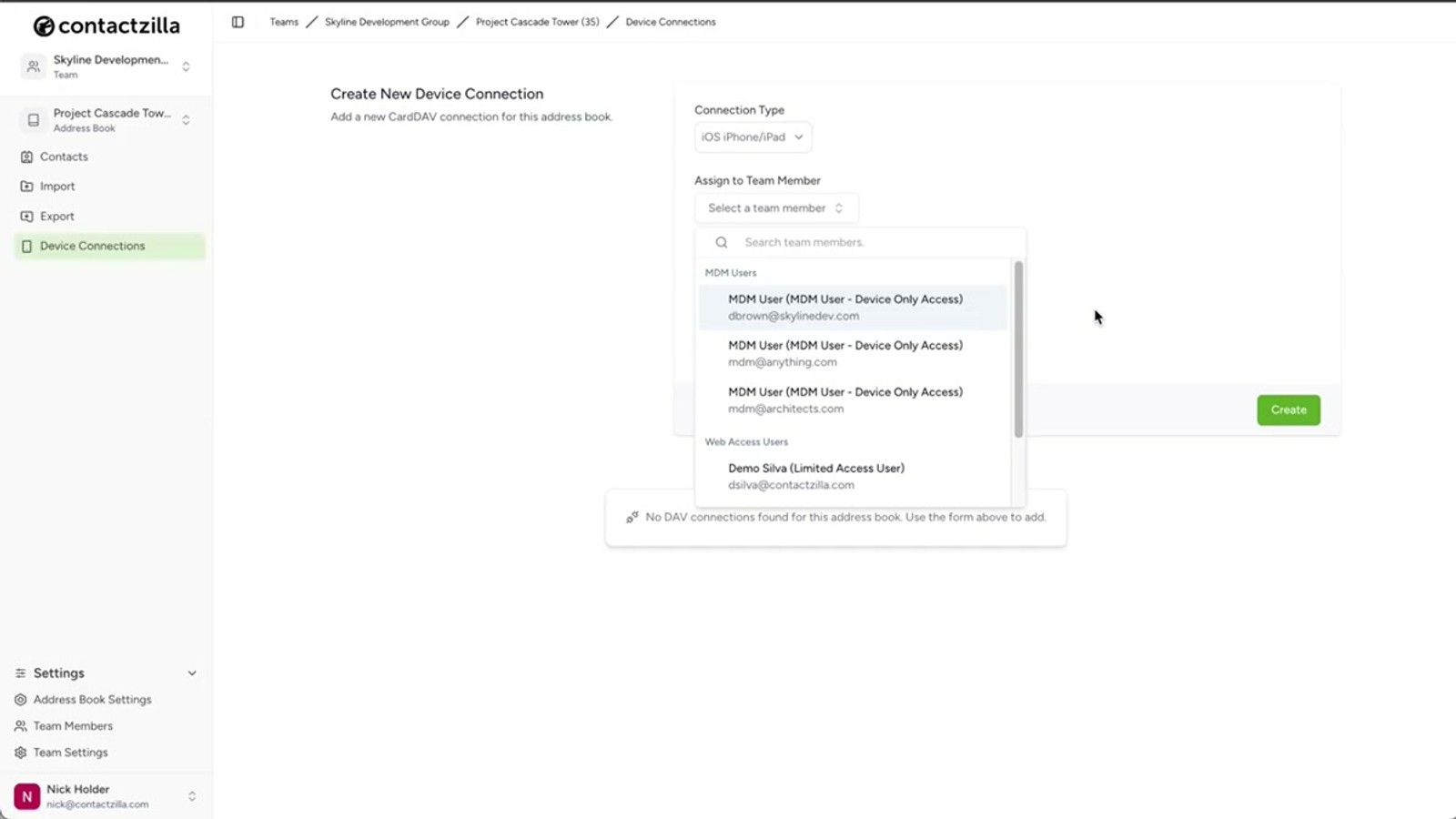
Open the address book you want to deploy in your Contactzilla dashboard and click Device Connections. From the connection type dropdown, select iOS.
Next, assign the connection to the MDM user you just created by selecting them from the user dropdown. Leave Label sync at the default setting unless you have specific requirements.
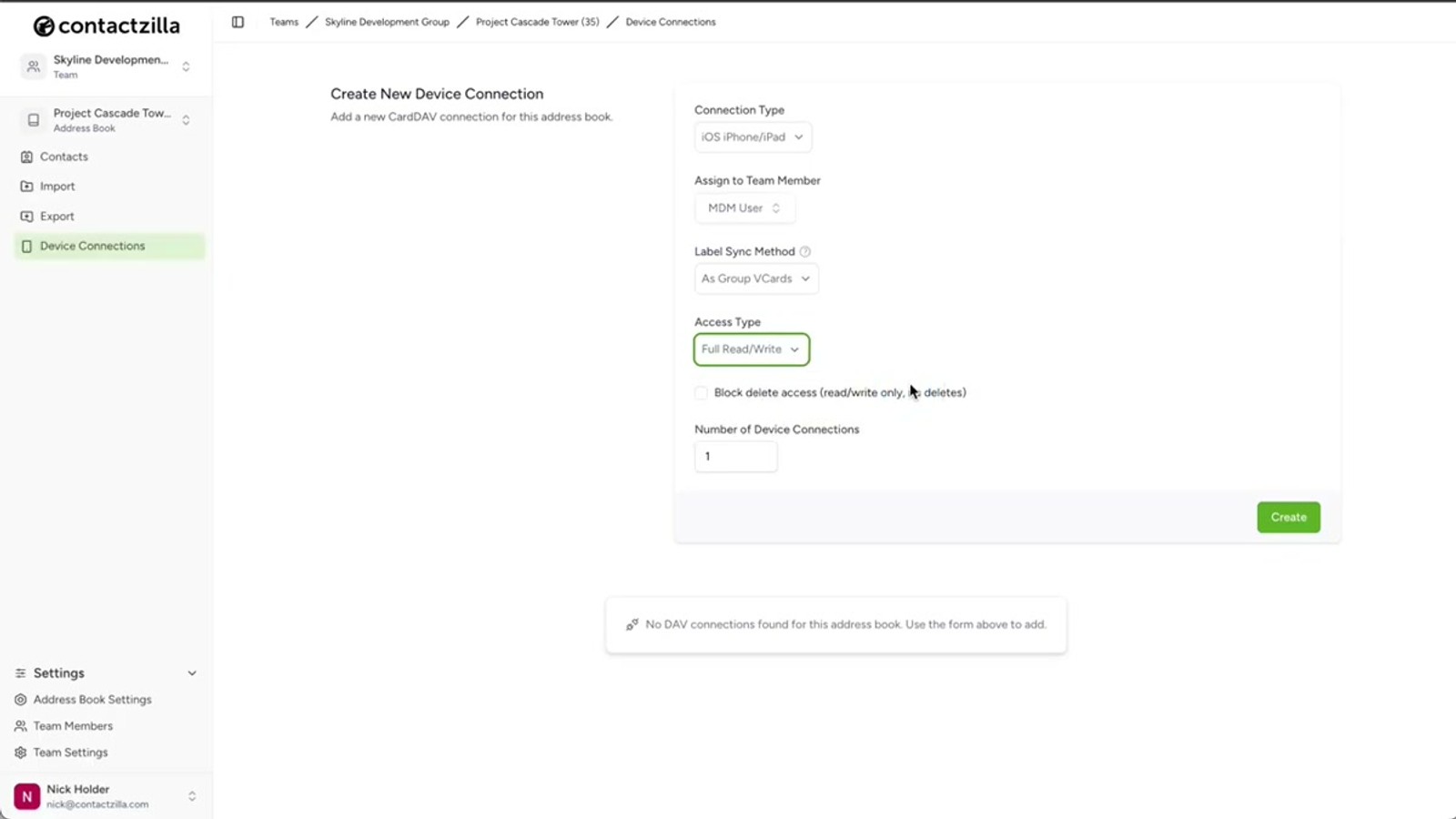
Now choose the access level for end users. You have three options:
- Full read-only — the most popular choice for managed rollouts. End users can view all contacts but cannot make any changes to your master contact list. - Full read-write — gives end users the ability to edit contacts on their devices, with changes syncing back. If you select this, there's an additional toggle to prevent deletions while still allowing edits. - Selective read-only — lets you deploy only contacts with specific labels rather than the entire address book. Select one or more labels, and only matching contacts are pushed to devices.
- Open your address book → click Device Connections
- Select iOS from the connection type dropdown
- Assign the connection to your newly created MDM user
- Leave Label sync at the default
- Choose access level: Full read-only, Full read-write, or Selective read-only
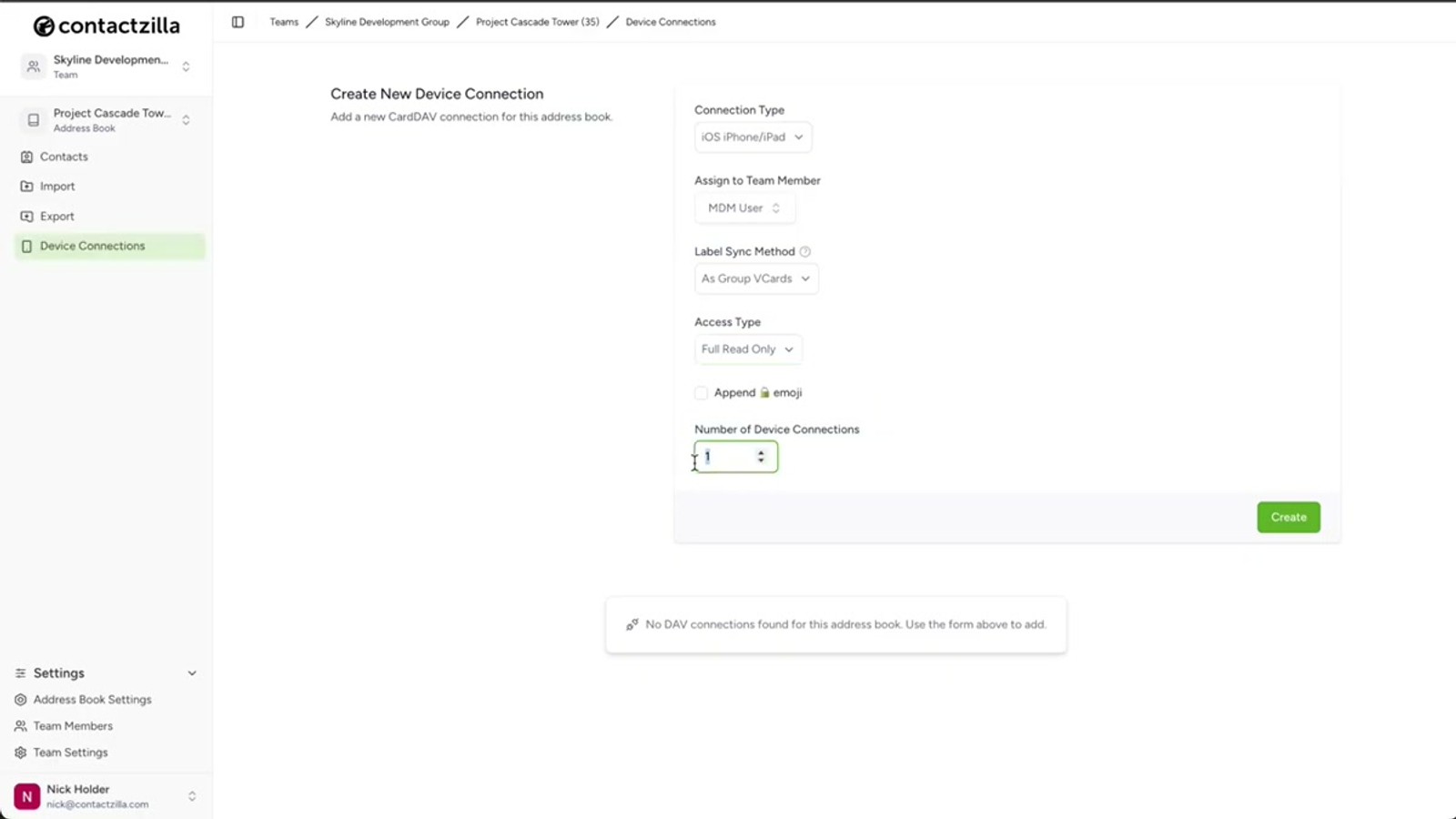
- Set the number of device connections to match your rollout size
- Click Create
Selective read-only is especially useful when different teams or departments need different subsets of contacts. You can create multiple device connections with different label filters and scope them to different Jamf device groups.
Download the .mobileconfig File
Once your device connection is created, it will appear in the list under Device Connections. Click the Setup button on the newly created connection to reveal the download option.
Click to download the .mobileconfig file. This is a standard Apple configuration profile containing the CardDAV account settings — server address, credentials, and sync preferences — all pre-configured by Contactzilla. This file is what you'll upload directly to Jamf Pro in the next step.
The .mobileconfig format is Apple's native mechanism for deploying settings to iOS devices, so Jamf Pro knows exactly how to handle it without any manual payload configuration on your part.
- Find the new device connection in the list
- Click Setup on the connection
- Download the .mobileconfig file to your computer
- This file contains all CardDAV settings pre-configured
Upload the Configuration Profile to Jamf Pro
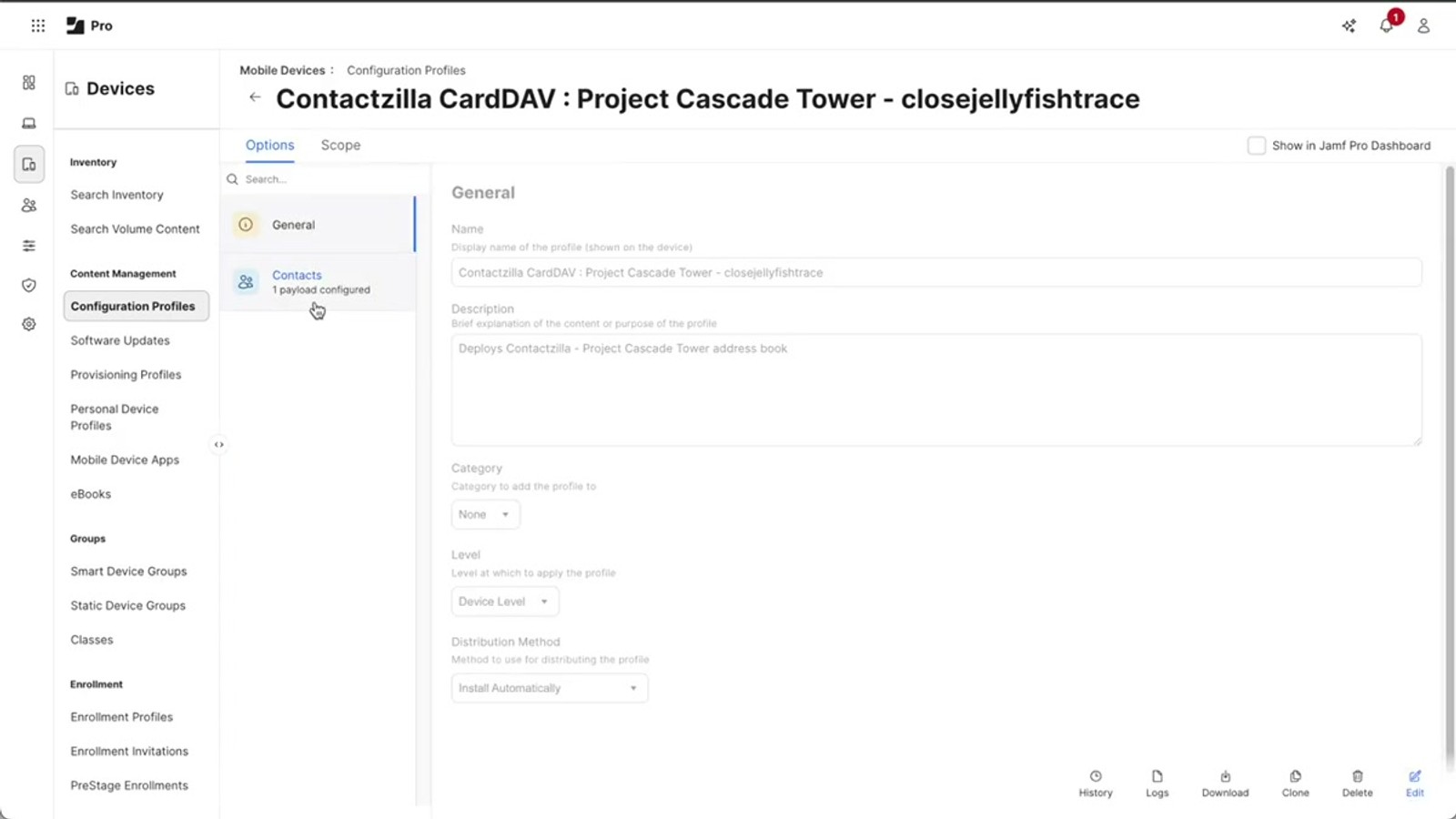
In your Jamf Pro dashboard, navigate to Devices → Configuration Profiles. Click Upload in the top right corner. Select the .mobileconfig file you downloaded from Contactzilla and click Upload.
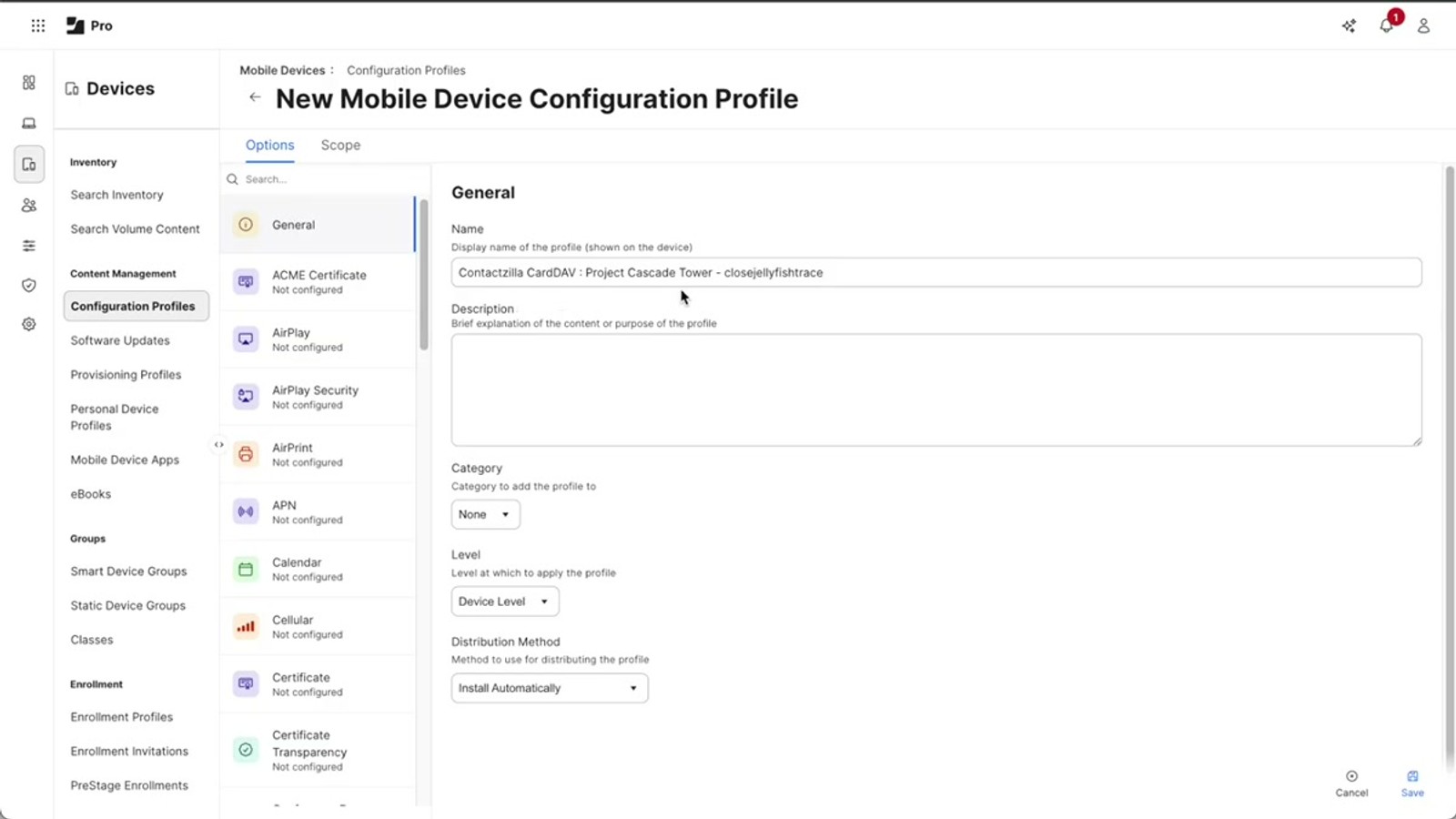
Once uploaded, Jamf takes you to the General tab for this configuration profile. You'll notice Jamf has automatically named the profile — it will appear as something like Contactzilla CardDAV followed by the name of your address book, along with the username. You can optionally add a short description for your own reference.
There are three important settings to configure on this tab:
- Category — This is purely for organization within Jamf and doesn't affect how the profile works. Consider creating a category like Contacts CardDAV to keep things tidy.
- Level — Choose Device level, which applies the profile to the whole device. The alternative, User level, is mainly useful for shared iPad setups.
- Distribution method — Leave this as Install automatically. This means users don't need to do anything on their phones — the profile installs silently.
When you're happy with the settings, click Save. You'll see a new payload listed confirming the profile is ready.
- Navigate to Devices → Configuration Profiles → Upload
- Select and upload the
.mobileconfigfile - Review the auto-generated profile name (e.g. Contactzilla CardDAV - [Address Book Name])
- Optionally add a Description for internal reference
- Set Category to something like
Contacts CardDAVfor organization - Set Level to Device level
- Set Distribution method to Install automatically
- Click Save
Choose Device level unless you're running a shared iPad environment. User level applies the profile per-user on shared devices, which adds complexity you likely don't need for standard iPhone deployments.
Scope the Profile to Devices or Groups
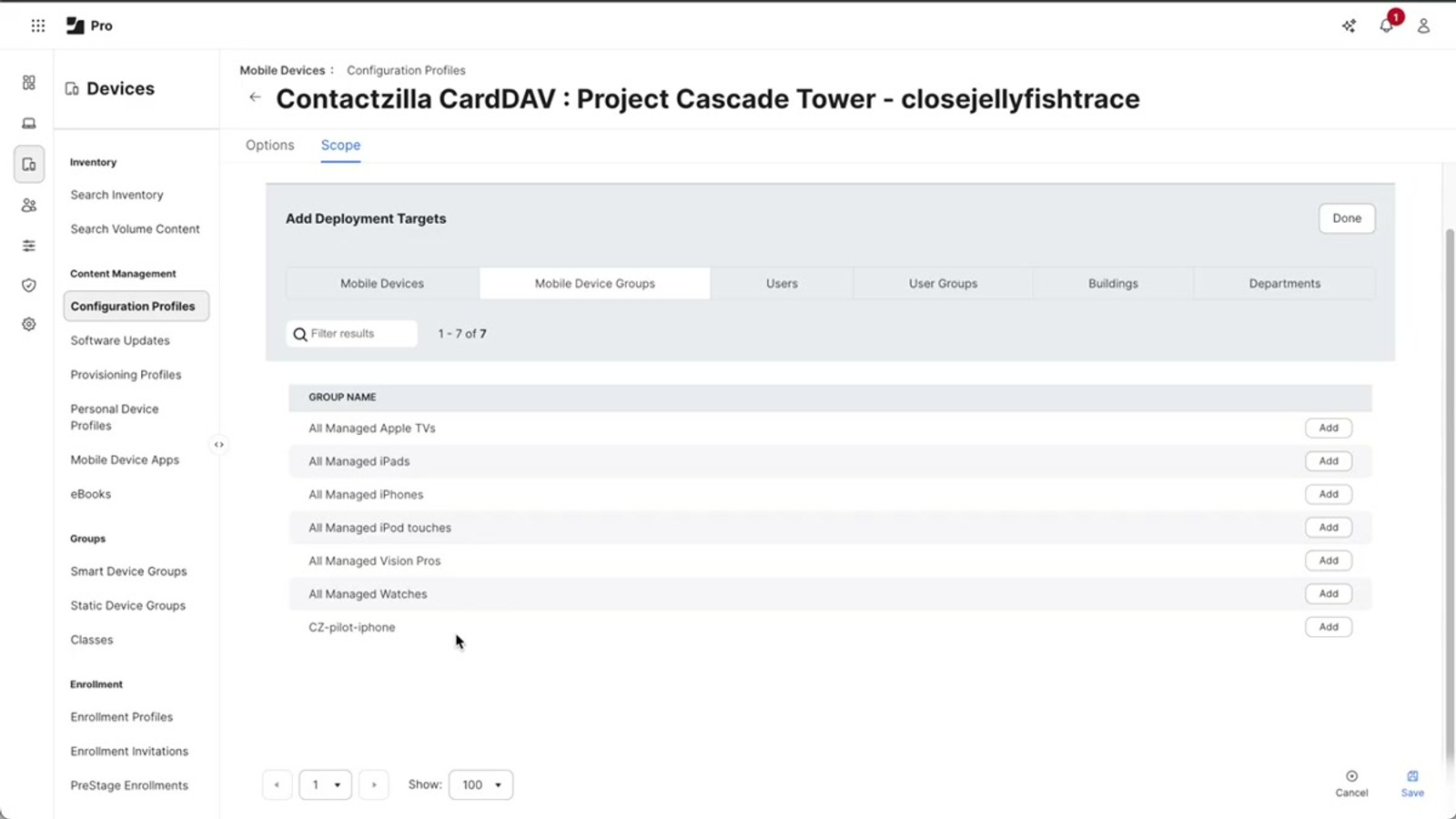
Before the configuration profile can deploy, you need to define its scope — telling Jamf which devices should receive it. Click the Scope tab, then click Edit in the bottom right.
Under Target mobile devices, select Specific mobile devices. This gives you two targeting options:
- Mobile Devices — Pick individual iPhones from across your organization and click Add. - Mobile Device Groups — Switch to this tab to select a pre-made Jamf group containing multiple devices. This is the most common approach for Contactzilla deployments.
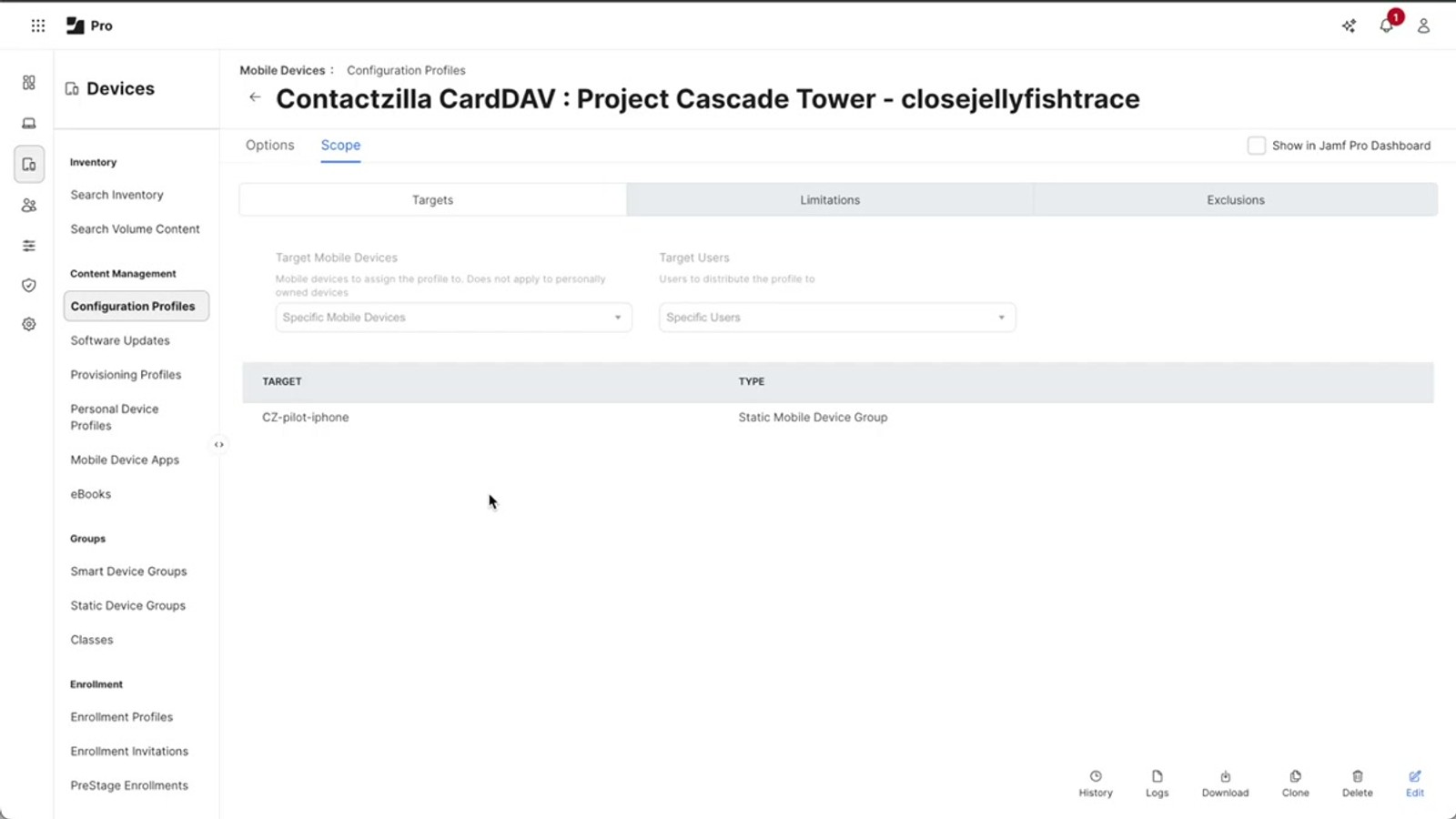
Select your target group (for example, a pilot group you've already created in Jamf) and click Add, then Save. Your devices or device groups will now appear under Targets, confirming they'll receive the Contactzilla configuration profile.
Also worth noting is the Exclusions tab. This provides fine-grained control: you might target a large group but exclude certain team members, or remove contacts from a specific device within a group. Anything added to exclusions will not receive the profile, even if it appears under targets.
- Click Scope tab → Edit
- Under Target mobile devices, select Specific mobile devices
- Choose Mobile Devices for individual targeting or Mobile Device Groups for group targeting
- Select your device group and click Add
- Click Save to confirm the scope
- Use the Exclusions tab to remove specific devices or users from the rollout
The Exclusions tab is invaluable for phased rollouts. Start by scoping to a pilot group, verify everything works, then expand to larger groups — using exclusions to carve out exceptions as needed.
Force Immediate Deployment with Send Blank Push
By default, Jamf Pro deploys configuration profiles on the next device check-in, which can take some time. For testing or urgent rollouts, you can force an immediate push.
Navigate to Devices and search the inventory for the specific phone you want to push to. Open the device record, click the Management tab, and then click Send Blank Push. This forces an immediate check-in from the device, which triggers the installation of any pending configuration profiles — including your new Contactzilla CardDAV profile.
To confirm the profile was delivered successfully, go to History → Management History on the same device record. You'll see a confirmation entry showing the successful installation of the configuration profile.
- Navigate to Devices → search for your test device
- Open the device → Management tab
- Click Send Blank Push to force an immediate check-in
- Verify delivery under History → Management History
- Look for the installation confirmation entry
Send Blank Push is essential for testing. In production, profiles will deploy automatically on the next device check-in, so you don't need to manually push to every device.
Verify Contacts in the Native iOS Contacts App
Once the profile is installed, open the Contacts app on the target iPhone. Your Contactzilla address book will appear as a synced contact source, and all contacts will be available in the native iOS Contacts app — no third-party app required.
Contactzilla labels appear as lists within the iOS Contacts app, keeping your contacts organized exactly as they are in your Contactzilla dashboard. Any future changes you make to contacts in Contactzilla will automatically sync to all deployed devices.
This same process works identically whether you're deploying to a single test device or thousands of managed iPhones across your organization. The only difference is the scope you define in Jamf Pro.
- Open the native Contacts app on the iPhone
- Contactzilla contacts appear as a synced CardDAV source
- Labels from Contactzilla show up as lists in iOS Contacts
- Changes sync automatically — no manual updates needed
- Works the same for 1 device or thousands
.mobileconfig file from Contactzilla contains all CardDAV settings pre-configured — no manual payload setup needed in Jamf Frequently Asked Questions
What is an MDM user in Contactzilla and why do I need one?
An MDM user is a device-only account in Contactzilla designed specifically for MDM rollouts. Unlike regular team members who set up their own connections via QR code, an MDM user acts as the shared authentication account for all devices receiving the configuration profile through Jamf Pro. The email address you enter when creating one is arbitrary — it's just an identifier.
Can I deploy only certain contacts instead of the entire address book?
Yes. When creating the device connection in Contactzilla, choose the **Selective read-only** access level. This lets you pick one or more labels, and only contacts tagged with those labels will be deployed to devices. This is useful when different teams or departments need different subsets of your contact directory.
Should I choose Device level or User level in Jamf Pro?
Choose **Device level** for standard iPhone deployments — this applies the configuration profile to the whole device. **User level** is only needed for shared iPad setups where multiple users share the same device and you want the profile applied per-user rather than per-device.
How long does it take for contacts to appear on devices after scoping?
By default, Jamf deploys configuration profiles on the next device check-in, which can vary. For immediate deployment (especially useful during testing), navigate to the device in Jamf, go to the **Management** tab, and click **Send Blank Push** to force an immediate check-in and profile installation.
Can I allow users to edit contacts but prevent them from deleting any?
Yes. When setting up the device connection in Contactzilla, select the **Full read-write** access level. An additional toggle appears that lets you give users editing capability while still preventing them from deleting contacts — protecting your master contact list from accidental removals.
How do I remove contacts from a specific device that's part of a targeted group?
Use the **Exclusions** tab in the Jamf Pro scope settings. Any device or user added to exclusions will not receive the configuration profile, even if they are part of a group listed under targets. This gives you fine-grained control without having to reorganize your device groups.

