
The Easy Way to Transfer Contacts from iCloud to Google in 2024
Introduction
Switching from an iPhone to an Android phone can be a big deal. Maybe you’ve found a new Android device that suits your needs better, or perhaps you’re just ready for a change after years in the Apple ecosystem. But with that switch can come the need to move your digital life over, starting with your contacts.
You might also be moving into a team that runs on Gmail and Google Calendar, or trying to standardise on one set of contacts that works on your phone, laptop, and the web instead of keeping work and personal details scattered across different accounts.
Running contacts in two places can get messy fast: you can end up with partial records, duplicates, and that nagging doubt over whether the latest phone number is in iCloud or in your Google account. Copying everything into Google in a single, controlled step gives you one address book to update, search, and back up.
Whatever your reason, the process to transfer contacts from iCloud to Google is a straightforward one and we will lay out 2 methods of doing so here.
Tip: If you notice any missing contacts after transferring from iCloud to Google, don’t worry. Our complete guide on recovering lost contacts is here.
Tip: If you notice any missing contacts after transferring from iCloud to Google, don’t worry. Our complete guide on recovering lost contacts is here.
Understanding the Basics of iCloud and Google Contacts
Before diving into the process of transferring contacts, it’s helpful to understand a bit about how iCloud Contacts and Google Contacts work. You can access both services using a web browser, which allows you to manage your contacts from any internet-connected device.
Icloud Contacts overview
iCloud Contacts is Apple’s built-in contact management system. It’s deeply integrated into the Apple ecosystem. When you make new contacts or update existing ones on any device signed in to your iCloud account, those changes sync automatically across all your Apple devices. This means your contact list stays up-to-date on your iPhone, iPad, Mac, and the iCloud website. It allows you to store up to 25,000 contacts, which is ample space for most users.
Google Contacts overview
Google Contacts, on the other hand, is a core part of Google’s suite of web applications. It powers handy features like auto-complete in Gmail, Google Drive, and Google Calendar. Like iCloud, it can store up to 25,000 contacts. The best part about Google Contacts is how easy it is to access. You can check your contacts from any device with internet access, just by logging into your Gmail account. One unique feature of Google Contacts is its “Other Contacts” list, which automatically saves every email address you’ve ever sent a message to, ensuring you never lose touch with a contact.
Share read-only contact lists across 100’s of devices
14 DAY FREE TRIAL


NO CREDIT CARD REQUIRED
Start syncing contacts on team devices now
Would you like a walkthrough? Book a demo
Benefits of using Google Contacts
| Benefit | Description |
| Seamless Integration | Google Contacts integrates effortlessly with other Google services like Gmail, Google Calendar, and Google Drive, allowing you to manage your contacts while accessing emails or scheduling events without switching apps. |
| Cloud-Based Access | Access your contacts from any internet-connected device, ensuring your contact list is always available whether you’re on a phone, tablet, or computer. |
| Deduplication Feature | Automatically identifies and merges duplicate contacts, keeping your contact list organized and saving you the hassle of manual cleanup. |
| Robust Search Functionality | Quickly find contacts by name, email, or notes, making it easy to locate the right person, even in extensive contact lists. |
| Customizable Contact Fields | Allows you to add custom fields to contacts, enabling you to store additional information like birthdays, anniversaries, or specific notes, tailored to your needs. |
| Integrate with Third-Party Apps | Google Contacts can be synced with various third-party applications, expanding its functionality and allowing for more comprehensive contact management solutions tailored to specific business or personal needs. |
| Backup and Restore Options | Provides easy backup and restore options, ensuring your contacts are safe and can be recovered in case of accidental deletion or data loss. |
Method 1 in this guide refers to vCards so here is a bit of background. A vCard file, which stands for ‘Virtual Contact File’, is a widely-used format for storing contact information. It makes sharing details like names, addresses, phone numbers, emails, and even photos across different platforms and devices straightforward. This format is popular because it keeps all your contact information intact during transfers, making it a reliable option for moving contacts between systems like iCloud and Google Contacts.
Tip: For detailed information on how to convert CSV files into vCard format, check out our guide on converting CSV to vCard.
Google also has built-in tools for recovering deleted contacts and merging duplicates, which can help tidy up after a big import from another service.
Background on vCards
Tip: Running a business team? Instead of moving contacts between personal accounts, set up a shared contact list that gives your entire team secure access to the right contacts with proper permissions.
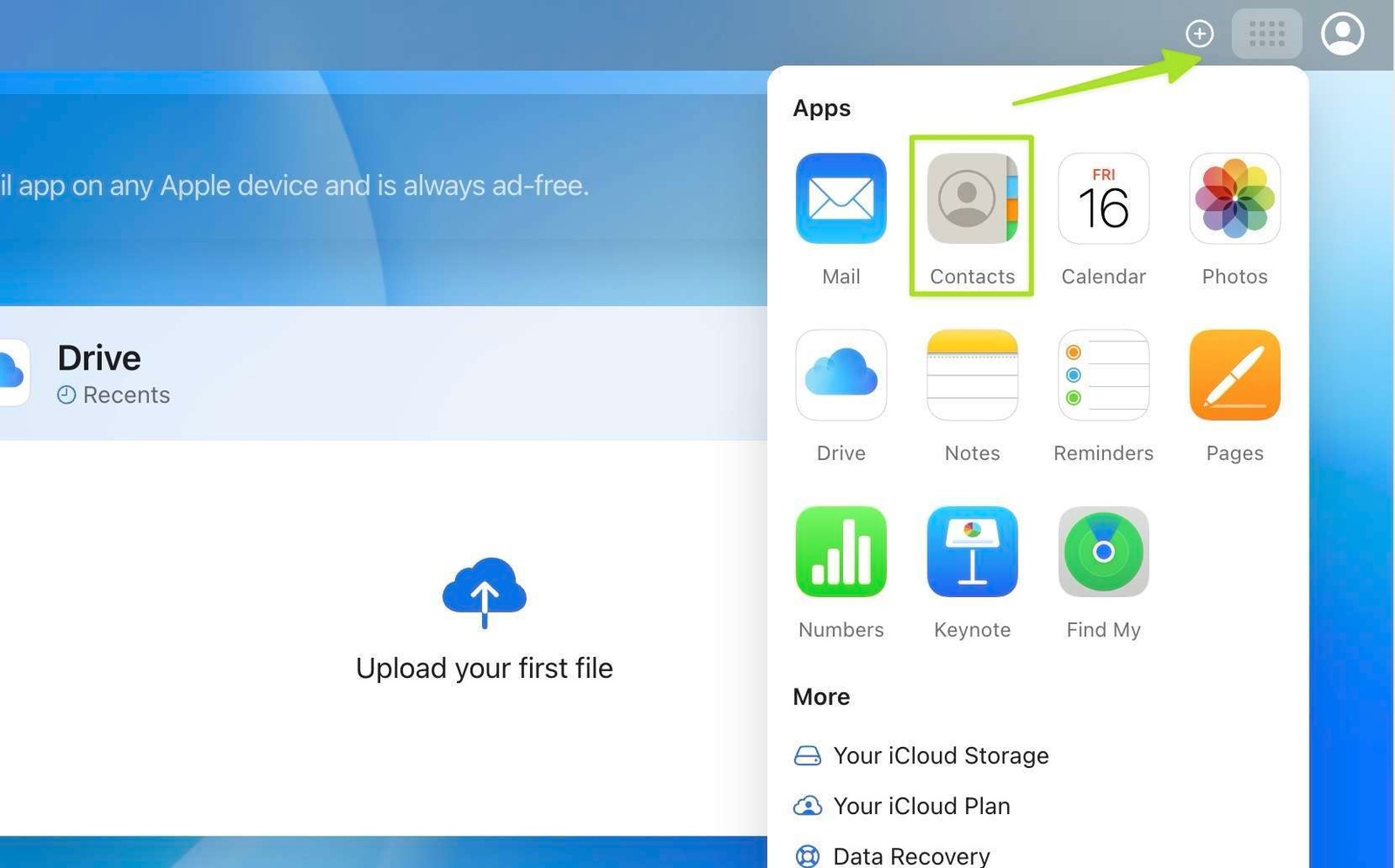
1) You can access iCloud contacts by Signing in to iCloud.com with your Apple ID and password and click on ‘Contacts.’


Tip: For detailed information on how to convert CSV files into vCard format, check out our guide on converting CSV to vCard.
Step-by-Step Guide to Transferring contacts from iCloud to Google
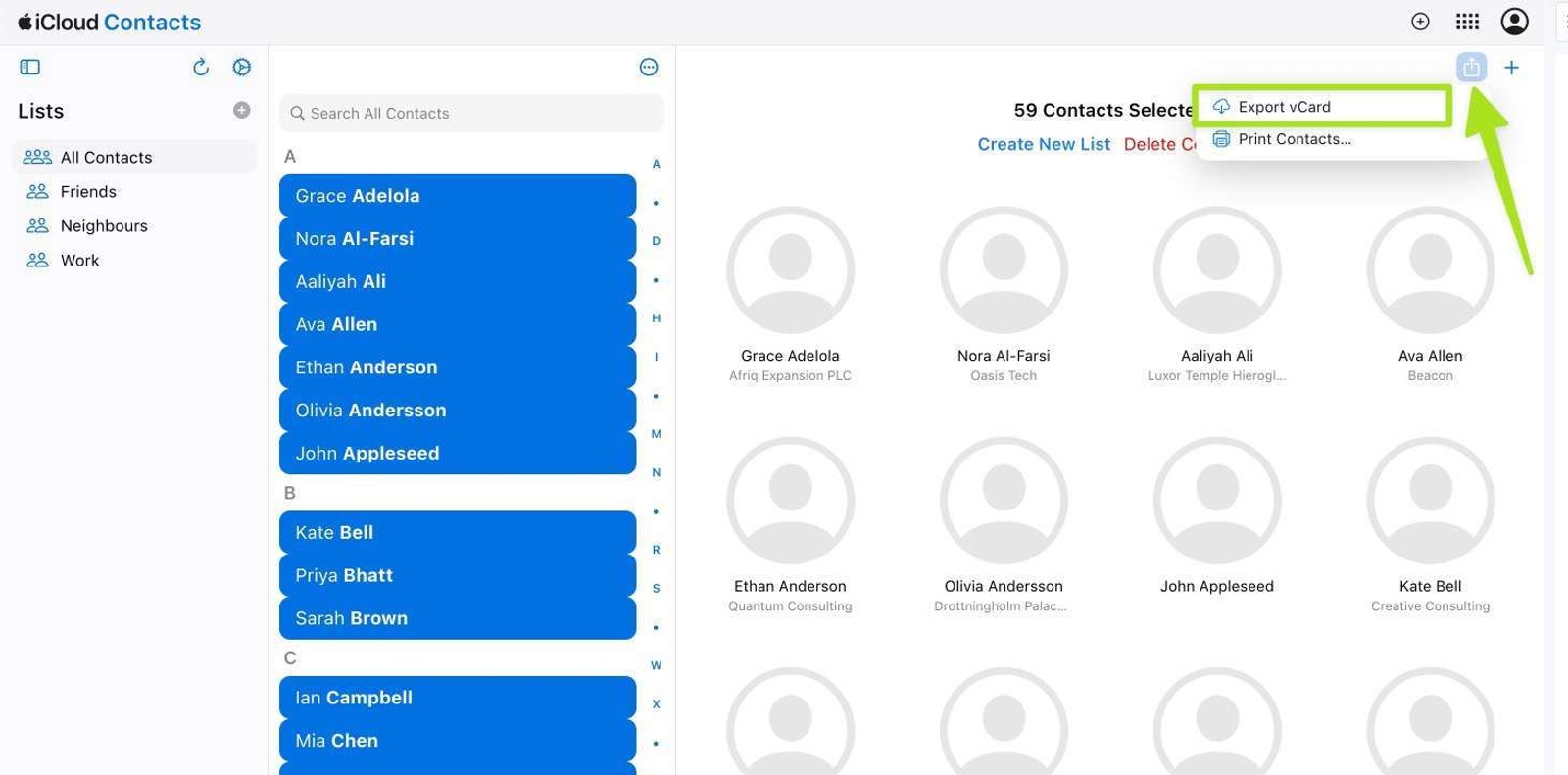
2) Select the contacts you want to export. To select all, press Ctrl+A (Windows PC) or Command+A (Mac). If contacts have been deselected you will need to select one first for ‘Select All’ to work.
Method 1: Export iCloud contacts via icloud.com website
3) Click the export icon in the top right of the screen and chose ‘Export vCard.’
Tip: Running a business team? Instead of moving contacts between personal accounts, set up a shared contact list that gives your entire team secure access to the right contacts with proper permissions.
- 1) You can access iCloud contacts by Signing in to iCloud.com with your Apple ID and password and click on ‘Contacts.’
2) Select the contacts you want to export. To select all, press Ctrl+A (Windows PC) or Command+A (Mac). If contacts have been deselected you will need to select one first for ‘Select All’ to work.
3) Click the export icon in the top right of the screen and chose ‘Export vCard.’
The VCF file containing your contacts will download to your default downloads folder. The next step is to import iCloud contacts into your Google account.
- 4) Go to Google Contacts and sign in. Click ‘Import’ in the left sidebar to import contacts.
5) Hit ‘Select File’ and choose the vCard (.vcf) file you exported in step 3. Then hit the ‘Import button’.
6) You will now see your Icloud contacts in Google Contacts. You can check them through and there is a handy ‘Find Duplicates’ button at the top of the screen.
Method 2: Sync iCloud Contacts to Google Using iPhone/iPad Settings
4) Go to Google Contacts and sign in. Click ‘Import’ in the left sidebar to import contacts.
5) Hit ‘Select File’ and choose the vCard (.vcf) file you exported in step 3. Then hit the ‘Import button’.
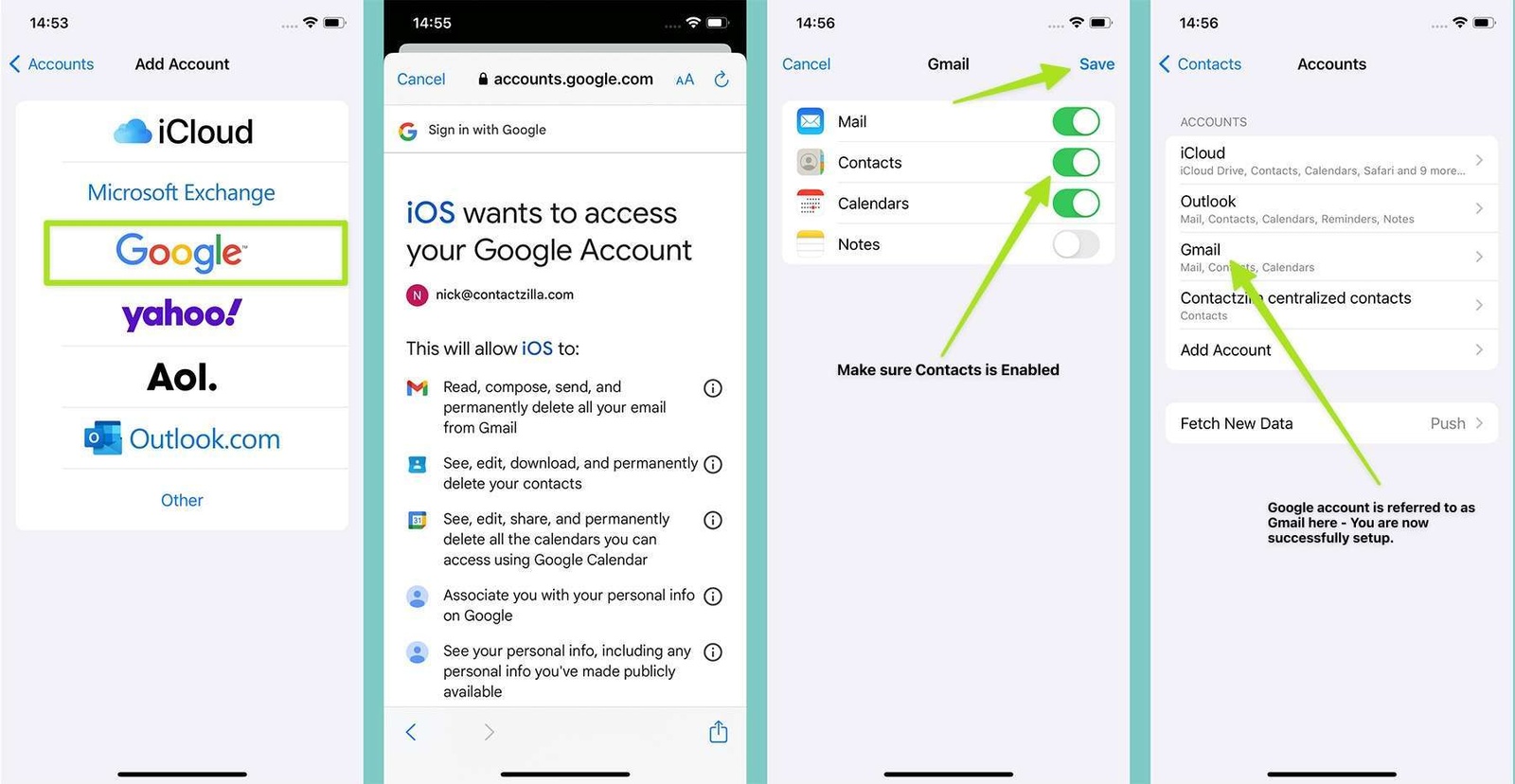
- 1) Open the Settings app on your iPhone or iPad. Tap on your name at the top of the screen to access your Apple ID settings.
2) Tap on ‘iCloud’ and then ‘Contacts’ to ensure that iCloud Contacts is enabled. You may have to hit ‘Show all’ under ‘ Apps using iCloud to reveal ‘Contacts’.
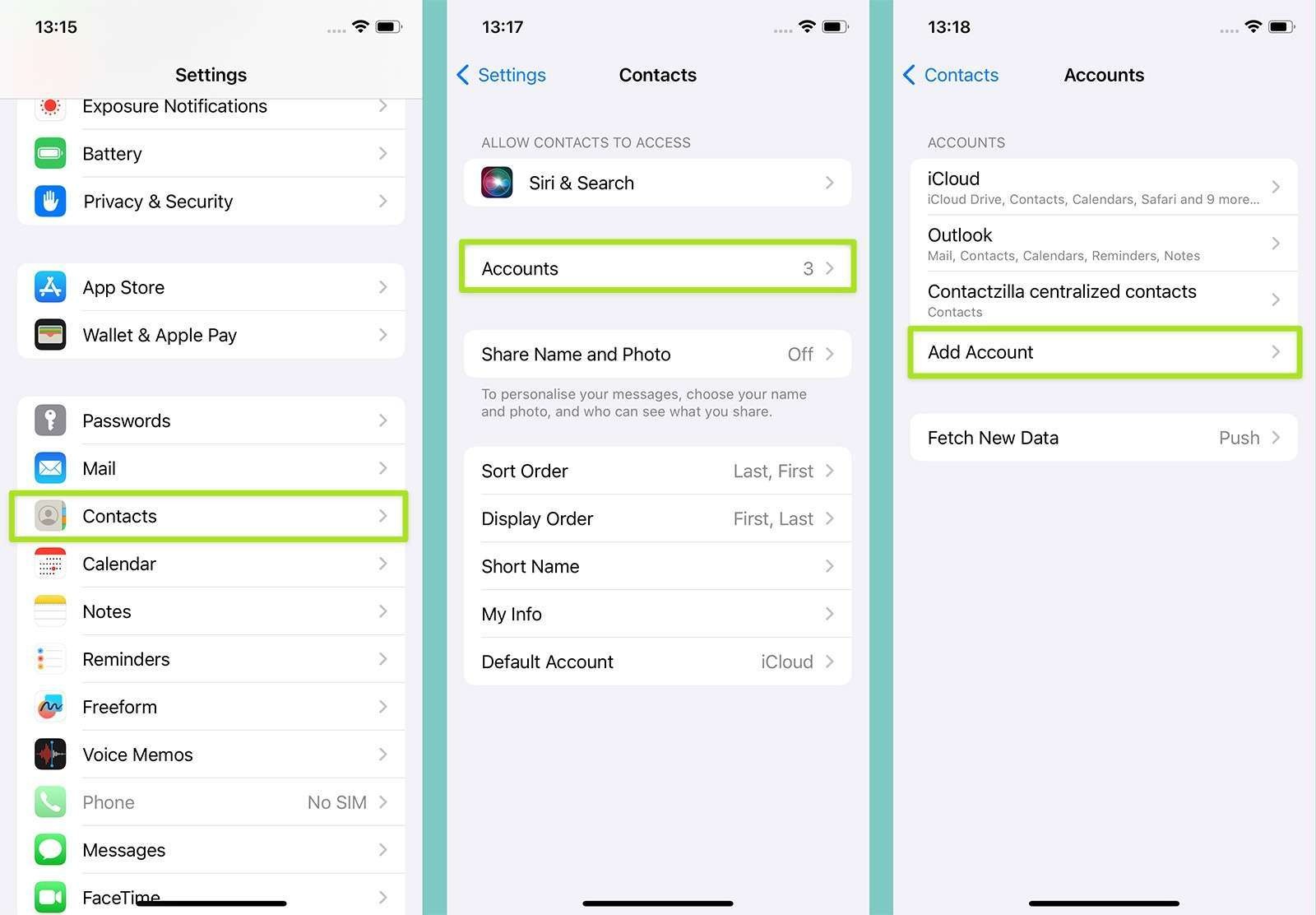
3) Go back to the main Settings screen and scroll down to ‘Contacts.’
4)Tap on ‘Accounts’ and then ‘Add Account.’
5) Select ‘Google’ from the list of account types.
6) Sign in to your Google account and grant permission for your iPhone or iPad to access your Google Contacts. You will need to allow iOS to access your Google account
7) You can see the newly added Google account. Ensure that ‘Contacts’ is enabled (it will be by default).
8) You can now see that your GMail account has been added to your list of accounts that are sync’d with iCloud. You now have a 2 way sync between iCloud contacts and Google contacts.
Tip: Discover hidden tricks and expert strategies for organizing your iPhone contacts by diving into our ultimate guide on organizing contacts on iPhone
If you want to sync iCloud contacts to Google Contacts continuously, then using your iPhone or iPad settings is the way to go. This method sets up a two-way sync between your iCloud and Google Contacts, meaning any changes you make to your contacts on either platform will be automatically reflected on the other. This is particularly handy if you plan to continue using both iCloud and Google Contacts moving forward.
To get started, you’ll need to be signed in to both your iCloud and Google accounts on either your iPhone or iPad. Here’s how to sync contacts.
1) Open the Settings app on your iPhone or iPad. Tap on your name at the top of the screen to access your Apple ID settings.
2) Tap on ‘iCloud’ and then ‘Contacts’ to ensure that iCloud Contacts is enabled. You may have to hit ‘Show all’ under ‘ Apps using iCloud to reveal ‘Contacts’.
3) Go back to the main Settings screen and scroll down to ‘Contacts.’
4)Tap on ‘Accounts’ and then ‘Add Account.’
5) Select ‘Google’ from the list of account types.
6) Sign in to your Google account and grant permission for your iPhone or iPad to access your Google Contacts. You will need to allow iOS to access your Google account
7) You can see the newly added Google account. Ensure that ‘Contacts’ is enabled (it will be by default).
8) You can now see that your GMail account has been added to your list of accounts that are sync’d with iCloud. You now have a 2 way sync between iCloud contacts and Google contacts.
Tip: Discover hidden tricks and expert strategies for organizing your iPhone contacts by diving into our ultimate guide on organizing contacts on iPhone
Conclusion
6) You will now see your Icloud contacts in Google Contacts. You can check them through and there is a handy ‘Find Duplicates’ button at the top of the screen.
If you only want to move once and tidy things up, use the iCloud.com export. If you plan to keep using Apple and Google together, set up ongoing sync on your iPhone or iPad so new contacts appear in both places.
Tip 💡 Once iCloud and Google are both on your iPhone, each new contact is saved to just one of them: whichever is set as the default account. To make new contacts save to Google, see how to change the default contact account on iPhone.
Will new iPhone contacts appear in Google after a one-time iCloud export?
No. The manual export from iCloud creates a snapshot of your contacts at that moment. Any contacts you add or edit on your iPhone after that will stay in iCloud unless you either repeat the export and import steps or enable contact sync with your Google account in iOS settings.
What happens to contacts stored only in my Google account when I set up sync on iPhone?
When you add your Google account on iOS and turn on contact sync, your Google entries are pulled into the Contacts app alongside your iCloud ones. They are not deleted from Google, and they will continue to sync back and forth while the account stays enabled.
Is there a contact limit I should worry about when moving everything into Google?
Both iCloud and Google Contacts support up to 25,000 stored contacts per account, so most people will not hit the limit during a migration between the two services.
Switching your contacts from iCloud to Google doesn’t have to be a hassle. With the right steps, you can easily keep your digital life organized and accessible.
Frequently Asked Questions
How do I transfer my Google Contacts to iCloud?
To transfer your Google Contacts to iCloud, first export them as a vCard file from Google Contacts. Then, log into iCloud.com and go to Contacts. Click the gear icon, select “Import vCard,” and choose the vCard file you exported. Your Google Contacts will now be in iCloud.
How do I merge contacts from iCloud to Gmail?
To merge contacts from iCloud to Gmail, use the Contacts app on your iPhone. Go to Settings, tap ‘Contacts,’ then ‘Accounts.’ Add your Google account and enable Contacts. This sets up a two-way sync, merging iCloud contacts with Gmail automatically.
How can I move contacts from iOS to Android?
To move contacts from iOS to Android, sync your iPhone contacts with your Google account. On your iPhone, go to Settings > Contacts > Accounts > Add Account, and select Google. Sign in and enable Contacts. Once synced, your contacts will appear on your Android device automatically.
How to Import Complete Apple Contact List into Google Voice?
Export contacts from iCloud as a CSV or vCard file. Go to contacts.google.com, select “Import”, and upload the file. Ensure you’re using the Google account linked to your Google Voice number. It’s recommended to perform this process on a computer for best results.
Best way to backup from iCloud to Google Photos?
To backup from iCloud to Google Photos, use Apple’s data transfer tool. Visit privacy.apple.com, choose “Request to transfer a copy of your data,” select Google Photos as the destination, and follow the prompts. This secure process directly transfers photos and videos between the two services.

